
Ledger Account
General Ledger> Configuration > GL Accounts
Create and edit accounts.
Account code must be unique
Basic Tab
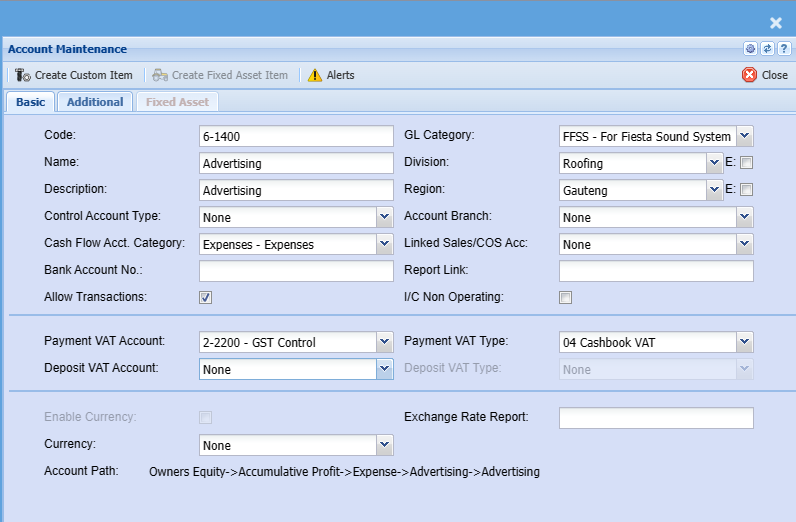
Buttons
| Create Custom Item | Click this button to create a custom item that will be linked to this ledger account when creating supplier invoices GRV. |
| Create Fixed Asset Item | Click this button to create a fixed asset item that will be linked to this ledger account when creating supplier invoices GRV. Only active when GL account is a fixed asset. |
| Alerts | Create an alert for the account |
Functions
| Code | Unique account code |
| Name | Name of account |
| Description | Other description of the account, usually the same as the Name |
| Control Account Type | Control accounts are used to define if the account has additional functions. Usually none - Accounts are defined below |
| Cash Flow Acct Category |
All accounts must have a cash flow account category defined. This is used in the cash flow report |
| Bank Account No | Required when setting up a bank account and the Control Account Type is defined as Bank |
| Allow Transactions |
Allow transactions to this account An Account that is a parent account will has this tick off |
| GL Category | Setup a General Ledger Category for reporting |
| Division | Setup a Division for reporting by cost center |
| Region | Setup a Region for reporting by cost center |
| Account Branch |
When running multiple branches, select the default branch this account is linked to.
Thus when creating multiple GL accounts per branch, then each account should typically be linked to a single branch. If these are not linked, then when a transaction e.g. Rent DBN is posted by a user from JHB, who is logged on with his/her JHB login id; then the transaction will not default to his/her primary branch as per the user setup, but rather to the GL Account Branch.
This field if linked to various branches will allow a user who’s primary branch is different to the specific GL account branch to post transactions to the GL account.
If the account is not linked to that users branch, then the User will not be able to allocate transactions to this account. |
| Linked Sales / COS Acc |
This is used for Sales and COS accounts only Used in a report to compare profits between two similar accounts for sales and cost of sales |
| Report Link | Field is used to link accounts to external accounts eg Draftworx |
| I/C Non Operating |
Assign General Ledger accounts for Income Statement (I/C) / Profit and loss report. This splits the report up into operating and non operating accounts Assign an account to be filtered to the non operating section of the report |
| Payment VAT / GST Account | Used to automatically select the VAT / GST account in Cashbooks |
| Payment VAT / GST Type | Used to automatically select the VAT / GST type in Cashbooks |
| Deposit VAT / GST Account |
Used to automatically select the VAT / GST account in Cashbooks Only used in certain conditions, otherwise leave as none |
| Deposit VAT / GST Type |
Used to automatically select the VAT / GST type in Cashbooks Only used in certain conditions, otherwise leave as none |
| Enable Currency |
Used on Bank accounts only Enable multi-currency if bank account is a foreign bank account where transactions are tracked in local and foreign currency |
| Currency |
Enter a currency if the bank account is foreign account |
| Exchange Rate Report |
Enter an exchange rate to fix all transactions on a particular rate |
| Account Path |
Shows the account path and levels the ledger account is positioned |
Additional Tab
Most of these fields are used in report, Power BI exports, BankIT categories
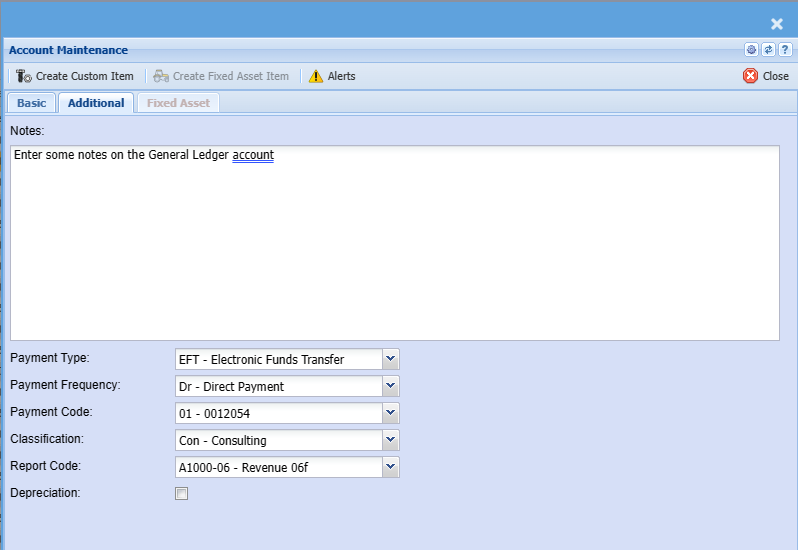
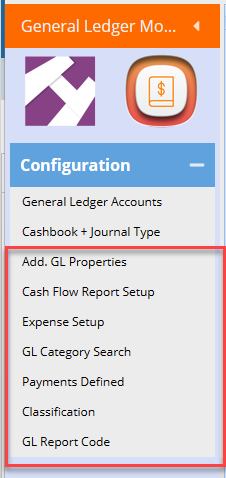
All these drop downs have their own tables to setup
Go to General Ledger Configuration menu group to setup fields
| Notes | Enter notes on the ledger account |
| Payment Types | Select a Payment Type |
| Payment Frequency | Select a Payment frequency |
| Payment Code | Select a Payment code |
| Classification | Select a classification |
| Report Code | Select a report code |
| Depreciation | Flag this ledger account as a depreciation account |
Setup your relevant fields
No Comments