
Creditors Setup
This is where the user creates a new Creditor or search for existing ones
Creditors > Configuration > Creditors Setup

| Search | to search for a creditor |
| Add | to create a new creditor. |
| Edit | to make changes onto an existing creditor. |
| Delete | to delete an existing creditor provided the creditor has no transactions linked to it. |
| Clone | to clone an existing creditor |
| Create Reminder | Allows a user to interact with the creditor via sms or email and only if the contact person has an email address for emailing and cell number for sms. |
| Creditor History |
Basic Search Tab
This contains basic filtering options to find a creditor
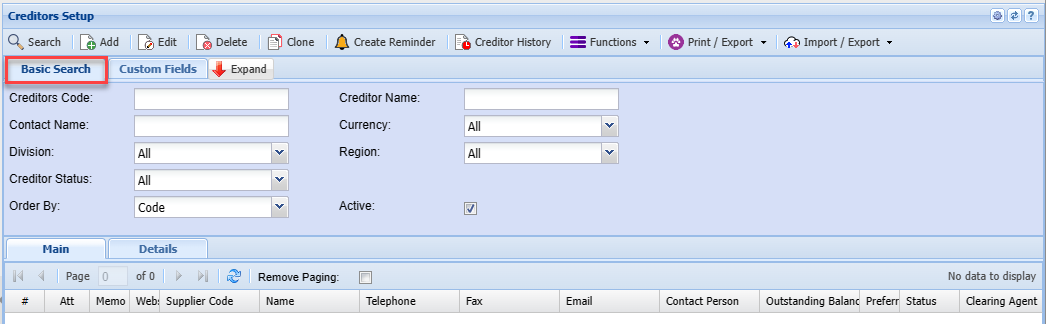
| Creditors Code | |
| Contact Name | |
| Division | |
| Creditor Status | |
| Order By | |
| Creditor Name | |
| Currency | |
| Region | |
| Active Tick |
Custom Fields Tab
Search by custom fields which have been setup for creditor filtering
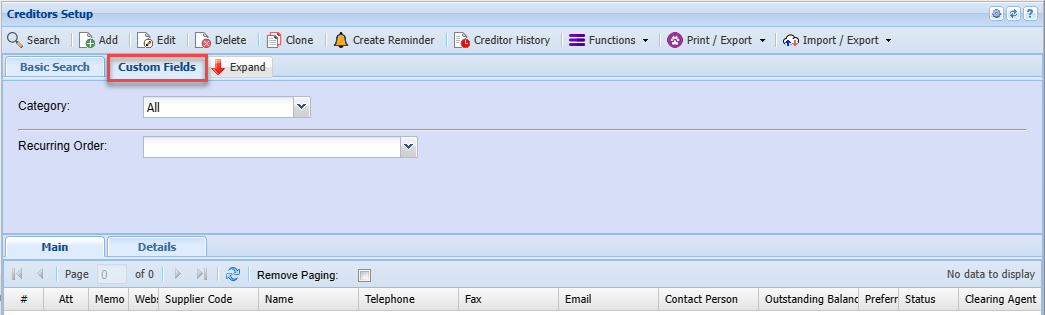
| Category | |
| Recurring Order |
Functions dropdown
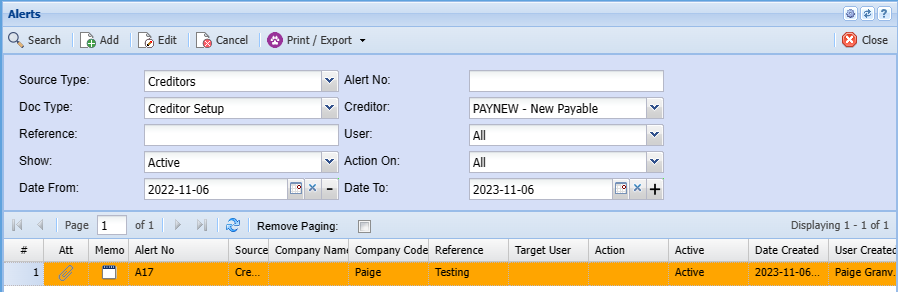
Alerts
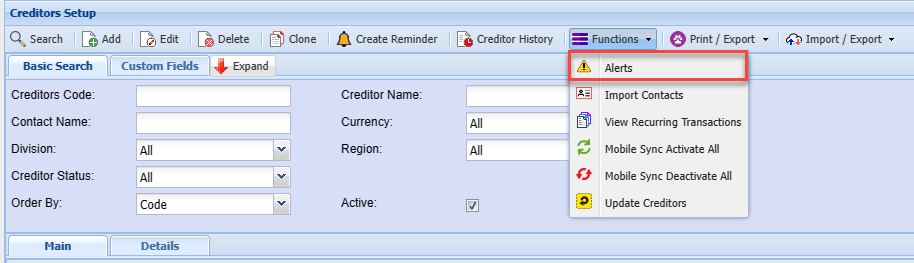
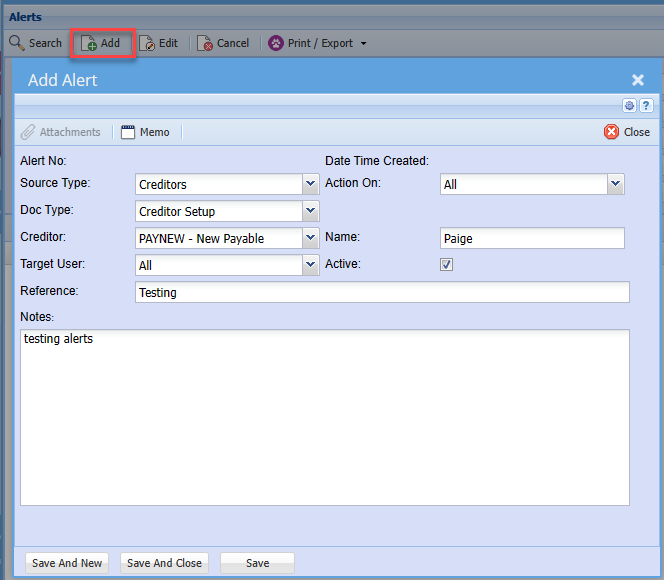
Clicking Add will allow you to add a new Alert
| Source Type | |
| Doc Type | |
| Creditor | |
| Target User | |
| Reference | |
| Action On | |
| Name | |
| Active | |
| Note |
Once you have filled in the information, you can press save or save and new to create a new one
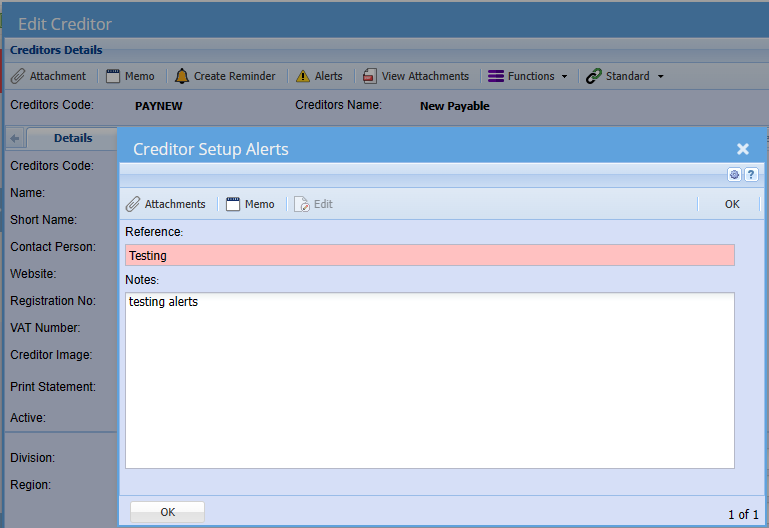
Your Alert will then pop up when you open your Creditor
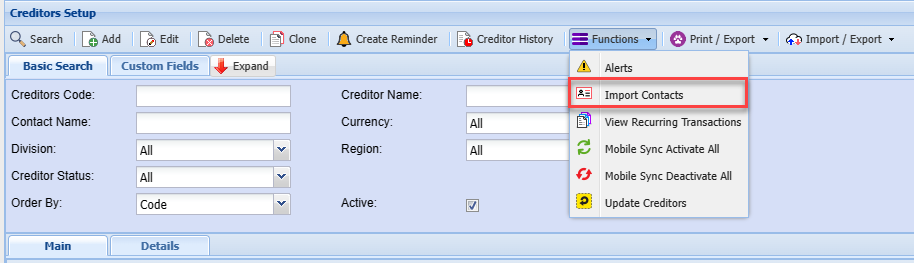
Import Contacts
The file containing the Creditor Contacts must be in a CSV format.
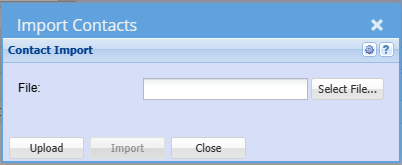
The column heading can be left in the CSV file the import program makes allowance for them. Please ensure that the spelling is as per the sample below.
Fields as follows;
.png)
To avoid the cell phone number from losing the leading zero type an apostrophe and then the cell number e.g. ‘0798102541 Excel then treats this as letters and not numbers.
View Recurring Transactions
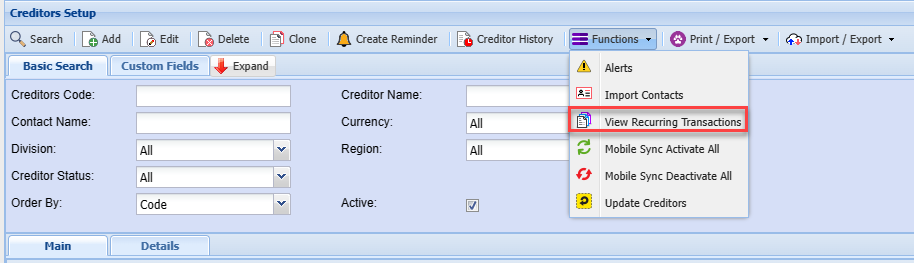

| Good Received Note | |
| Purchase Order |
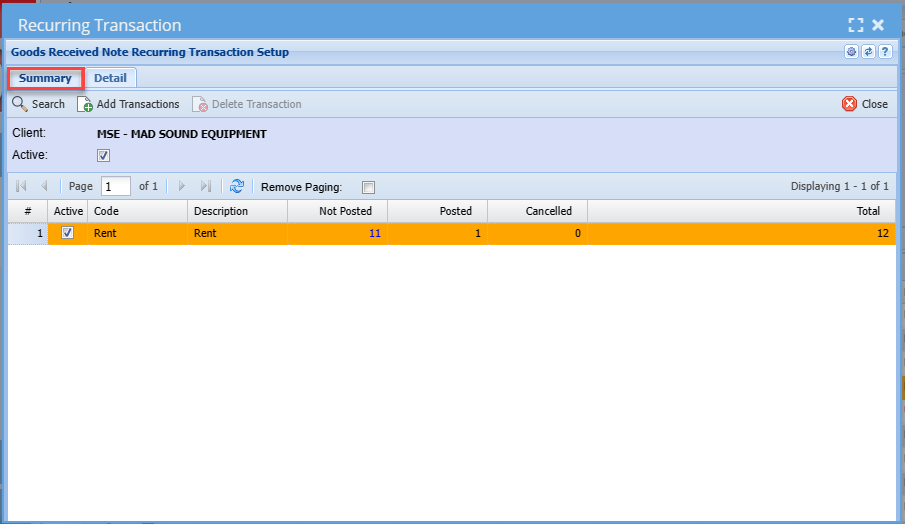
| Search | |
| Add Transactions | |
| Delete Transactions | |
| Active Tick |
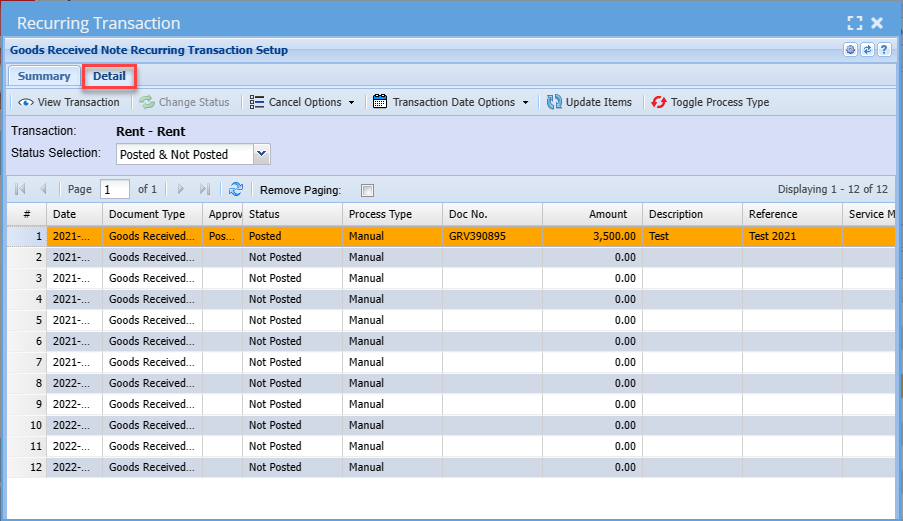
| View Transaction | |
| Change Status | |
| Update Items | |
| Toggle Process Type |
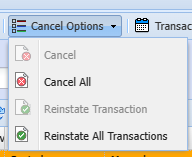
| Cancel | |
| Cancel All | |
| Reinstate Transactions | |
| Reinstate All Transactions |
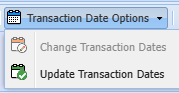
| Change Transaction Dates | |
| Update Transaction Dates |
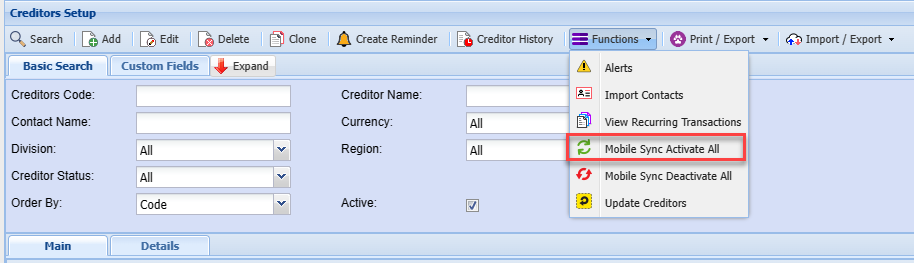
Mobile Sync Activate All
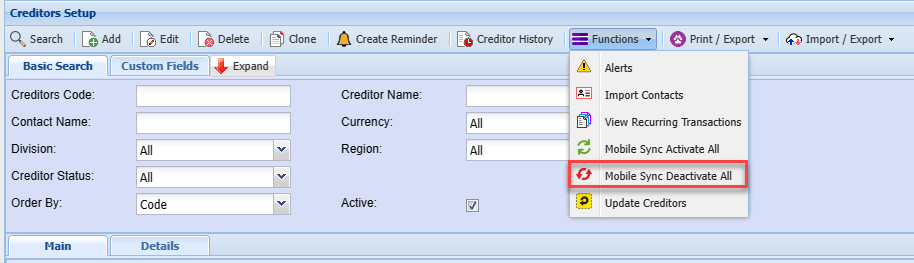
Mobile Sync Deactivate All
Update Creditors
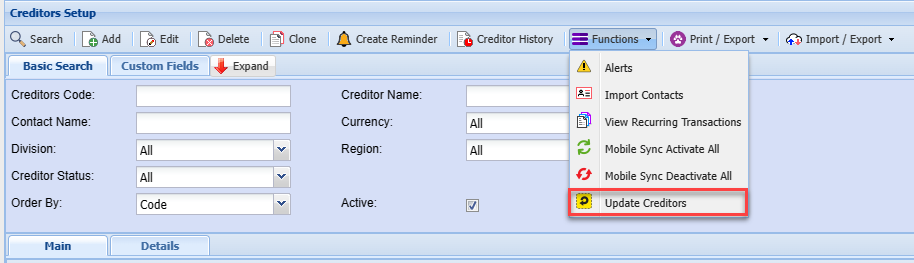
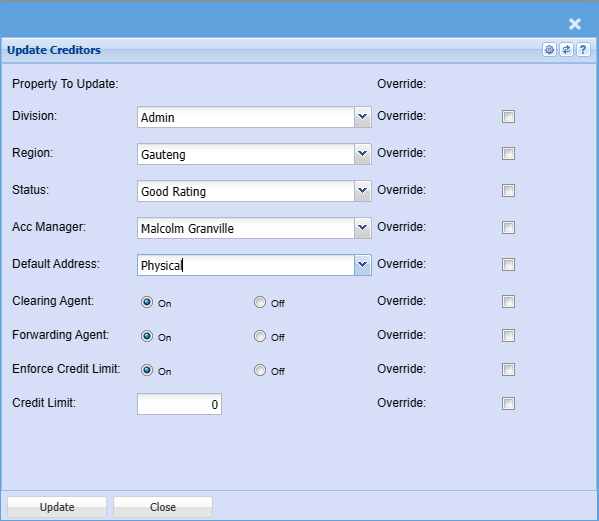
| Division | |
| Region | |
| Status | |
| Acc Manager | |
| Default Address | |
| Clearing Agent | |
| Forwarding Agent | |
| Enforce Credit Limit | |
| Credit Limit | |
| Override Ticks |
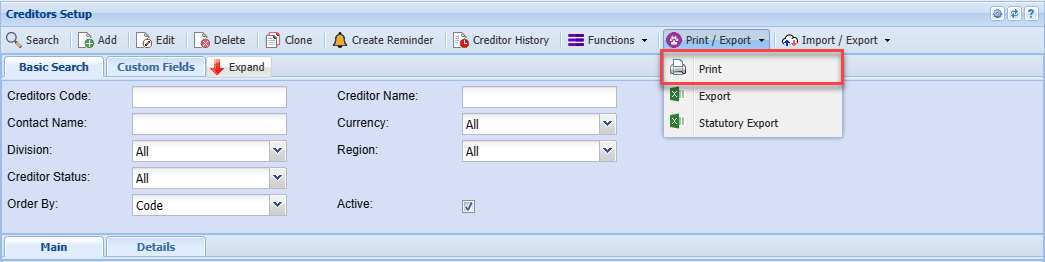
Print / Export dropdown
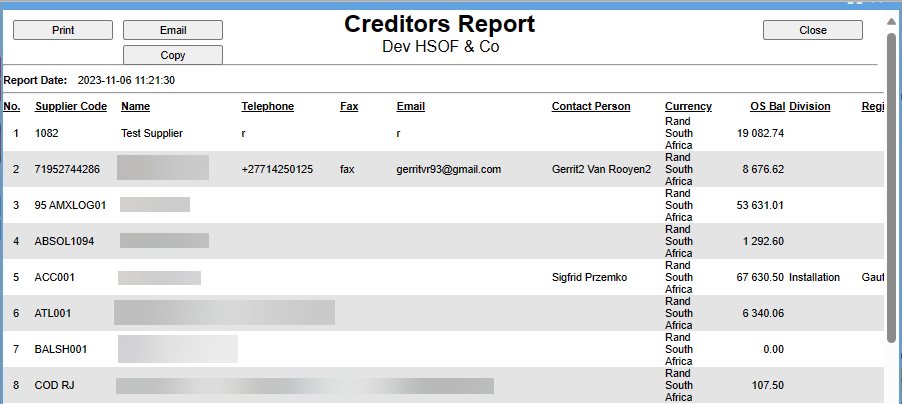
Export
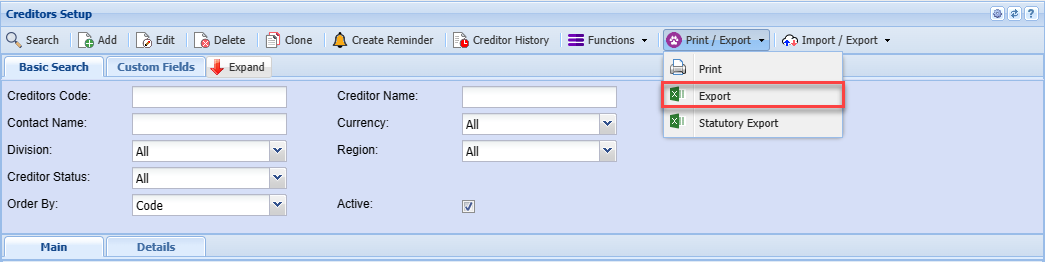
Statutory Export

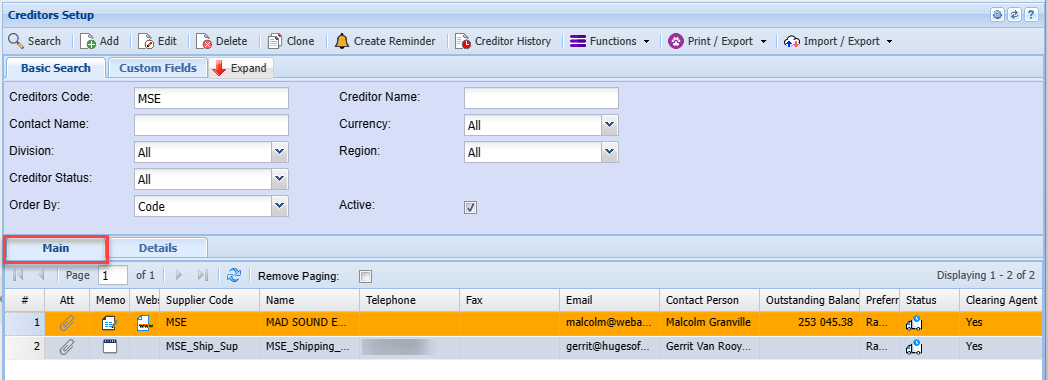
Main Tab
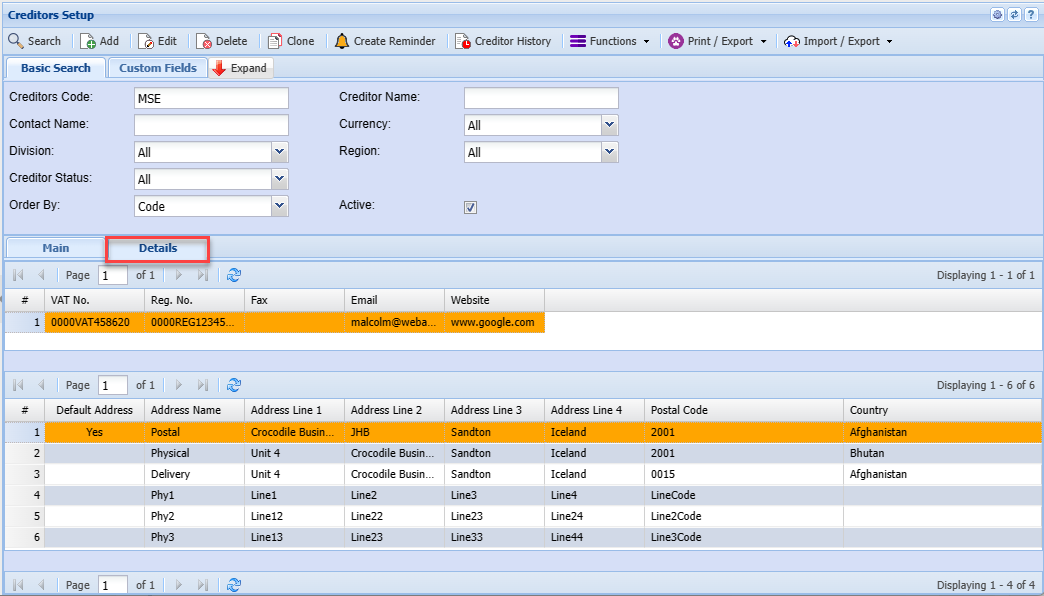
Details Tab
Allows you to see more details on the creditor you have selected
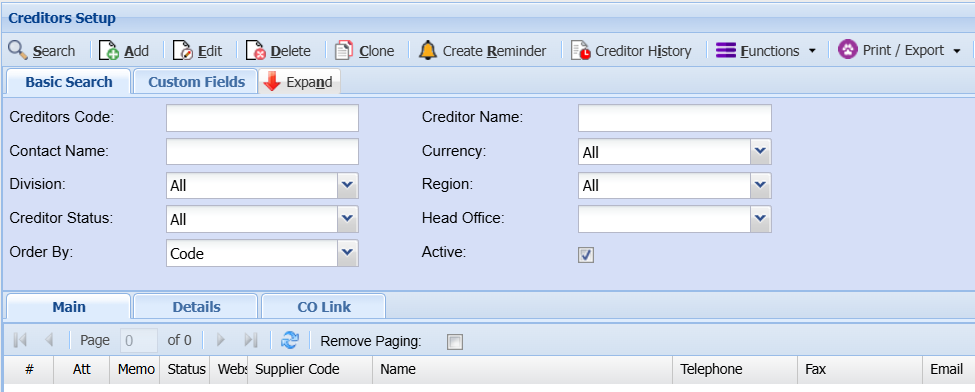
Keyboard quick keys
Quick keys help access functions using the keyboard
Used with Alt + Letter
| Search | Alt + s | Search for Debtors |
| Add | Alt + a | Add a new Debtor |
| Edit | Alt + e | Edits the Debtor that is highlighted |
| Delete | Alt + d | Deletes the Debtor that is highlighted |
| Clone | Alt + c | Clones the highlighted Debtor |
| Expand / Contract | Alt + n | Expands / Contracts the header section of the window |
| Create Reminder | Alt + r | Creates a reminder to highlighted Debtor |
| Debtor Enquiry | Alt + q | Opens up the Debtor enquiry screen for highlighted Debtor |
| Debtor History | Alt + i | Opens up the Debtor analysis screen for highlighted Debtor |
| Functions | Alt + f | Focus on the button |
| Tab Basic Search | Alt + 1 | Basic Search |
| Tab Custom Search | Alt + 2 | Custom Search |
| Tab Main | Alt + 3 | Main Search Grid |
| Alt + 4 | Pressing Alt + 4 repeatedly will step through all the tabs e.g. Detail, Statutory etc. |
No Comments