
Add Emailing List
Add Supplier Bulk E-mailing List
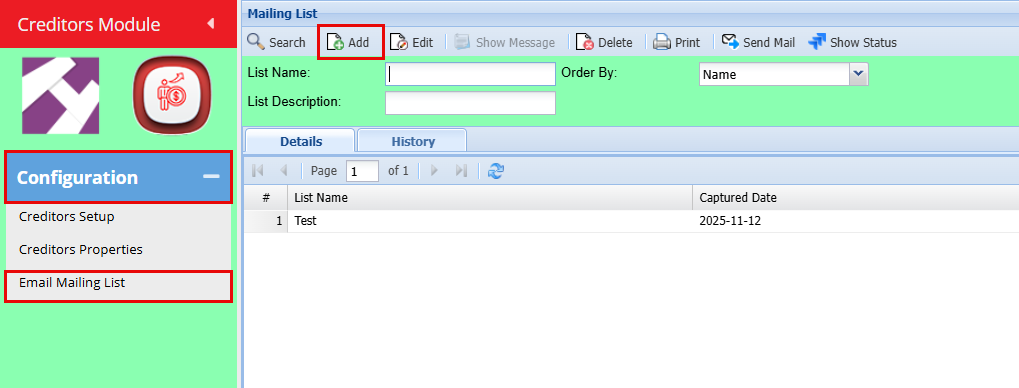
Creditors> Configuration> Email mailing List
- Click "Add"
- Add the Mailing List Name and a Description
- Click "Save"
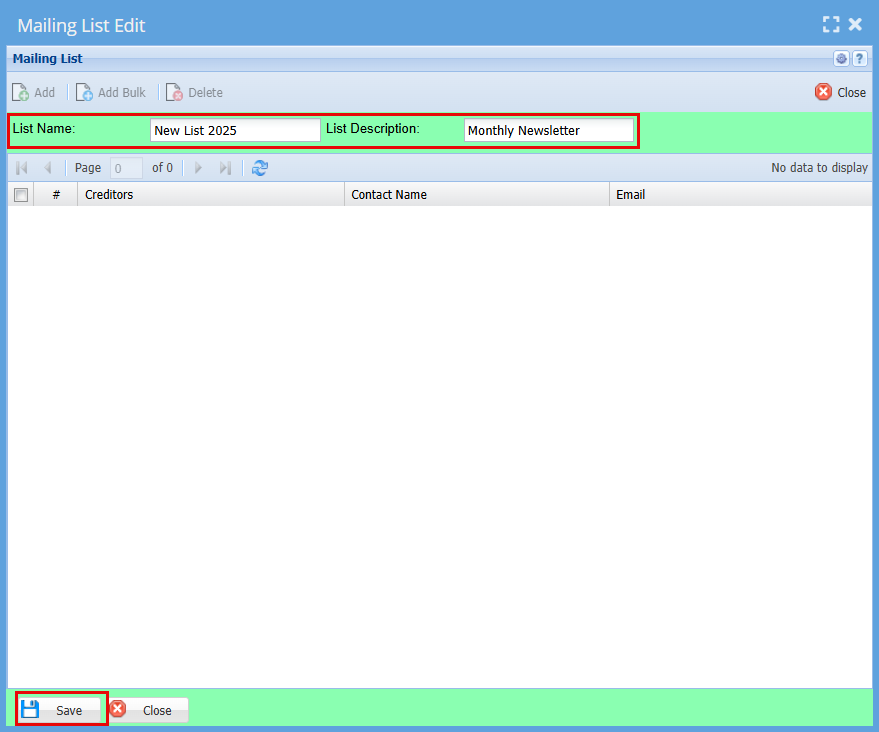
| List Name | Enter a name or code for your list |
| List Description | Enter a description for the list |
| Add | Add button opens up Creditors setup function that allows you to select from your supplier contact the email to add on the list. |
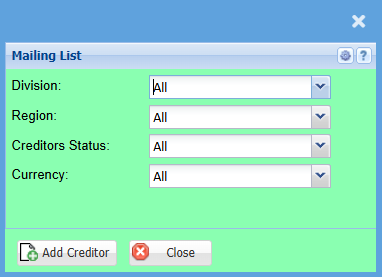
Once you click "Add" you will have the below screen open.
- Select your preferred Creditors you would like to email by using the drop-down menus, if you want to send it to all, leave the selection as "All"
- Click "Add Creditors"
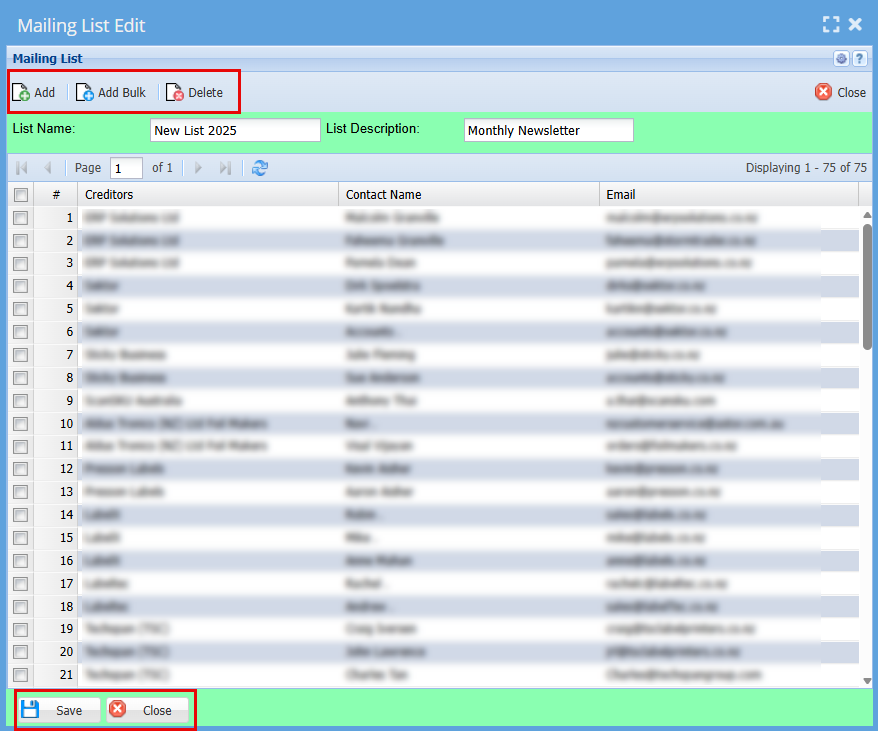
By clicking "Add Creditors" the system will create your mailing list.
Here you can "Add" more creditors and can "Delete" the ones you want to remove.
Click "Save"
Process Email
.png)
Process mailing list is the part that allows a user to prepare the message to be sent. It has five buttons
On the white screen, that’s where the message detail is going to be and can be formatted according to users' preference
| Subject | Message subject |
| List | The drop-down arrow allows a user to select the one list but while the tree search allows a multiple of email lists |
| Help | gives the header and a must Copy the bottom part to the header and the message will be read “Dear [ContactFirstName]” when processing |
| Attachment | allows a user to attach either a document or picture related to the message and has five buttons |
| Process | Processes the email |