Batch Number Scanning
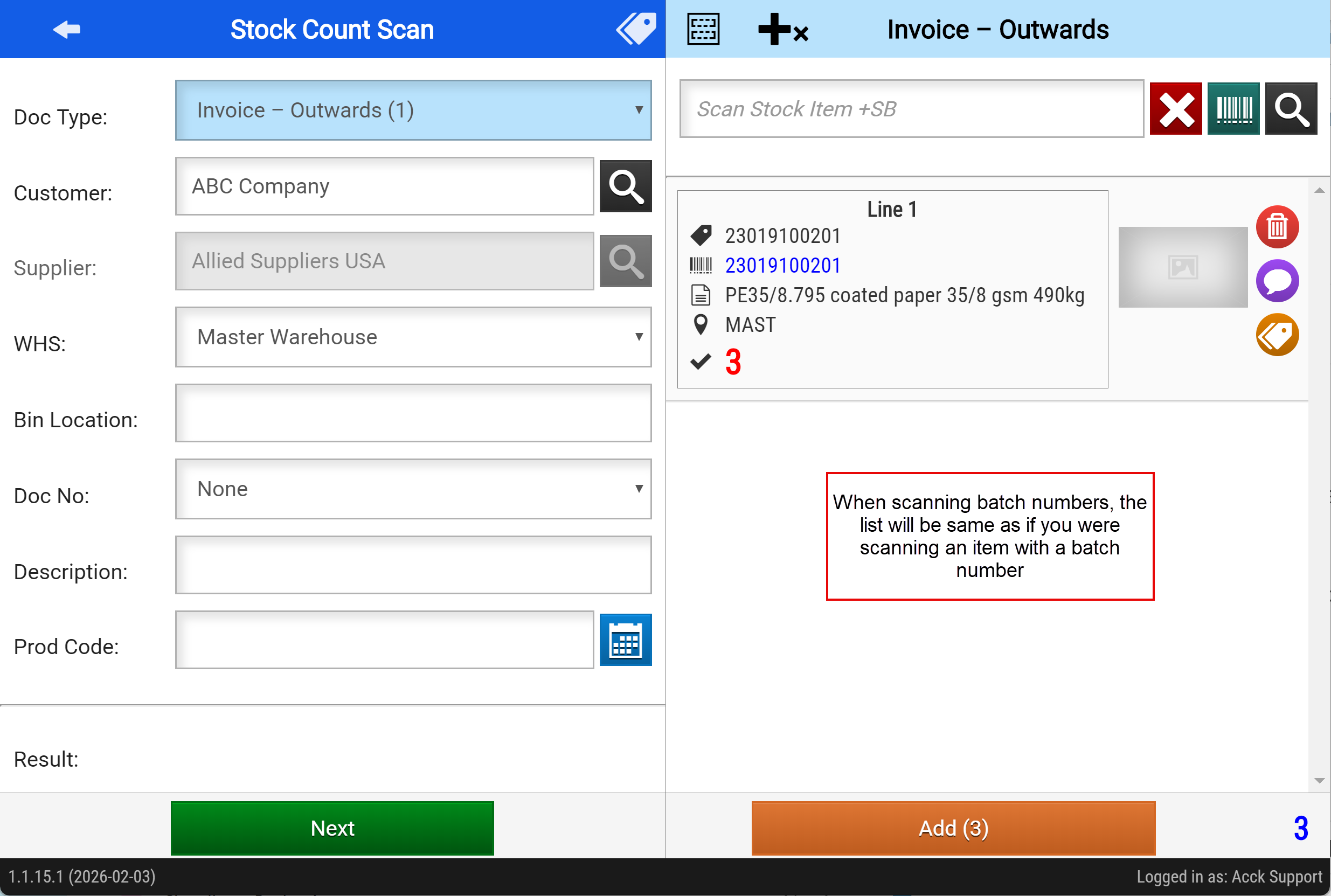
The Webatar app allows one to scan via Batch numbers
Only outwards batch number will check database to see if the batch number exists.
Inwards batch numbers do not check database, but will create new batch numbers.
Batch number scanning does not work with outwards which includes, Stock Receive, Stock Adjustment and Credit Note documents.
Only Serial numbers that are In Stock will sync to the device.
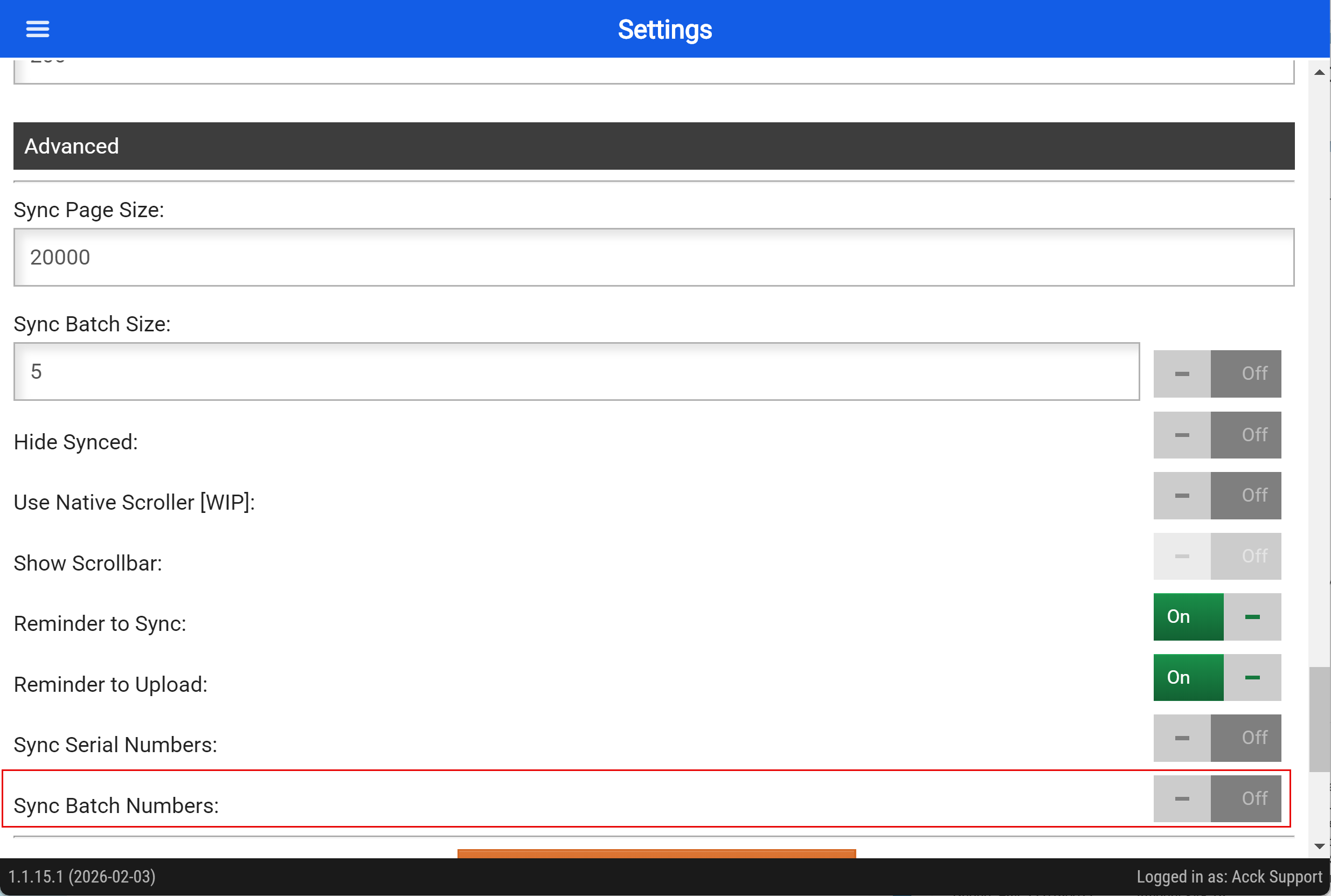
Batch numbers sync is off by default. To turn it on, click the toggle for "Sync Batch Numbers" in the Advanced section of the Settings/Offline Sync panel:
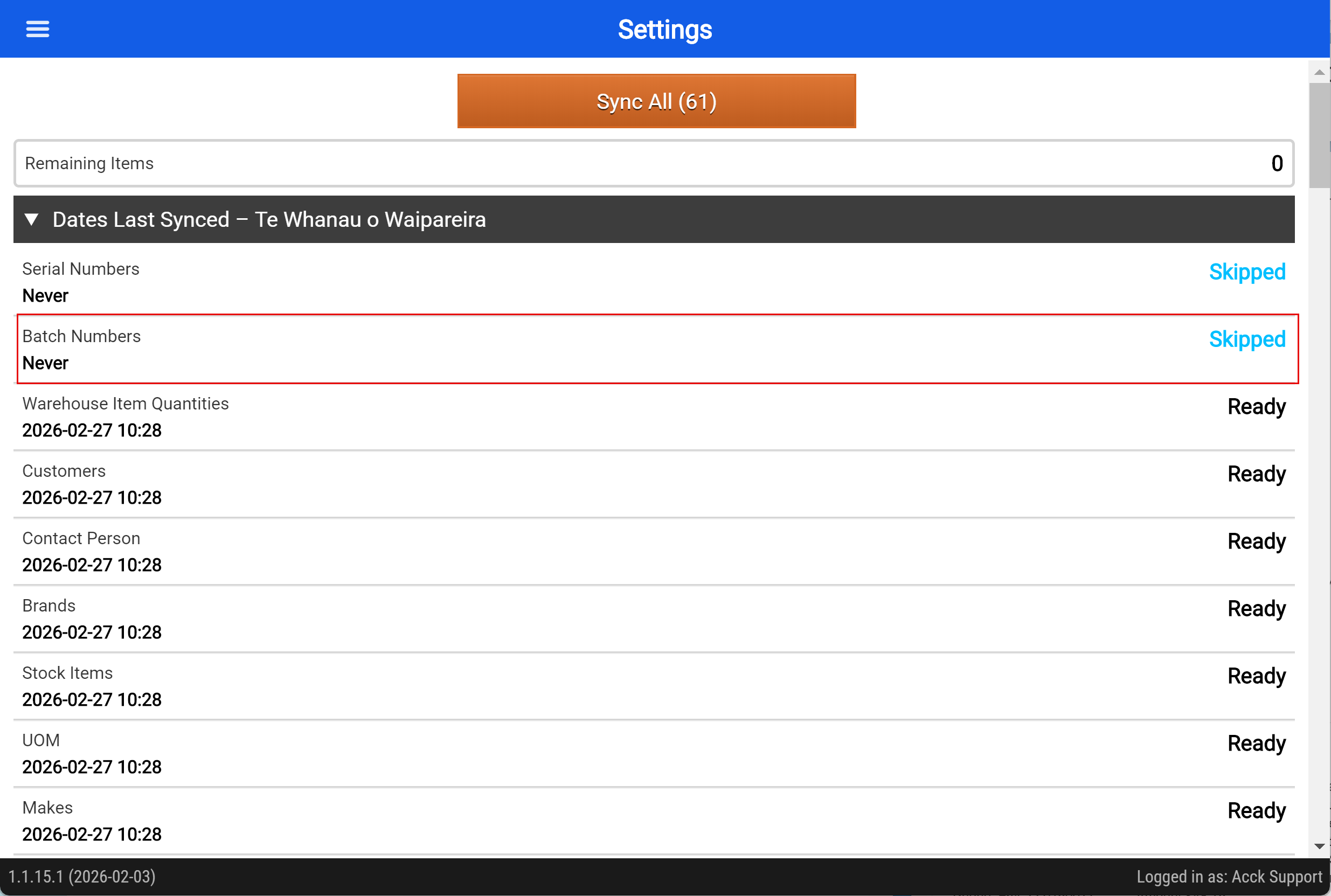
If Sync is Off for batch numbers, then the Skipped message will show on sync, otherwise it will sync:
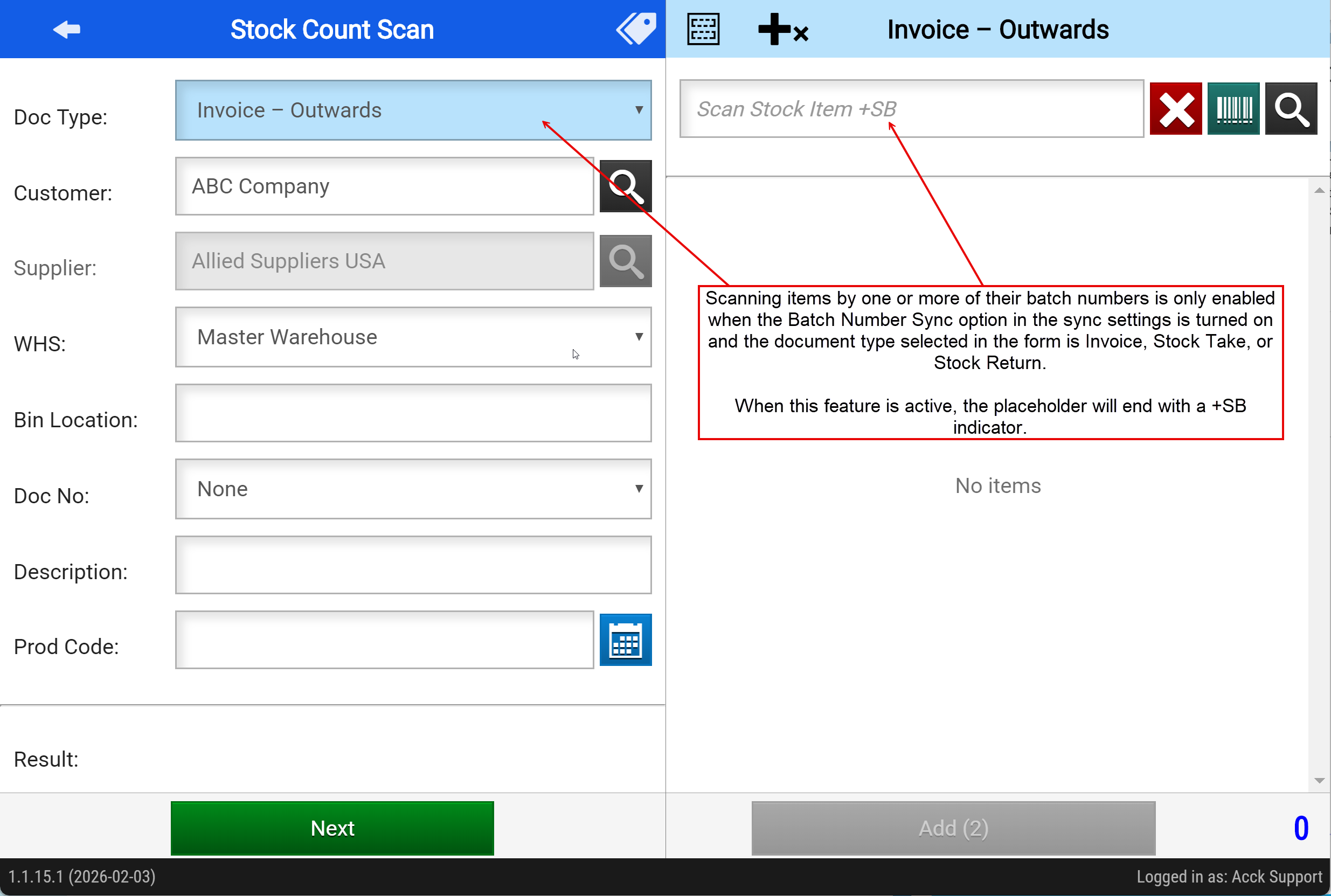
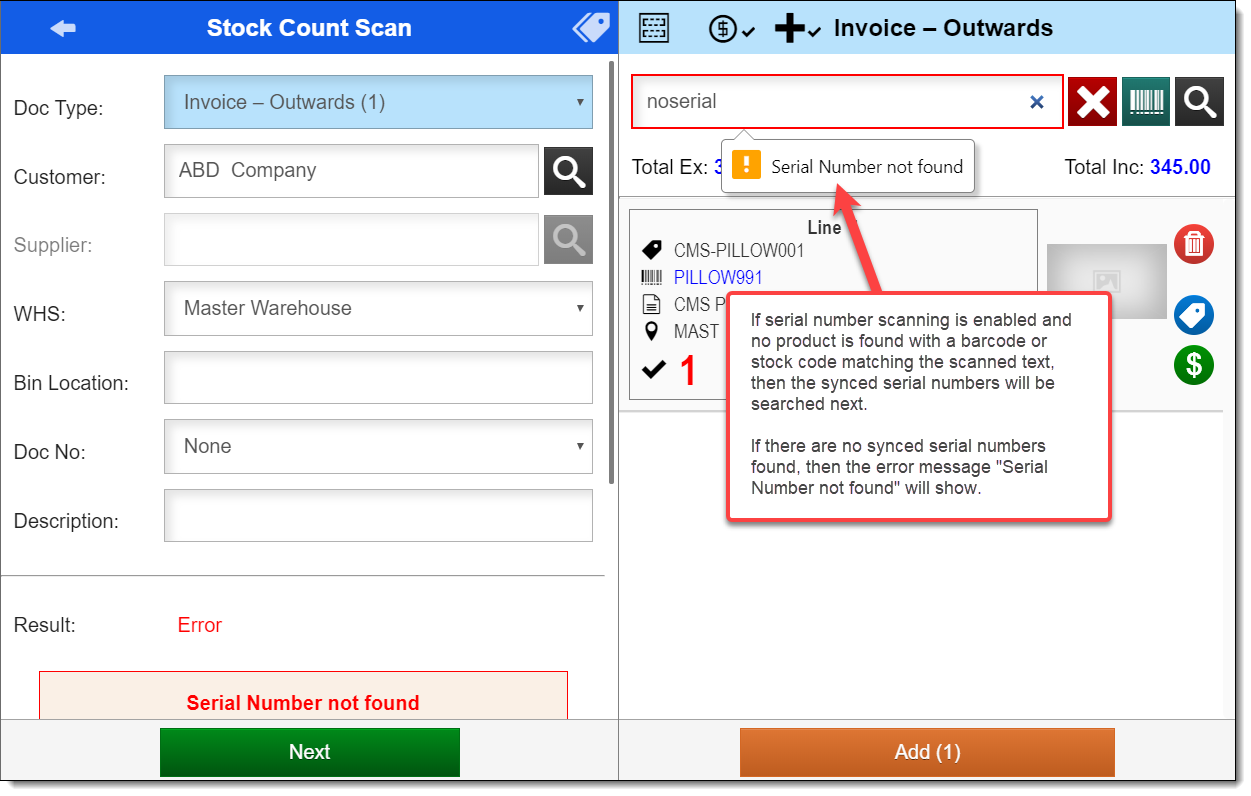
Batch number scanning is only enabled if the Batch Numbers are synced and not skipped. When active and scanning for an item, the synced Batch Numbers will be searched if the scanned text does not match the barcodes or stock codes of any synced Stock Items.
If a batch number matching the scanned text is found, then its stock item will be added to the stock count and the batch number will be added to the item, incrementing the count.
When batch number scanning is enabled the scan field placeholder text will have a plus sign added to the end of it.
If a batch number is scanned as a Stock Item and is not found in the app's database, then an error will show. One cannot scan OUT a batch number a stock item that does not exist or references a stock item that does not exist.
In the Stock Count scan module serial number scanning is performed for the following document types:
- Invoice - Outwards
- Stock Return - Outwards
- Stock Take.
For other document types Serial Numbers can still be added, but will need to be added by scanning the Stock Code or Barcode of the Serial Item itself.
Duplicate serial numbers
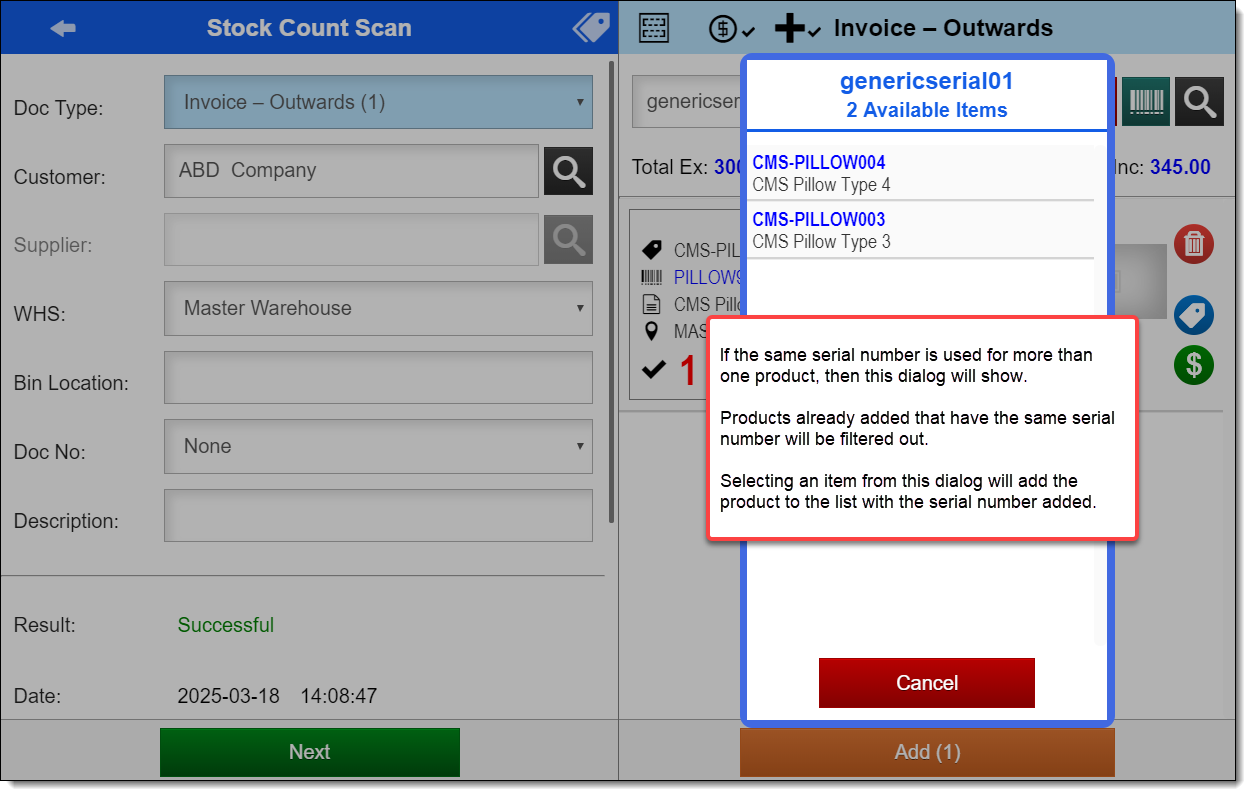
The app will display a prompt if it finds more than one product for the scanned serial number.
If the same serial number is used more than once for two distinct products, then before the item can be added to the list a dialog will show from which one is selected. Tapping outside of the box or tapping the Cancel button will cancel the action. Products which already have the same serial number added will be filtered out. If there are no available products, then instead of showing the dialog an error message will show indicating this.
Scanning Serial into the Serial Numbers List of the Product
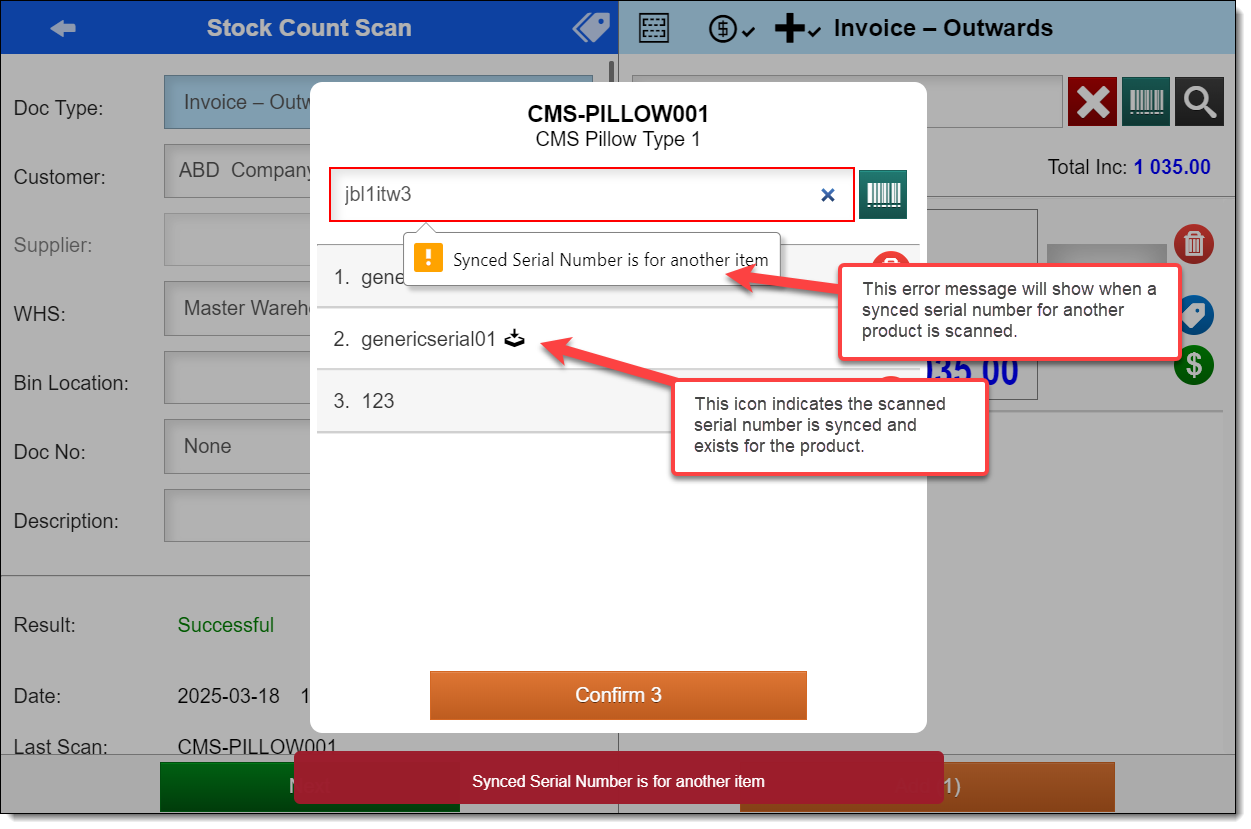
When scanning serial numbers directly to the item from the serial number list for the item, any serial number can be added provided they are not already in the list. When the serial number is synced for the product there will be an icon to indicate this.
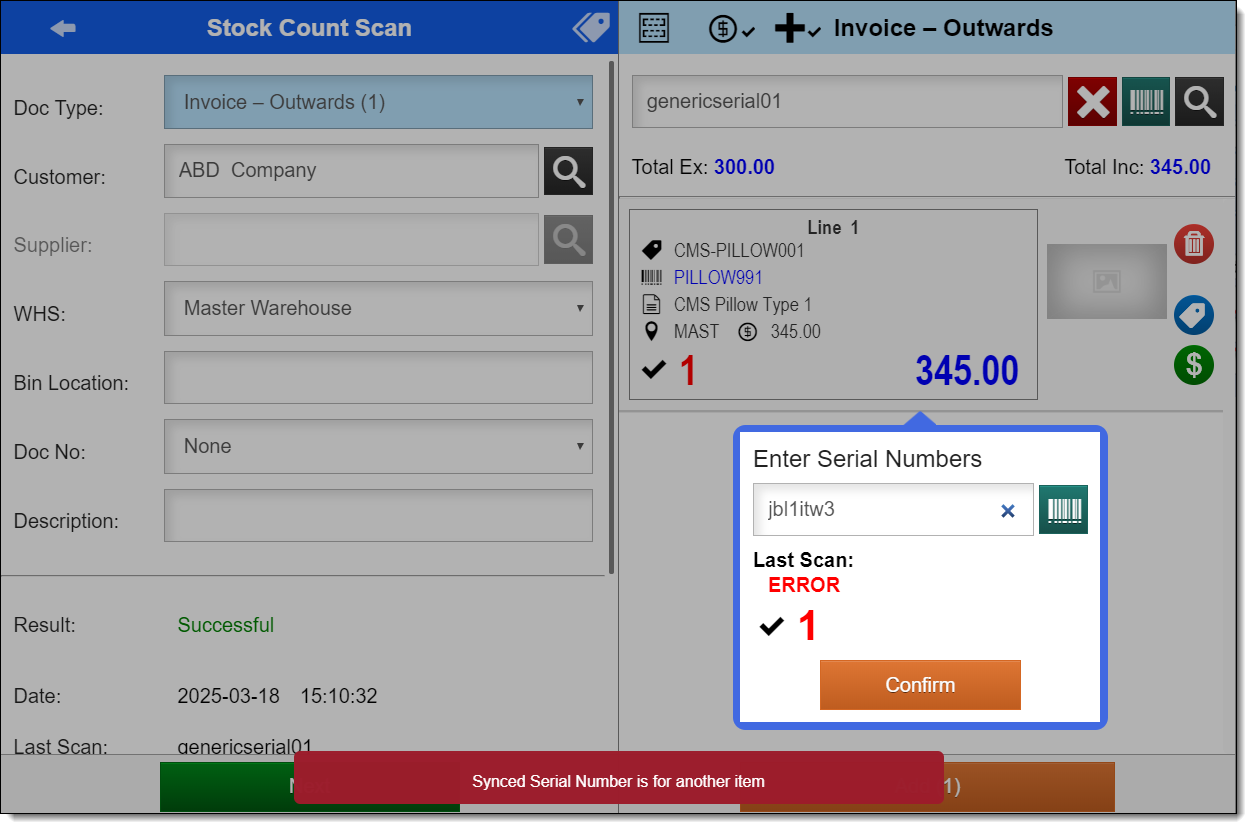
If a synced serial number is that exists for another product is scanned, then this is prevented and an error will show.
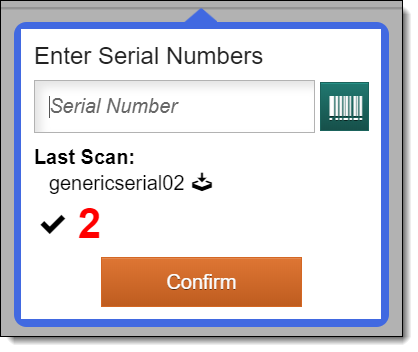
Enter Serial Numbers prompt behaviour
When scanning a serial item by its product's stock code or barcode then the Enter Serial Numbers prompt will show with or without serial number scanning enabled.
When scanning a synced serial number while serial number scanning is enabled then after the product for the serial number is added the prompt will show but only if the Count Prompt button is turned on.
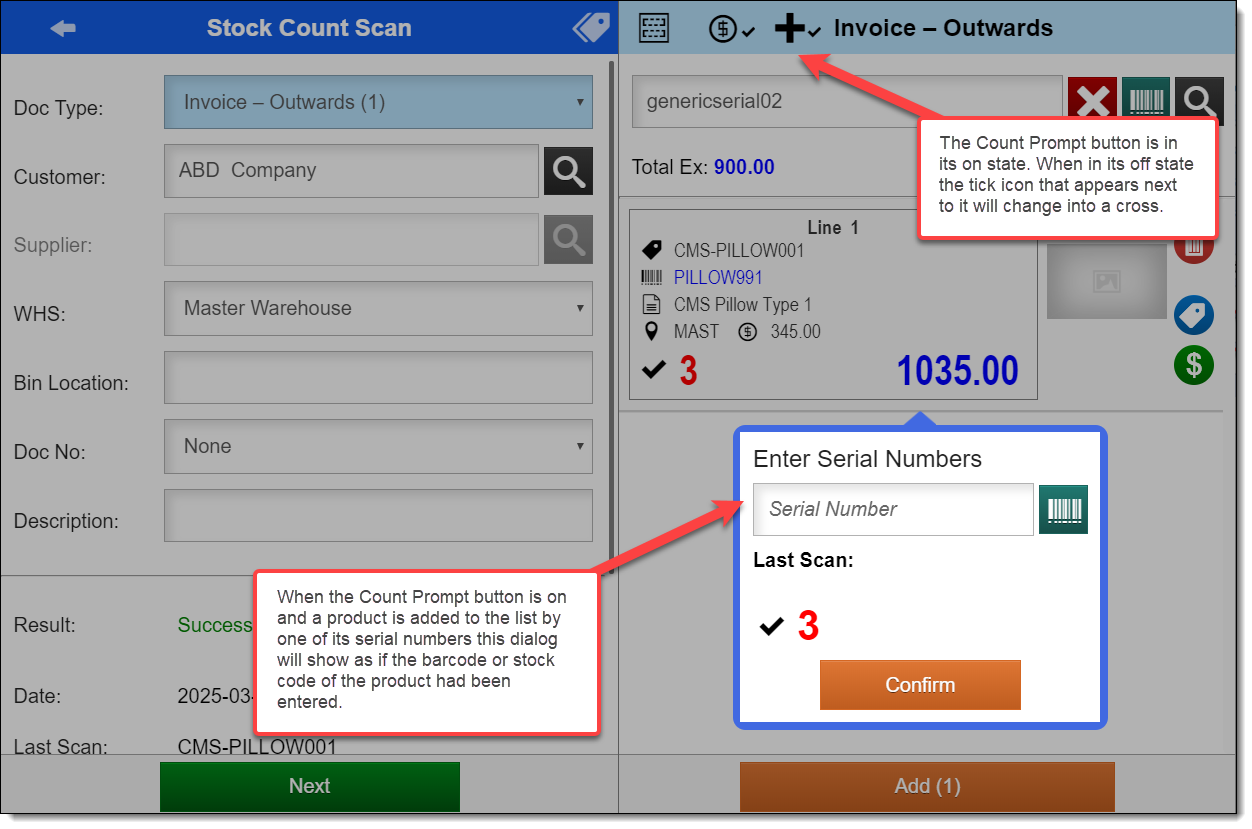
As with scanning serial numbers into the serial number list of a product, scanning a synced serial number from another product is prevented and an error message will show:
When a synced serial number for the product is scanned then an icon will appear next to the scanned text to indicate this: