Stock Management
Adding a Stock Item
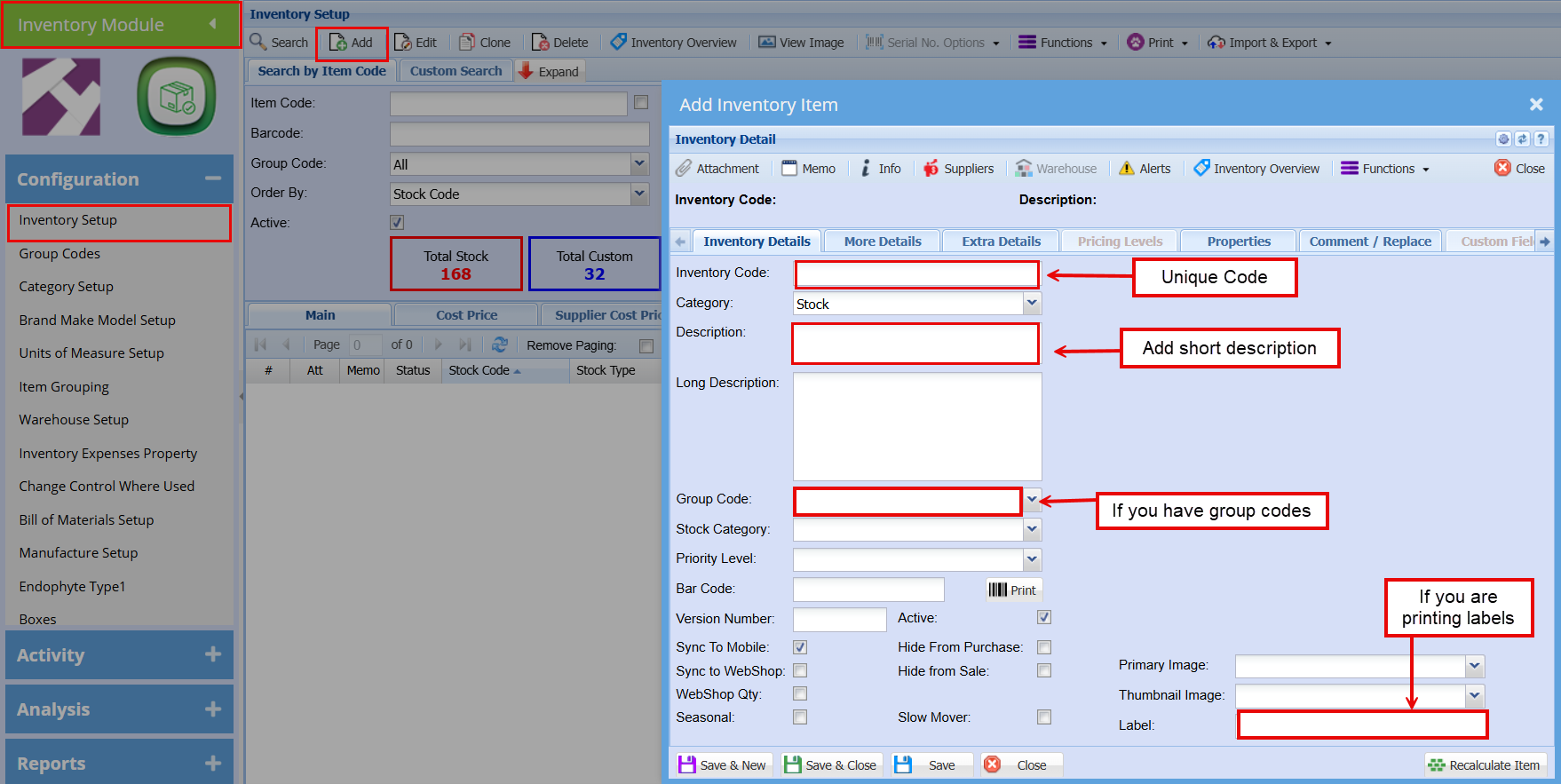
- Go to "Inventory module"
- Click on "Configuration"
- Click on "Inventory Setup"
- Complete the fields as shown in screenshot below
- Run through the tabs along the top to add additional information such as:
- Suppler
- UOM
- Item Dimensions
- Brand, Make and Model etc.
Making Changes to an Inventory Item
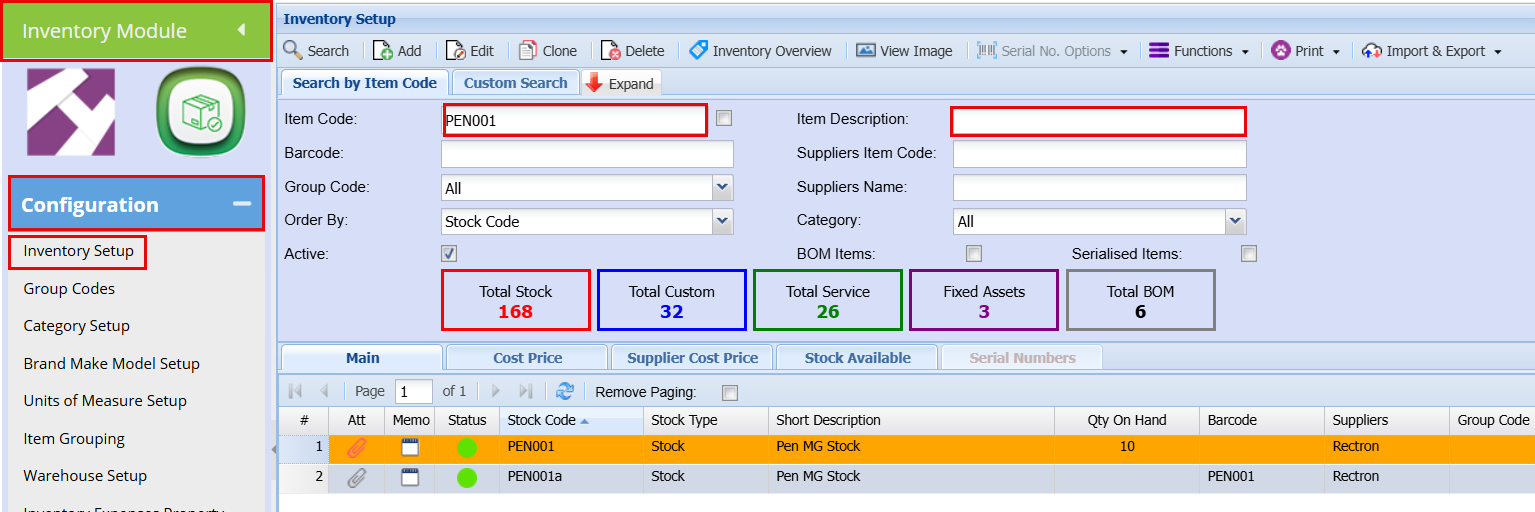
To make changes to an item you would go to:
- Inventory Module
- "Configuration"
- "Inventory Setup"
- Then search for the item either by Item code or description.
- Follow the Tabs to make the needed changes.
Processing a Stock Adjustment
To process a Stock Adjustment you will need to:
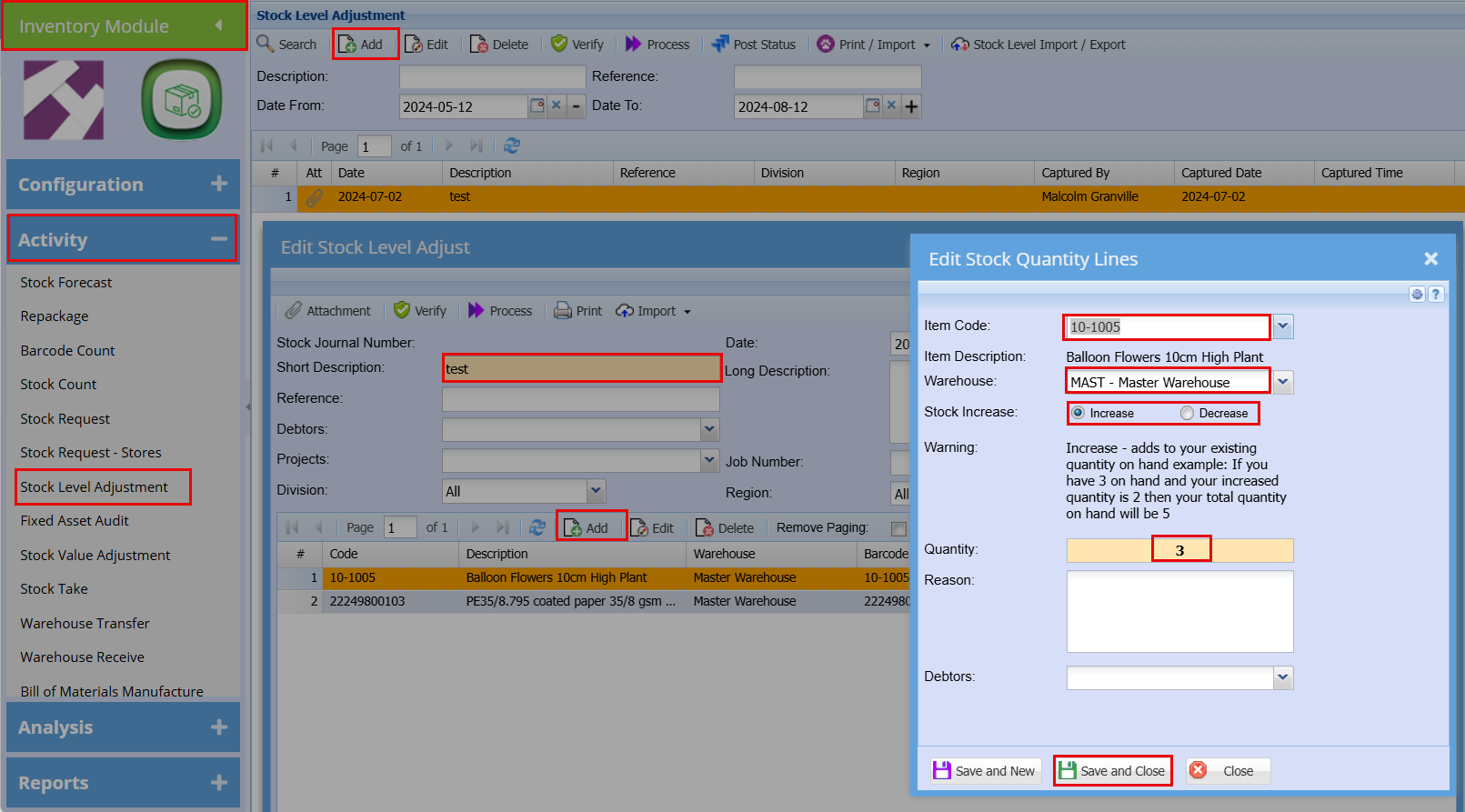
- Go to the "Inventory Module"
- "Activity"
- "Stock Level Adjustment"
- Click "Add" at the top
- Complete a short description as to why you are doing the adjustment (Damaged stock or lost stock or just Stock Adjustment)
- Click "Save" when you have completed all the field needed
- Then Click "Add" to select the item you are wanting to do a stock adjustment on
- Search for the item in the "Item Code"
- Choose the "Warehouse" it's in
- Select weather you are "Increasing" or "Decreasing" the quantity
- You can add a reason if you need to and you can link it if its specific to a customer.
- You can do multiple items or just one.
- Click "Save and Close"
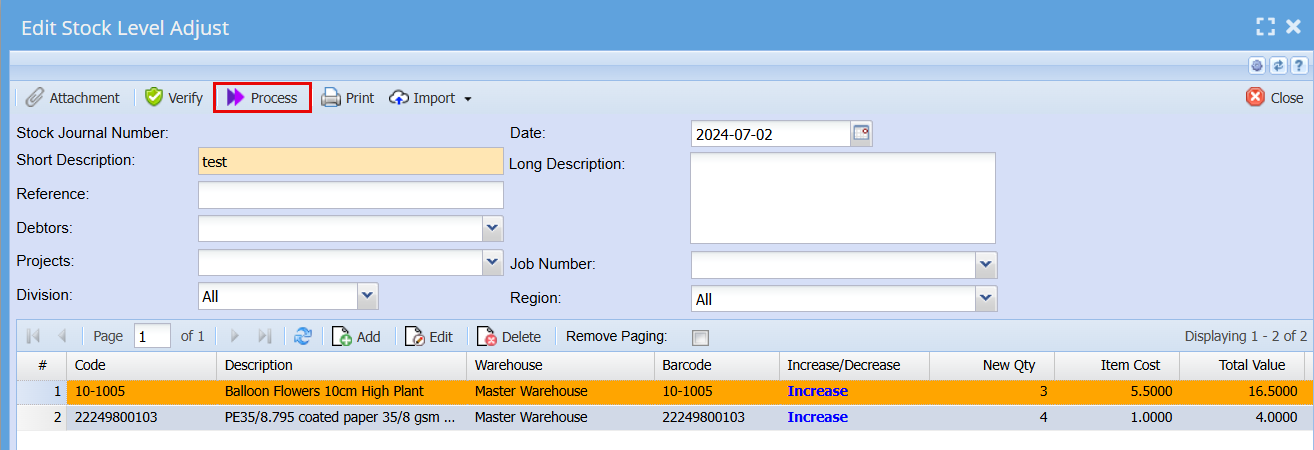
- Check that your captured Stock Adjustments are correct.
- Click the "Process" button once you are happy with your adjustments