
Log in
This document gives you a quick step by step guide on how to get going with a fully functional online company.
Getting Started
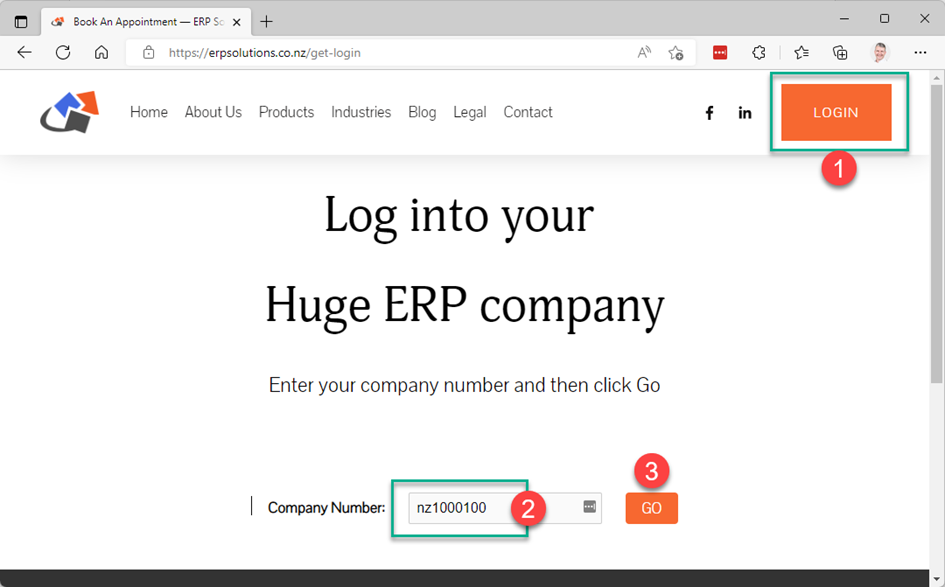
Go to hugesoftware.co.za or www.erpsolutions.co.nz .
Please enter your company number into the “Login” and then click on Login button.
This company number was provided to you in the welcome letter.
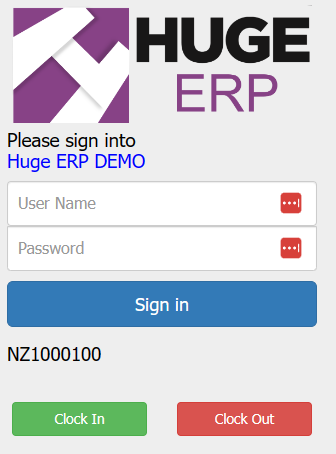
After clicking “Go” a pop up screen appears, please enter your User Name and Password and then click on Sign In button or enter button on keyboard.
Please Note - User Name and Passwords are case sensitive.
Basic Navigation
After gaining access to your company account you will be presented with the Huge ERP and Asset Management landing page.
Each button on the landing page takes you to a specific module, Customers, Suppliers, Inventory and General Ledger are the main modules and the ones accessed to perform daily accounting requirements or Asset Management.
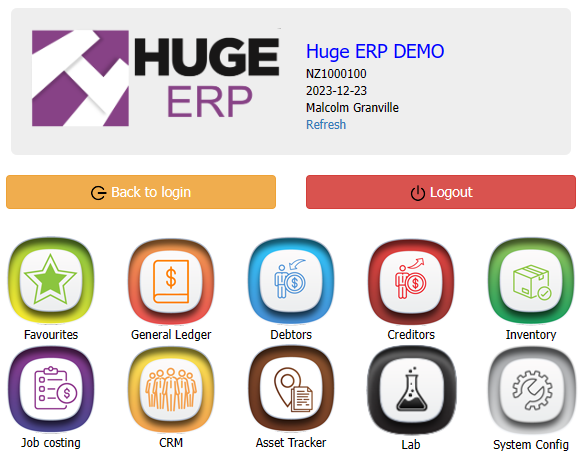
The System Configuration Module is where you set up various defaults (eg company information).
The Asset Management module is where you will track all of your assets.
The Job Costing Module is a highly specialized Job Tracking and Costing System which can be purchased as an Add on Module.
Speak to us if you’re interested in tracking Jobs and Serial Numbers.
All the Modules are configured in the same way. i.e. The first thing you see when you click on a Module is a blank centre viewing pane with a panel of drop-down group menus on the left.
Clicking on the Asset Management Module
| Menu Groups | Description |
| Configuration | Set something up |
| Activity | Do something eg make an Invoice Quote etc |
| Analysis | Analyse what you’ve done |
| Reports | Print Specific Reports, Menu located on the left of the main viewing pane |
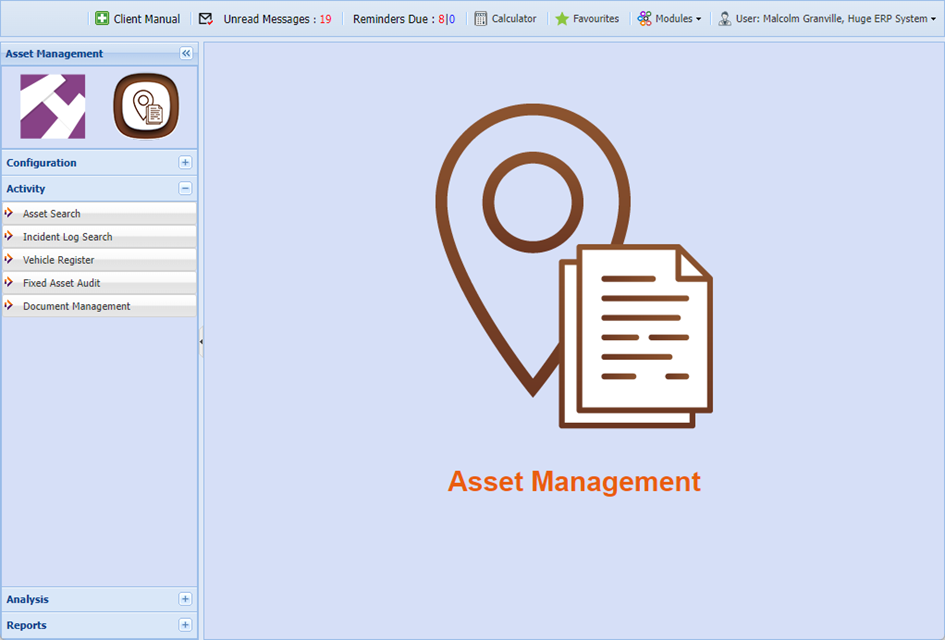
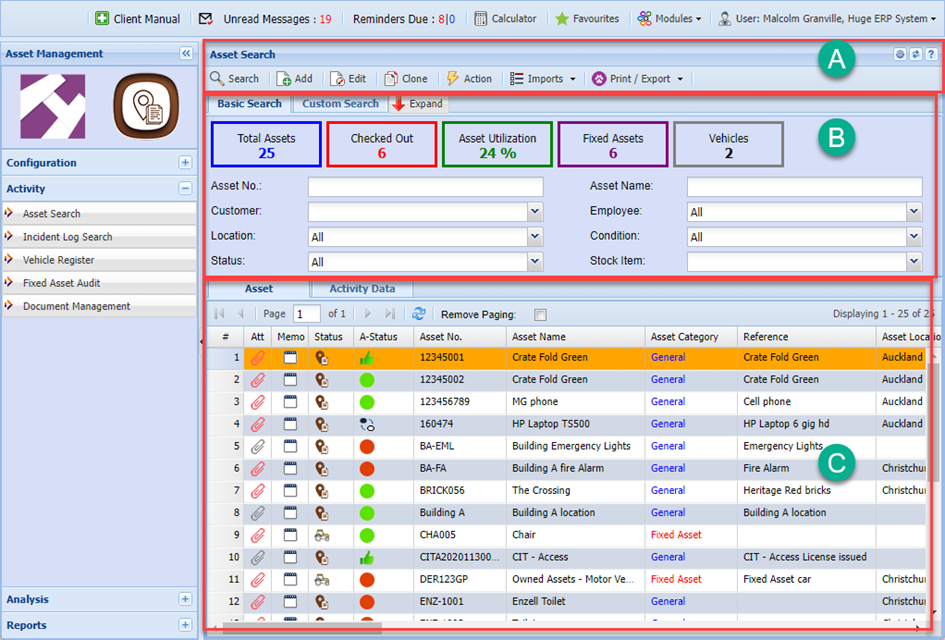
i.e The top of the viewing pane will contain the Search and Filtering section. The main body will contain the data contained in that database and the bottom section will contain the ability to Add, Edit, Delete, Print and other functionality.
In some of the windows you will notice that the Add, Edit and Delete buttons are mid way.
| Section A | Functions to Add, Edit or Delete in the various windows, including Print and other functions |
| Section B | Search filter functions – Once you have entered your criteria, click on the Search button |
| Section C | Result data back on the grid from the search criteria |
Invitation
Now that you some idea of how Huge ERP and Asset Management operates, we invite you to see how much of your internal company workflow you can control and monitor using Huge ERP System.
We have a range of help video’s available and manuals through our help button within the system.
After logging into the system and going into any one of the modules. Click on your user on the top right-hand corner of the window to view the drop down. Click on Online Help Manual
You are also welcome to give us support a call to discuss a specific aspect of your accountancy, inventory management, asset management and work management requirements.
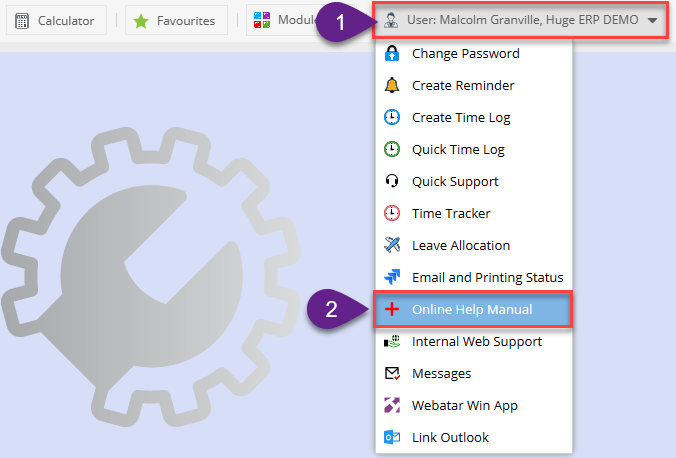
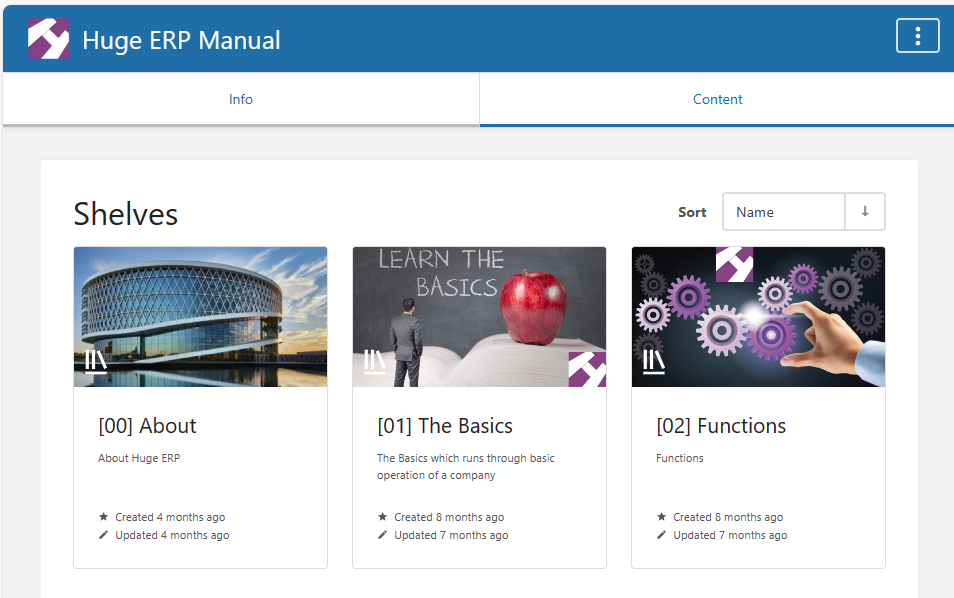
This will direct you to our online help menu.
It is a good idea to start off with the Getting started introduction training videos.
Old Video training manual 2016 - Click Here