
Lab Test Window
This is the window that holds all the information on the lab test
There are a couple of tabs
Tab Explanation
| Tab Name | Description |
| General | Displays the main information of the Lab test required |
| Address | Gives the information on the customer and cost center information |
| Tests | Displays all the required tests |
| Other | Information to be filled in on the test |
| Results | Displays all the tests that are have been published to the requester |
| Logs | Displays all the logs and actions that have occurred on the lab test |
| Charges |
Shows what is charged for on the Lab test This can be converted to an invoice |
General Tab
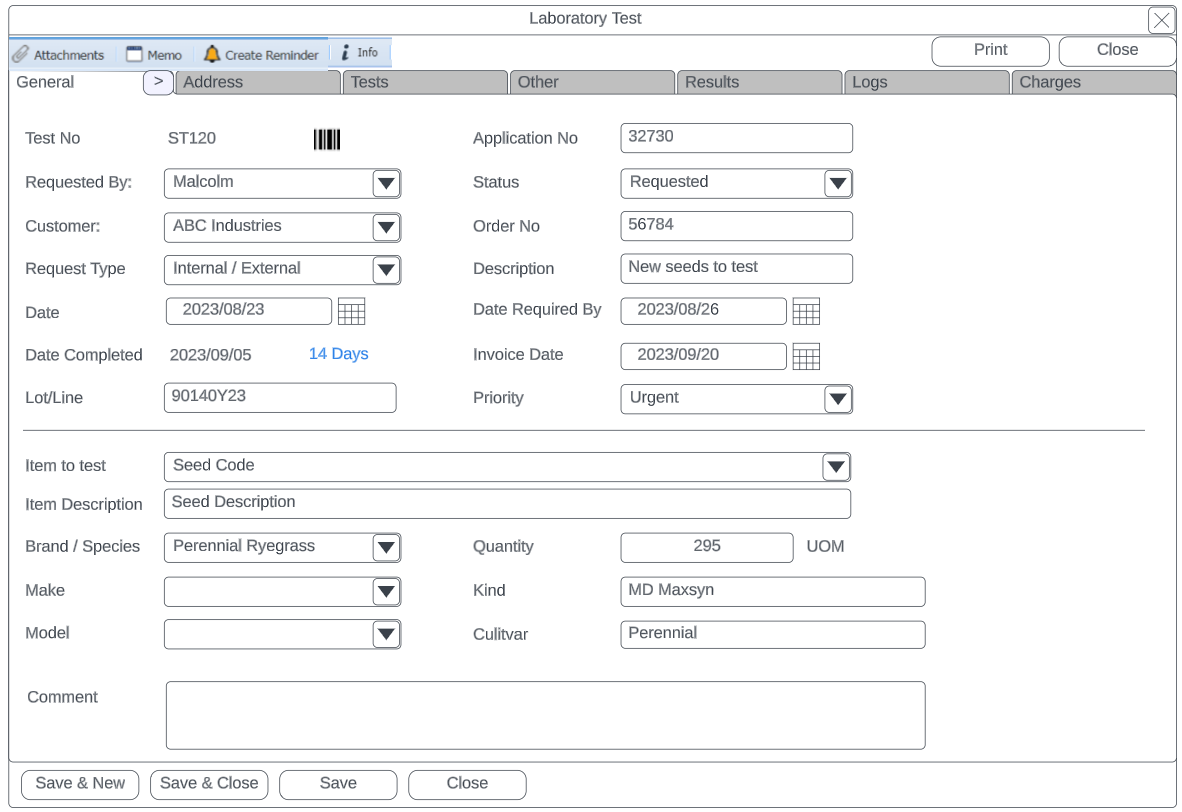
| General Tab | Details |
| Test No | Displays the Lab unique test number |
| Barcode button | Button of barcode to allow for barcode printing of Lab test number |
| Application number | The application number the user entered |
| Requested by | The name of the user who requested the lab test |
| Status |
The status of the lab test Requested (Gray), Received (Yellow), In progress (Green), Completed (Blue), Cancelled (Red), Closed (Red) |
| Customer | Customer requesting Lab test |
| Order Number | The Order number the user entered |
| Request Type |
Internal or External (default to Internal) |
| Description | Description of Lab test to be done |
| Date |
Date the request was created Date + time will be logged when Lab test was created |
| Date Required By | Date the test is required, will default to 14 dates from issue |
| Date Completed |
Date the Lab test was completed Date + time will be logged when Lab test was Completed |
| Lot/Line | Lot / Line information entered by the user |
| Priority |
Priority levels (defaulted to Normal) Low, Normal, Urgent, Very Urgent |
| Item to test | Item search on inventory list |
| Item Description | Description of item, can be changed |
| Brand | Brand of item selected |
| Make | Make of item selected |
| Model | Model of item selected |
| Quantity | The quantity to be tested |
| UOM | Unit of Measure of selected item |
| Kind | Enter the kind of item |
| Cultivar |
Enter the cultivar |
| Comment | Enter a comment which will show on the grid |
Address Tab
The address information of the customer entered
The cost centre information of the Lab test
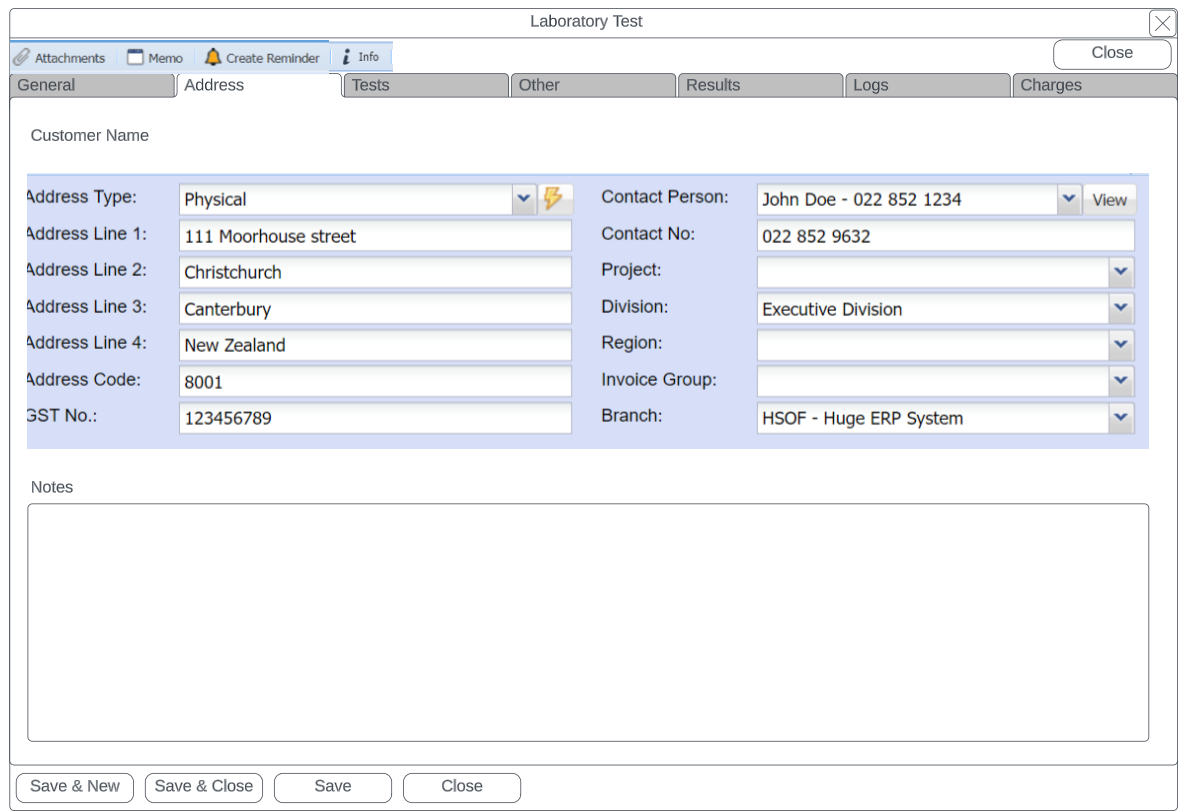
| Address Tab | Details |
| Address Type |
Select the address type (will populate from customer setup) Physical, Postal, Delivery Address |
| Address lines 1 to 4 and code |
Address details from customer Can change here |
| GST No | The GST number of the client for GST invoice |
| Contact Person |
The contact person from the customer setup The default contact person will be populated here |
| Project | Assign this Lab test to a Project |
| Division | Assign this Lab test to a Division |
| Region | Assign this Lab test to a Region |
| Invoice group | Assign this Lab test to an Invoice group for invoice |
| Branch |
Assign this Lab test to a Branch Defaulted to user who submitted the Lab test |
| Notes |
Notes on Lab Test |
Tests Tab
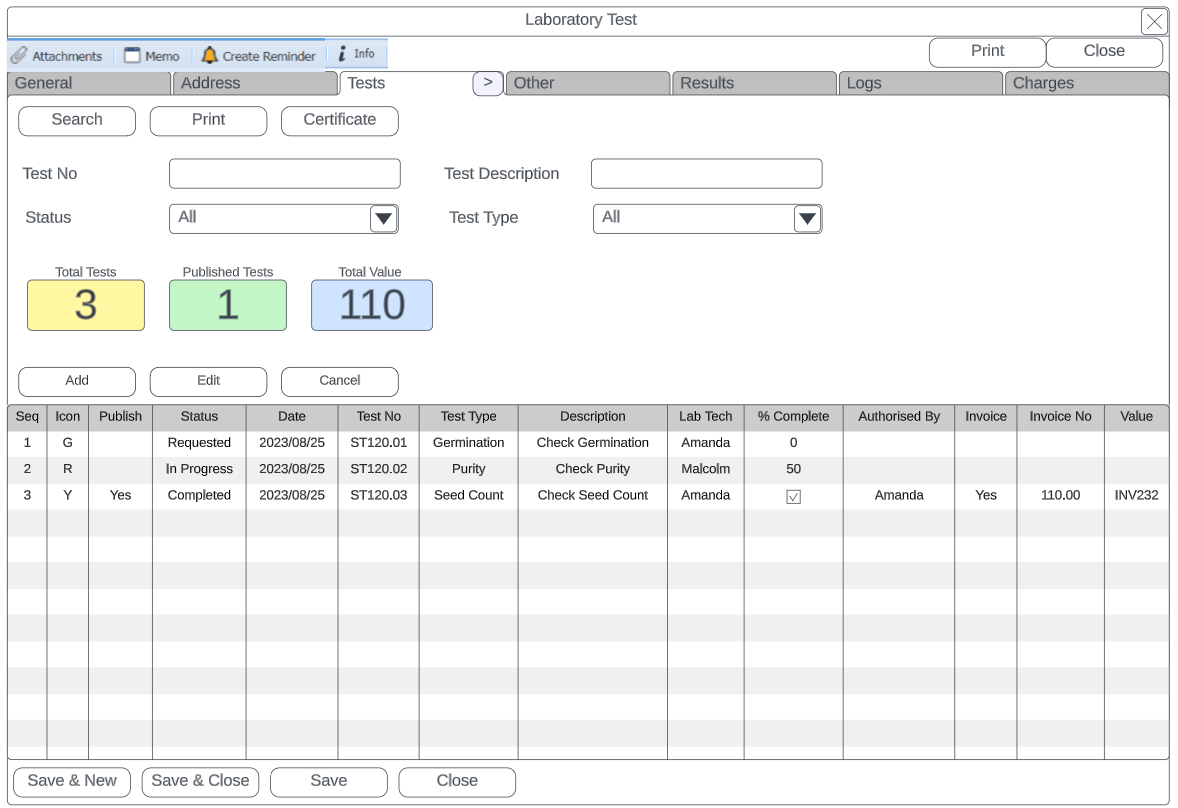
| Tests Tab | Details |
| Search Button | Searches the tests |
| Print out the test | |
| Certificate | Print the certificate if the test is complete and authorised |
| Test No | Search for Test number, sub tests are followed with .01 after the Lab test Number |
| Test Description | Search for Test Description |
| Status |
Filter status of tests Created (Gray), In progress (Green), Signed Off (Blue), Completed (Certificate Issued)(Blue), Cancelled (Red), Closed (Red) |
| Test Type | Type of Test filter |
| Total Tests | Count of number of tests in Lab test |
| Published Tests | Number of tests marked to be published |
| Total Value | Total value of invoiced tests |
| Grid | Details |
| Seq | Sequence Number of test |
| Icon status | Icon indicating status |
| Published | Yes / No (default is clear) |
| Status | Status of test in words |
| Date | Date created of test |
| Test No | Test Number allocated to Lab test |
| Test Type | Name of test |
| Test Description | Test description |
| Lab Tech | Lab Technician allocated to test |
| Lab Manager | Lab Manager assigned to test |
| % Complete | Percentage test indicator |
| Authorised By |
Authorised by Name Date and time logged |
| Invoiced | Yes / No to Invoice |
| Invoice No | Invoice number when invoiced |
| Value | Value of invoice |
Other Tab
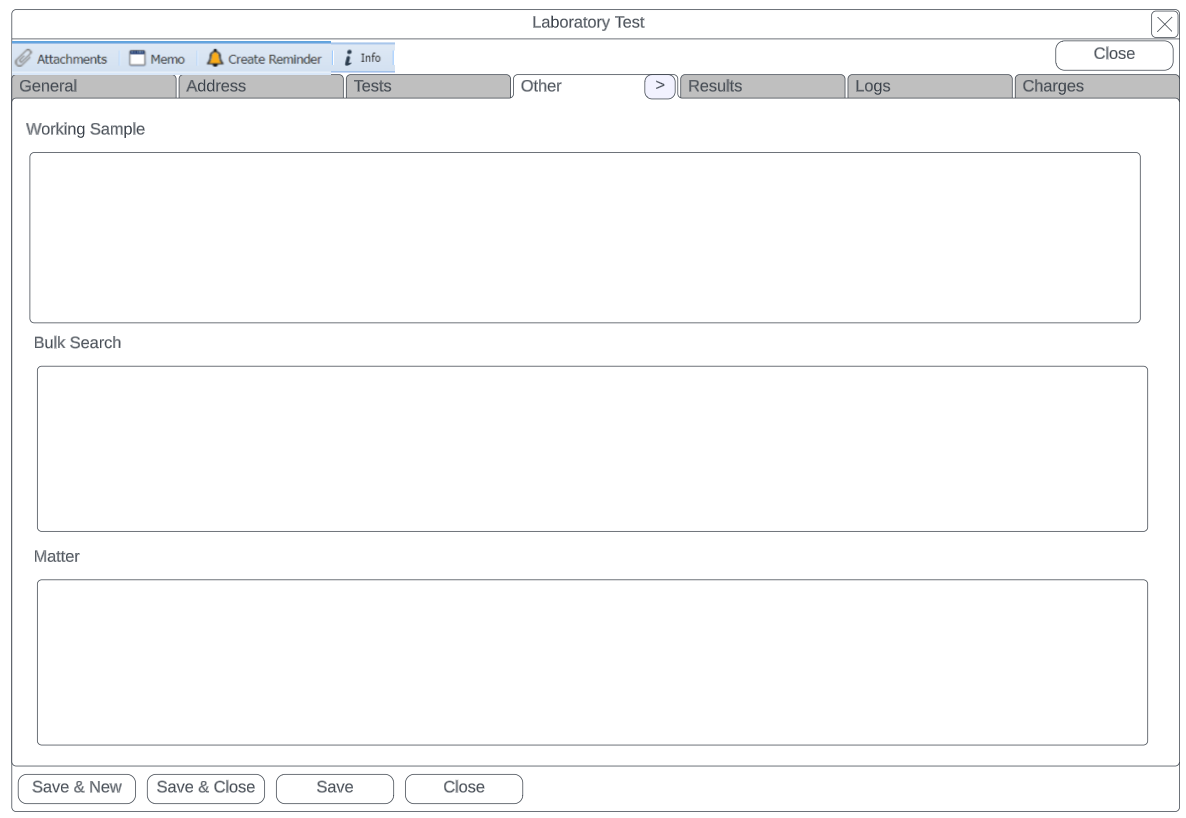
| Other Tab | Details |
| Working Sample | Text box for notes on Working Sample |
| Bulk Search | Text box for notes on Bulk Search |
| Matter | Text box for notes on Matter |
Results Tab
Each test will have its own tile
Tiles can be coloured
Tiles are ordered according to Sequence number of the test
View Published tests only
A filter to include other status
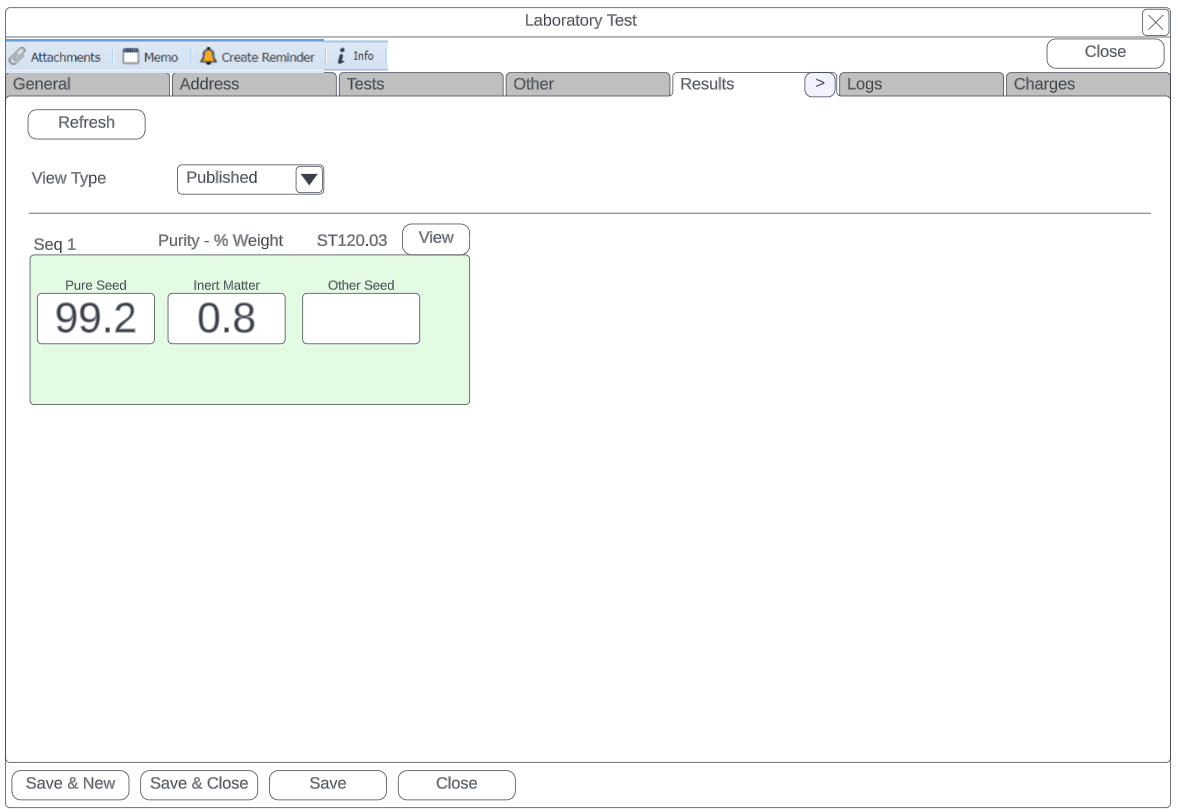
| Results Tab | Details |
| Refresh button | Button to update tiles |
| View Type |
View Published, Non published tests All can be selected |
| Seq 1 | Makes the tile be first on the list |
| Test Name | Test Name |
| Test No | Test Number |
| View Button | View the test |
Logs Tab
This area logs all the status changes on the lab test
This tracks the tests created, authorised etc on this lab test side
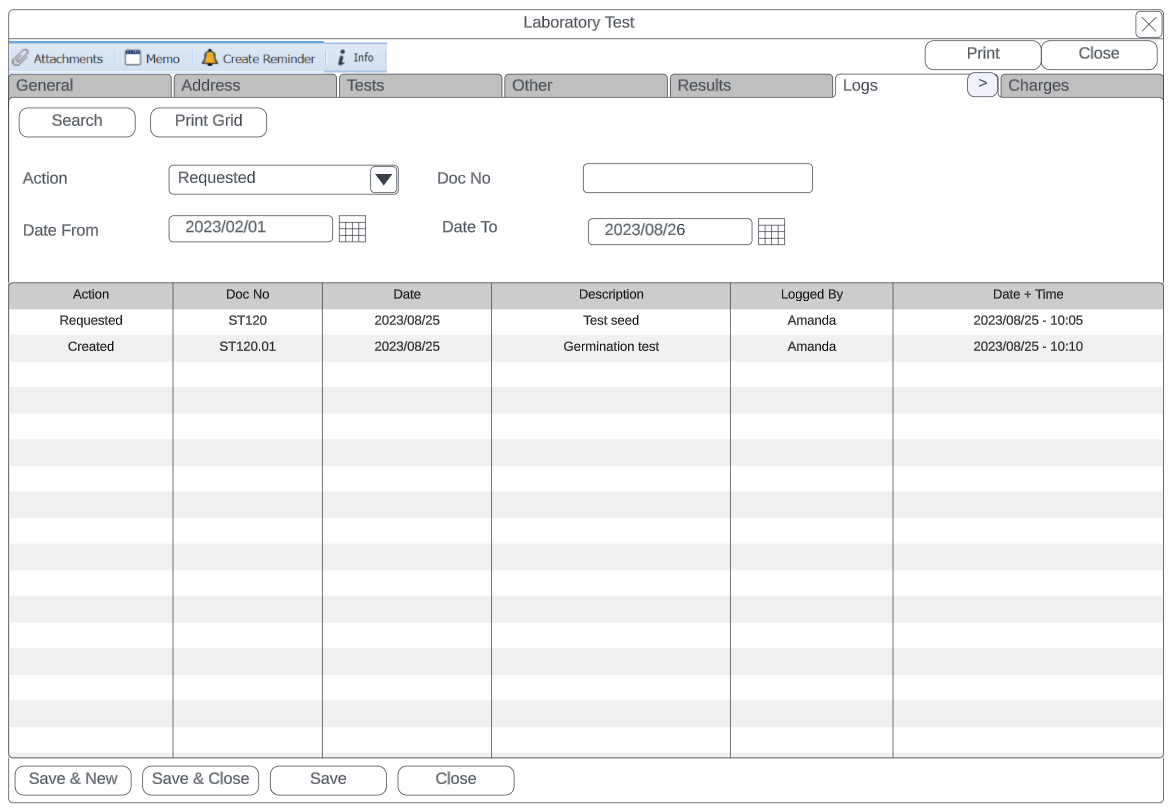
| Logs Tab | Details |
| Search button | Searches the logs |
| Print Grid | Prints the grid and allows to export |
| Action | Filter by Action |
| Doc No | Search by Document No |
| Date From and To | Searches logs by date from and to |
| Grid | Details |
| Action |
Type of action logged Status change of Lab test, Status change on tests, Authorised By, Percentage update on tests, Publish notice, invoice created |
| Doc No | Indicates which test is been logged, main Lab test or test |
| Date | Date of log |
| Description | Description of action |
| Logged by | User name logged of change |
| Date and Time | Date and time logged |
Charges Tab
For each test that is done, a tick can be put on for charging which creates an entry for list of items to be invoiced
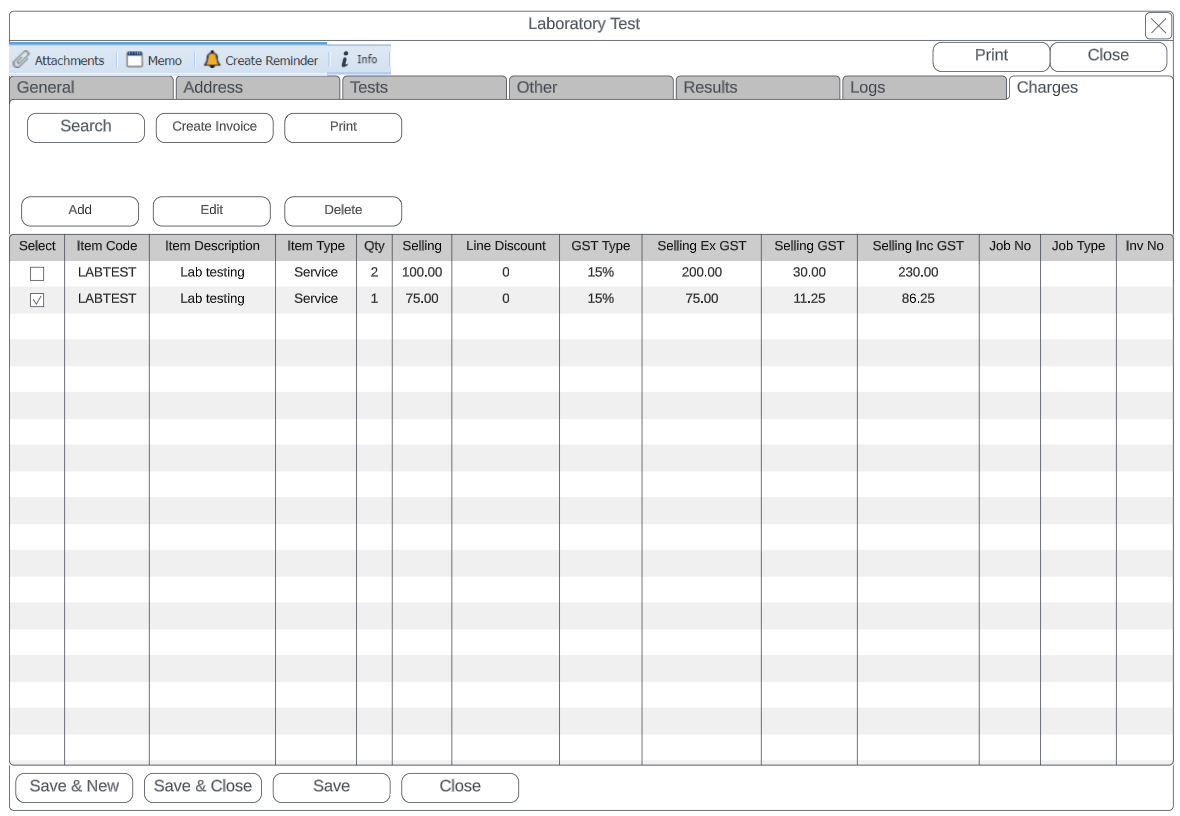
| Charges Tab | Details |
| Search button | Search invoiced tests |
| Create Invoice button | Create an invoice |
| Print invoice | |
| Add | Add an item to be invoiced |
| Edit | Edit the line |
| Delete |
Delete the line to be invoiced Cannot be deleted if invoiced |
| Grid | Details |
| Select | Select multiple lines to be invoiced |
| Item Code | Displays the inventory item code |
| Item Description | Displays the inventory item Description |
| Item Type |
Indicates the type of inventory item to be invoiced Service, Custom or Stock |
| Qty | Displays quantity to be invoiced |
| Selling | Displays the selling value ex GST |
| Line Discount | Displays the line discount |
| GST Type | Indicates whether this is GST chargeable |
| Selling ex GST | Unit selling x Qty = Selling Value |
| Selling GST | Shows GST amount |
| Selling Inc GST | Total Selling ex GST + Selling GST = Selling Inc GST |
| Job No | Indicates whether linked to a job |
| Job Type |
Type of Job invoice Percentage or Usage |
| Invoice No | Invoice number of processed invoice |