Create and Process Stock Request
Using the Webatar app, you can easily request the stock you need. Once your request is submitted, it is sent directly to the Storeman. The Storeman will pick the required items, prepare them for collection, and notify you as soon as your order is ready to be picked up.
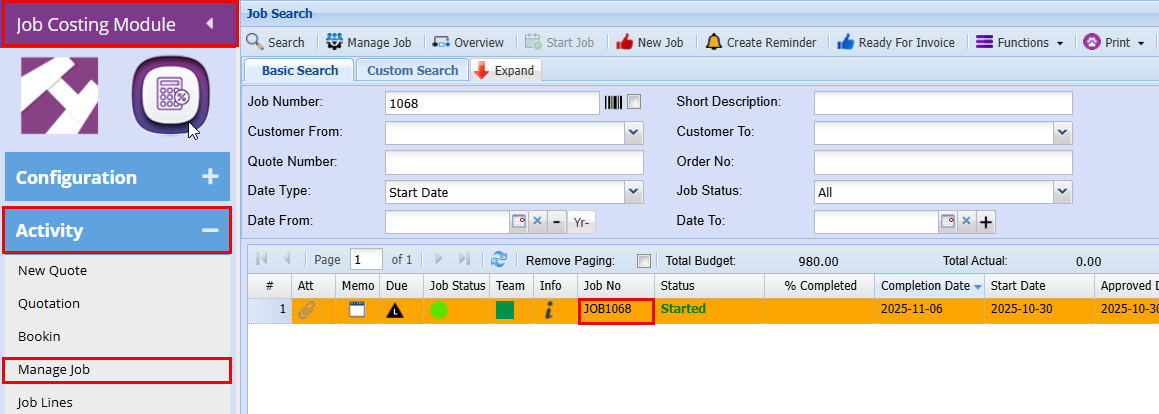
Before you start you will need to know your Job number
Job Costing Module > Activity > Manage Job
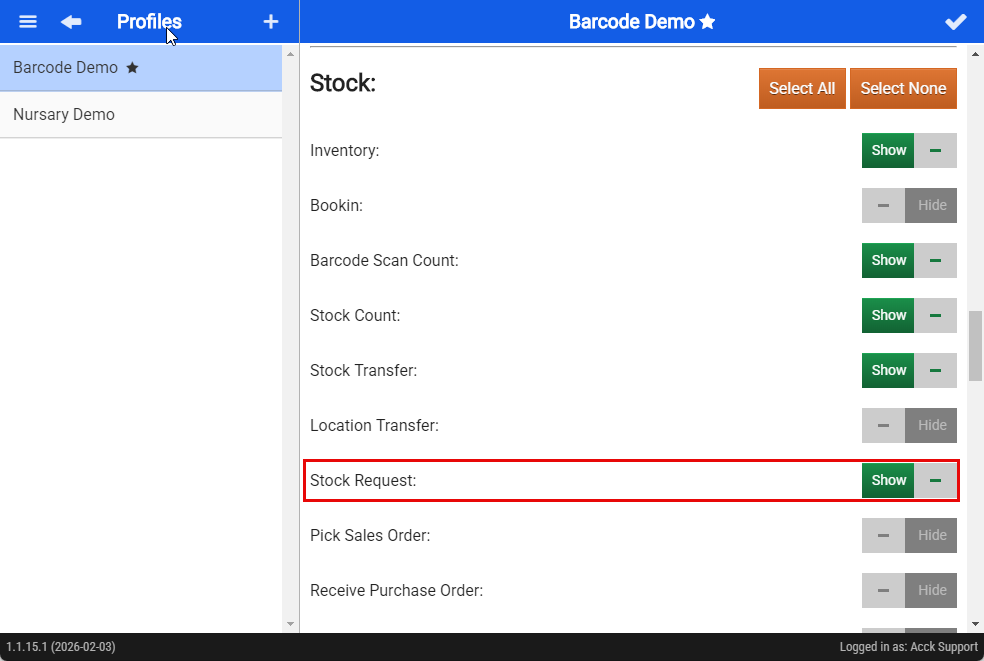
Log in to the Webatar app using your usual credentials. Once logged in, check that your profile is correctly set up and has the required permissions to submit a stock request.
- In your profile scroll down to Stock
- Toggle on the Stock Request
- Save the setting by clicking the Tick at the top right of the screen
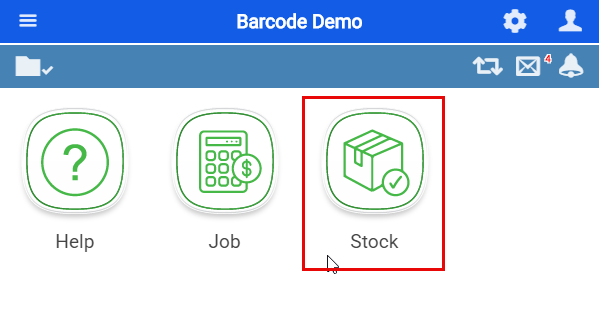
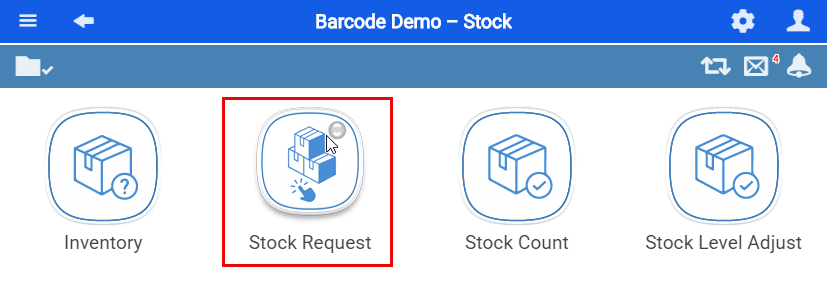
In the Webatar app, click on Stock if the group option is enabled for your access group.
- Click on Stock Request
There are two ways to add a Stock Request either via quick add or Add
| Quick Add | Use to add just using the job number |
| Add | Use to add using more detail like Reference, Description, Storeman etc. |
Quick Add
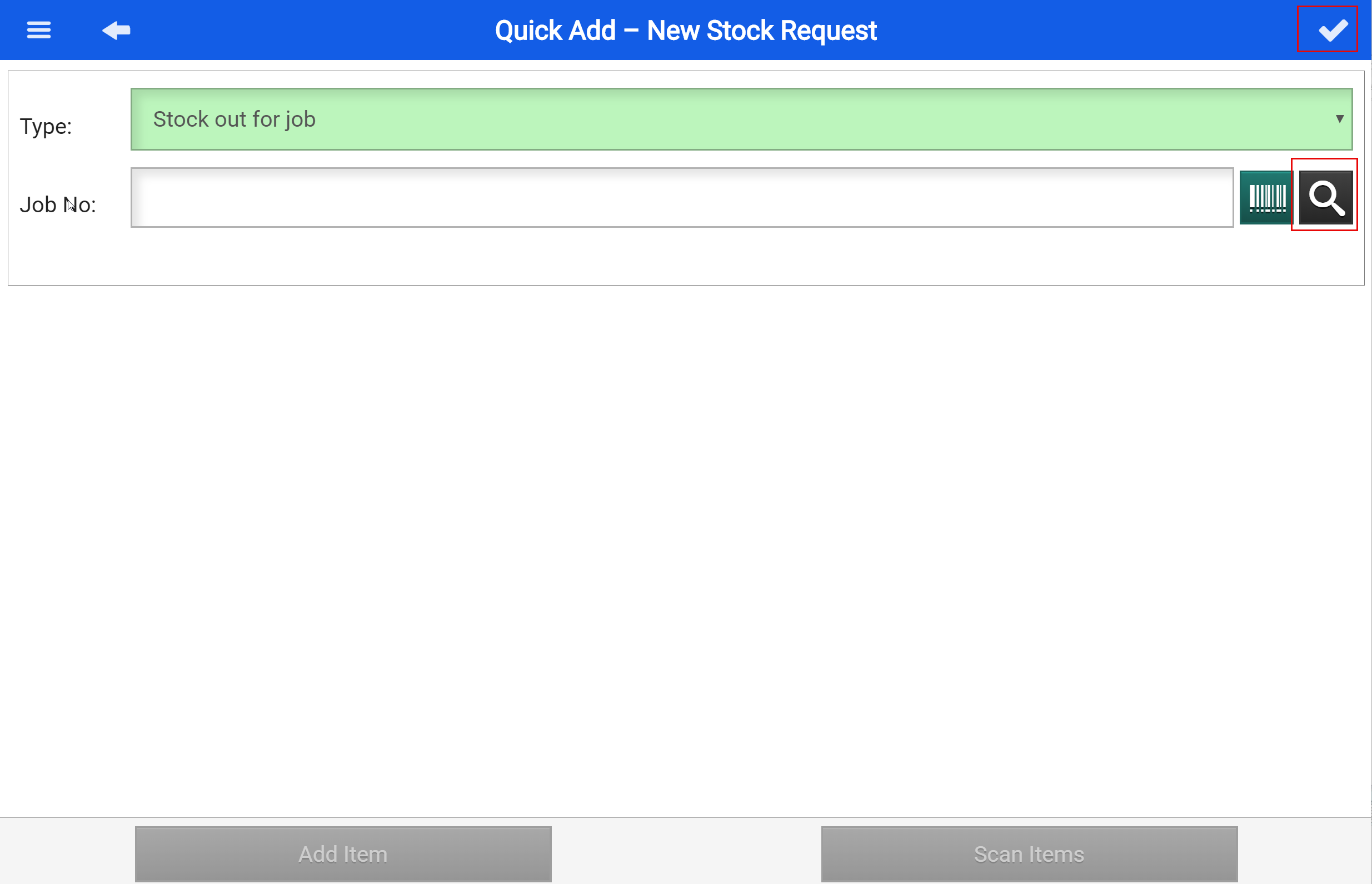
- Add by typing in the job number or searching for your job number by tapping the magnifying glass icon.
- Save your entry by tapping the tick at the top right of the screen.
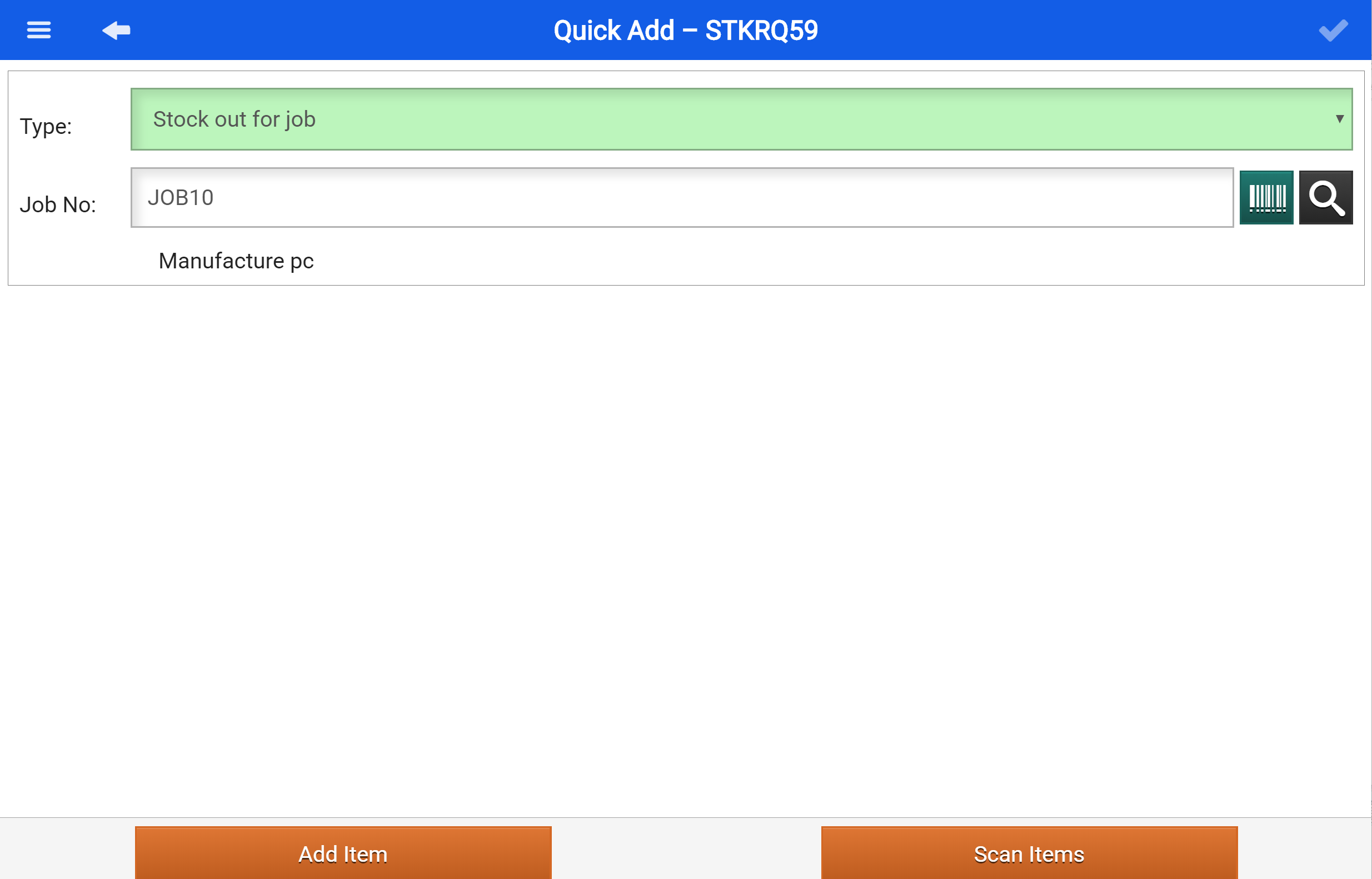
- Add the stock item you need by either scanning the barcode (if available) or manually searching for the item using the magnifying glass icon.
Add Item by Searching
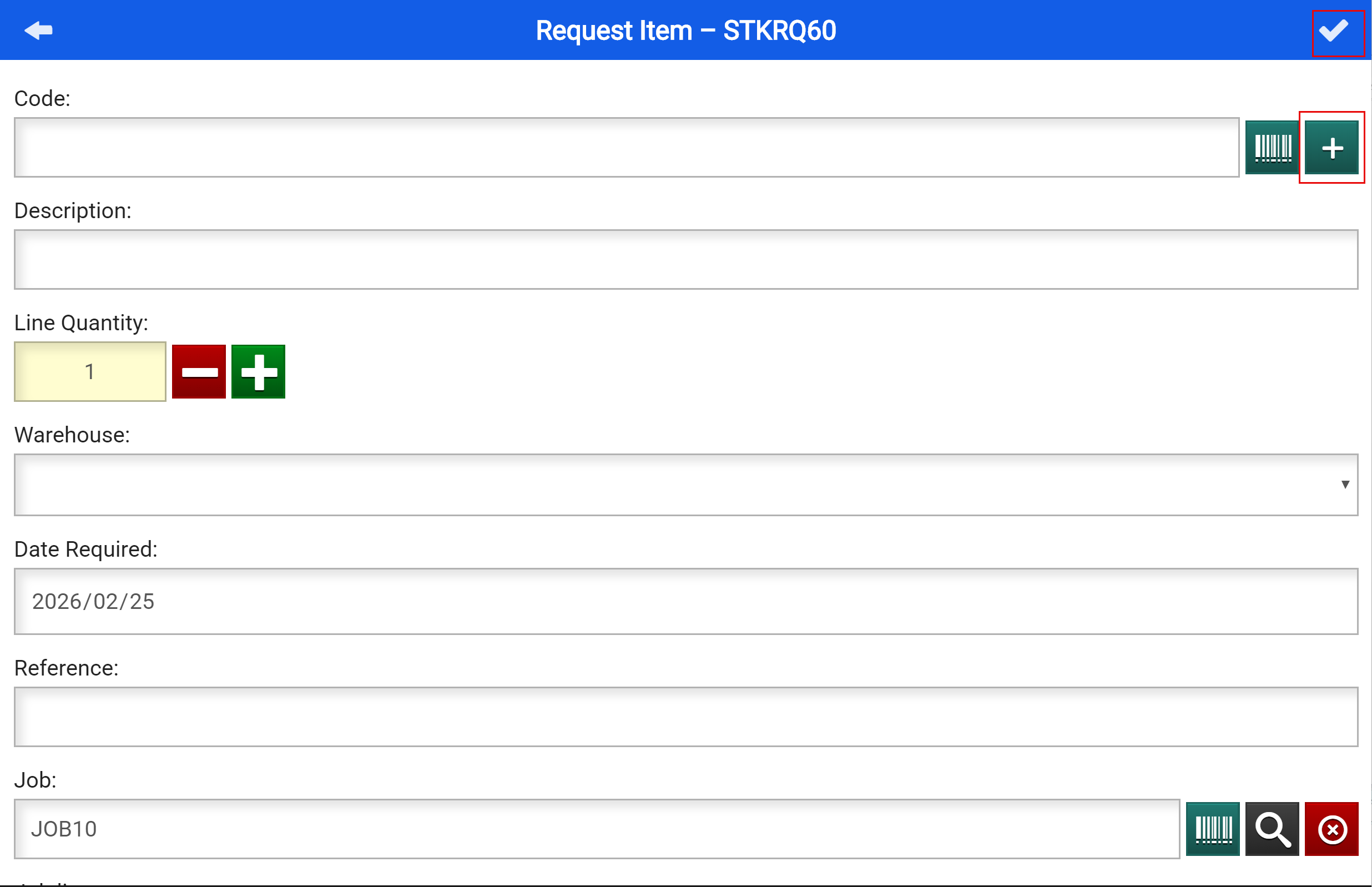
- Search by clicking the + (Add) button
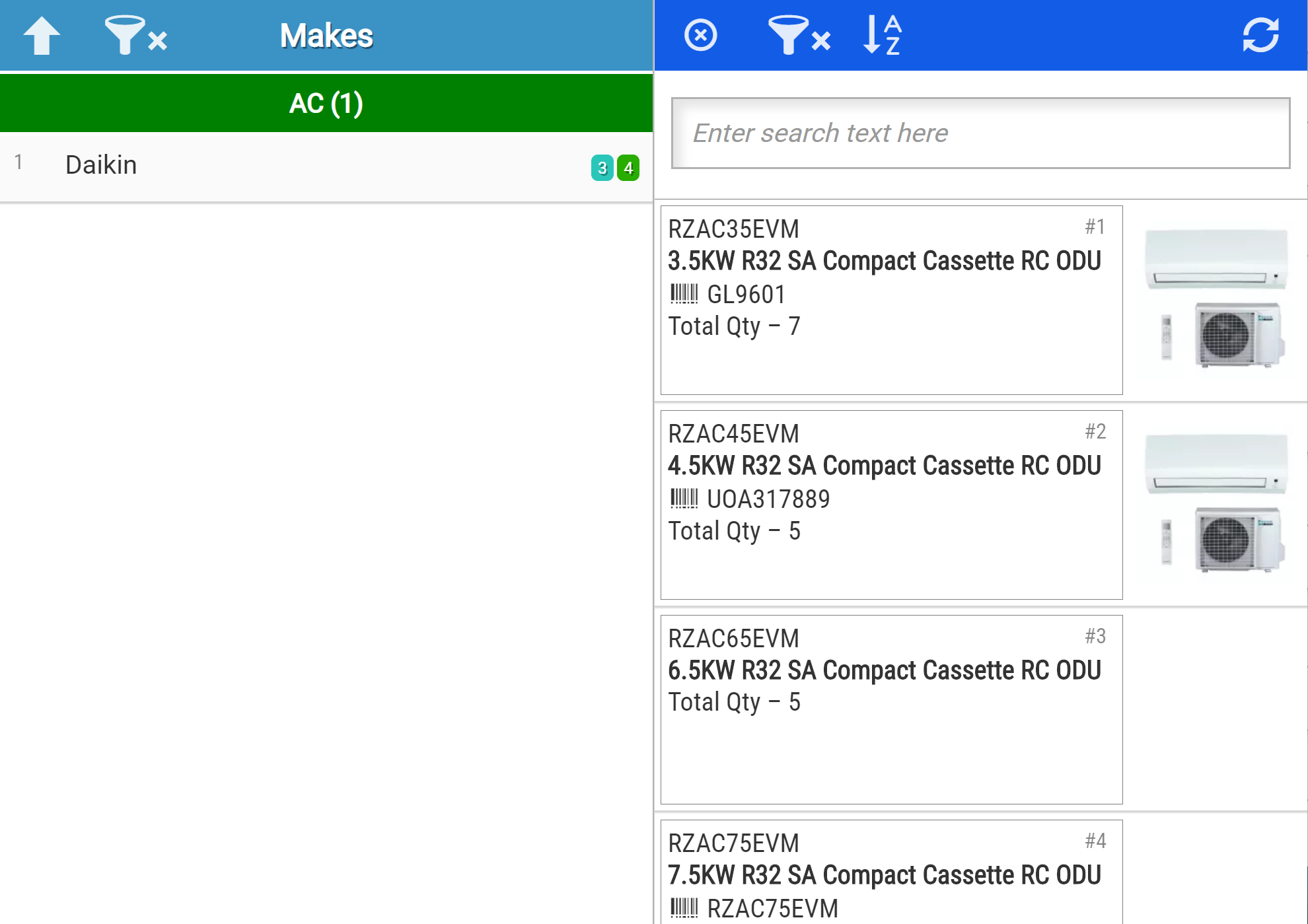
- Search using the filters to find the Stock item you are requesting
- Tap on the item needed
If no items appear on the right, tap the refresh button in the top right corner 
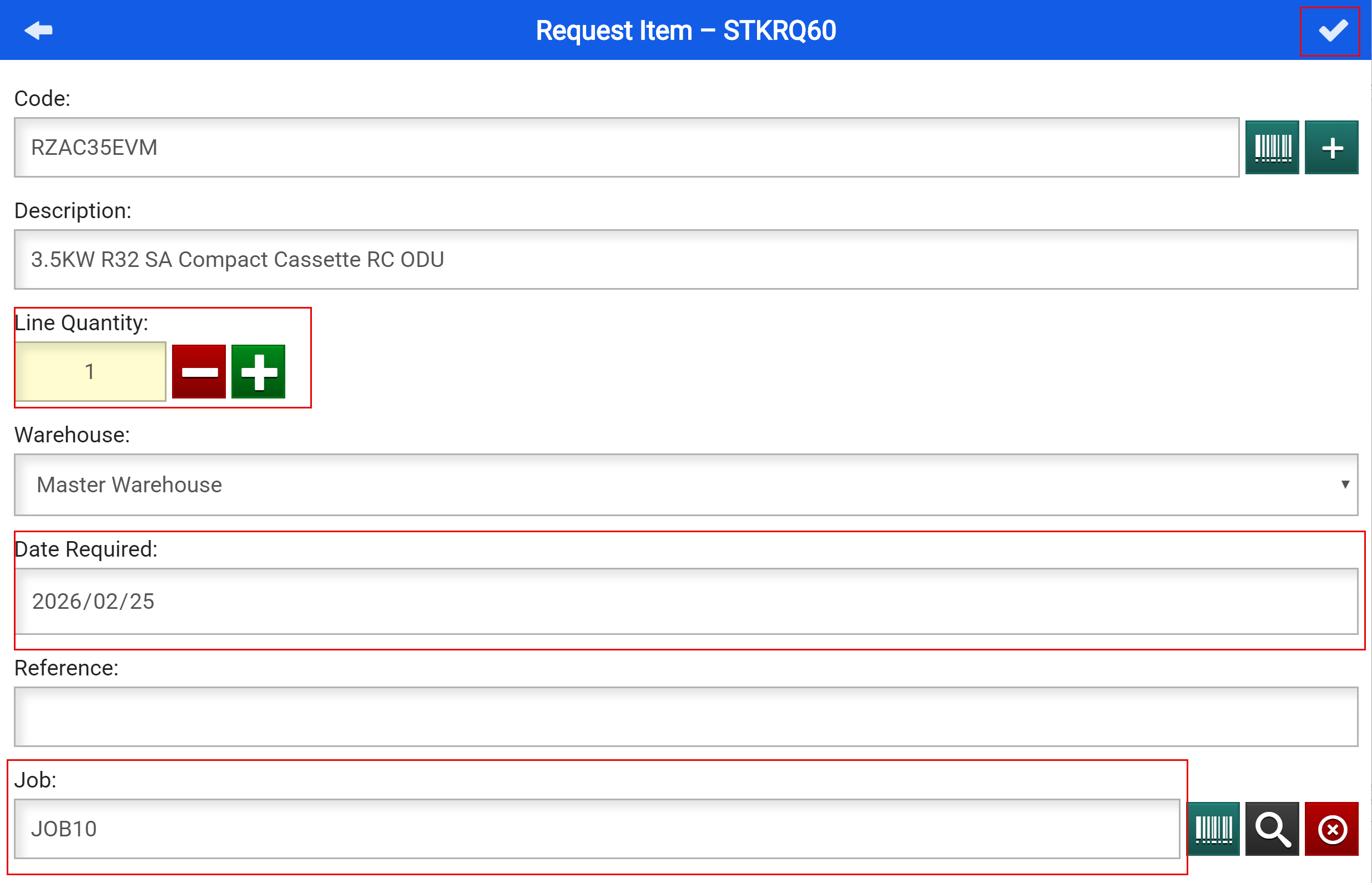
- Update Quantity and Date required if necessary and confirm Job number is correct
- Save your entry by tapping the tick at the top right of the screen.
Add Item by Scanning the Barcode
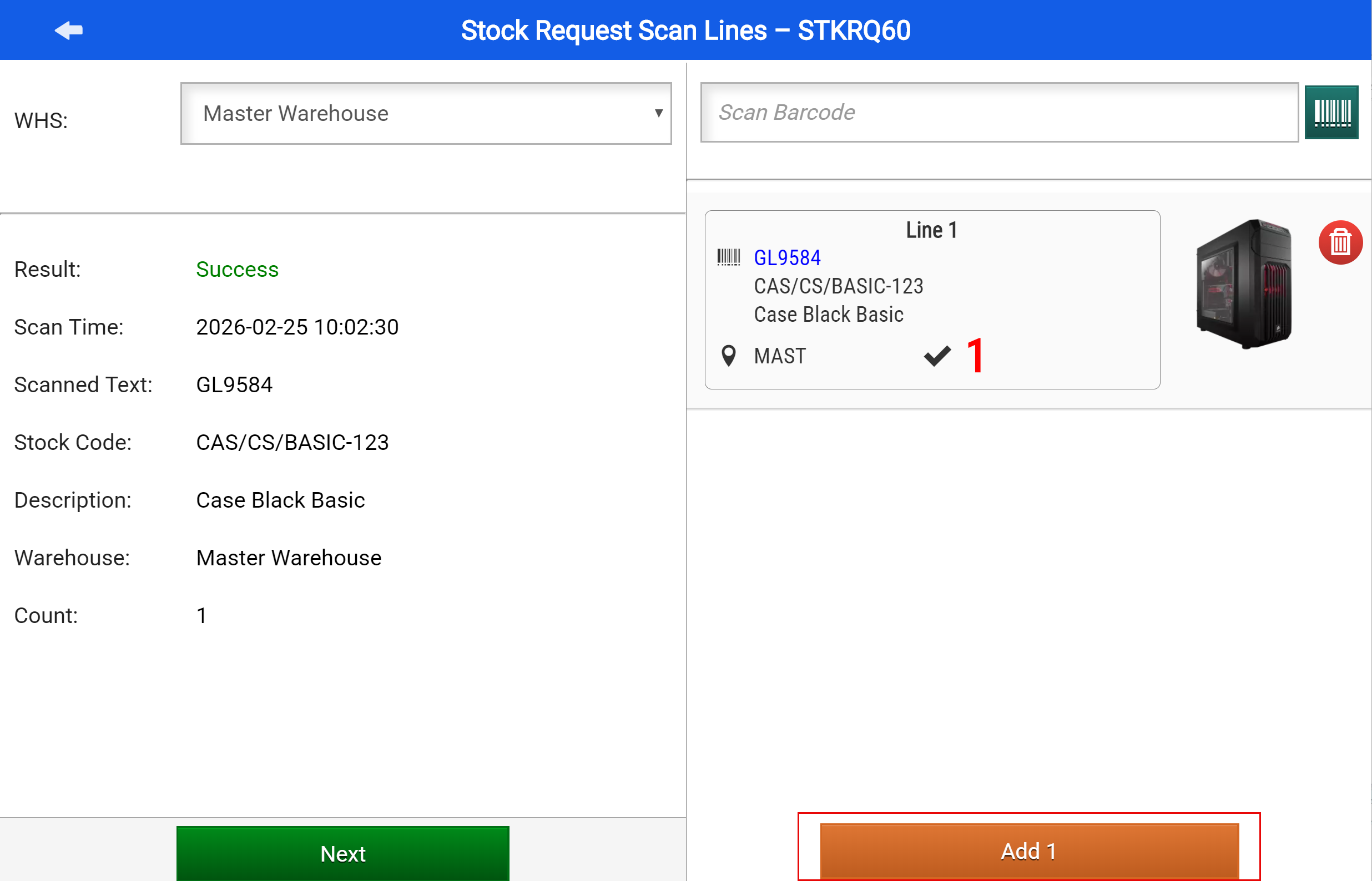
- Scan the Barcodes of the inventory items needed by using a barcode scanner
- When you have added all your items, Tap "Add"
Once you have added all your required items, Click on the back Arrow
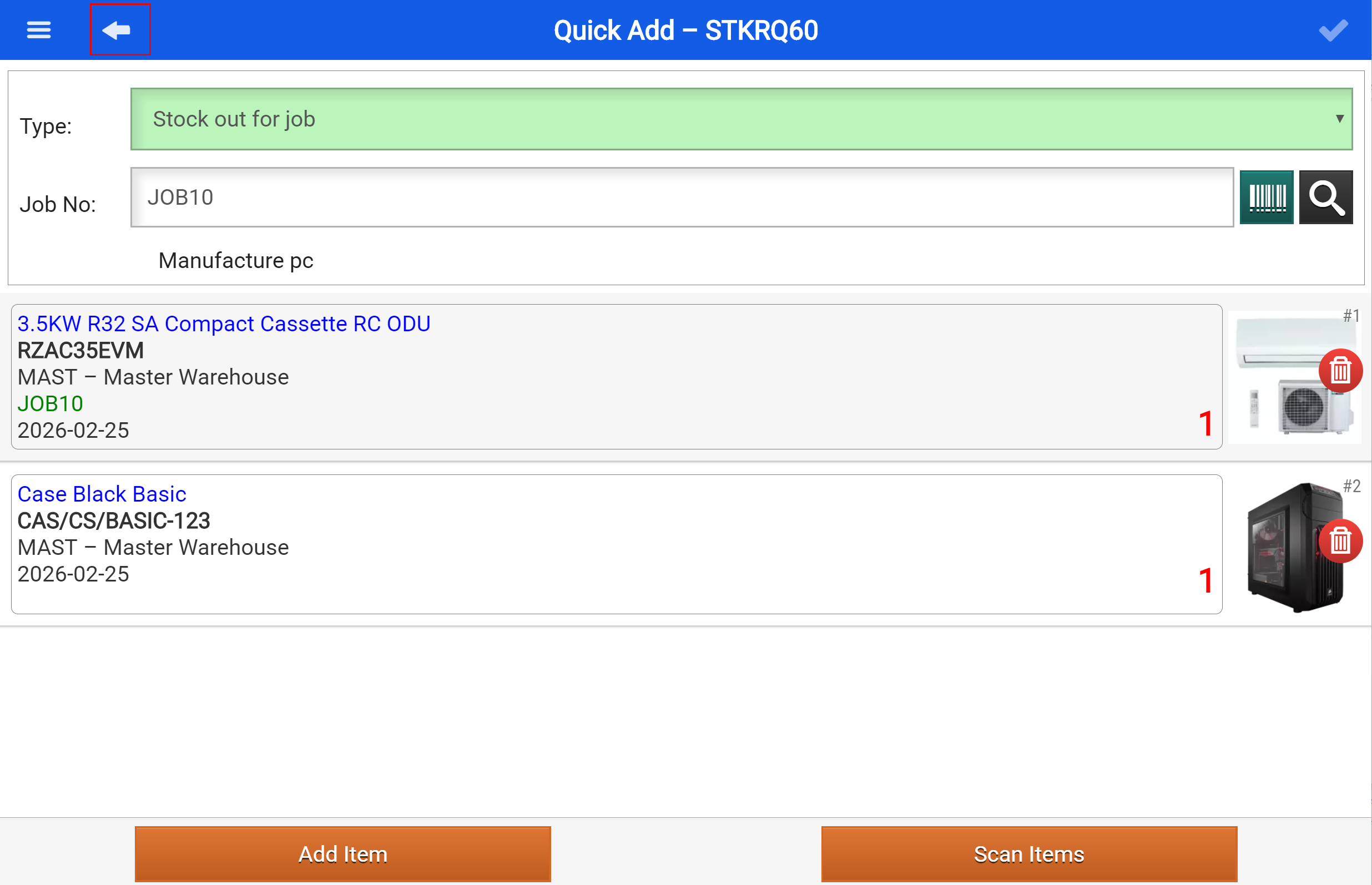
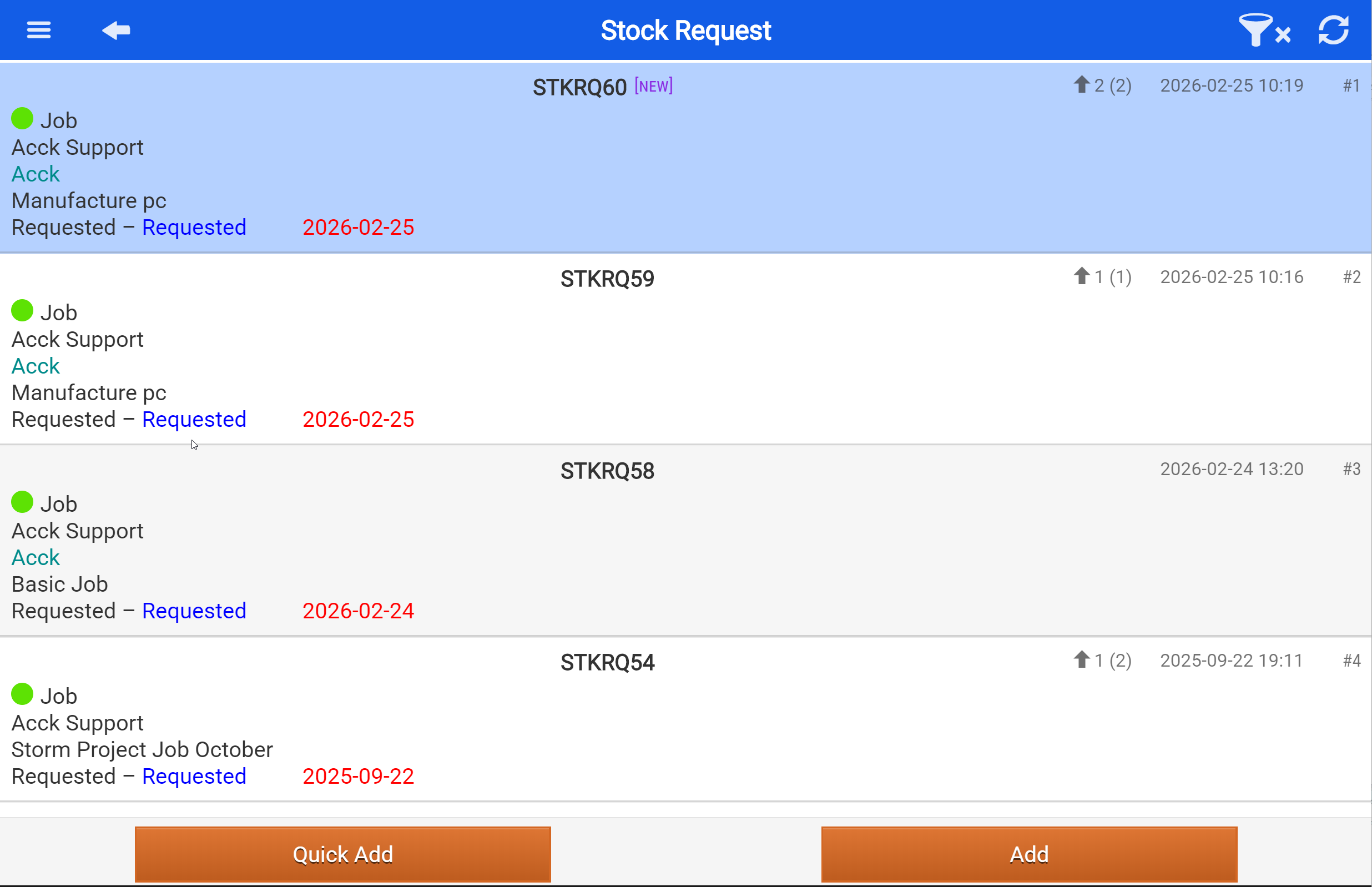
Here you will be able to see your Stock Request Created
- Tap on your Stock Request
At this stage your stock request has only been created and not yet sent to the storeman.