Create and Process Stock Request
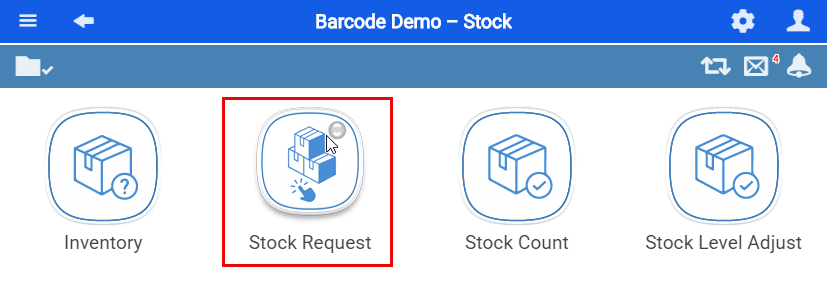
Using the Webatar app, you can easily request the stock you need. Once your request is submitted, it is sent directly to the Storeman. The Storeman will pick the required items, prepare them for collection, and notify you as soon as your order is ready to be picked up.
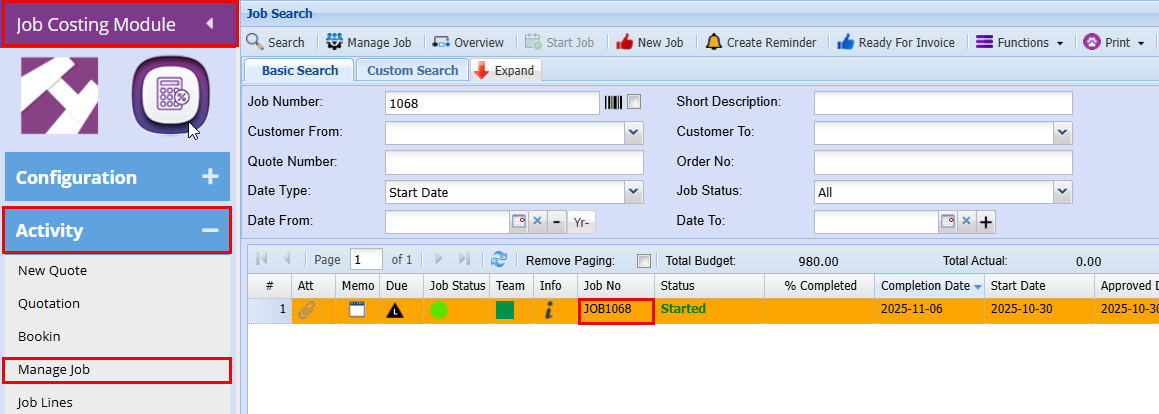
Before you start you will need to know your Job number
Job Costing Module > Activity > Manage Job
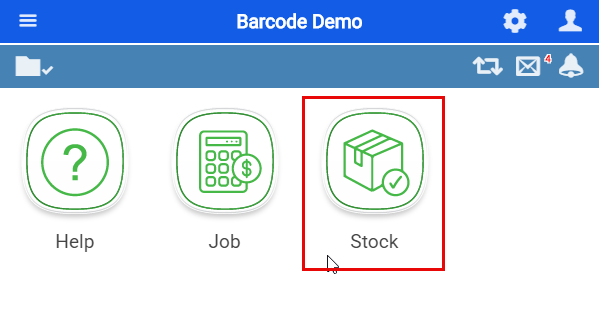
Log in to the Webatar app using your usual credentials. Once logged in, check that your profile is correctly set up and has the required permissions to submit a stock request.
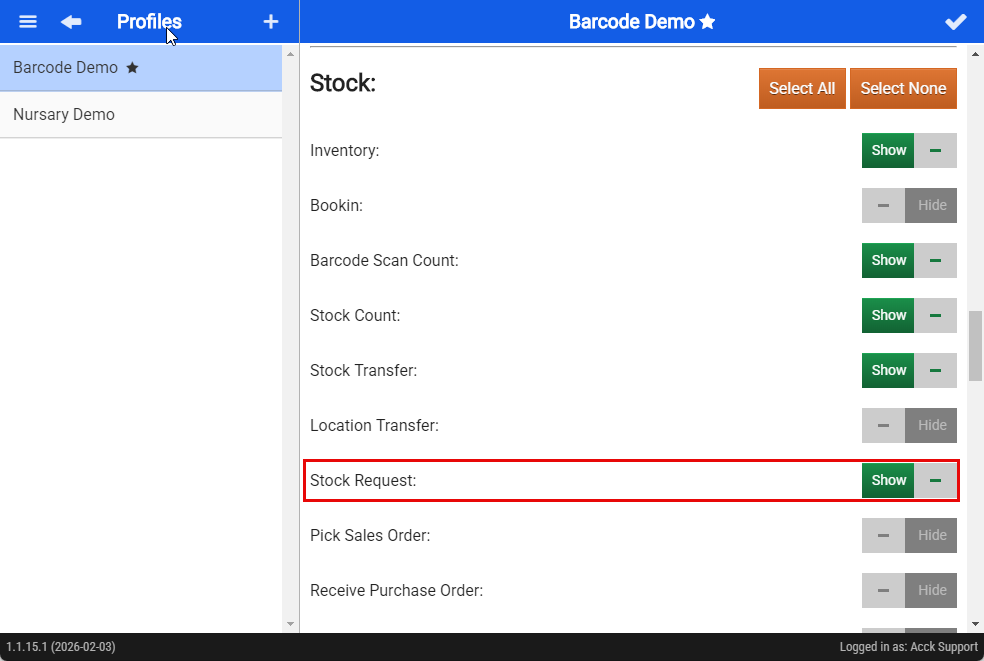
- In your profile scroll down to Stock
- Toggle on the Stock Request
- Save the setting by clicking the Tick at the top right of the screen