
Install Webatar Windows
To load Webatar on your Windows app, you need the following:
- 7- Zip to be installed on your machine
- Load the Webatar App using the link provided
Open any Module, at the top right click on the dropdown menu and click Webatar Win App link
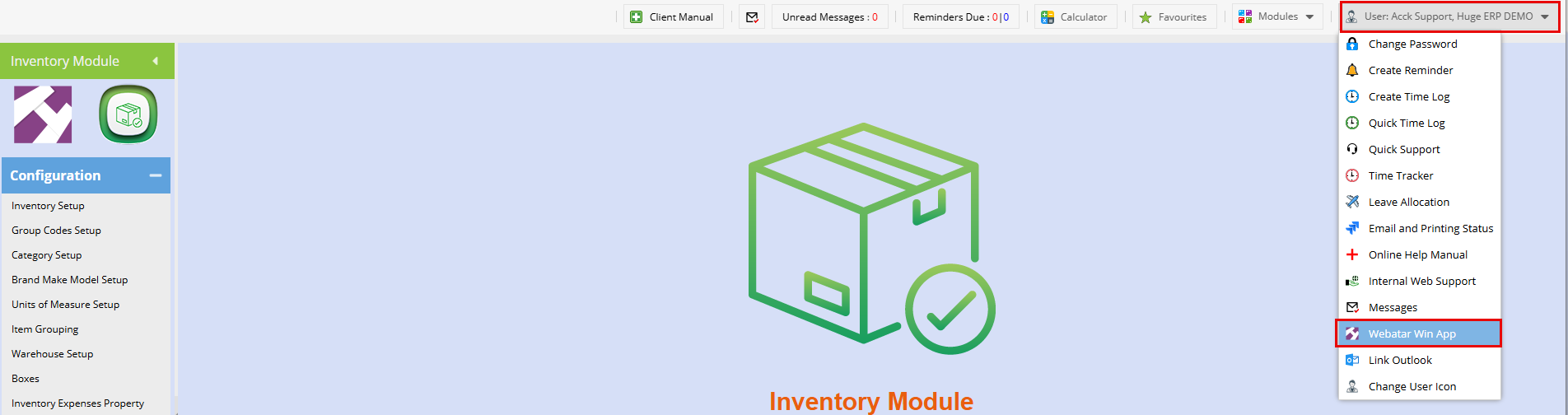
Download the links below on your machine:
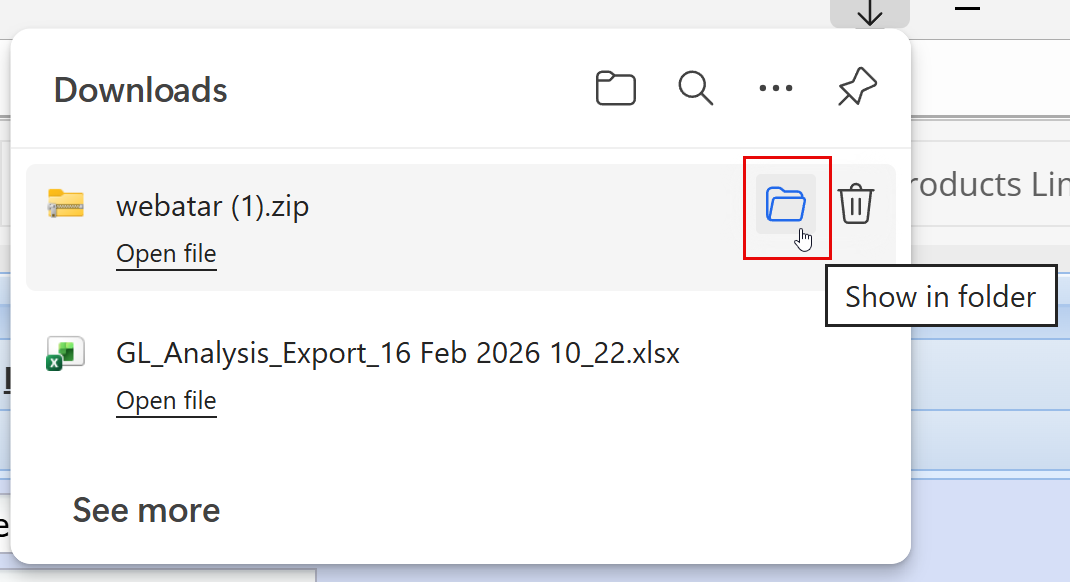
To Install:
- Start by installing 7-Zip file
- Once installed
- Cut your Webatar file from downloads and paste to your images file or desktop
- Then extract it using 7-Zip (Right-click on the folder> Click 7-Zip>Select extract here )
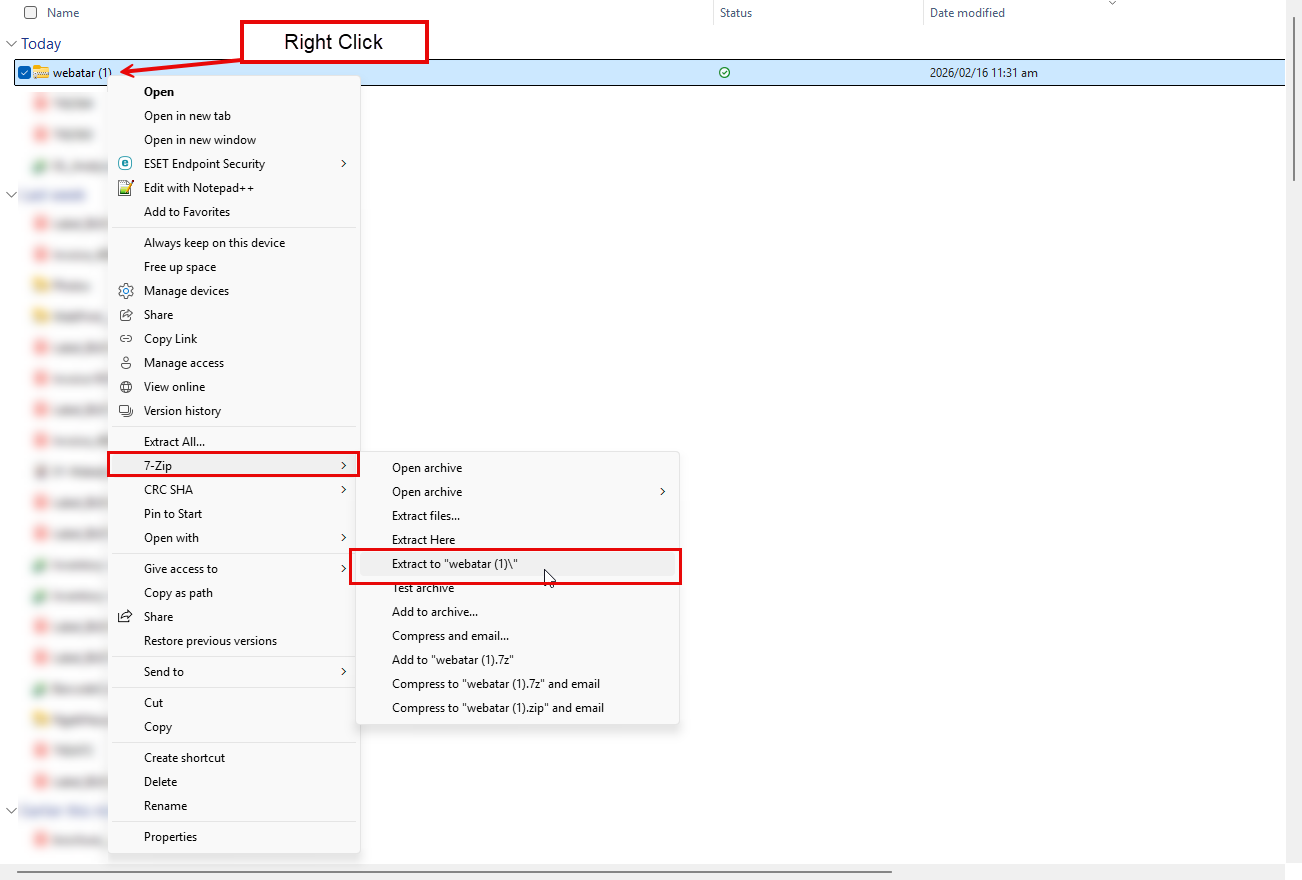
Setting Up Webatar Windows App:
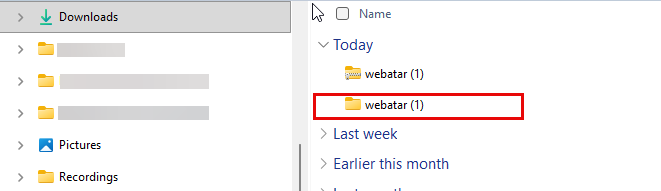
- Double-click on the unzipped Webatar folder to open
- Scroll down
- Click Webatar.exe file
- Run the .exe file
- Once this is done, you should see the Webatar icon on your desktop
- Double click to open the App
Click the profile icon on the top right corner to create your profile
Click here for instructions