
Import Export Function
Import Export Function itcan isbe found across the system
- refers
Clickto theImport/ Export Drop downSelect Debtor/Customer Import/Export
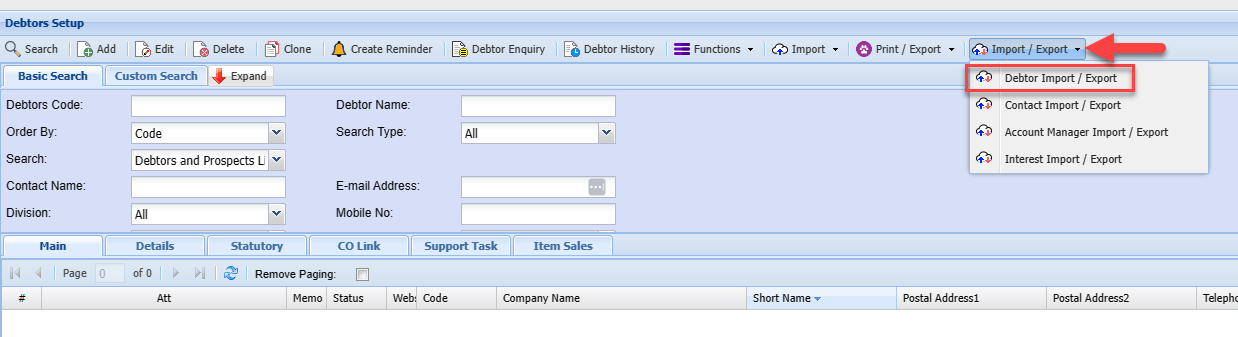
You can then delete the existing debtors/ customers and use the template to populate the informationcapability of the New debtors/ customers you wishsystem to add intofacilitate the transfer of data between the ERP system and external files or other systems.
Import Export Screen
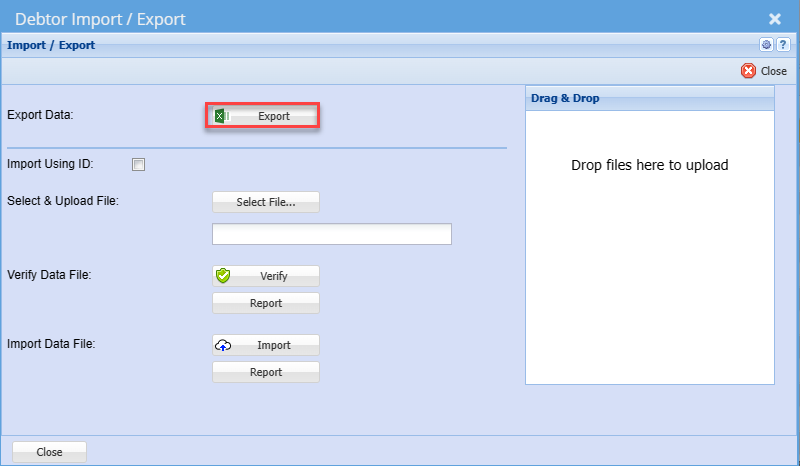
| Export | You can click the Export button which will return the existing |
| Import Using ID | Once you click Import ID. You will receive a warning. The import using ID refers to including the system ID which should not be changed at any given time. |
| Select &Upload File | Click the Select File Button to open your file explorer: search and select the import file you saved in the above step. |
| Verify | Click the Verify button to check for any errors on the import file |
| Import | Allows you to be able to import debtors/ Customers to the system |
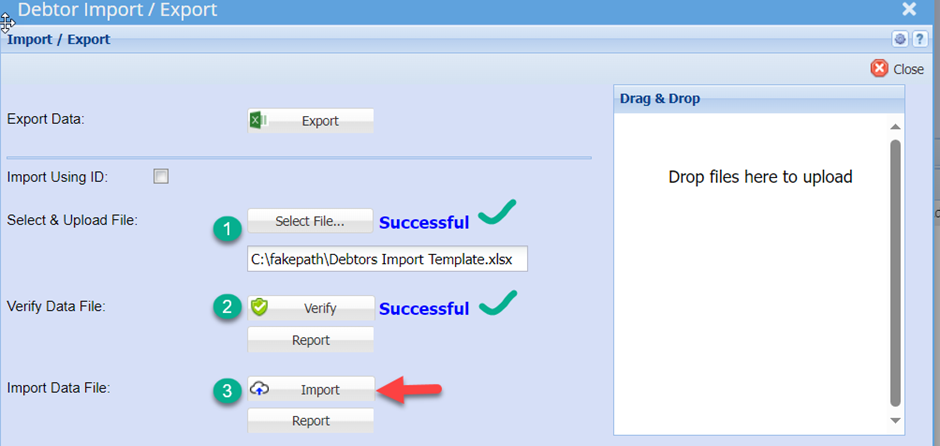
- Once you have the worksheet populated with the respective new
debtors’information details, save the file as a normal Excel file. - You should get a successful result returned. If not, correct the file, resave the file and retry the Verify
- If there are any errors when you click verify then you can click on report to see what is causing issues
- Once Verify is successful, click the Import Button
- Then click the report button below import to check if all
Debtors/theCustomersinformation were loaded accordingly - When all results are successful and you are happy with the report
- Your New
debtorsdatahavewillnowbebeen uploadedloaded into the system and you can search forthemit in the normal manner.