New Expense
Adding new expenses
Please see the steps below to successfully add a new expense
- Click + icon to add a new expense
- Capture all information as explained in this manual
- Click on the tick on the top right to save the expense
- Scroll
rightleft to update division and region and all details - Scroll
rightleft again to attach a slip or invoice - Once you have completed all the stages you need to
goclick on the backto the mainarrow tothe maina screenwherethatywill inform you to sync your expense
Click on the Plus + button to add a new expense
Always click on the tick box to save the expense before moving on to the other menus
After attaching a document or image click on the back arrow so you only sync the expense once if you sync the attachment on its own and send the document for approval the system does not send the correct link to the approver and it will not allow the approver to open the document
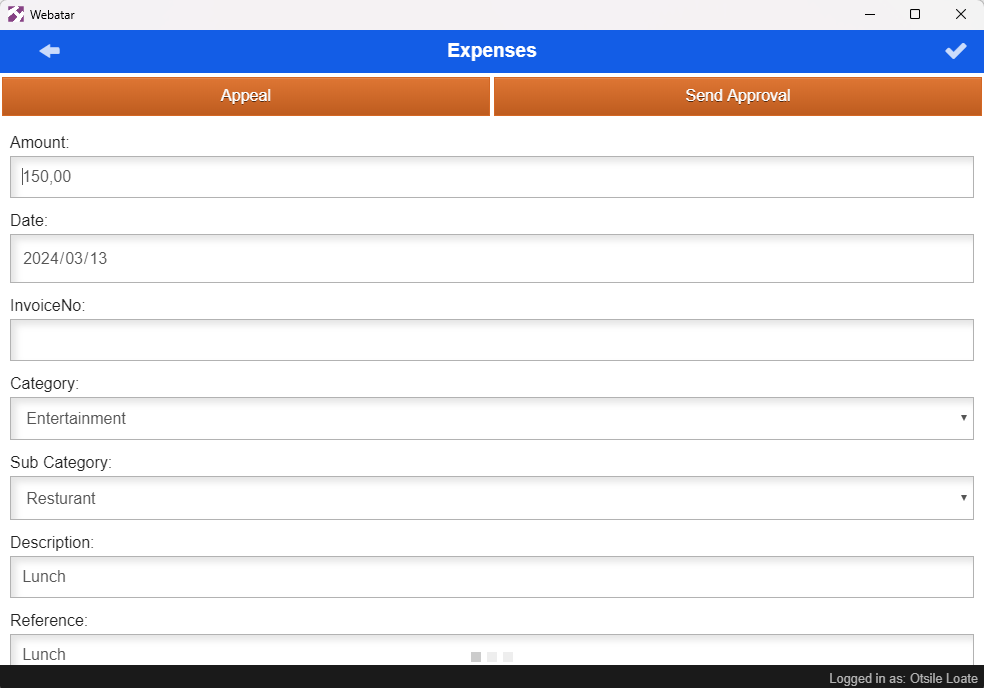
| Amount | Enter the expense amount |
| Expense Date | Enter the correct date for the claim |
| Invoice No |
Enter the supporting document number if you have This is not compulsory |
| Category | Select Category from the drop-down selection |
| Sub Category | Select the correct sub-category if there is more than one |
| Description | Enter claim description |
| Reference | Enter Claim reference |
| Notes | Add detailed additional notes if applicable |
Once complete
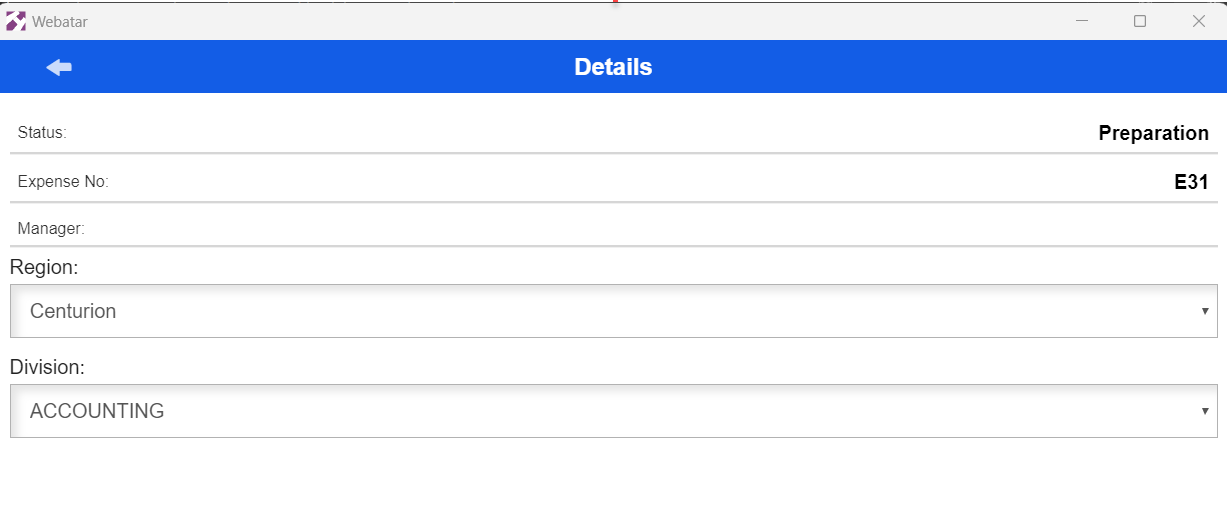
| Enter |
|
| Enter | |
After adding division and region scroll left again to add your till slip or invoice
Once Senddone adding an image
Click on the back arrow
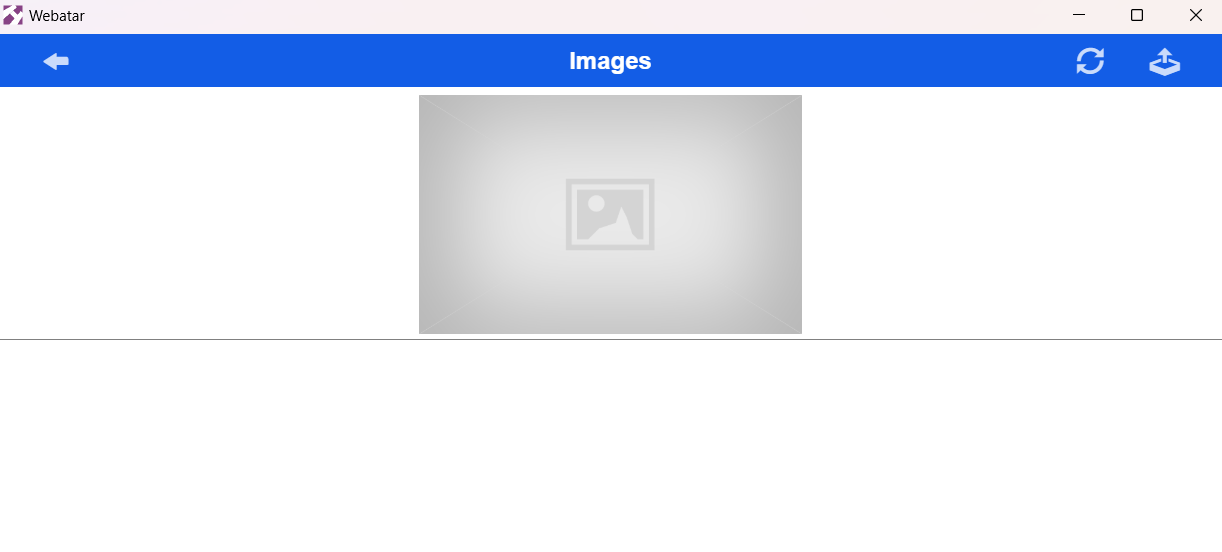
The back arrow which shows the screen below will allow you to sync.
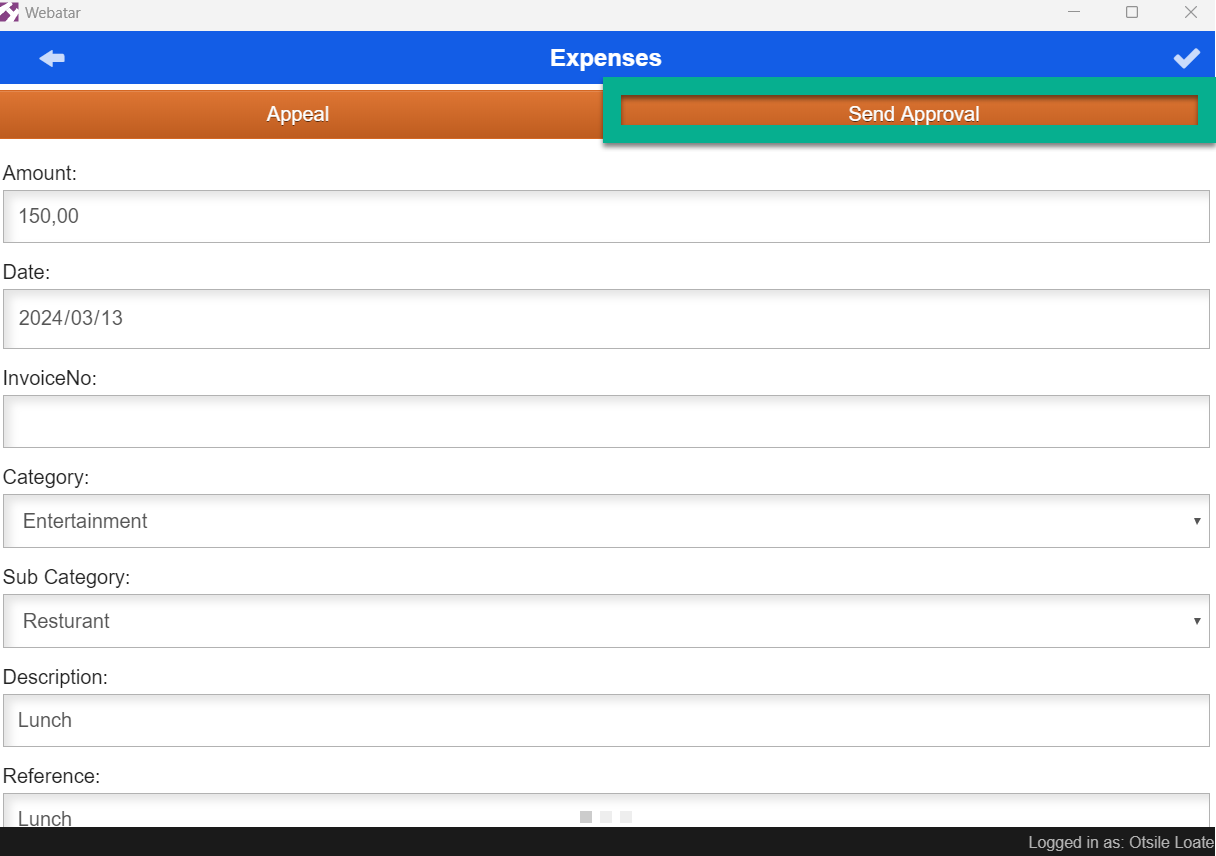
After, syncing your expense go back into your expense then send it for approval
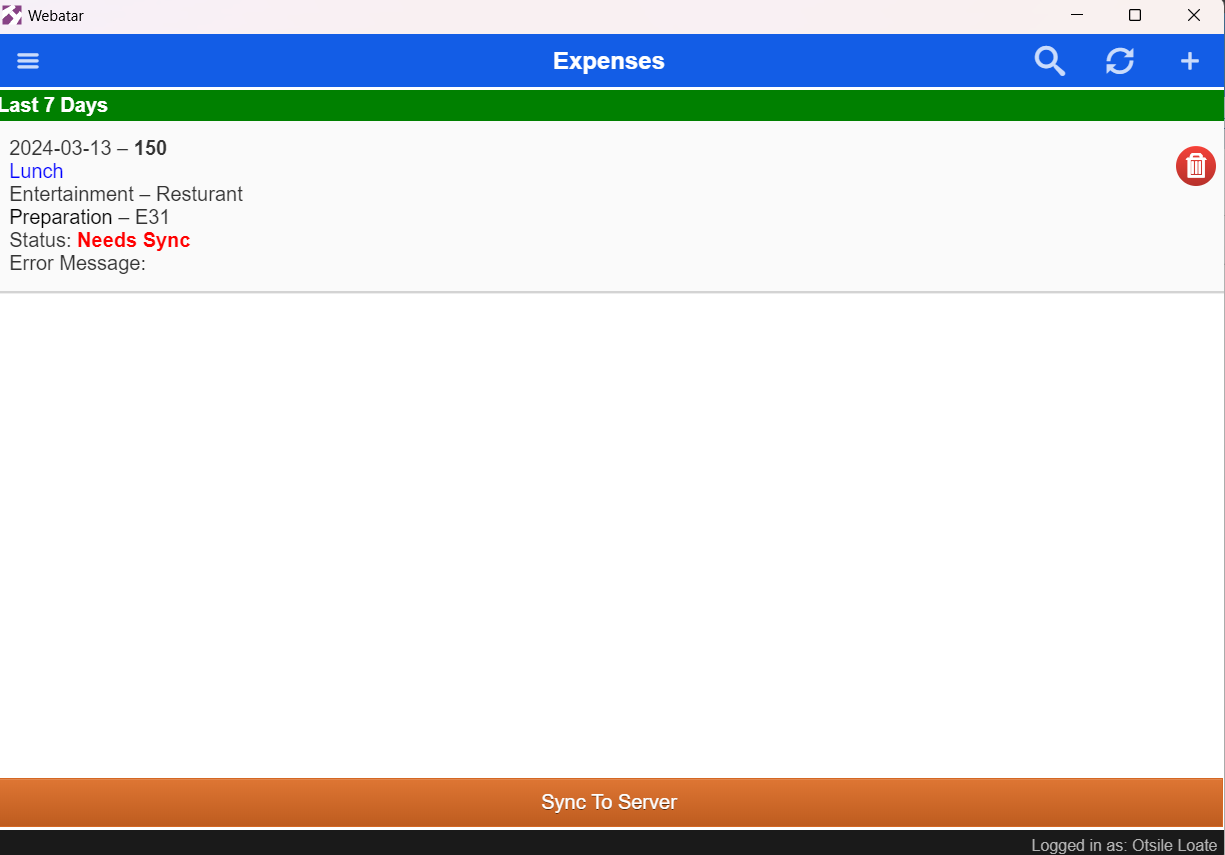
After, Clicksyncing thisclick buttonon it to send the expense for approval as shown below: