
New Expense
Adding new expenses
Please see the steps below to successfully add a new expense
- Click + icon to add a new expense
- Capture all information as explained in this manual
- Click on the tick on the top right to save the expense
- Scroll right to update division and region and all details
- Scroll right again to attach a slip or invoice
- Once you have completed all the stages you need to go back to the main to the main screen where y
Click on the Plus + button to add a new expense
Always Amount - enter an amount of expense
Date - Date is automatic set to when new expense is added
Invoice Number - enter invoice number
Category - Enter the main category
Sub category - enter the sub category from the main category
Description - enter the description of the expense
Reference - enter a short reference for the expense
Clickclick on the tick box to save the expense before moving ontoon to the other menus
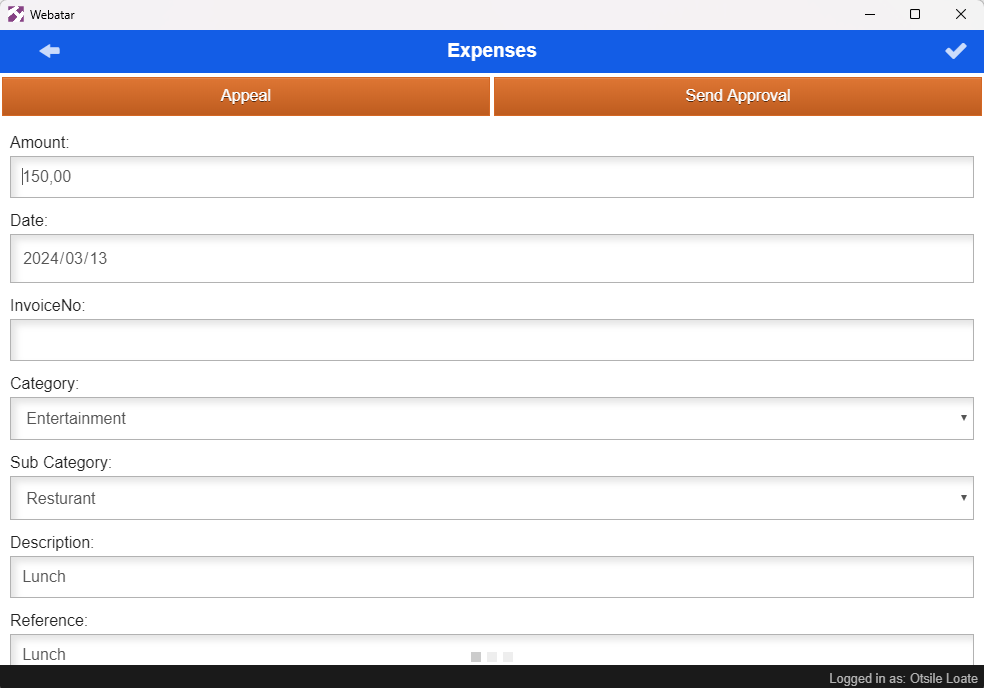
| Amount | Enter an amount of expense |
| Date | Date is automatic set to when new expense is added |
| Invoice Number | enter invoice number |
| Category | Enter the main category |
| Sub category | enter the sub category from the main category |
| Description | enter the description of the expense |
| Reference | enter a short reference for the expense |
Send approval button - Click this button to send the expense for approval
.png)