
Warehouse Transfer Detail
Report on warehouse transfer details.
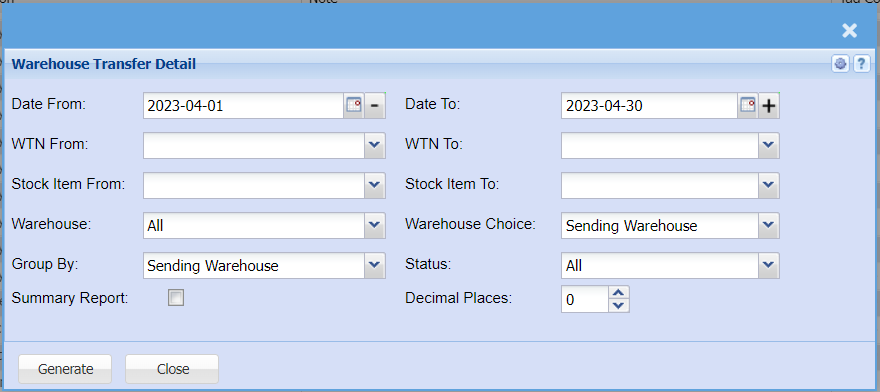
To generate the report, select these fields to indicate the beginning and the end of the report. Date from and date to, transfer number from and transfer number to, stock from and stock to.
Inventory module> Reports> Reports List
| Date From |
Choose the date range for which you want to view the report Select date from on the menu drop down selection |
| WTN From |
You can search for a warehouse transfer by making use of a warehouse transfer number Select the warehouse transfer number from If you leave this field blank, all warehouse transfer numbers will be recalled based on the selected date range |
| Stock Item From |
If you leave the stock item fields blank, all stock items will be displayed on the report If you choose specific stock items, the report will sort information by stock item code rather than description |
| Warehouse |
If you select all warehouses the report will fetch data from all warehouse If you want to search by a specific report, select the report on the warehouse selection |
| Group By | Select a group you want to search by on the drop down menu selection |
| Summary Report | Put a tick on if you only want to see the summary of this report |
| Date To | Select a date range of when you want to see the report to |
| WTN To |
You can search for a warehouse transfer by making use of a warehouse transfer number Select the warehouse transfer number to If you leave this blank this will recall all warehouse transfer numbers based on the date selection If you select the warehouse transfer number from and not add anything on the warehouse to it will populate the warehouse transfer from You need to select the warehouse transfer number to if you want to view a specific list of warehouse transfer numbers |
| Stock Item To | This will sort your report by warehouse transfer to |
| Warehouse Choice | Select either sending warehouse or receiving warehouse for the report |
| Status |
If you select all the report will pull all statuses If you want to view report by status, select the status on the drop down selection |
| Decimal Places |
It is advisable to set decimals to two places You can view the report with any number of decimal places. |
| Generate Button |
Click the "Generate" button to open the report You will have options to copy, email, or print the report To view the report in an Excel document, copy the report and paste it into an Excel file |