
Inventory Transactions
Gives a total movement per inventory item by quantity or value for a specified date range.
Inventory module> Reports> Reports List
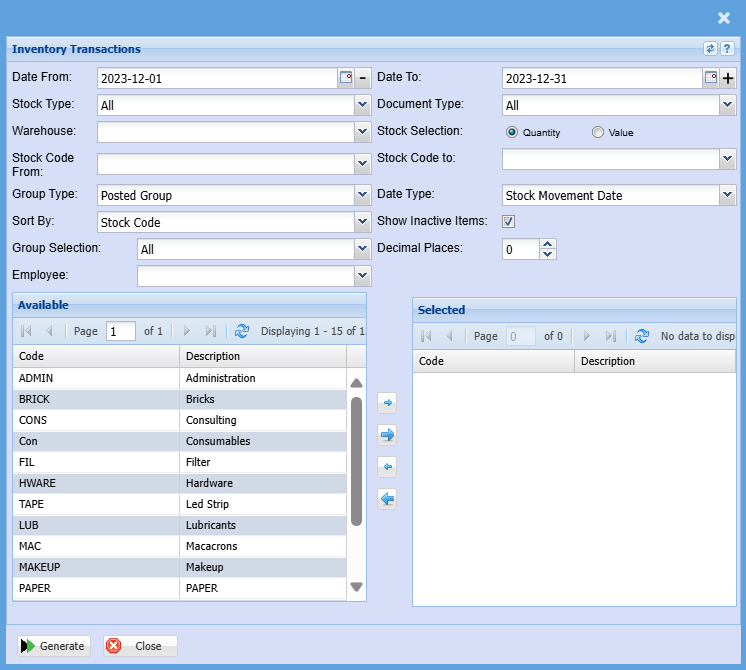
To generate the report, please select from the following fields:
| Date From / Date To |
Choose the date range for which you want to view the report from Select a date range of when you want to see the report to |
| Stock Type |
Allows you to select a stock type from the drop-down Menu |
| Warehouse |
If you select all warehouses the report will fetch data from all warehouses. |
| Stock Code From / Stock Code To |
If you leave the stock item fields blank, all stock items will be displayed on the report. If you choose specific stock items, the report will sort information by stock item code rather than description. Select a stock Item on the drop-down menu. |
| Group Type |
Select the group type from the drop-down menu. |
| Sort By |
Sort the report by selecting one option from the drop-down menu |
| Group Selection |
Double click on the code from the list to move the group codes you wish to filter your report by to the selected window. |
| Employee |
Select an employee you wish to filter the report by on the drop-down menu |
| Document Type |
Select the document type from the drop-down menu |
| Stock Selection |
Select either a quality or value option for the report |
| Date Type |
Select a date type on the drop-down menu |
| Show Inactive Items |
This option will show inactive items on the report if selected |
| Decimal Places |
It is advisable to set decimals to two places You can view the report with any number of decimal places. |
| Generate Button |
Click the "Generate" button to open the report You will have options to copy, email, or print the report To view the report in an Excel document, click copy on the report and past it into an Excel file |