
Inventory Count
Inventory module>Reports> Reports List
Report displays a list of items which show what quantity is on hand currently and a space where the person counting can indicate the quantity actually counted.
Generally a count is done without giving what the quantity is on hand, however if you want to see the quantity on hand, remove the tick off the option called "Ignore system quantity"
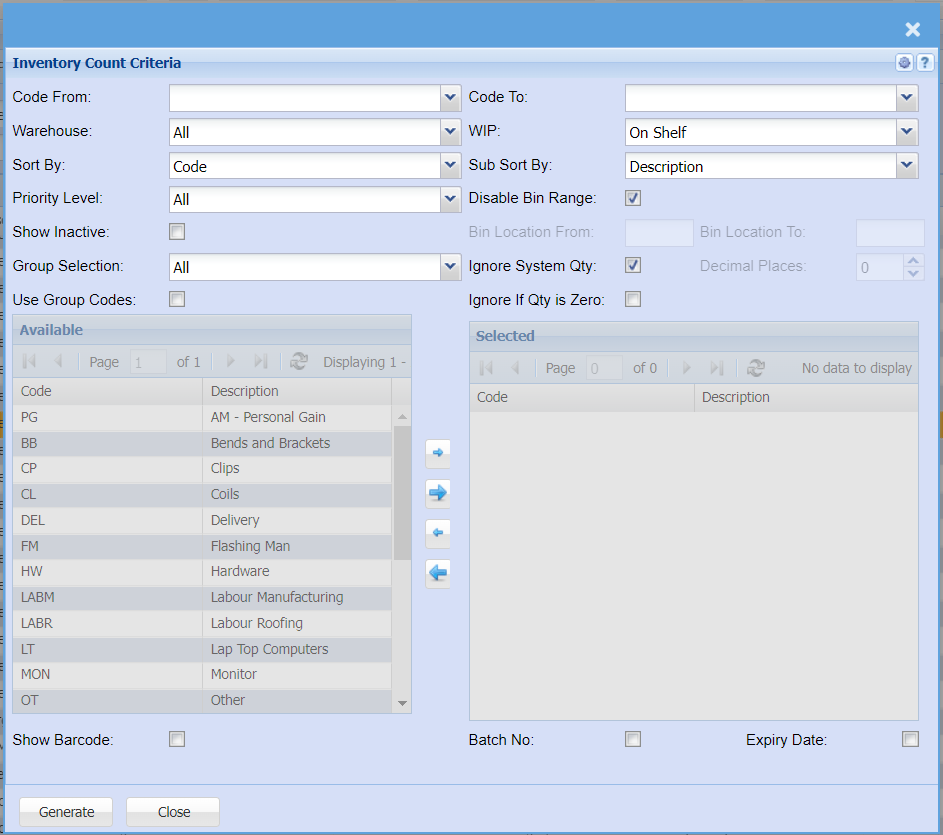
This report
| Code from |
Select the This looks at the |
| Code To |
Select the From and to is |
| Warehouse | Select a specific warehouse for printout |
| WIP (Work in progress) |
Run the count for working progress items, On Shelf, All, Invoice, Sales Orders, Jobs and Bill of Materials. Most counts are done on the |
| Sort |
Select |
| Sub sort |
Select |
| Priority level | Count based on the Priority level of marked items |
| Disable bin range |
Disable bin range is on by default which means the order is by code. Enable this which allows you to print count by bin location from and to |
| Bin location from | Print by bin location from |
| Bin location to | Print by bin location to |
| Show inactive | Show inactive items on printout (Default option is off) |
| Group selection |
Print a selected group selection of your group codes This is defined in the |
| Ignore system Qty |
This option is on by default to ignore the system quantity on report. if you want the system on hand value, remove the tick |
| Decimal places | View up to nine decimals for stock items quantity |
| Ignore if quantity zero | |
| Use group codes |
When selecting this option, group codes will be visible and allow the user to |
| Available |
Displays a list of available group codes |
| Selected group codes | Shows the list of selected group codes for the report |
| Show barcode | Show the barcode on the |
| Batch |
Display the |
| Expiry Date | Display the default expiry date of the item |