
Inventory Combined Forecast Report
Inventory module>Reports> Reports List
Calculates and forecasts inventory quantities based on the selection criteria and date range.
Please Note: This report will typically take a long time to render due to the
calculations and the size of the inventory data.
Please Note: This report will typically take a long time to render due to the
calculations and the size of the inventory data.
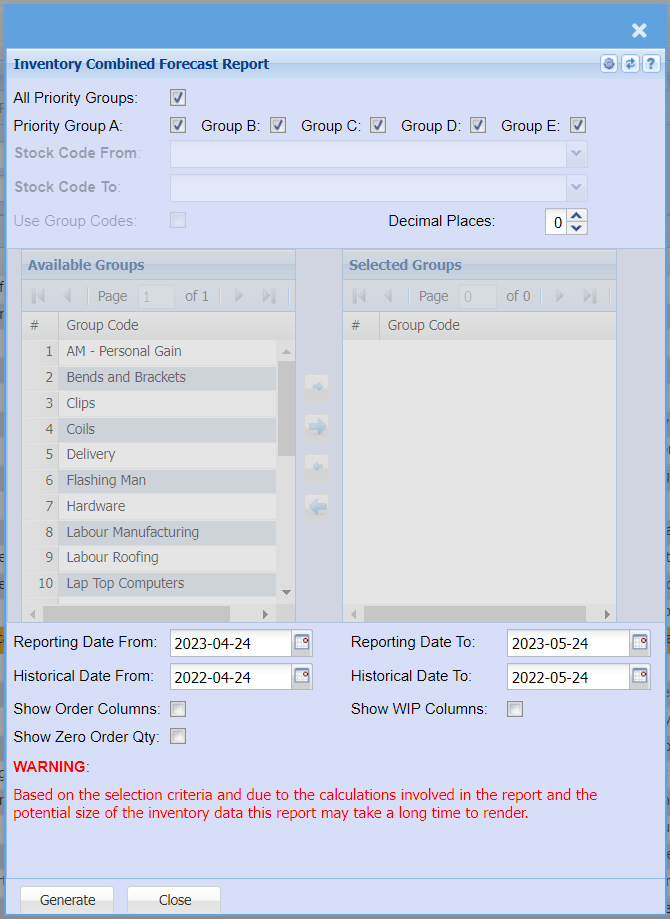
By default, when the report criteria window opens all the Priority Groups are selected, by clicking on the Select Priority Groups tick box they can be unselected and selected.
When unselected individual Groups can be selected or unselected.
Unselecting Select Priority Groups enables the Stock Code From and the
Stock Code To drop downs as well as the Use Group Codes tick box. A range
of stock items can be selected by using the from and to stock codes drop downs.
Leaving either one of them empty will result in at search criteria being unlimited
in that direction (either less that the Stock Code To or greater than the Stock
Code From selection)
By making use of the blue arrows between the Available Groups and Selected
Groups stock groups can be selected or unselected as part of the reports criteria.
Small arrows only move on Group Code, the large arrow will move all the groups to either Selected or Available.
To make use of the group codes as a selection criterion for the report group code
need to be selected and the Use Group Codes must be ticked.
Reporting Date from and Reporting Date To is the date range to calculate
the recent sales quantities of stock items e.g. the last three months.
Historical Date from and Historical Date To is the date range to calculate
historical sales that will be used to compare and calculate the forecast stock
quantities.
Show Order Columns when ticked will show the columns that make up the
On Order quantities e.g. Purchase Orders, GRV etc.
Show WIP Columns when ticked will show the columns that male up the
In WIP quantities e.g. Sales Orders, Invoices etc.
Show Zero Order Qty when ticked will show all records that the report
criteria retrieved and processed, when not ticked the report will be filtered
to only show stock items with an order quantity greater that zero.