
Inventory Age Analysis
Gives movement - In and Out - of Inventory Items based on the Audit date and Time
Inventory age analysis shows how many times the average inventory quantity is used in a given period
Inventory Module> Report> Inventory Age Analysis
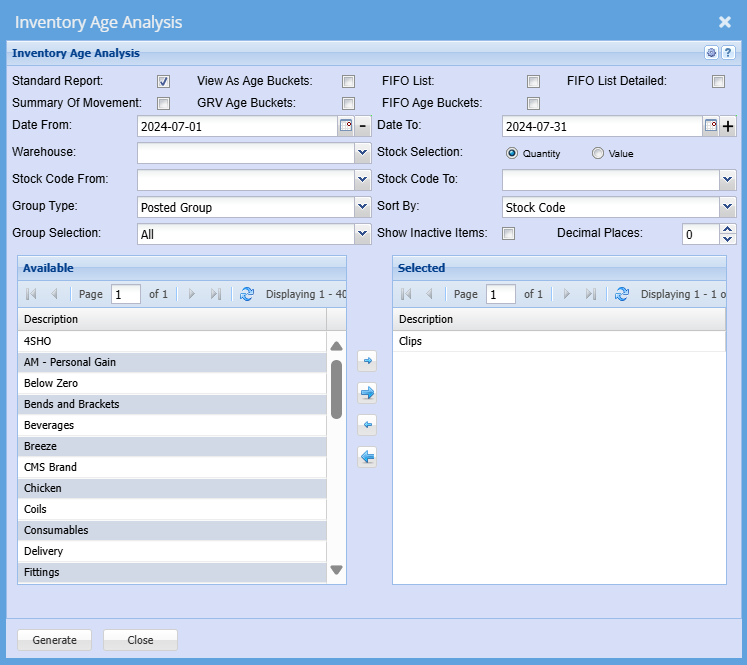
| Standard Report | Put a tick on if you wish to generate a standard report |
| View As Age Buckets |
When selecting this option, the group code option will only filter the group code and not group by them |
| Summary of Movement | Put a tick on if you only want to see summary of movement on your report and not a detailed |
|
GRV Age Buckets |
Put a tick on to view GRV age buckets on the report |
| Date From / Date To |
Choose the date range for which you want to view the report from / Select |
| Warehouse |
If you select all warehouses the report will fetch data from all If you want to search by a specific |
|
Stock Code From / To |
If you leave the stock item fields blank, all stock items will be displayed on the If you choose specific stock items, the report will sort information by stock item code rather than |
|
Group Type |
Select group type on the |
|
Group Selection |
Select a group on the |
|
FIFO List |
Put a tick on if you wish for a report to show the First In First out summary |
| FIFO Detailed | Put a tick on if you wish for a report to show First In First Out details |
|
| |
Stock Selection |
Choose a stock selection between quantity and value |
| |
|
Sort By |
Select a sort criteria on the drop down menu selection |
|
Show Inactive Items |
Put a tick on to show inactive items |
| Decimal Places |
It is advisable to set decimals to two You can view the report with any number of decimal places |
| Generate Button |
Click the "Generate" button to open the report You will have options to copy, email, or print the report To view the report in an Excel document, copy the report and paste it into an Excel file |