
BOM Stock Allocation List
Inventory module>Reports> Reports List
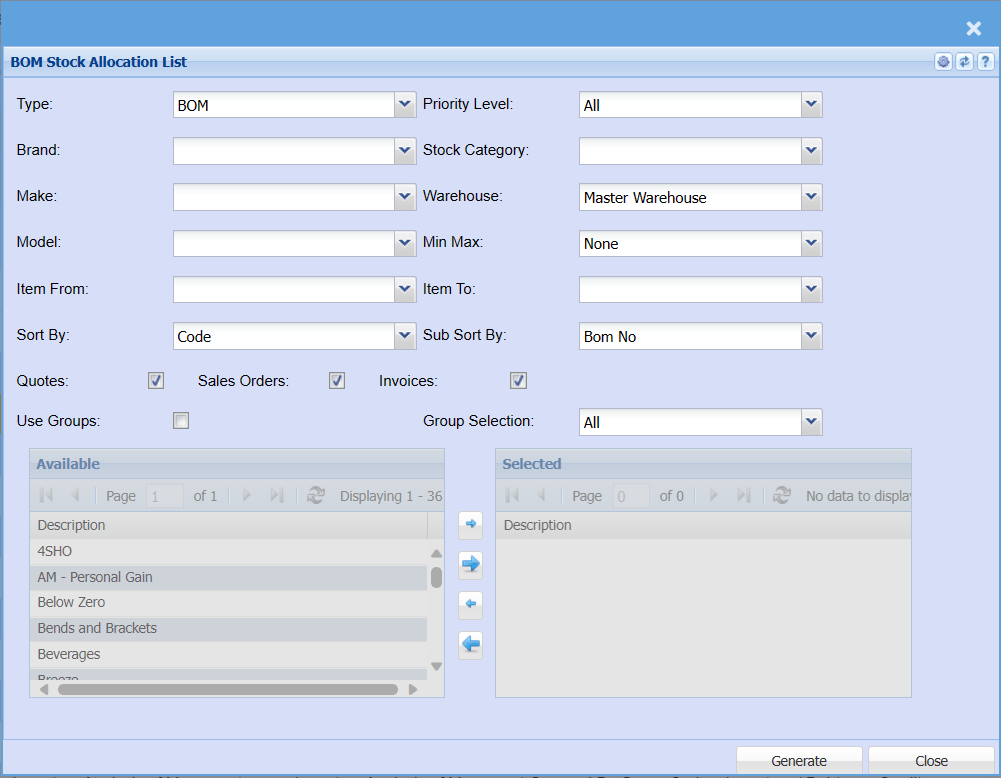
| Type | Select the type for a report criteria on the drop down |
| Brand | Select the brand from the drop-down menu selection |
| Make | Select the make from the drop-down menu selection |
| Model | Select the model from the drop-down menu selection |
| Item From /Items To |
Select an item you would like to view the report from and If you leave the stock item fields blank, all stock items will be displayed on the If you choose specific stock items, the report will sort information by stock item code rather than |
| Sort By | Sort the report by selecting one option from the |
| Priority Level | Select priority level of the report from the |
| Stock Category | Select stock category from the |
| Warehouse |
If you select all warehouses the report will fetch data from all If you want to search by a specific report, select the report on the warehouse selection |
| Min Max |
Select Min/Max on you want to run your report by or leave it on none if you do not wish to filter the report by min/max |
| Sub Sort By | Select a sub sort from the drop down |
| Quotes / Sales Orders / Invoices | Put a tick on a document(s) you wish to run the report by |
| Use Groups |
Put a tick on if you want to pull a report by group codes |
| Group Selection | Select group from the |
| Generate Button |
Click the "Generate" button to open the report You will have options to copy, email, or print the report To view the report in an Excel document, copy the report and paste it into an Excel file |