
Sales Overview Report
Debtors>Reports>Report List
An Analysis of various interactions with customer from Support Logs through to Invoices and Credit Notes.
NOTES
New Debtor: It looks at the captured date on the Debtor, then it checks if this date is within the date range for the report, if it is then it looks if there is an invoice against the debtor. Only then is it flagged as a new debtor. This was the requirement to classify a new debtor flag.
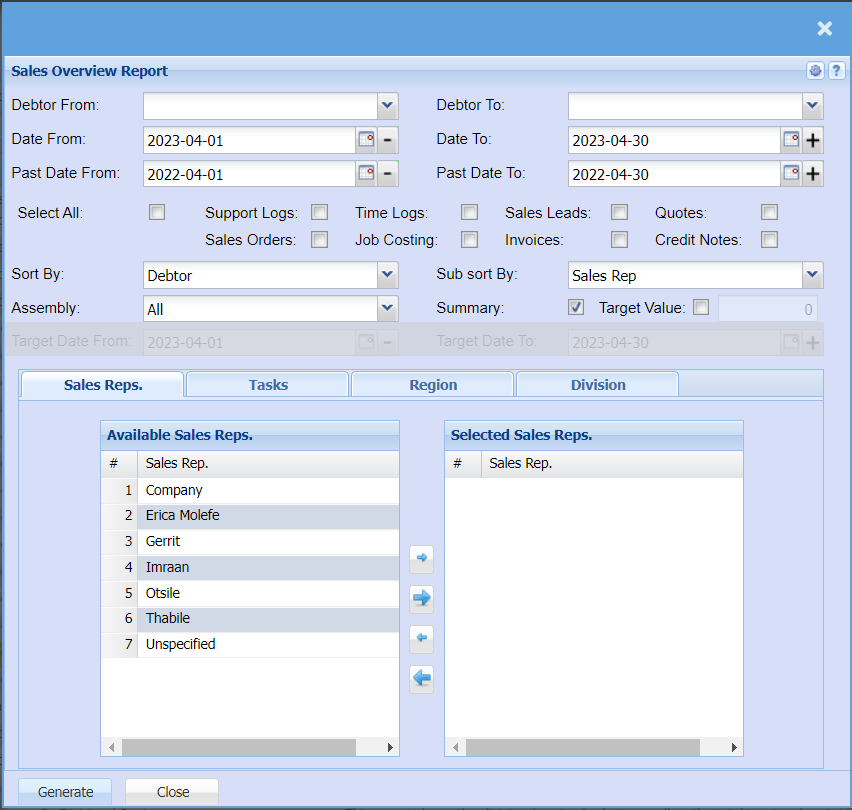
| Debtor from / Debtor To | Select a Customer/Debtor you wish to view the report from. Select the Customer/Debtor you wish to see up to in the report. |
| Date from / Date to | Choose the date range for which you want to view the report from / Select a date range of when you want to see up to on the report. |
| Past Date from / Past Date to | Choose the past date range for which you want to view the report from / Select a past date range of when you want to see up to on the report. |
| Select All / Individual Ticks | Select all will select all the other options you can add or remove from your report, by unticking these boxes they will be removed from your report. |
| Sort By | Choose from the drop-down menu how you would like your report sorted, your options are by Debtor, Sales Rep, Region or Division. |
| Assembly | If you run jobs through an assembly line, you can choose to filter for only those jobs or you can choose to exclude those jobs or pull a report that will have all jobs. |
| Sub Sort By | Sub Sort the report by selecting one option from the drop-down menu allows the user to pull a report with a secondary criteria that will be sorted by either, Code, Description, Warehouse or Bin location. |
| Summary | If you put the tick on the report will only pull limited information |
| Target Value | This is if you are looking for a specific Value in a specific time frame. Select your dates to narrow down your report. |
| Division / Region | This looks at the invoice and not the debtor's setup. |
| Invoices Value Current | No longer displays cancelled invoices. |
Check lists:
Select all generates a report of everything within the checklist options
Support logs generates a log report of all support logs limited to what you have clicked
Sales leads generates a sales report limited to what you have selected
Quotes generates a quote report which includes totals, amounts, approved not approved etc.
Sort by within the sort by dropdown they are options in which you can select to make report more readable
Sales reps contains all the reps, Task contains all the tasks, region contains all regions and division contains all division