
Sales Order Tracking Report
Debtors >Reports >Report list
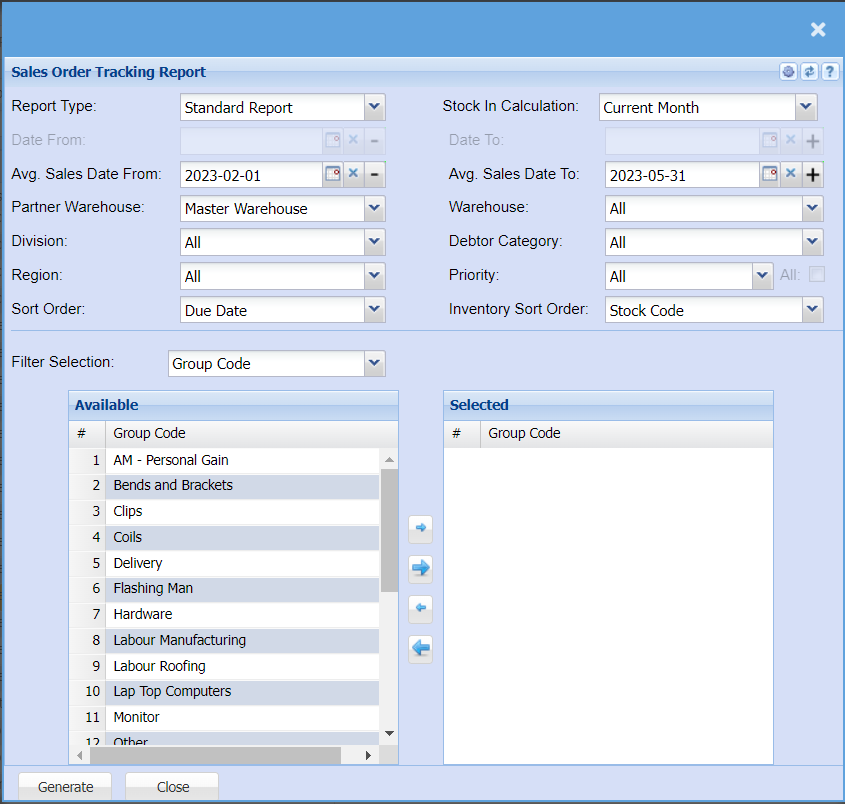
| Report Type | Select from the drop-down menu if you would like a standard report or a Forecast report |
| Date From / Date To | Choose the date range for which you want to view the report from / Select a date range of when you want to see up to on the report. |
| Avg. Sales Date From | Choose the date range for which you want to view the report from / Select a date range of when you want to see up to on the report. |
| Partner Warehouse | |
| Division | If you have set up divisions for your debtors, you can pull the report for all your debtors or you can select a specific Division from the drop-down menu. |
| Region | You can pull the report for all your debtors, or you can select a specific Region from the drop-down menu if you have set up Regions for your debtors. |
| Sort Order | Select from the drop-down menu if you would like your report to be sorted by, Shipping date, Debtor Code, Debtor Name, Sales order date or Sales order number. |
| Stock In Calculation | |
| Avg. Sales Date To | |
| Warehouse | If you select all warehouses the report will fetch data from all warehouses. If you want to search by a specific warehouse, select the warehouse from the menu. |
| Debtor Category | Select from the drop-sown menu if you want all Debtor categories included or only those on hold |
| Priority | If you have set up Priorities for your stock items and you would like to pull a report for a specific priority, you can select this from the drop-down menu, or you can select all to pull a full report. |
| Inventory Sort Order | Select from the drop-down menu if you want your inventory sorted by stock code or Stock description in your report. |
| Filter Selection | Here you can choose from the drop-down menu if you want to pull a report using your inventory group codes or your item categories if you have set them up. |