
Sales Analysis Report
Debtors >Reports >Report list
This report is broken down per Debtor per item sold with profits made on each item and percentage.
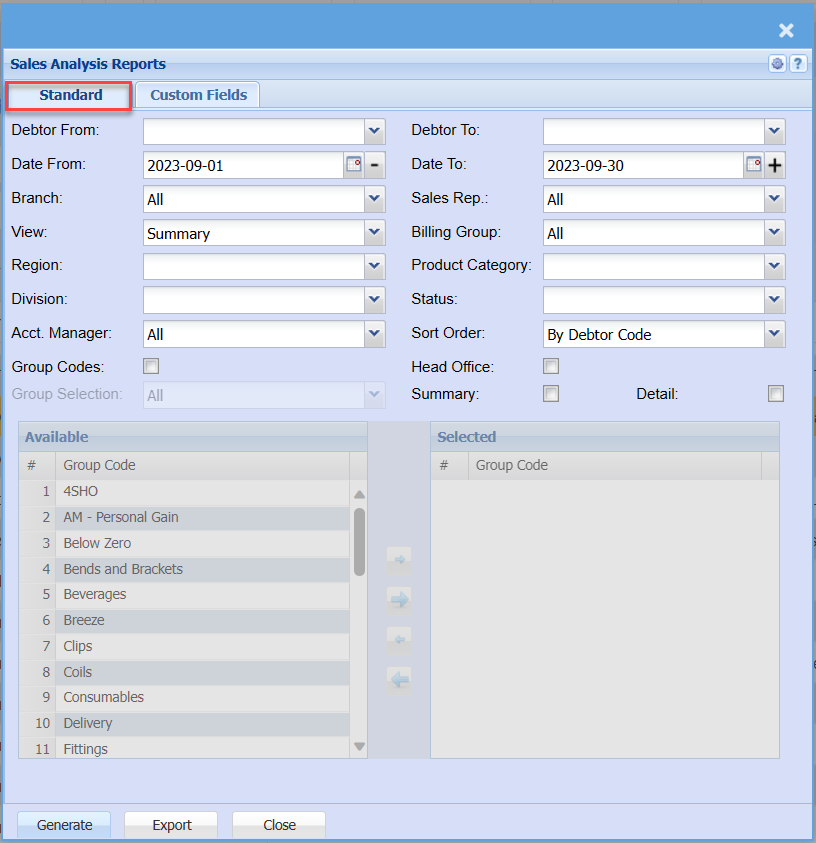
Standard Tab
| Debtor From / Debtor To | Select a Customer/Debtor you wish to view the report from. Select the Customer/Debtor you wish to see up to in the report. |
| Date From / Date To | Choose the date range for which you want to view the report from / Select a date range of when you want to see up to on the report. |
| Branch | When working with multiple branches this drop-down allows the user to select a specific branch to pull a report for. |
| View | Select how you want to view the report, either in a summary view or a Cutt off version. |
| Region | You can pull the report for all your debtors, or you can select a specific Region from the drop-down menu if you have set up Regions for your debtors. |
| Division | If you have set up divisions for your debtors, you can pull the report for all your debtors or you can select a specific Division from the drop-down menu. |
| Acct. Manager | You can pull the report for all your debtors, or you can select a specific Account manager from the drop-down menu if you have set up Account Managers for your debtors. |
| Group Codes | If you have set up Group Codes for your inventory you can select a group code from the drop-down menu to define your search to a specific group. |
| Group Selection | |
| Sales Rep | If you want to run a report by a specific sales rep, then you will need to select the sales rep on the drop-down menu. If you leave the sales rep on all the report will run by all sales rep. |
| Billing Group | |
| Status | If you select all the report will pull all statuses. If you want to view report by status, select the status on the drop-down menu |
| Sort Order | |
| Head Office | by ticking the box, the report will include head office sales analysis |
| Summary | If you put the tick on the report will only pull limited information |
| Detail |
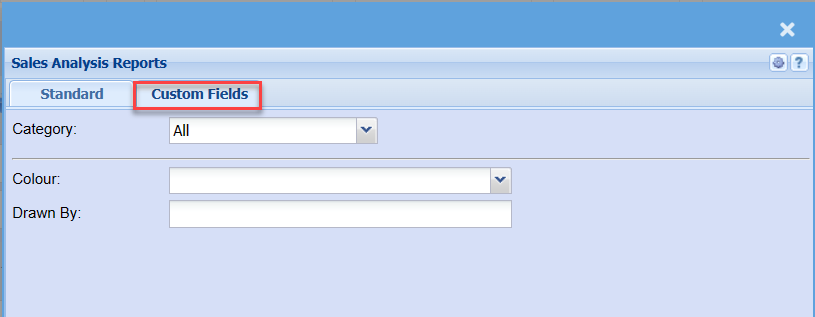
Custom Fields
| Category | |
| Colour | |
| Drawn By |