
New Client Listing
Debtors >Reports >Report list
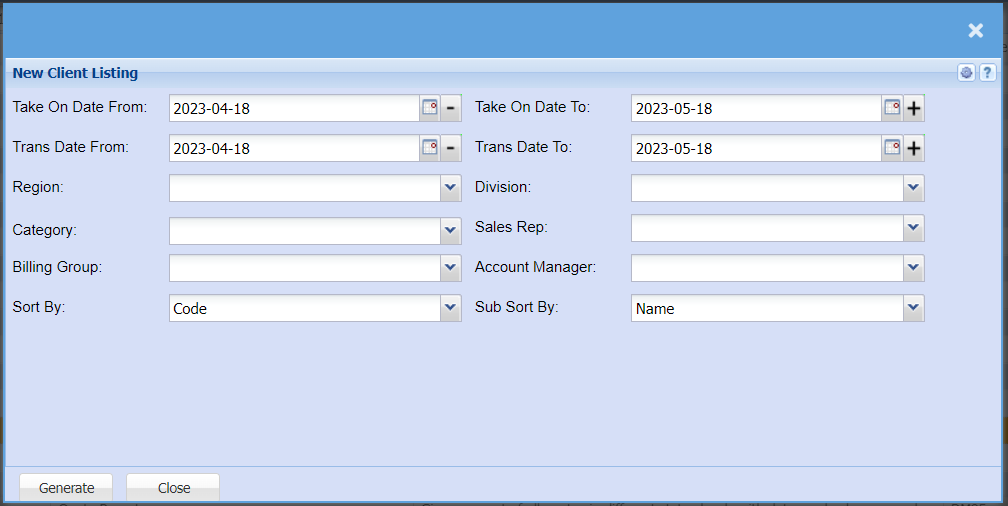
| Take On Date From / Take On Date To | Select a date from and to that you want to pull a report for new clients |
| Trans Date From / Trans Date To | Select the date from and to that you want to pull a transaction report for, for new clients. |
| Region | You can pull the report for all your debtors, or you can select a specific Region from the drop-down menu if you have set up Regions for your debtors. |
| Category | To generate the report, the user has to select the category from the drop-down menu |
| Billing Group | If you have billing groups like, Subscriptions, you can pull a report for these specific groups, or you can pull a report that will include all transactions. |
| Sort By | |
options are by date, Document No, Reference, Action or debtor. |
|
| Division | If you have set up divisions for your debtors, you can pull the report for all your debtors or you can select a specific Division from the drop-down menu. |
| Sales Rep | If you want to run a report by a specific sales rep, then you will need to select the sales rep on the drop-down menu. If you leave the sales rep on all the report will run by all sales rep. |
| Account Manager | You can pull the report for all your debtors, or you can select a specific Account manager from the drop-down menu if you have set up Account Managers for your debtors. |
| Sub Sort By | Sub Sort the report by selecting one option from the drop-down menu allows the user to pull a report with a secondary criteria that will be sorted by either, Code, Description, Warehouse or Bin location. |