
Document History
Debtors >Reports >Report list
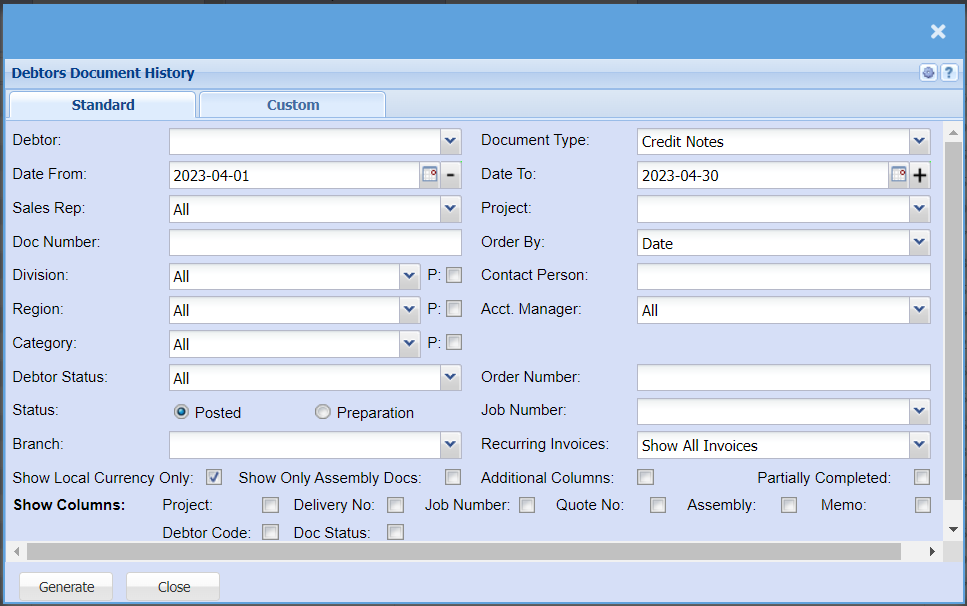
This is a full report of posted documents of a selected debtor
| Debtor | Select the debtor you wish to pull document history for. |
| Date From / Date To | Choose the date range for which you want to view the report from / Select a date range of when you want to see up to on the report. |
| Sales Rep | If you want to run a report by a specific sales rep, then you will need to select the sales rep on the drop-down menu. If you leave the sales rep on all the report will run by all sales rep. |
| Doc Number | If you are looking for a specific document and know the document number, you can add it here. |
| Division | If you have set up divisions for your debtors, you can pull the report for all your debtors or you can select a specific Division from the drop-down menu. |
| Region | If you have set up Regions for your debtors, you can pull the report for all your debtors, or you can select a specific Region from the drop-down menu. |
| Category | To generate the report, the user has to select the category from the drop-down menu |
| Debtor Status | to select the status from the drop-down menu |
| Status - Posted or Preparation | to select the document status |
| Branch | When working with multiple branches this drop-down allows the user to select a specific branch to pull a report for. |
| Show Local Currency Only | |
| Document Type | to select the document type from the drop-down menu |
| Project | to select a project |
| Order By | to arrange the document history by selecting order by from the drop-down menu |
| Contact Person | |
| Acct. Manager | You can pull the report for all your debtors, or you can select a specific Account manager from the drop-down menu if you have set up Account Managers for your debtors. |
| Order Number | If you are looking for a specific document for a specific order number, you can add the order number here to refine the search |
| Job Number | If you are looking for a specific document for a specific job number, you can select the job number from the drop-down menu. |
| Recurring Invoices | |
| Show Columns |