
Detailed Age Analysis
Debtors>Reports>Report List
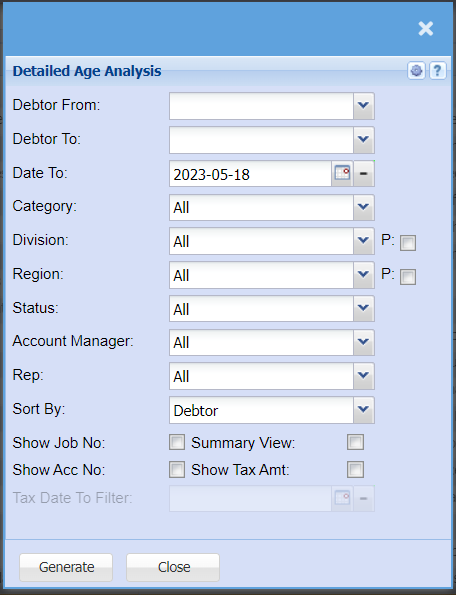
Report that shows detailed customers unallocated transactions
| Debtor From | |
| Debtor To | Select a Customer/Debtor you wish to |
| Date To | |
| Category | |
| Division | to select the division from the drop down arrow |
| Region | to select the region from the drop down arrow |
| Status | to select status from the drop down arrow |
| Account Manager | to select account manger |
| Rep | |
| Sort By | You can choose to have the report sorted by the debtor's name or the category should you have categories set up. |
| Show Job No. | By Ticking the Show Job No. box, this will add a column with the Job Number to the report. |
| Summary View | By ticking the Summery View Box will limit the information in the report when generated. |
| Show Acc No. | By Ticking the Show Acc No. box, this will add a column with the Account Numbers to the report. |
| Show Tax Amt | By Ticking the Show Tax Amt box, this will add a column with the Tax amount to the report. |
| Tax Date To Filter |