Debtors Statements
The Debtors/ Customer statements allow the company to send out statements to customers via print out, emails or sms.
This is found in Debtors Module > Reports > Statements
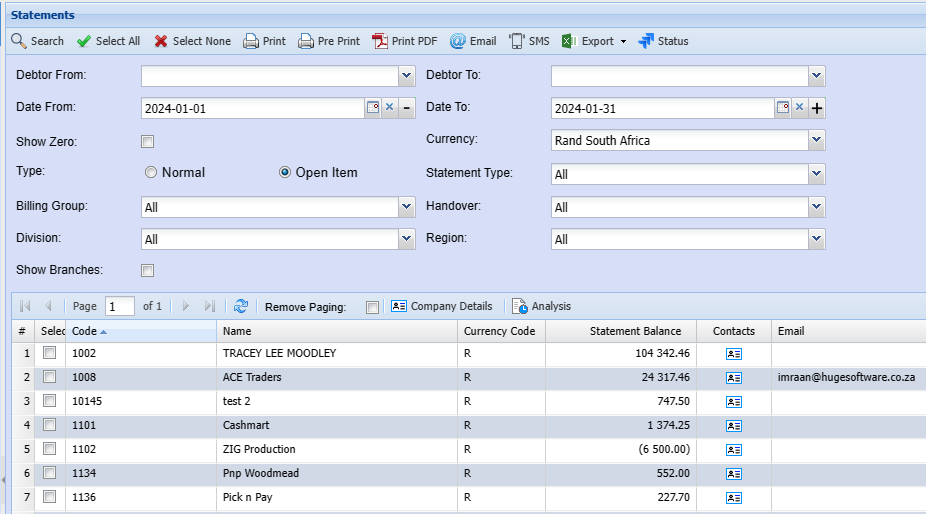
Debtor From and Debtor To enter a specific debtor to run the statement or alternatively leave blank to see all debtors
| Select all | Select all flags all debtors in the list |
| Select None | Select none removes the selected list |
| Prints to screen the statement details | |
| Pre-Print | Send the statement to your email address |
| Print Pdf | Send the statement to your email address |
| This will email the statement to the person selected to receive statement shown on the email column | |
| SMS | This will sms the statement to the person selected to receive sms statement (cell number provided) |
| Export | XML or CSV - export the statement in either a CSV or XML format |
| Status | Opens up the printing status window so you can see the whether the statement was sent successfully. |
| Show Zero | Tick this if you want to see statement with zero balance in the grid |
| Normal | Shows all transactions between date range |
| Open statement | Shows outstanding un allocated transactions with opening balance |
| Billing Group | Filter statements by Billing Group |
Email statements with attachments
When sending out debtors / customer statements, one can attach invoices to the emailed statements.
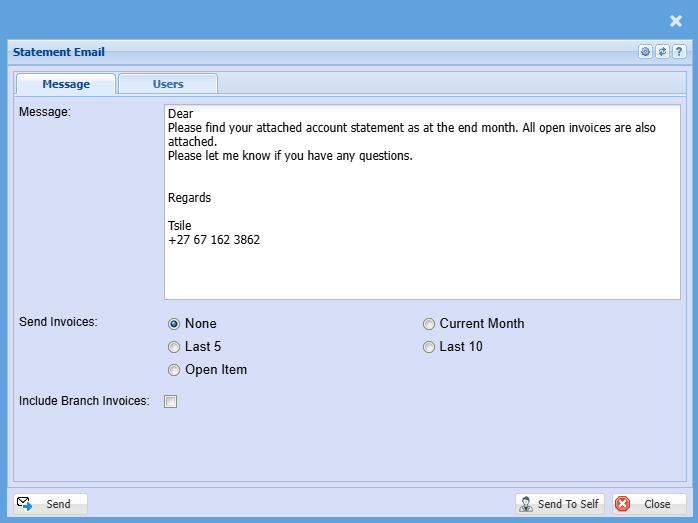
The Send Invoices options allow for the following:
| None | Does not attach any open invoices to the emailed statements. |
| Last 5 | Takes the last five invoices of the customer irrelevant of the date of invoice and attaches these to the statement. |
| Open Item | Takes the invoices that are unpaid or fully allocated and attaches these to the email statement. |
| Current Month |
The Current invoices when sending out statements work off of It can either be set to 7 Days or 30 Days. It also depends on if the Debtor / Customer is set to Date of Statement or Date of Invoice. |
| Last 10 | Takes the last ten invoices of the customer irrelevant of the date of invoice and attaches these to the statement. |
.png)
Consolidated statements or branch statements
Video training manual 2016 - Click Here
Head office statements combine branch invoices into one statement to the head office broken down into sections.
For best results, have these settings active
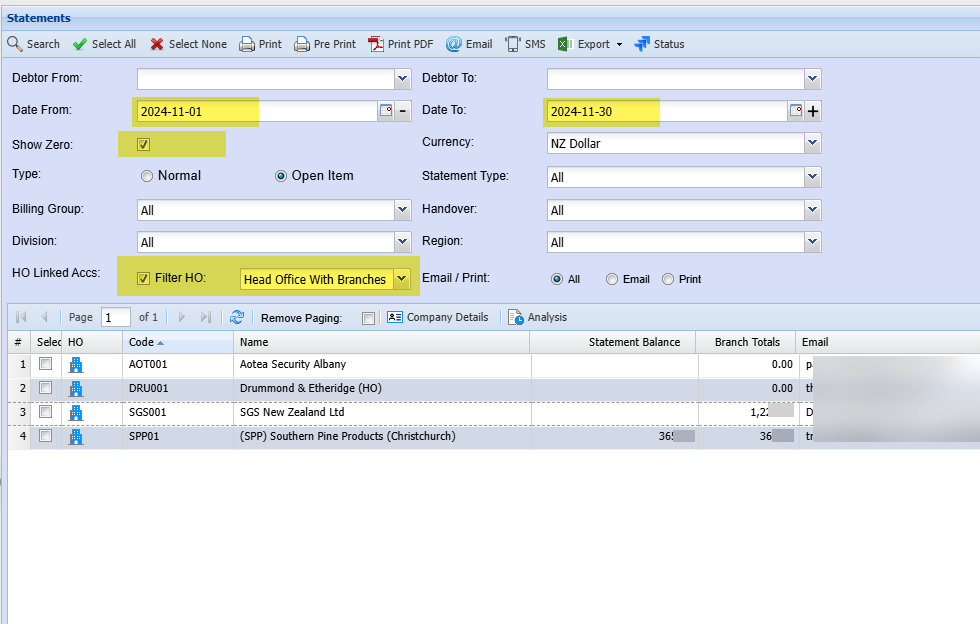
| Date From and Date To | Select the correct dates from and to for statements |
| Show Zero |
For best results select show zero The reason for this is that if a branch has invoices but the head office has none, then the search will not bring back any results for the branches |
| HO Linked Accs | Head Office Linked Accounts - active tick to filter by Head Office accounts only |
| Filter HO | Filter by Head Office with Branches |
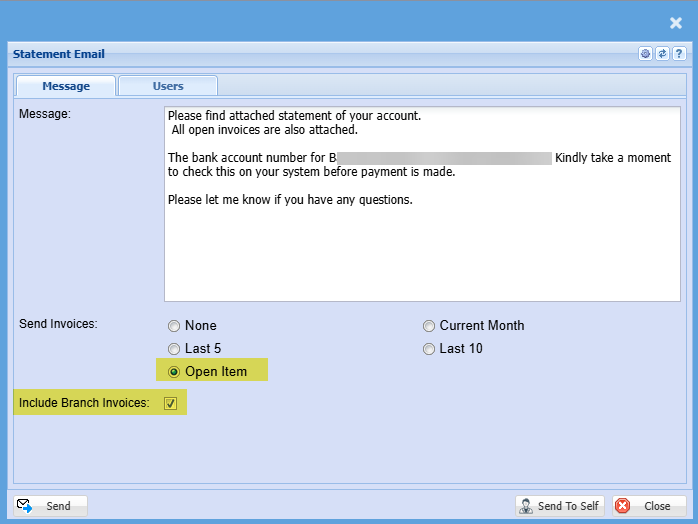
Sending out emails selections for Head Office
Select open Item to send outstanding invoices with statement
Include Branch Invoices to send the invoices of invoices outstanding at each branch
Status
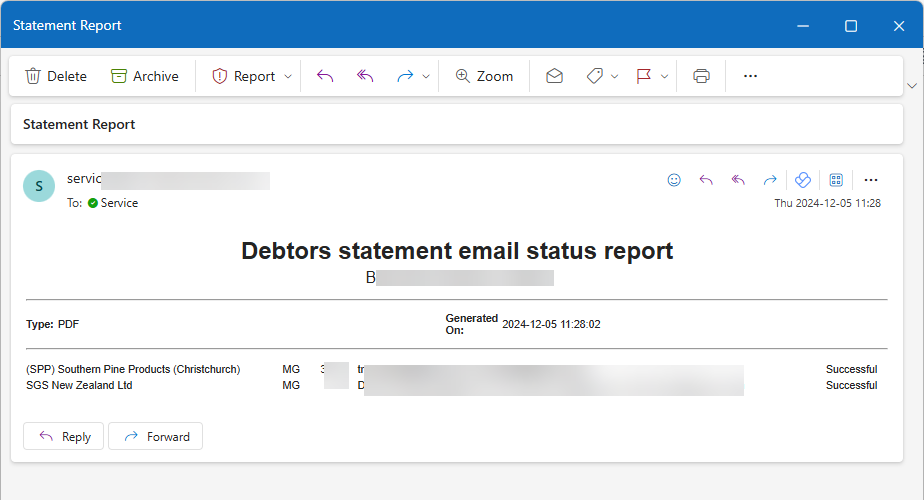
Check the status of the statements emailed out.
This will only show one line with status of 5 of 46 statements sent
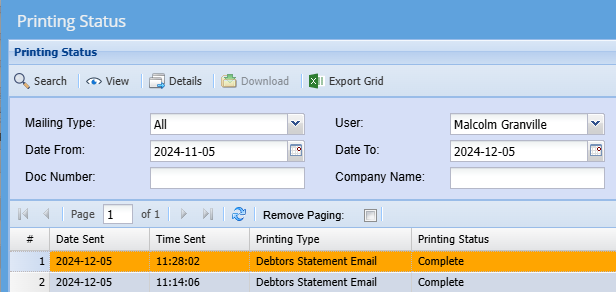
When statement email is complete, the system will send confirmation of statements emailed out.