
Age Analysis
Debtors> Reports> Report List
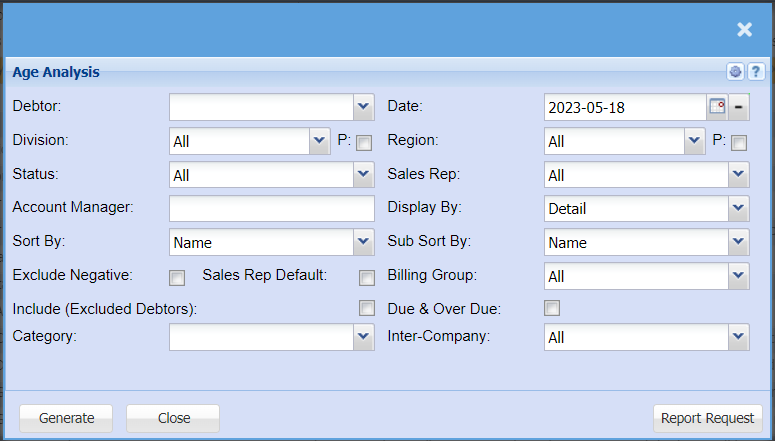
| Debtor |
If left blank this means all Debtors Select a debtor for single selection |
| Division | If you have multiple Divisions, by selecting this will add this column to your report. |
| Status | If you select all the report will pull all statuses. If you want to view report by status, select the status on the drop-down menu |
| Account Manager | |
| Sort By | Select a sort criteria on the drop-down menu |
| Exclude Negative Tick | |
| Sales Rep Default Tick | |
| Include (Excluded Debtors) Tick | |
| Category | To generate the report, the user has to select the category from the drop-down menu |
| Show Inactive Tick | By ticking the Inactive box this will include inactive Debtors/Customers in your report |
| Date |
This is the date ending of the report Click the minus button to go back to the first of each month |
| Region | If you have Regions, this will add Regions to the report. |
| Sales Rep | If you want to run a report by a specific sales rep, then you will need to select the sales rep on the drop-down menu. If you leave the sales rep on all the report will run by all sales rep. |
| Display By | |
| Sub Sort By | Sub Sort the report by selecting one option from the drop-down menu allows the user to pull a report with a secondary criteria that will be sorted by either, Code, Description, Warehouse or Bin location. |
| Billing Group | |
| Due & Over Due | |
| Inter-Company |