VAT Rate Change Process
In the event that the VAT rate happens to change, one will need to update the system to the new VAT rate.
The VAT rate changes will affect the following entries:
- Any open debtor transactions (Invoices, Credit Notes, Journals)
- Any open creditors transactions (Purchase Orders, Goods received notes-GRVs, Stock return notes, Journals)
- Open Cashbooks
- Open General ledger journals
- Recurring transactions
The process to change the VAT rate is as follows:
- Ascertain the effective date of the rate change
- Create 2 new VAT types for the current existing rate
- Edit the percentage rate on all applicable existing VAT types to the new rate
- Run the VAT utility
-
Effective date of the new VAT rate:
This will typically be published in the media. let's say the date is 1 May 2025 as an example.
This means that all transactions as of 1st May will have the new rate applicable.
Preferably any transactions as of this date need to be finalised and process. Alternatively, transactions that are not processed, but should still have the old rate applicable, will then have to be changed to either of the 2 new VAT types created in step 2.
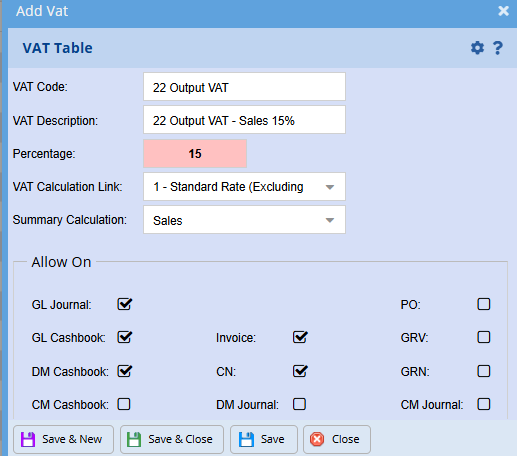
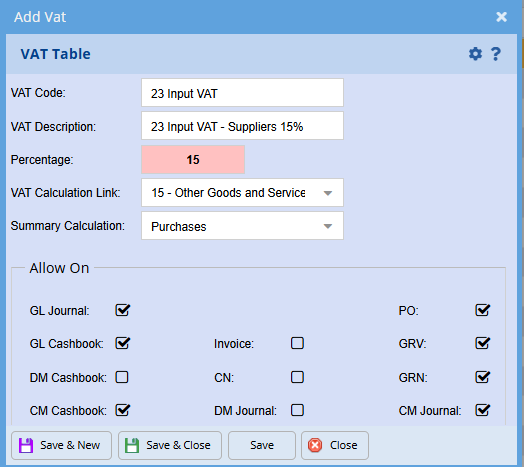
2. Create new VAT types
This is so that you are able to still apply the old VAT rate to any valid open transactions if need be.
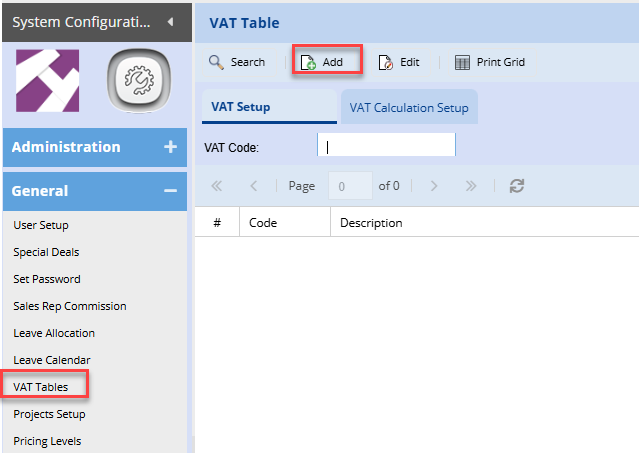
To create the new VAT Types:
System Configuration> General> VAT Tables
3. Edit Existing VAT Types
Remember, the system is set with certain VAT types as defaults for the various transactions.
Creating a full range on new VAT types with the new rate will entail having to update these default settings in all the relevant sections of the system as well. If not done correctly, this could still result in the incorrect VAT rate being applied to transactions.
As such it is safer and easier to simply edit the exiting VAT types.
Important: This step can only be done on the effective date of the new rate, before any new transactions are captured. example, if the effective date is 01 may, then you will need to edit these VAT types the night of the 30th April, or morning of the 1st May before any new transactions are loaded.
System Configuration> General> VAT Tables
Select the existing VAT type with the current rate and click edit
Change the percentage
Note: if you have the percentage rate as part of the description, you will need to edit this as well
Save and Close
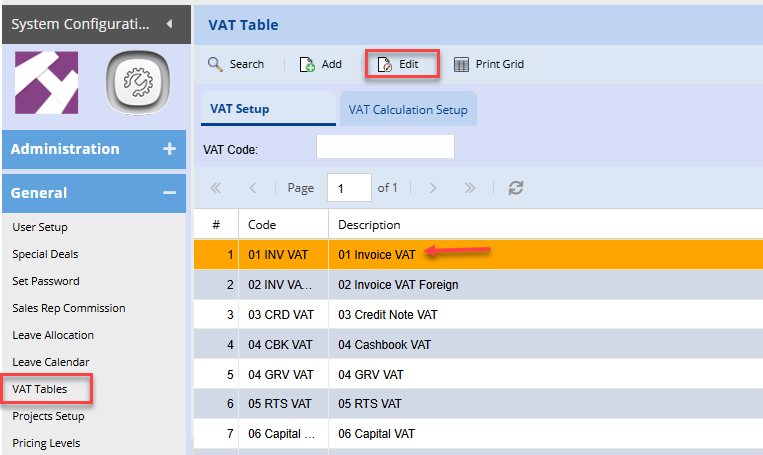
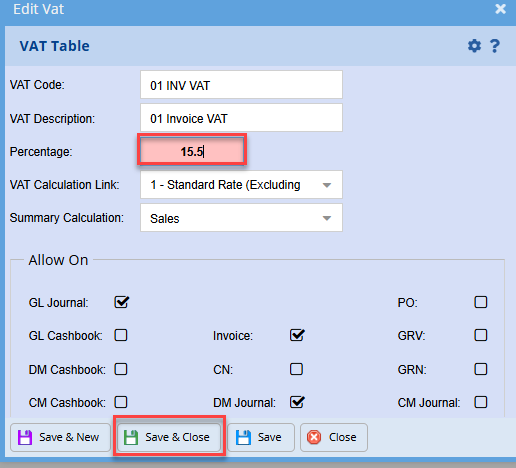
Repeat this for all the VAT types with the current VAT rate:
4. Run the VAT Utility
System Configuration> General> VAT Tables
Click the changed VAT dropdown
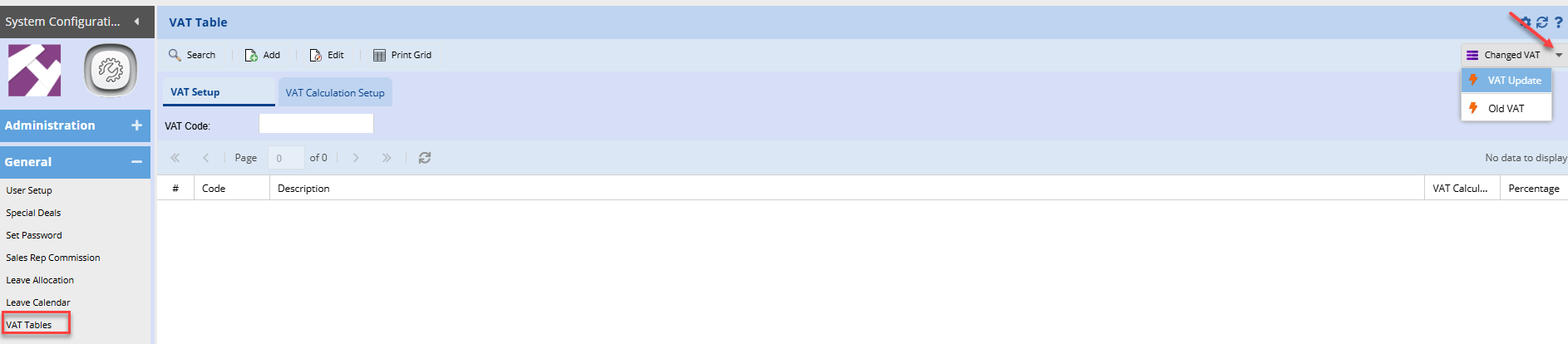
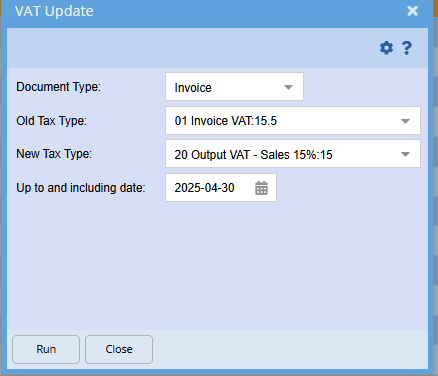
VAT Update:
This utility will update all open transactions to the new VAT rate. This saves the user from having to edit each transaction manually. if there are potentially some open transactions that are dated prior to the new rate effective date, then these entries will also be updated to the new rate. Hence you will need to run the second utility, Old VAT
Old VAT:
This utility looks at the transaction date on all open transactions and allows one to change the VAT option back to the old VAT rate
One will select the relevant documents to be updated
Enter the last day the current VAT rate applies for
Select the respective new VAT type created in step 2