
Terms And Conditions Setup
Video Training Manual 2016 - Click Here
System Configuration> General> Terms and Conditions
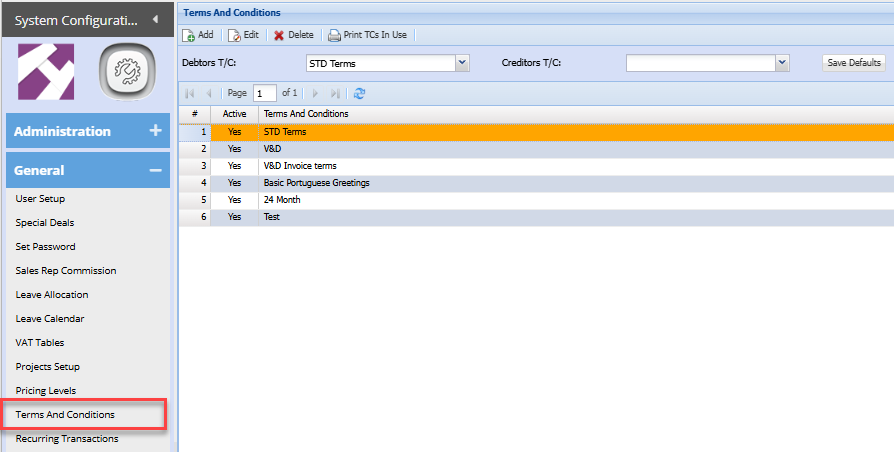
General arrangements that formsform part of an agreement or contract
| Add button | |
| Edit button | View or edit an already added Terms and Conditions |
| Delete button | Delete the currently selected Terms and Conditions |
| Print TC's in Use |
This will give you a history of Terms and conditions that have been used in the past It will give you a list indicating document number, date and debtors code and name |
Add Terms and Conditions
To add new terms and conditions click add
The screen below will display
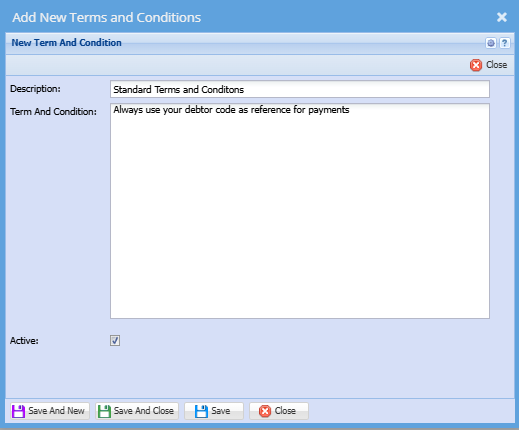
| Description | Enter a description for your terms and conditions |
| Term And Condition |
Enter the actual terms and conditions You can add as many as you wish based on your company's terms and conditions |
| Active |
Put a tick on if the terms and conditions should be in use Put the tick off if the terms and conditions must not be in use |
Once you are done click Save and New if creating multiple terms and conditions or click save and close if just creating one terms and conditions.
Once completed the terms and conditions will display as shown below:
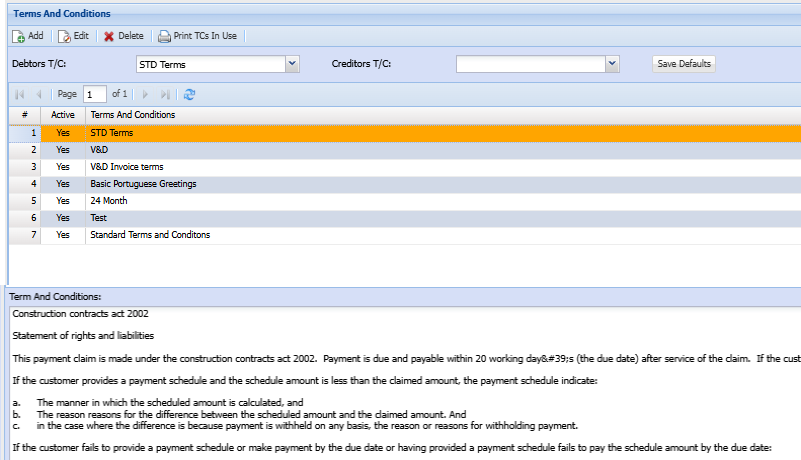
You can also select terms to be used as a default on Debtorsdebtors/customers' Documentsdocuments and Creditorscreditors/suppliers' Documentsdocuments documents
Select the Debtor/ Customer and ClickCreditor/ onSupplier SaveT/C defaultsdrop down
.png)
