
Job Item Details
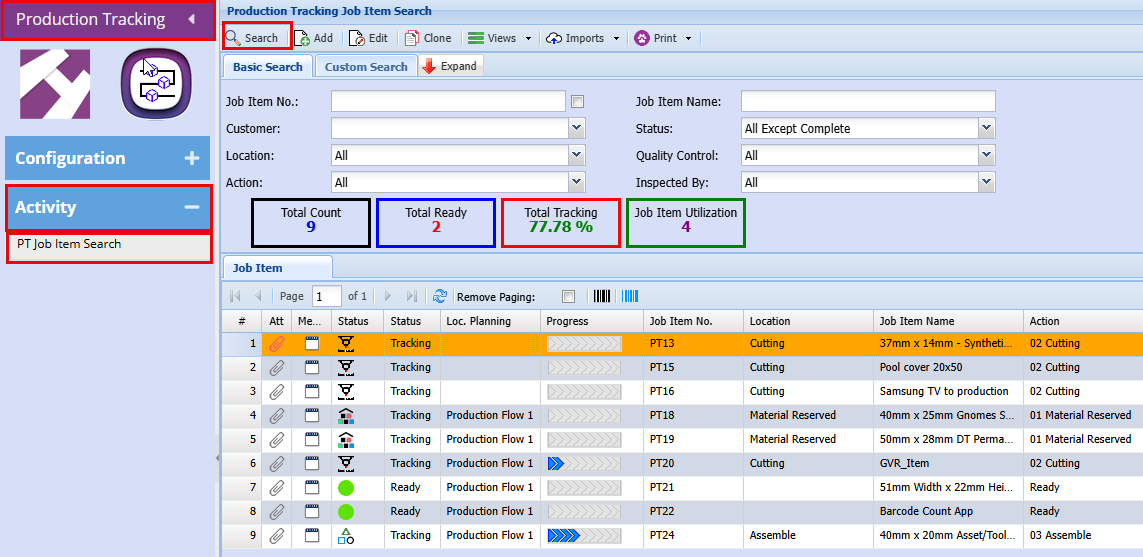
Job Item Details displays items that have been set up for tracking.
Production Tracking > Activity > PT Job Item Search
Main tab
Double click on the job line that want to view
| Job Item No. |
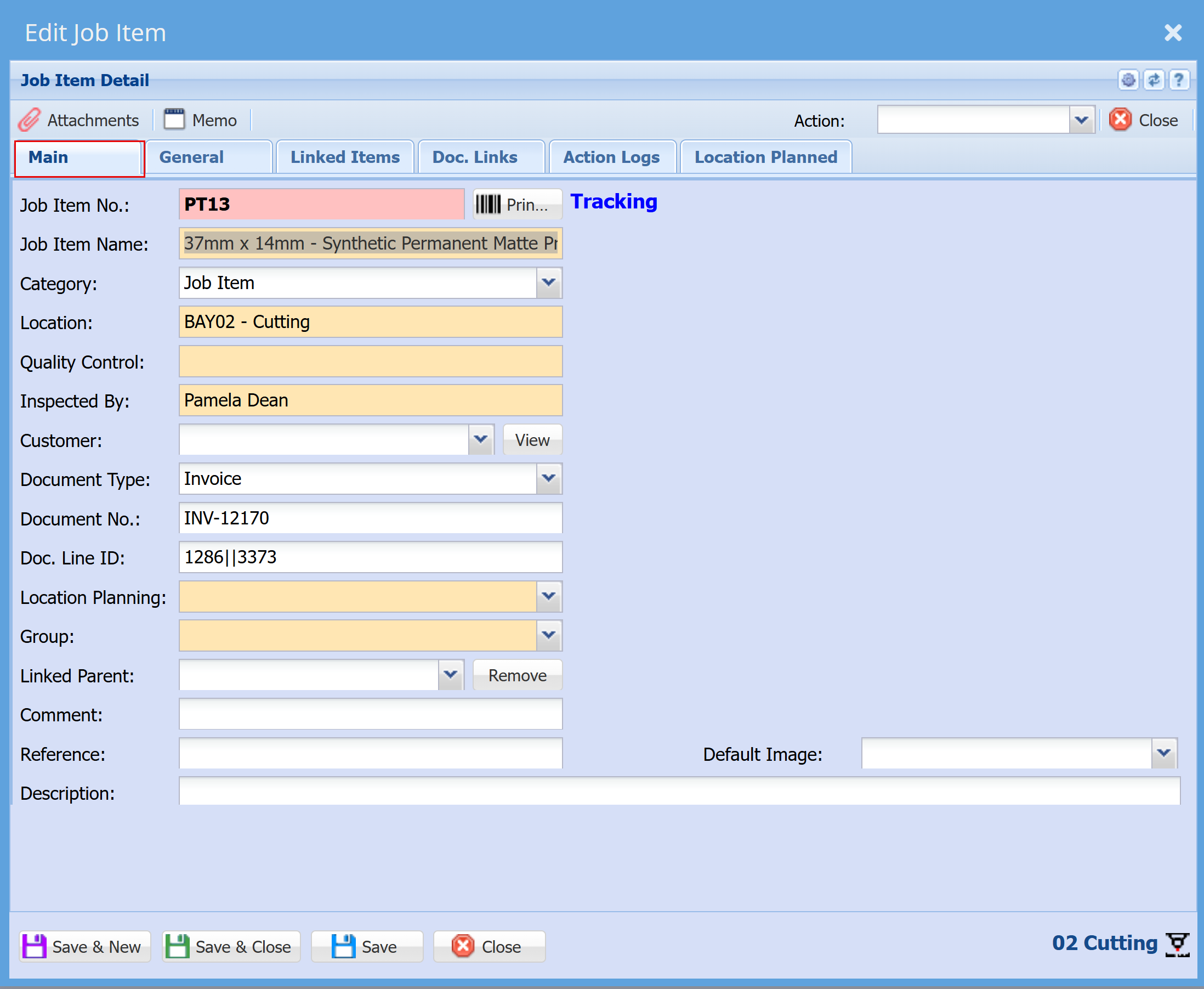
This number is generated automatically as a consecutive numerical value when a new job is created
|
| Job Item Name |
Identifies the item being produced, processed, or tracked within a job.
|
| Category |
Used to group the job item, such as by production line, process stage, or item type. These are setup in configuration.
|
| Location |
Specifies the position within the production line, such as the individual bays where processing takes place.
|
| Quality Control |
Displays the result once a quality check or inspection has been completed, such as a pass, fail, or noted damage.
|
|
Inspected By |
Records the name of the person who completed the quality check or inspection.
|
| Customer |
Identifies the customer associated with the job or item being tracked.
|
| Document Type |
Indicates the type of document the job was created from, such as a Quote, Invoice, or other source document.
|
| Document No. | Displays the reference number of the document the job was initiated from. |
| Doc. Line ID | |
| Location Planning |
Location Planning defines the workflow path selected for a specific job. These are configured under PT Location Planning in system configuration. Within this setup, you determine how frequently checks or inspections are performed, and whether email notifications are triggered for progress updates or delays. |
| Group |
Function similarly to categories and can be defined to suit industry‑specific requirements. These are configured within the system settings.
|
| Linked Parent | |
| Comment |
Allows users to add notes or additional information related to the job or item.
|
| Reference |
Enter a reference here if applicable; otherwise, leave this field blank.
|
| Description |
Enter details describing the item, service, or purpose.
|
| Default Image |
A default image can be selected once the image has been uploaded as an attachment. It will then appear in the dropdown list.
|
General Tab
| Active |
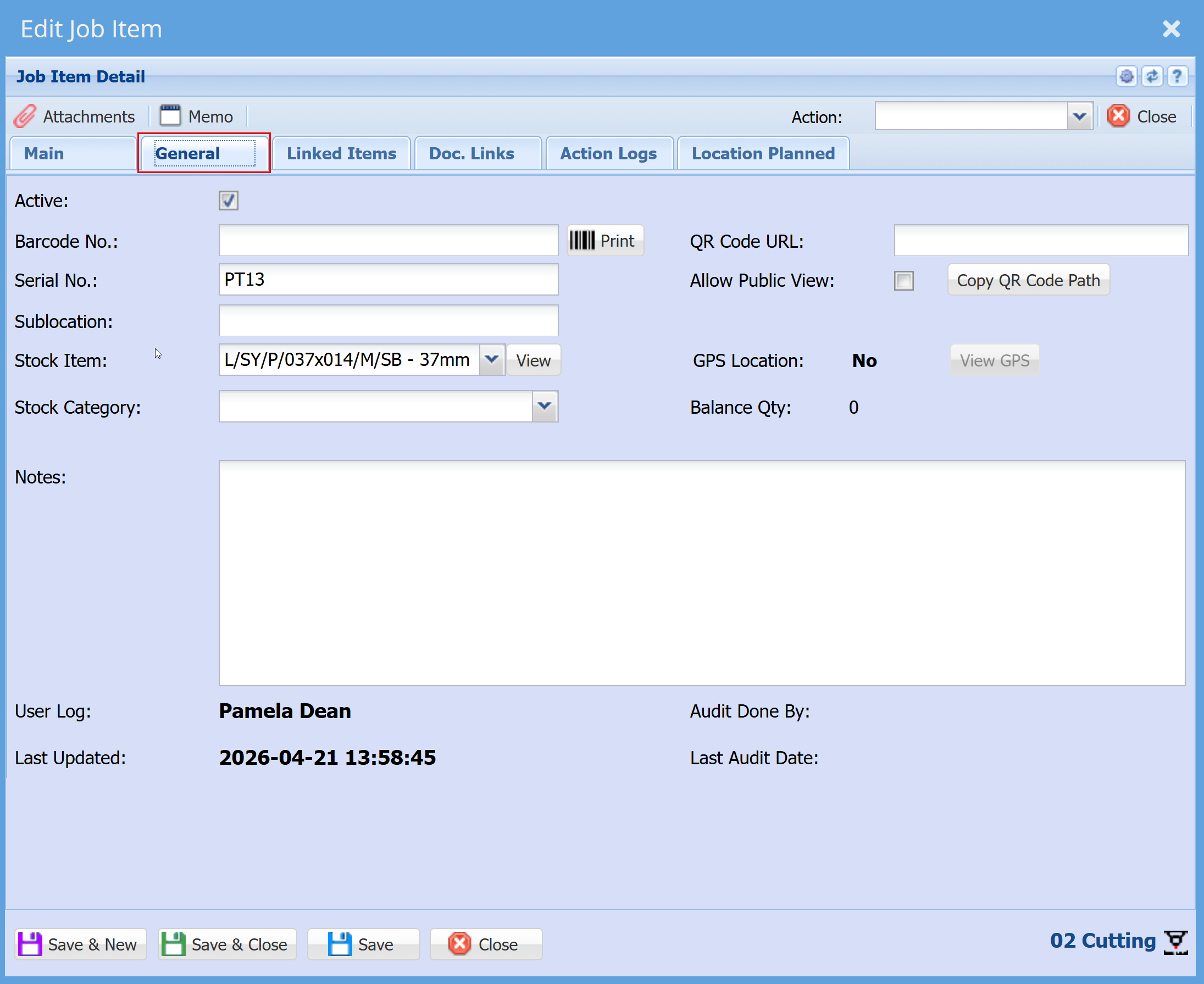
Indicates whether the job item is currently active in the system. Only active items will appear in production tracking and workflow processes.
|
| Barcode No. |
This is the unique barcode assigned to the job item. It can be printed and used for scanning at different production stages to track progress and location.
|
| Serial No. |
An optional serial number used for additional identification or traceability if required.
|
|
Sublocation |
Shows the current sub‑location of the job item within the facility, helping identify where the item physically resides during production.
|
| Stock Item |
Displays the stock item linked to this job item, including its code and description. This ties the production item back to inventory and product records
|
|
Stock Category |
Defines the category of the stock item, used for reporting and classification purposes.
|
| QR Code URL |
Used to generate and manage QR codes that can be scanned to view job item details.
|
| Allow Public View | Public access can be enabled if required. |
| GPS Location |
Indicates whether GPS tracking is enabled for the job item (if applicable).
|
| Balance Qty |
Shows the current quantity balance associated with the job item.
|
| Notes |
A free‑text field used to record any additional information, instructions, or production‑related comments specific to the job item.
|
Location Planned tab
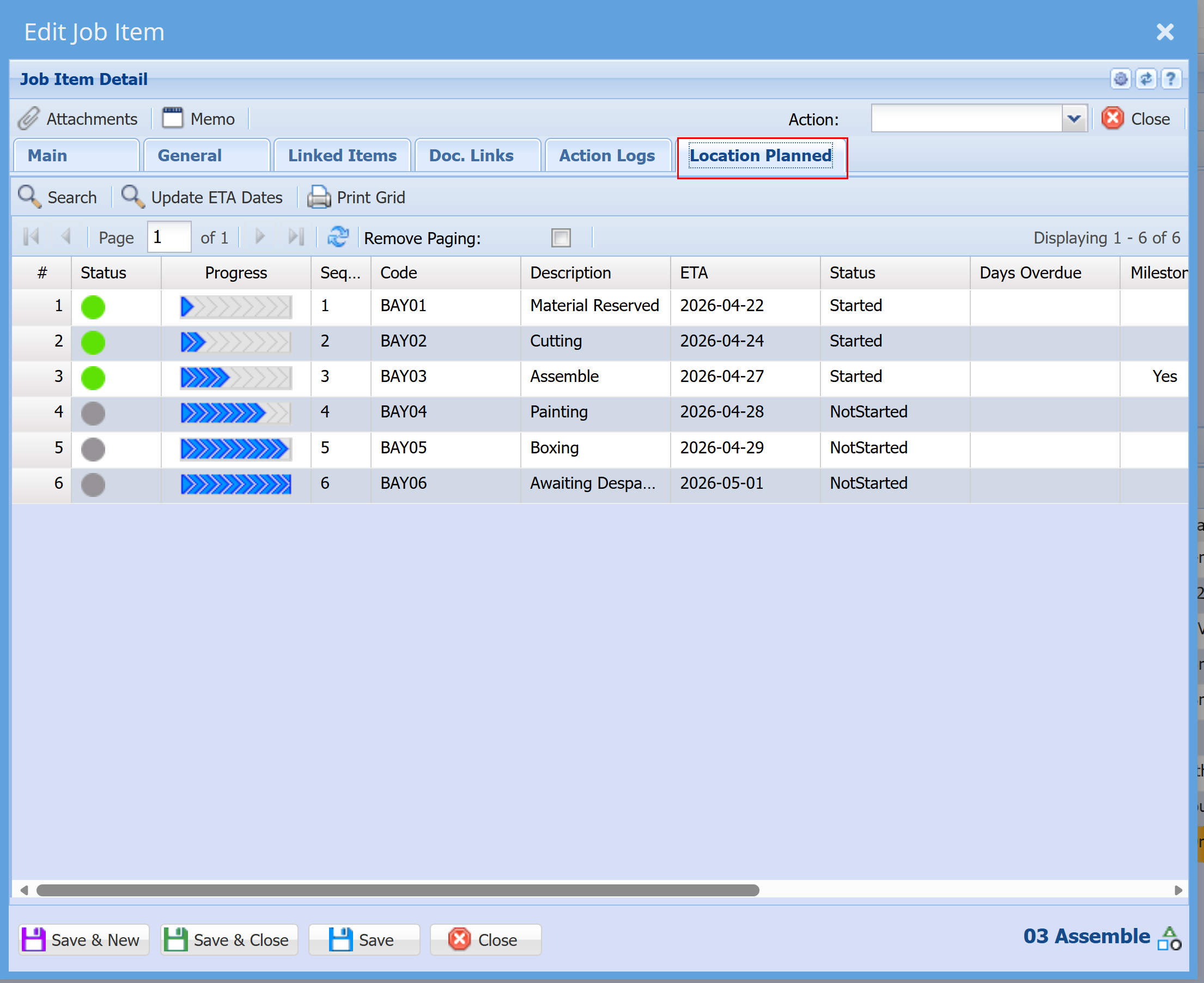
This screen is used to view the plan and track the progression of a job through each production bay.
Each row represents a bay (or stage) in the process, shown in sequence order. As the job moves from one bay to the next, this screen allows you to plan and manage the dates for when the job is expected to be in each bay.
Key points:
- The Sequence column shows the order in which the job moves through the bays.
- The Code and Description identify the bay or activity (e.g. Cutting, Assemble, Painting).
- ETA indicates the planned date the job is expected to reach or complete that bay.
- Status shows whether the stage has started, not started, or is in progress.
- Progress visually indicates how far the job has progressed through the planned locations.
This screen is primarily used for forward planning and scheduling, helping to ensure each bay is prepared and workloads are managed as the job progresses step by step through the process.
No Comments