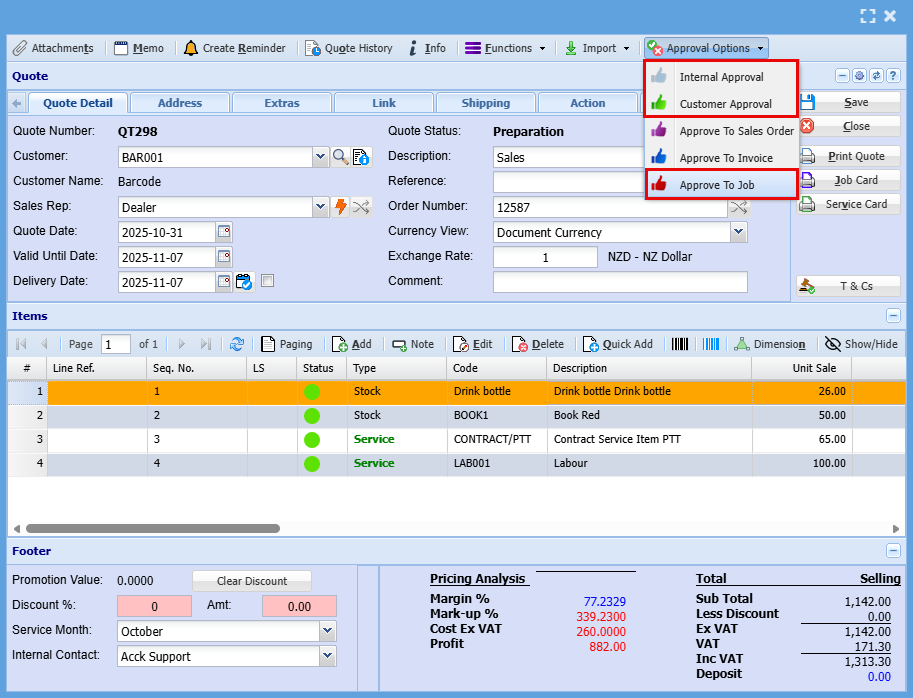
Creating a Quote
Job Costing Module >Activity > Quotation
-
Open or Create a Quote
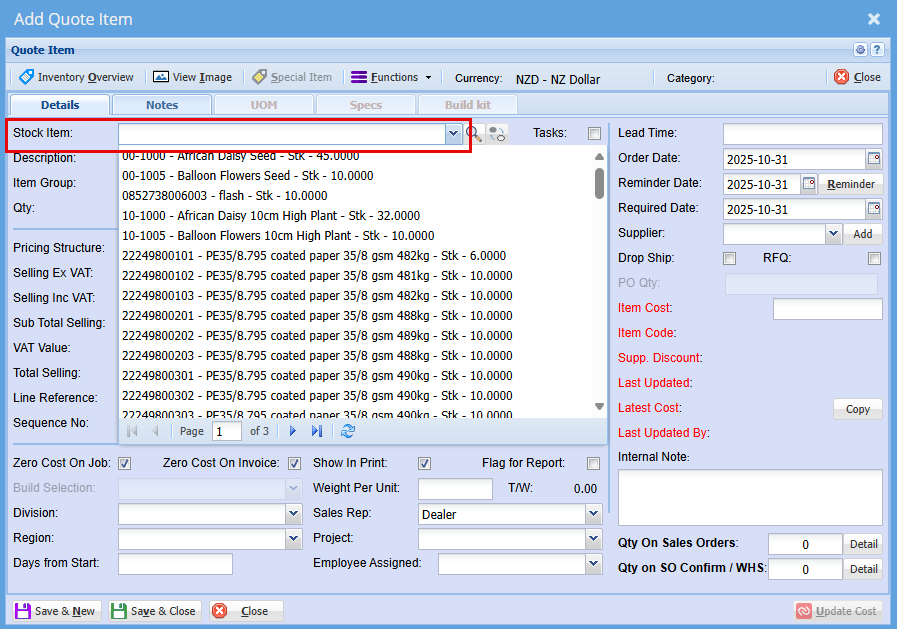
- Navigate to the Quotes section.
- Click "Add" or open an existing one.
-
Locate the Customer Field
- Look for a field labeled Customer, Account, or Contact.
-
Save the Quote
- Click Save to lock in the selected customer.
Tips
- If the customer isn’t listed, you may need to create a new customer record first.
- Ensure you select the correct type (Account vs Contact) depending on your system’s setup.
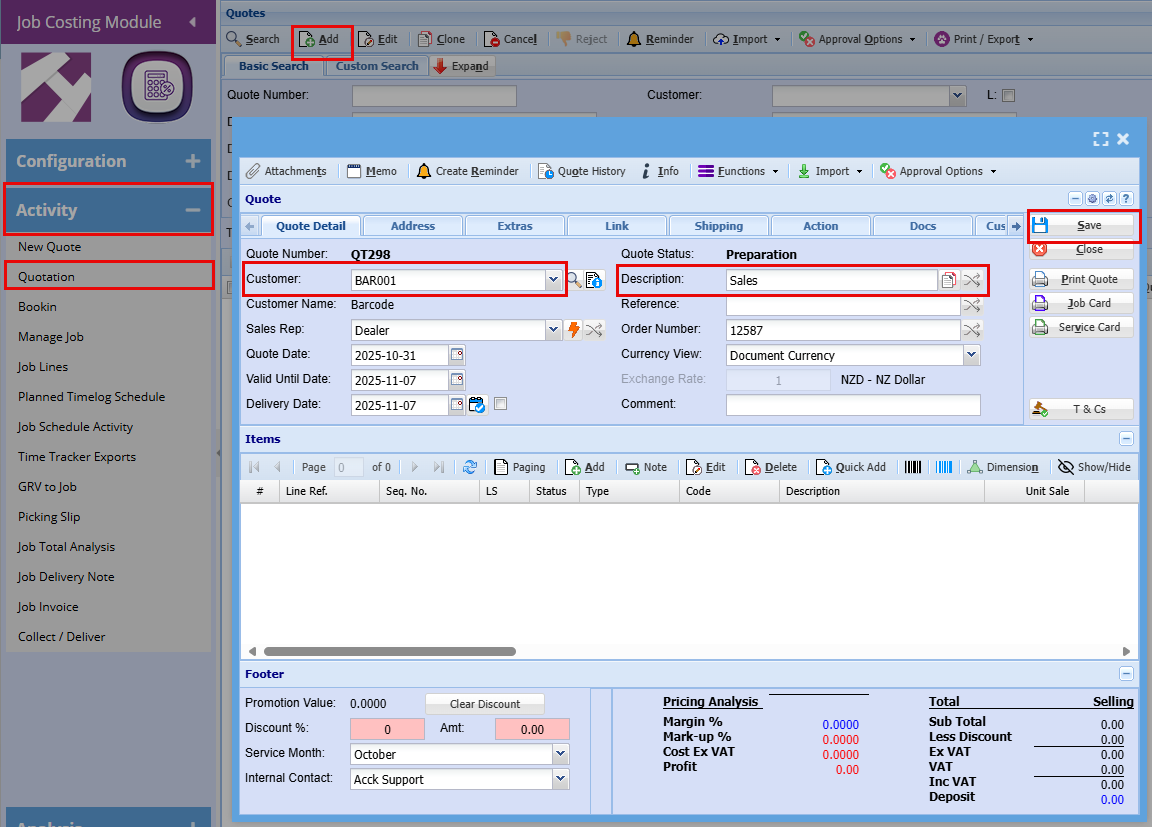
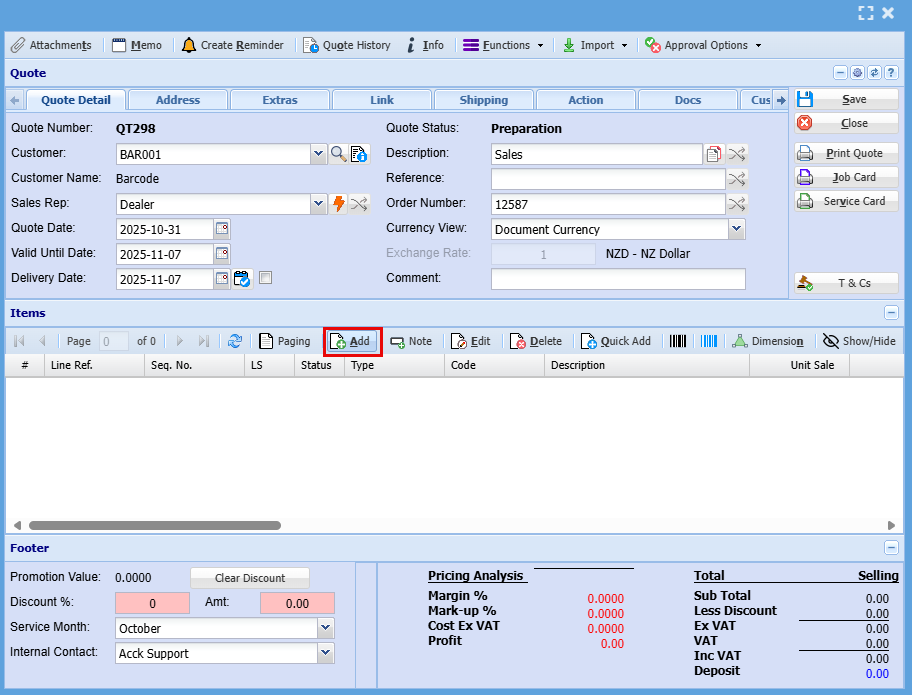
Quote Detail Tab
| Quote | Automatically generated |
| Customer |
Choose the appropriate Account (company) or Contact (individual) from the list
|
| Customer Name | Auto populates as customer is selected |
| Sales Rep | Select a sales rep for this customer |
| Quote Date | Usually todays date |
| Valid Until Date |
Select the date until which the quote is valid. |
| Delivery Date |
The date when the goods or services are expected to be delivered to the customer
|
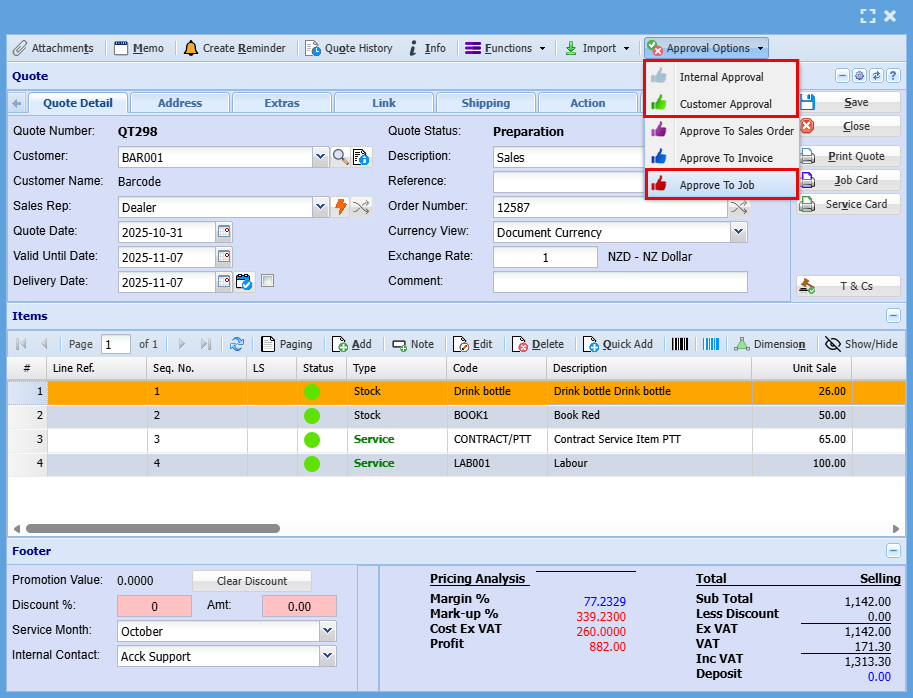
| Quote Status |
Automatically updates as the quote progresses through the approval process.
|
| Description |
A free-text field used to clearly identify the quote.
|
| Reference |
A customer-provided identifier used to track or link the quote.
|
| Order Number |
A customer-provided number used to identify and track the order
|
| Currency View |
Displays the system’s default currency, with the option to switch between currencies if multi-currency is enabled
|
|
Exchange Rate
|
The rate used to convert amounts from one currency to another.
|
|
Comments
|
A free-text field used to add notes or additional information about the quote.
|
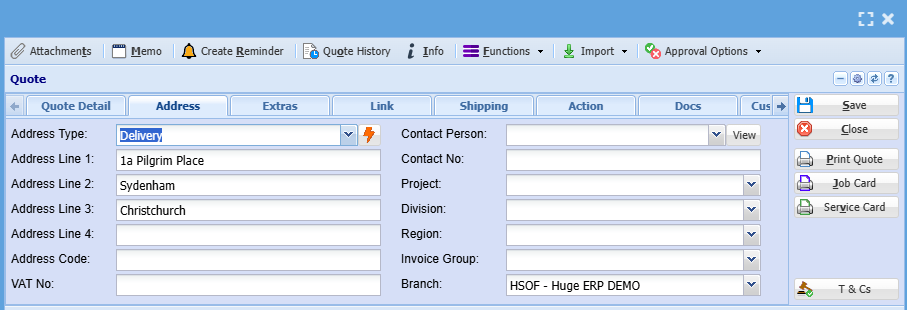
Address Tab
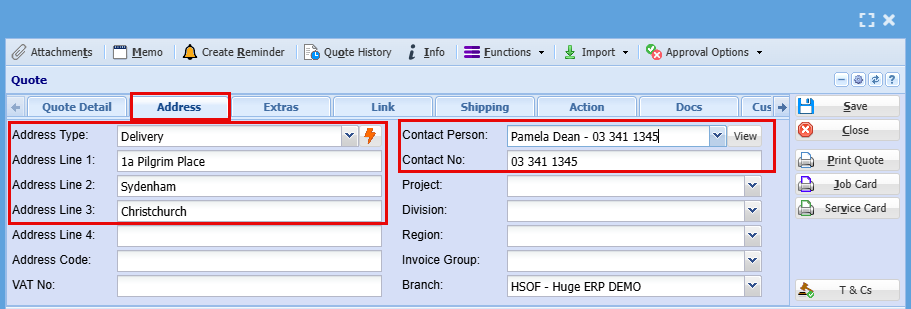
| Address Type |
The default address is automatically selected, but you can change it for the current quote if needed.
|
| Address Lines 1-4 | Address |
| Address Code | Postal Code |
| VAT No. | Customer Tax Number |
| Contact Person |
The default contact is automatically selected, but you can change it for this quote. To edit the contact’s details, click the view button.
|
| Contact Number | Customer Contact Persons Number |
| Project |
Select the relevant project associated with the quote, if applicable.
|
| Division |
The default division is automatically selected, but you can change the customer’s division within the company if needed.
|
| Region |
The default region is automatically selected, but you can change the customer’s region if needed.
|
| Invoice Group |
Select the customer’s invoice group.
|
| Branch | Company Branch |
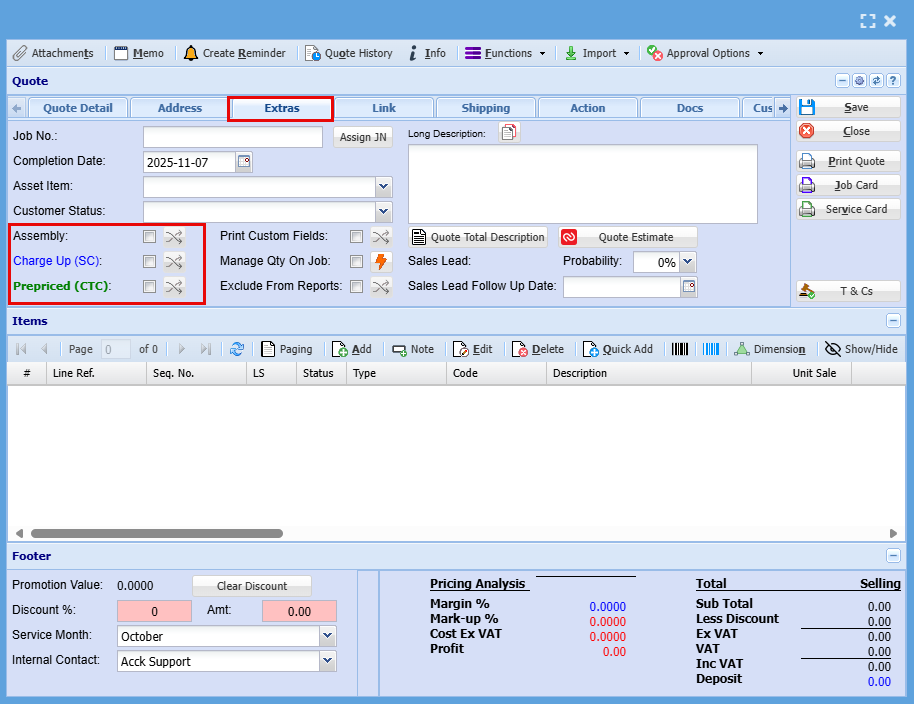
Extras Tab
|
Job No
|
Assign a job number to the quote in advance.
|
|
Completion Date
|
The date when the job is expected to be completed.
|