
Manage Job Statuses
Job Statuses
Job statuses indicate the current stage of a job, helping users track progress, manage workflows, and ensure accurate reporting.
| Status | Details |
| NotStarted |
The job has been created but not yet begun. It is unmanaged and has no active work or progress.
|
| Started |
The job is in progress. This typically means managed lines have been added or work has commenced.
|
| Completed |
The job has been finished and closed.
A final invoice will usually trigger the job to move to this status.
|
| Closed |
|
| Cancelled |
|
| JobBOM |
The job is being used to produce a Bill of Materials.
In this case, the job acts like a “recipe” to build or assemble a final product from components.
|
| InProcessing |
An error has occurred while completing the job, usually during invoicing.
These jobs should be reviewed and corrected. To resolve, manually close the job and update the status to Completed, Closed, or Cancelled as appropriate.
|
When running reports, you can filter jobs based on their status, such as Started or Completed.
- Started Jobs – These are active jobs that are currently in progress
- Completed Jobs – These are jobs that have been finished and closed
This allows for accurate tracking of work in progress versus completed work.
.png)
Correcting an Incorrect Job Status
If a job has been closed or marked with the wrong status, it can be corrected by updating the job status.
- You can toggle between Closed and Completed as required
- To make this change, navigate to Job History and update the status accordingly
This ensures the job reflects the correct stage for accurate tracking and reporting.
.png)
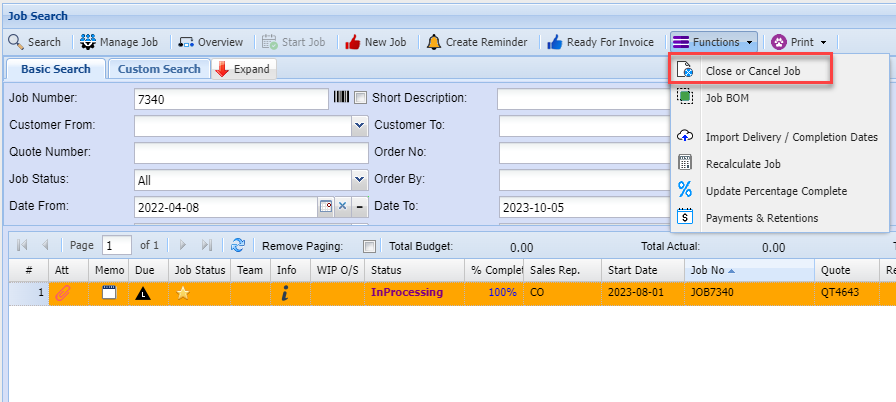
In Processing Status Change
This status occurs when an issue arises during invoicing, preventing the job from being completed.
Typically, the invoice has processed correctly, but the job has failed to update to a completed status.
To correct this:
- Manually close the job
- Update the status to Completed
This ensures the job is properly finalised for accurate reporting and tracking.
Job Manage status search
Job Costing > Activity > Manage Job
Due date colours is based on Completion date to current date
.png)
Job Status Line Due Date
Job Costing > Activity > Manage Job
Due date colours are based on the Completion Date compared to the current date.
These visual indicators help quickly identify whether a job is on track, approaching its deadline, or overdue.
|
Icon |
Details |
|
|
Past 30 days from Due date based on current date |
|
|
Before 30 days from due date based on current date |
|
|
Past 7 days from the Due date based on current date |
|
|
Due date is on today’s date |
|
|
Future 7 days from current date to due date |
|
|
Anything after 7 days up to 30 days in the future |
|
|
After 30 days in the future |
.png)
.png)
.png)
.png)
.png)
.png)
.png)
.png)
Job Status Lines Indicators
Job Costing > Activity > Manage Job
Line statuses provide a clear visual way to track progress by comparing planned (budgeted) quantities against actual usage, while also indicating whether a line has been completed. These colour-coded indicators make it easy to quickly see if a line is on track, completed, or exceeding plan.
|
Icon |
|
Details |
|
|
Not Started |
No activity has been recorded on the line.
|
|
|
In Progress |
In Progress (Green)
|
|
|
Qty Reached |
Qty Reached (Blue with Tick)
|
|
|
Qty Exceeded |
The line has gone beyond the original plan.
|
|
|
Is Complete |
The line has been manually marked as finished.
|
.png)
.png)
.png)
.png)
.png)
Manage Line Status Indicators
Job Line Status Word
Job Costing > Activity > Manage Job
Line status comes in three types
Line Status Types
-
Not Started (Red)
The line has not yet been actioned. No work or quantities have been recorded. -
Started (Green)
The line is actively in progress. Work has begun and is being managed. -
Completed (Blue)
The line has been finished. All required work has been completed and marked accordingly.
.png)