
Manage Job Statuses
Jobs come in various statuses
| Status | Details |
| NotStarted | Job is unmanaged and not started |
| Started | Job has managed lines or has been started |
| Completed |
Job is completed and closed A final invoice produces a completed job |
| Closed |
|
| Cancelled |
|
| JobBOM |
Job was used to produce Bill of Material end result items Job acts as a big recipe |
| InProcessing |
Error occurred while completing the job Close the job to change status from InProcessing to completed, closed or cancelled One should not have any In Processing jobs |
When running reports one can look at Started and completed jobs for reporting.
Started jobs are active jobs
.png)
_______________________________________________________________________________________________________
Correcting a wrong status after closing
Toggle between closed or completed
Go to Job History
.png)
In Processing Status change
This occurs when invoicing and the Job was not able to be completed.
Failed in the final stage of invoice (Invoice most likely processed correctly, but job not completed.
Correct by Closing the job and marking it as completed.
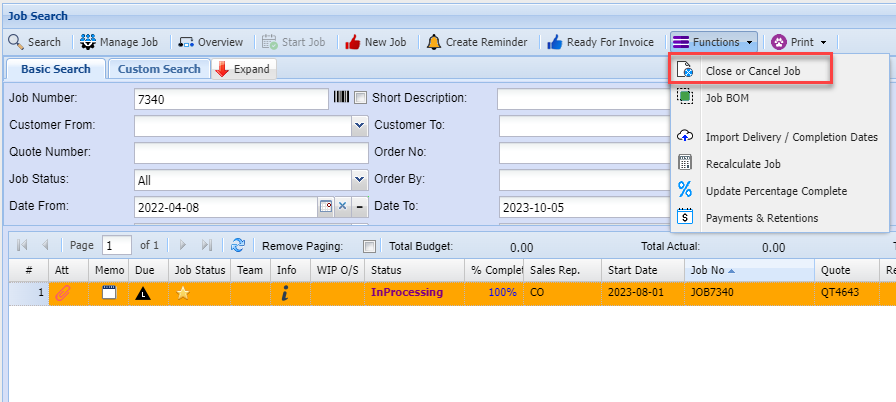
Job Manage status search
Job Costing > Activity > Manage Job
Due date colours is based on Completion date to current date
.png)
Job Status Line Due Date
Job Costing > Activity > Manage Job
Due date colours is based on Completion date - current date
|
Icon |
Details |
|
|
Past 30 days from Due date based on current date |
|
|
Before 30 days from due date based on current date |
|
|
Past 7 days from the Due date based on current date |
|
|
Due date is on today’s date |
|
|
Future 7 days from current date to due date |
|
|
Anything after 7 days up to 30 days in the future |
|
|
After 30 days in the future |
.png)
.png)
.png)
.png)
.png)
.png)
.png)
.png)
Job Status Lines Indicators
Job Costing > Activity > Manage Job
|
Icon |
|
Details |
|
|
Not Started |
No lines allocated or no marked is complete |
|
|
In Progress |
Line managed - Budget is greater than Actual |
|
|
Qty Reached |
The line quantity balance has reached the budget versus actual and is equal |
|
|
Qty Exceeded |
The line quantity has exceeded the Budget versus actual |
|
|
Is Complete |
Marked with tick box completed |
.png)
.png)
.png)
.png)
.png)
Status of line, colours
Not Started – No lines allocated or no marked is complete – RED
In Progress – Line managed – GREEN
Qty Reached – Means the line quantity balance has reached the budget versus actual – Blue with a tick
Qty Exceed – Means that the line quantity has exceeded the Budget versus actual - BLACK
Completed – Marked with tick box completed – Black tick
Manage Line Status Indicators
Job Line Status Word
Job Costing > Activity > Manage Job
Line status comes in three types
Not Started = Red
Started = Green
Completed = Blue
.png)