Manage Job Screen Explained
Views Button

Overview View
This screen provides a comprehensive overview of all current and future jobs, allowing you to monitor progress, track statuses, and manage workload across teams.
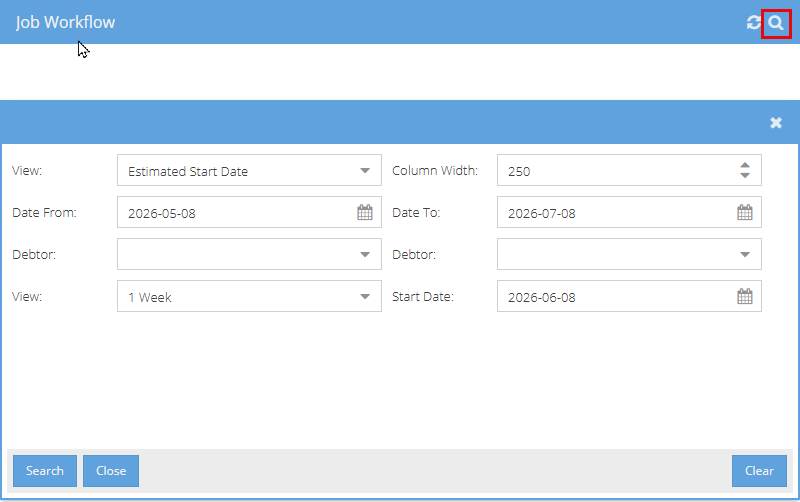
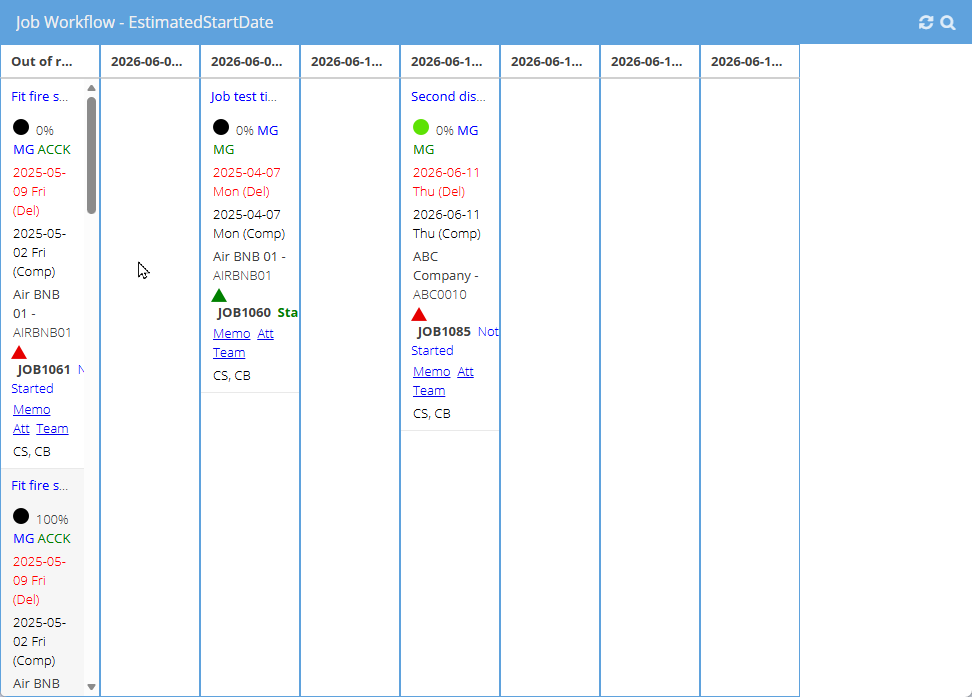
This screen is used to plan and manage team workloads across jobs and dates. It provides a visual schedule that helps you track where each job sits and how teams are allocated over time.
Key Features
Team-Based Scheduling
- Each row represents a team (e.g. Team 1, Team 2, etc.).
- Jobs are assigned to teams and displayed as coloured bars across the calendar.
Timeline View
- The grid is organised by days and weeks, allowing you to see:
- When jobs are scheduled
- How long each job will take
- Any overlaps or gaps in scheduling
Drag-and-Drop Functionality
- Jobs can be easily moved between teams or dates by dragging and dropping.
- This allows you to:
- Adjust schedules if a job is running behind or ahead
- Reallocate work between teams to balance capacity
- Quickly respond to changes in production or priorities
Visual Job Tracking
- Each job is shown as a labelled block (e.g. ROOFING – JOB1083).
- The length of the block represents the duration of the task.
- Colours help visually distinguish between jobs or job types.
This screen is typically used by planners or managers to:
- Allocate jobs to specific teams
- Monitor daily and weekly workloads
- Adjust schedules in real time
- Keep production aligned with deadlines
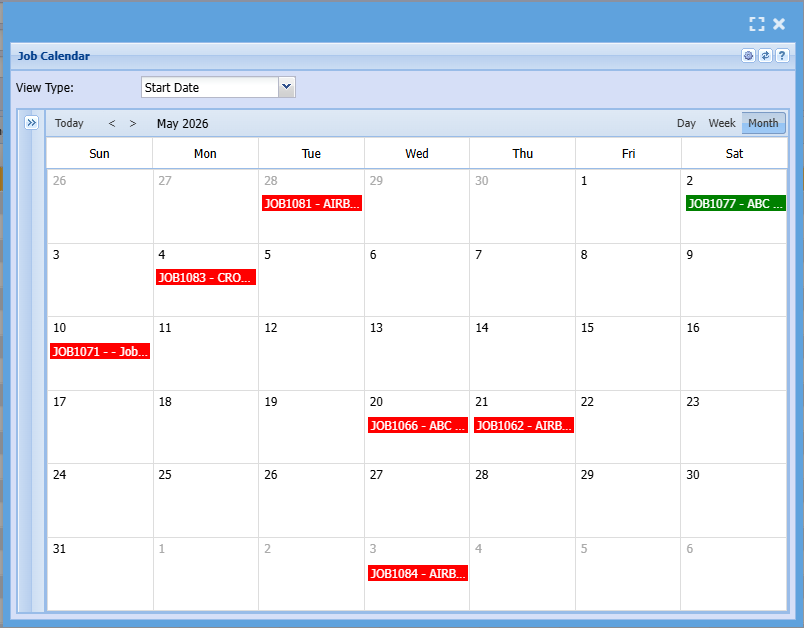
Calendar View
Gantt View
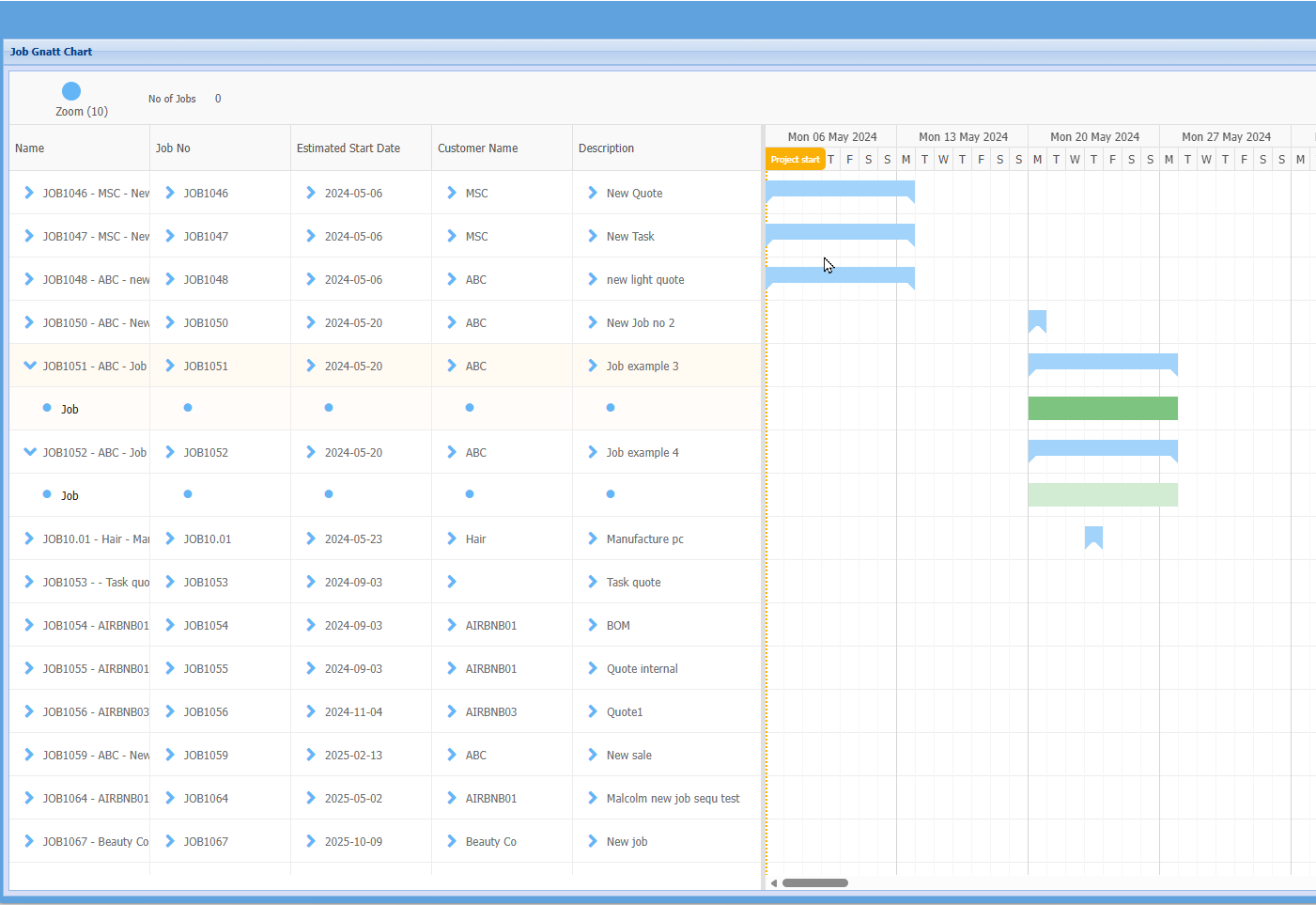
This screen provides a timeline view of current and future jobs, helping you track when jobs are planned to start and how they are spread over time.
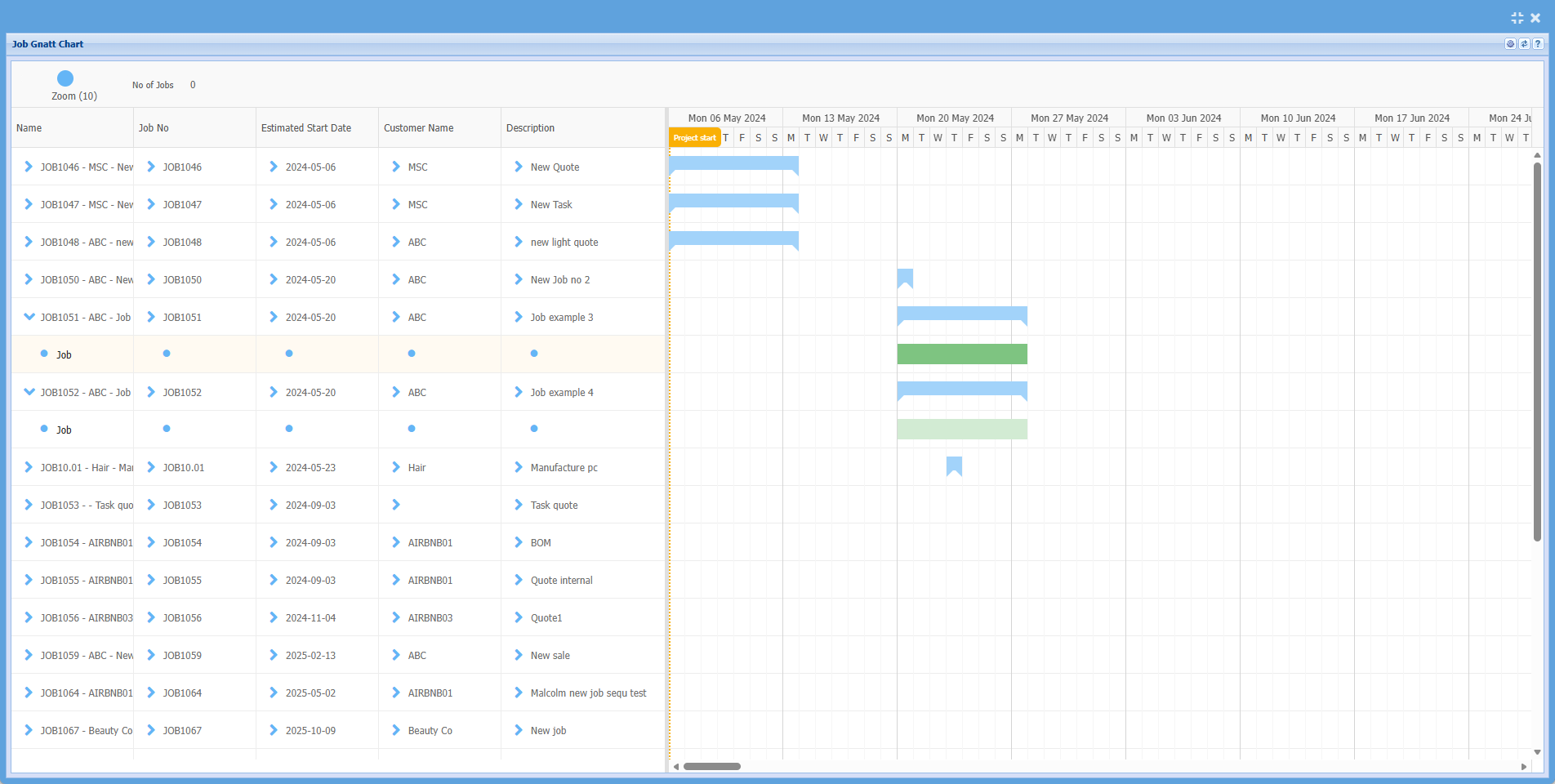
Left Panel – Job Details
Each row represents a job, with key information including:
- Name – Job number and short description
- Job No – Unique job reference
- Estimated Start Date – When the job is scheduled to begin
- Customer Name – Who the job is for
- Description – Summary of the work
Right Panel – Timeline (Gantt View)
-
Displays jobs visually across a calendar timeline (by month/quarter)
-
Each job is shown as a blue bar
-
The position of the bar shows:
- When the job is scheduled
- How long the job is expected to run
-
The “Project Start” marker highlights the beginning of the selected timeline period
Key Features
- Visual Planning
- Quickly see current jobs vs upcoming jobs
- Identify gaps, overlaps, or busy periods
- Timeline Scaling
- The Zoom slider allows you to adjust how much detail is shown (more detail or broader view)
- Job Tracking
- Easily monitor:
- Jobs starting soon
- Jobs scheduled later in the year
- Workload distribution over time
- Clicking a job (via the arrow icon) allows you to drill into job details
This screen is ideal for:
- High-level planning
- Reviewing future workload
- Checking job timing and sequencing
- Supporting scheduling decisions before assigning teams/resources