Job Schedule Activity Overview
The Job Schedule Activity screen provides a comprehensive, multi-view overview of all jobs, allowing you to monitor progress, manage schedules, and optimise resources from a single place.location.
ThroughUsing the different tabs available, you can view and manage jobs infrom severaldifferent ways:perspectives:
-
Job
ScheduleActivities –ADisplayshigh-leveldetailedtimelinetaskviewbreakdownsshowingperwhenjob,jobsgivingarefullplanned,visibilityhelpingofyoutheidentifyworkworkload distribution and ensure jobs remain on track. Tasks can be adjusted to maintain timelines and meet deadlines.required. -
Job
ActivitiesSchedule –AProvidesdetaileda high-level timeline view oftasksallbrokenjobs,downhelpingperyoujob,seegiving greater visibility into the specificwhen workrequired.is planned, identify overlaps or gaps, and adjust schedules to keep jobs on track for completion. -
Employee Schedule –
DisplaysShows how workallocationisbyallocatedemployee,across individual employees, allowing you toseeidentify who is busy, who may be overloaded, and who has capacity to assist. -
Team Schedule –
ShowsDisplays how teams are assigned to jobs and tasks,helping withsupporting team-based planning and workload balancing. -
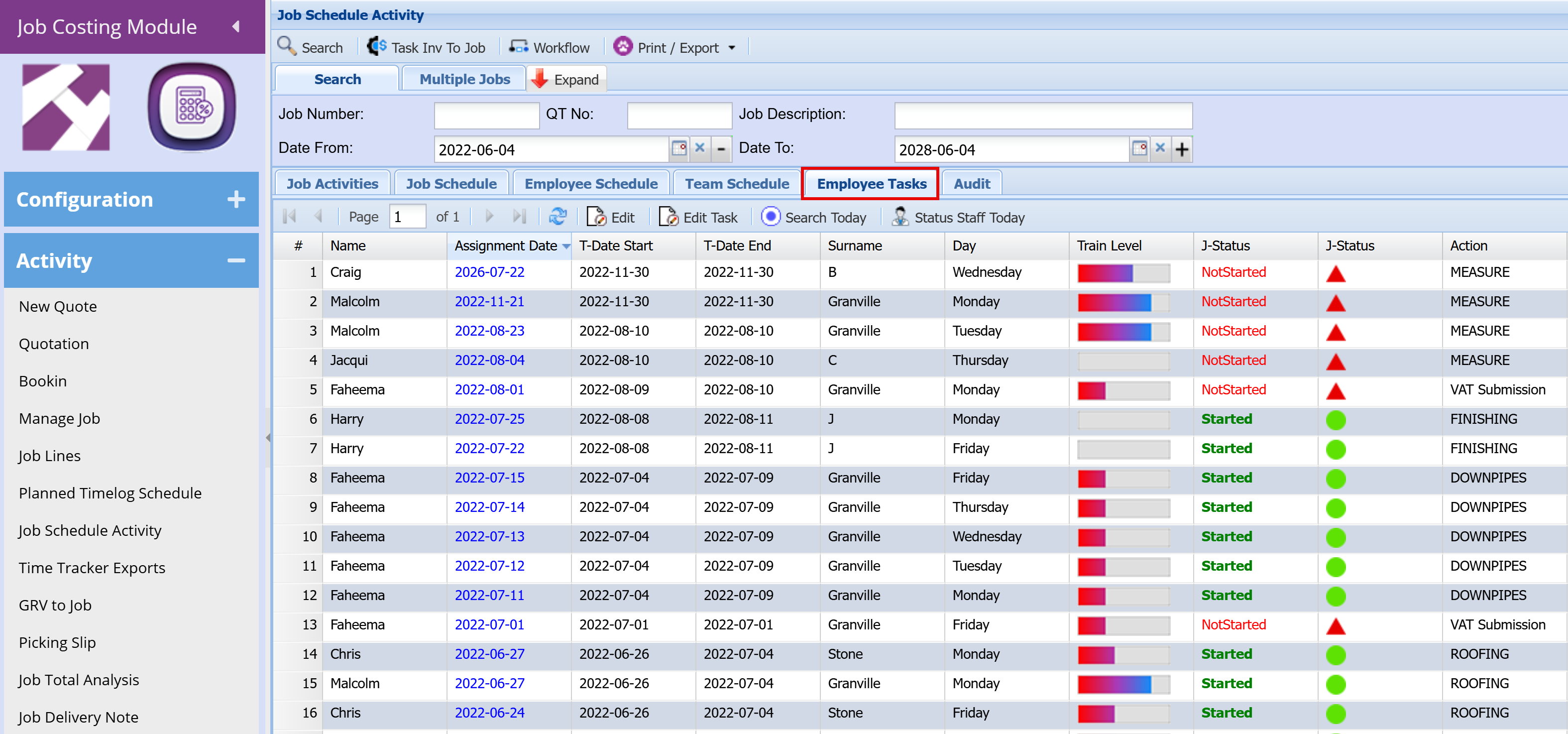
Employee Tasks – Provides a task-level view for each employee, giving a more detailed breakdown of individual responsibilities
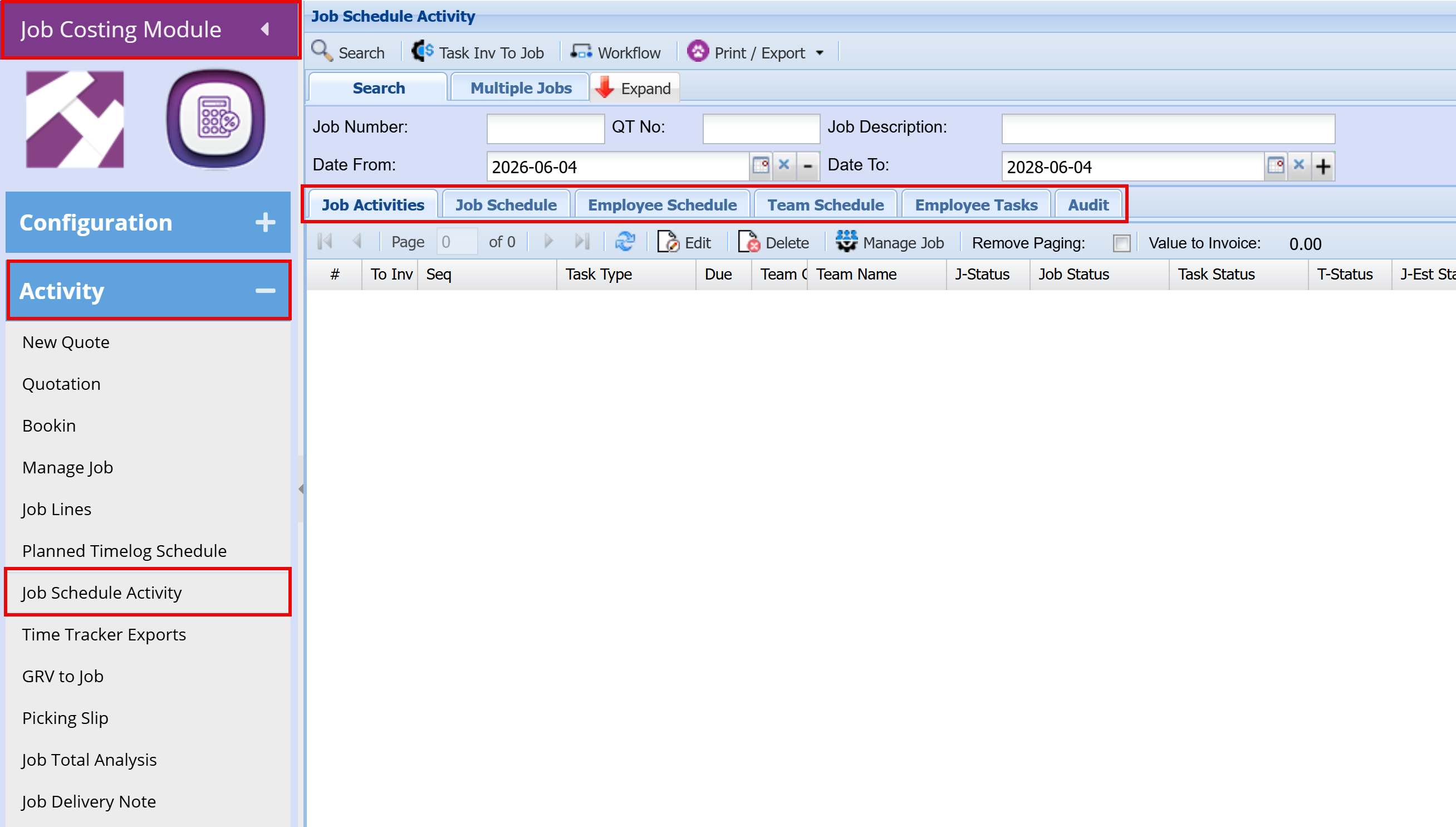
Job Schedule Activity – Overview Screen
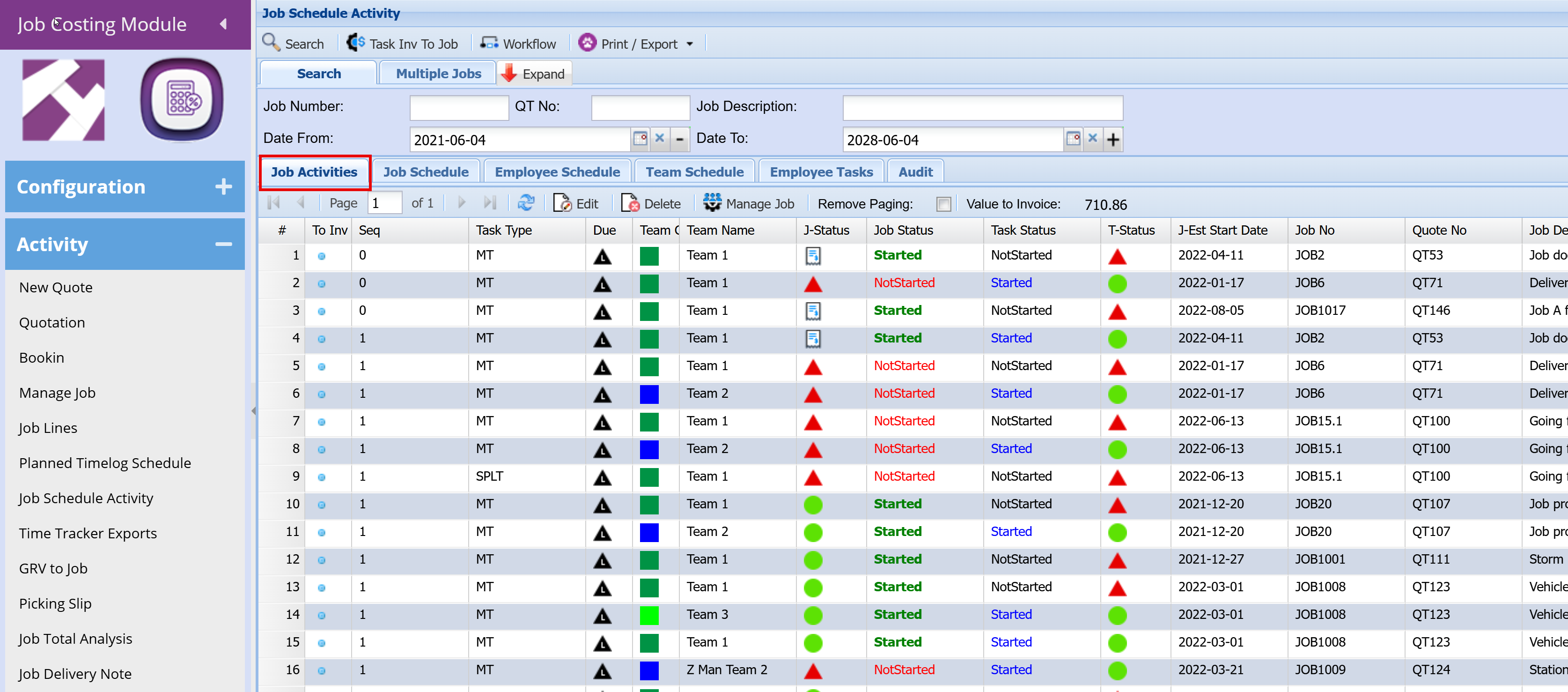
This screen provides a comprehensive overview of all current and future jobs, allowing you to monitor progress, track statuses, and manage workload across teams.
- Job List Overview
- Each row represents a job task or activity linked to a job.
- It includes key details such as:
- Job Number
- Quote Number
- Team assigned
- Estimated start date
- Job description
The screen gives a clear snapshot of where each job sits using multiple status columns:
-
Job Status
- Started (green)
- Not Started (red)
-
Task Status
- Indicates whether the specific task has begun
-
T-Status (Traffic Light Indicator)
- 🟢 Green = On track
- 🔴 Red = Requires attention / delay
- Provides a quick visual health check of the job
- The Team Code and Team Name fields show which team is assigned to each job.
- This helps identify:
- Who is responsible
- Workload per team
- The Estimated Start Date shows when jobs are planned to begin.
- This allows you to:
- View upcoming work
- Identify current active jobs
- Spot overlaps or scheduling conflicts
At the top of the screen, you can filter by:
- Job Number
- Quote Number
- Job Description
- Date range
This helps you focus on specific jobs, time periods, or teams.
This screen is typically used to:
- Monitor all jobs in one place (current and future)
- Track progress and status at a glance
- Identify delays or issues quickly
- Review team allocations and workload
- Support planning decisions before using detailed scheduling screens
Job Schedule Screen Overview
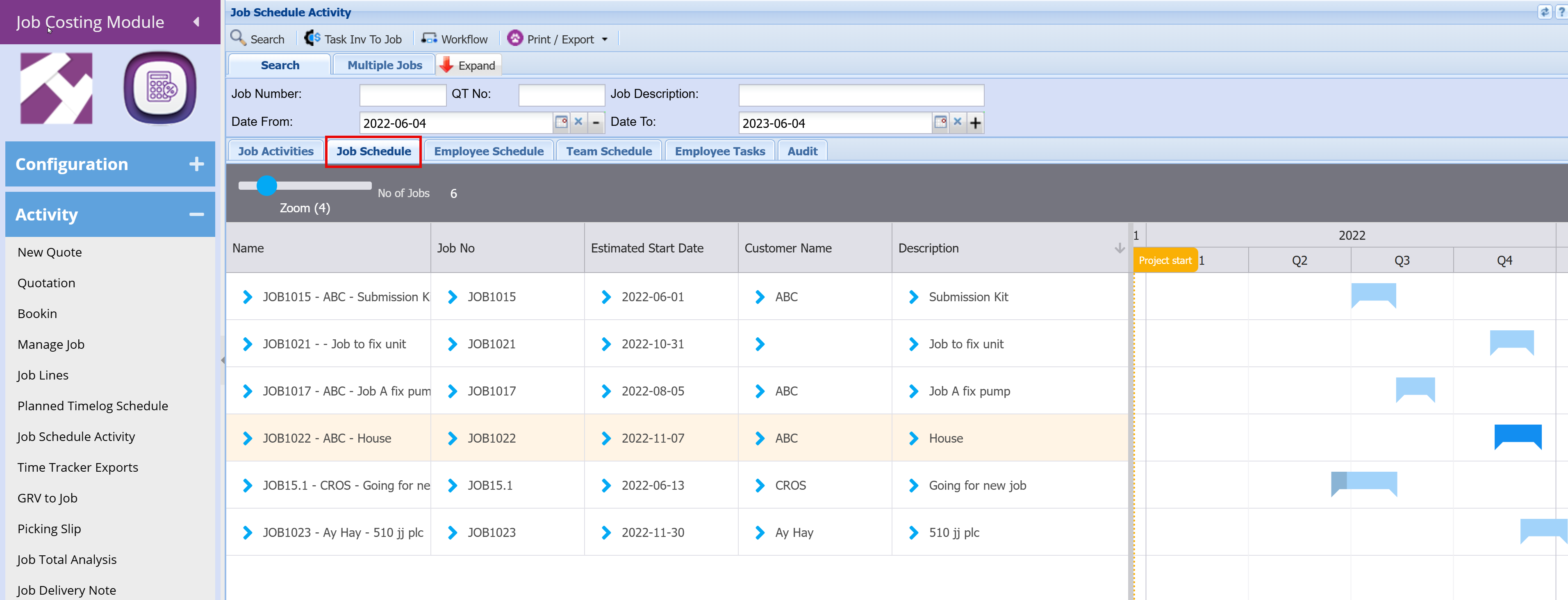
This screen provides a timeline view of current and future jobs, helping you track when jobs are planned to start and how they are spread over time.
What the Screen Shows
- Left Panel – Job Details
Each row represents a job, with key information including:
- Name – Job number and short description
- Job No – Unique job reference
- Estimated Start Date – When the job is scheduled to begin
- Customer Name – Who the job is for
- Description – Summary of the work
-
Displays jobs visually across a calendar timeline (by month/quarter)
-
Each job is shown as a blue bar
-
The position of the bar shows:
- When the job is scheduled
- How long the job is expected to run
-
The “Project Start” marker highlights the beginning of the selected timeline period
Visual Planning
- Quickly see current jobs vs upcoming jobs
- Identify gaps, overlaps, or busy periods
Timeline Scaling
- The Zoom slider allows you to adjust how much detail is shown (more detail or broader view)
- Job Tracking
- Easily monitor:
- Jobs starting soon
- Jobs scheduled later in the year
- Workload distribution over time
- Clicking a job (via the arrow icon) allows you to drill into job details
This screen is ideal for:
- High-level planning
- Reviewing future workload
- Checking job timing and sequencing
- Supporting scheduling decisions before assigning teams/resources
Employee Schedule Screen Overview
This screen provides a resource-focused view of all employees and their allocated work, helping you understand who is working on what, when, and how busy each person is.
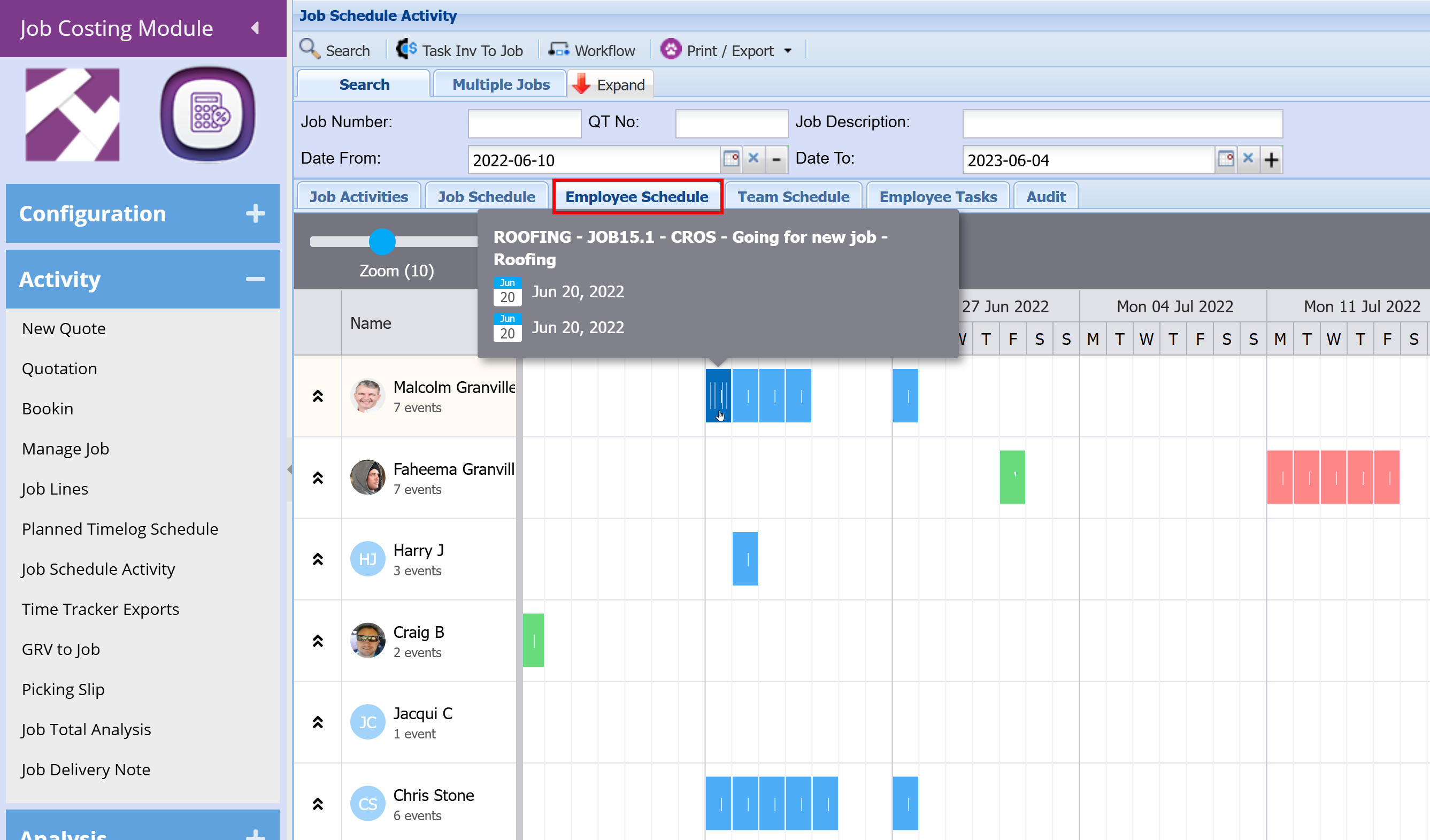
What the Screen Shows
- Left Panel – Employees
- Each row represents an individual employee/resource
- Displays:
- Employee name
- Profile icon
- Number of scheduled events/tasks
This allows you to quickly see who is active and how much work is assigned.
-
Jobs are displayed as coloured blocks across a calendar (by day/week)
-
Each block represents a task assigned to that employee
-
The position and length of the block shows:
- When the work is scheduled
- How long the task will take
-
Hovering over a block shows job details (e.g. job number, description, dates)
Resource Visibility
- See exactly where each employee is allocated
- Understand what jobs each person is working on across the timeline
- Identify employees who:
- Have too many tasks scheduled (overloaded)
- Have gaps or light workloads (underutilised)
This makes it easy to balance work across the team.
- Quickly determine:
- Who may need assistance
- Who is available to help on other jobs
This improves team efficiency and reduces delays.
- Multiple coloured blocks indicate multiple tasks or longer workloads
- Large clusters of blocks = busy periods
- Minimal or no blocks = availability
- Adjust the Zoom slider to view:
- Detailed daily schedules
- Or a broader weekly overview
This screen is ideal for:
- Daily and weekly planning
- Monitoring individual workloads
- Balancing work across staff
- Ensuring no one is overbooked or underutilised
- Improving overall resource efficiency
Team Schedule Screen Overview
This screen is used to plan and manage team workloads across jobs and dates. It provides a visual schedule that helps you track where each job sits and how teams are allocated over time.
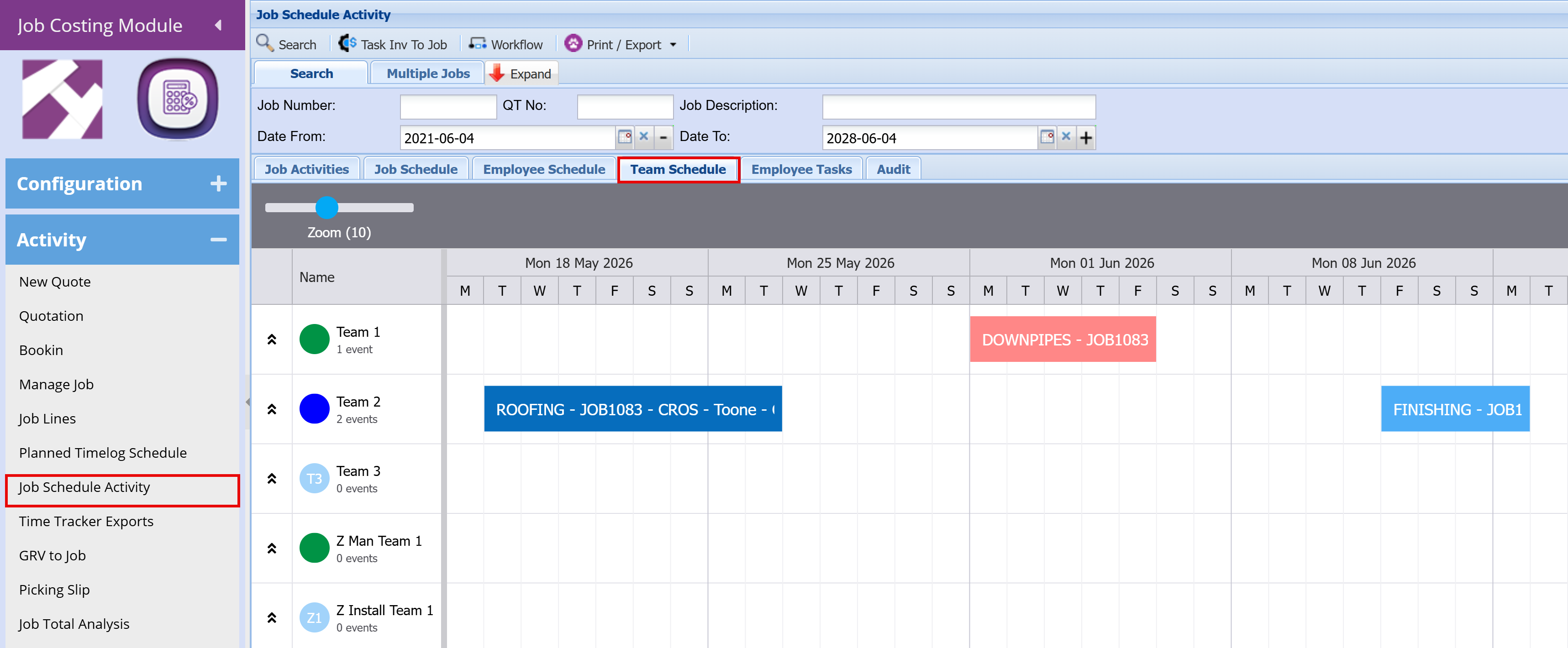
Key Features
- Team-Based Scheduling
- Each row represents a team (e.g. Team 1, Team 2, etc.).
- Jobs are assigned to teams and displayed as coloured bars across the calendar.
- Timeline View
- The grid is organised by days and weeks, allowing you to see:
- When jobs are scheduled
- How long each job will take
- Any overlaps or gaps in scheduling
- Drag-and-Drop Functionality
- Jobs can be easily moved between teams or dates by dragging and dropping.
- This allows you to:
- Adjust schedules if a job is running behind or ahead
- Reallocate work between teams to balance capacity
- Quickly respond to changes in production or priorities
- Visual Job Tracking
- Each job is shown as a labelled block (e.g. ROOFING – JOB1083).
- The length of the block represents the duration of the task.
- Colours help visually distinguish between jobs or job types.
This screen is typically used by planners or managers to:
- Allocate jobs to specific teams
- Monitor daily and weekly workloads
- Adjust schedules in real time
- Keep production aligned with deadlines
Employee Tasks Screen Overview