
Job Costing Screens Defined
Tabs and Screens Further Explained
Quote Screen
- Extras Tab
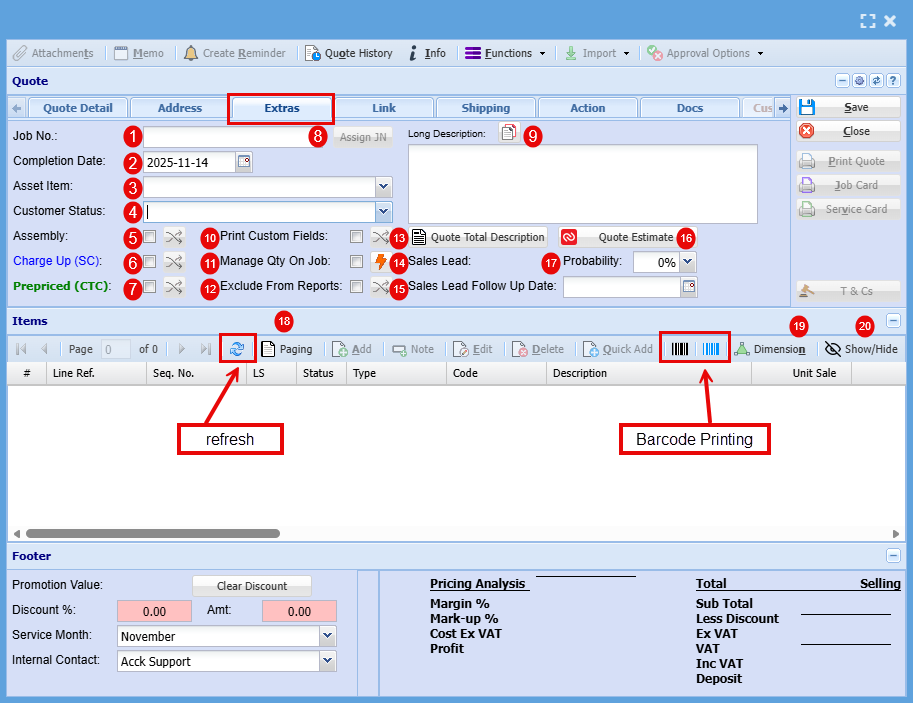
| 1 | Job Number | Clicking 'Assign JN' at this stage will generate a Job Number for the quote, which will automatically carry over once the quote is approved and converted into a actual job. |
| 2 | Completion Date | This is the date that you are expected to be able to complete this Job |
| 3 | Asset Item | |
| 4 | Customer Status | |
| 5 | Assembly | “Assembly” refers to an internal process where components or materials are prepared, combined, or staged before installation or delivery. It’s not billed separately to the customer but contributes to your overall job cost. |
| 6 | Charge Up (SC) | Charge Up (SC)” means the customer is billed for actual time and materials used, including any extras beyond the initial scope. Charge Up allows you to invoice for additional costs incurred during the job. |
| 7 | Prepaid (Cost to Company) | "Prepaid” refers to the quoted amount for the job, the fixed charge agreed to by the customer. You can’t invoice beyond this amount, so any extra time, materials, or costs that exceed the quote become your internal expense, or ‘Cost to Company (CTC) |
| 8 | Assign JN | Clicking 'Assign JN' at this stage will generate a Job Number for the quote, which will automatically carry over once the quote is approved and converted into a actual job. |
| 9 | Long Description | Here you can write a description of the job being done. |
| 10 | Print Custom Fields | |
| 11 | Manage Qty on Job | |
| 12 | Exclude from Reports | |
| 13 | Quote Total Description | |
| 14 | Sales Lead | If this quote originated from a tracked Sales Lead, the associated Sales Lead number will be displayed here. Updating the Probability percentage will automatically sync the change with the corresponding Sales Lead. |
| 15 | Sales Lead Follow up Date | Updating the Follow up the system will automatically sync the change with the corresponding Sales Lead follow up date. |
| 16 | Quote Estimate | |
| 17 | Probability | If this quote originated from a tracked Sales Lead, the associated Sales Lead number will be displayed here. Updating the Probability percentage will automatically sync the change with the corresponding Sales Lead. |
| 18 | Paging | If your line items span multiple pages and require navigation using the page up/down arrows, clicking the Paging Box will disable paging, allowing you to scroll through all items in a continuous view. |
| 19 | Dimension | |
| 20 | Show/Hide |
- Link Tab
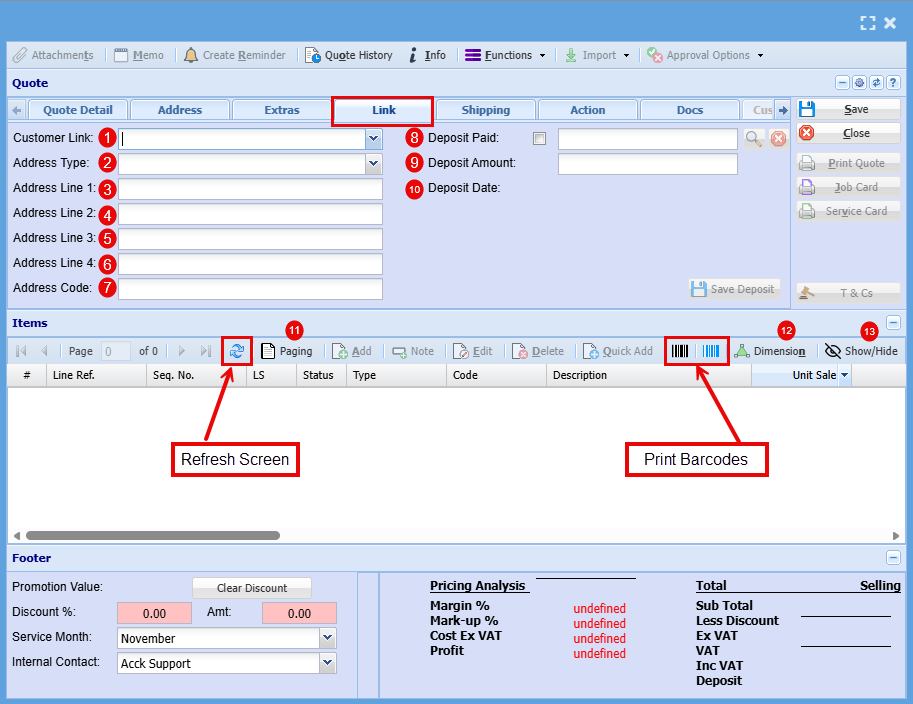
| 1 | Customer Link |
|
| 2 | Address Type | |
| 3-6 | Address line 1-4 | |
| 7 | Address code | |
| 8 | Deposit Paid | If a customer has paid a deposit, this can be added to the quote and taken off of the total cost of the job. |
| 9 | Deposit Amount | |
| 10 | Deposit Date | |
| 11 | Paging | If your line items span multiple pages and require navigation using the page up/down arrows, clicking the Paging Box will disable paging, allowing you to scroll through all items in a continuous view. |
| 12 | Dimension | |
| 13 | Show/Hide |
- Shipping Tab

| 1 | Shipping Method | |
| 2 | Shipping Date | |
| 3 | Send Email | |
| 4 | Shipping Location | |
| 5 | Internal Delivery | |
| 6 | Delivery Company | |
| 7 | Tracking Number | |
| 8 | Frozen | |
| 9 | Paging | If your line items span multiple pages and require navigation using the page up/down arrows, clicking the Paging Box will disable paging, allowing you to scroll through all items in a continuous view. |
| 10 | Dimension | |
| 11 | Show/Hide |
- Action Tab
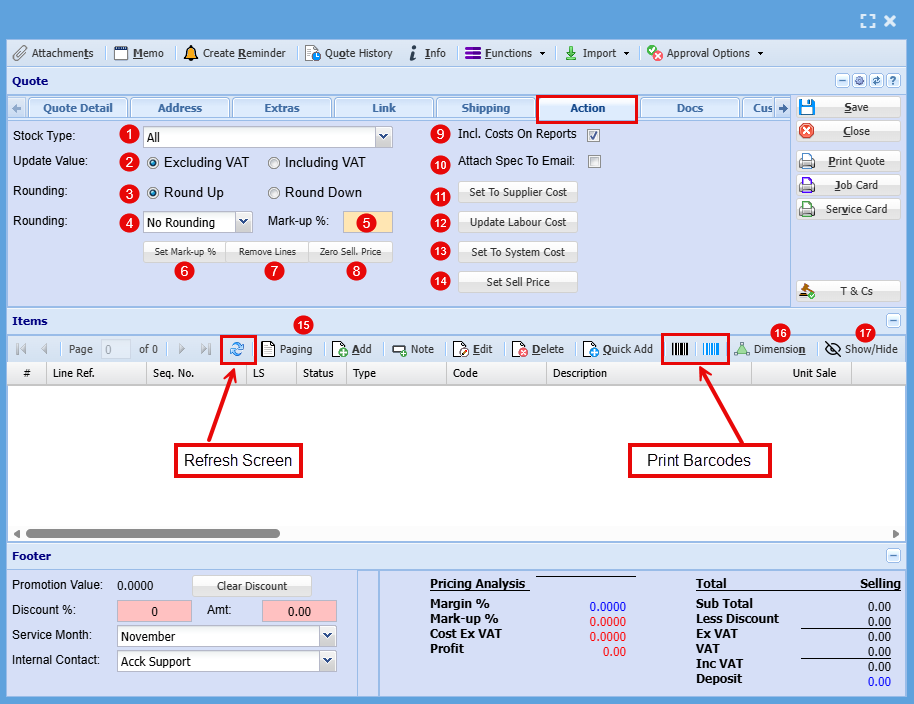
| 1 | Stock Type | |
| 2 | Update Value | |
| 3 | Rounding | |
| 4 | Rounding | |
| 5 | Mark-Up % | |
| 6 | Set Mark-Up % | |
| 7 | Remove Lines | |
| 8 | Zero Sell, Price | |
| 9 | Incl. Cost on Reports | |
| 10 | Attach Specs to Email | |
| 11 | Set to Supplier Costs | |
| 12 | Update Labour Cost | |
| 13 | Set to System cost | |
| 14 | Set Sell Price | |
| 15 | Paging | If your line items span multiple pages and require navigation using the page up/down arrows, clicking the Paging Box will disable paging, allowing you to scroll through all items in a continuous view. |
| 16 | Dimension | |
| 17 | Show/Hide |
- Docs Tab
This tab provides instant access to upload documents in any format (PDF, Word, Excel, etc.) or retrieve relevant files previously attached to this quote.
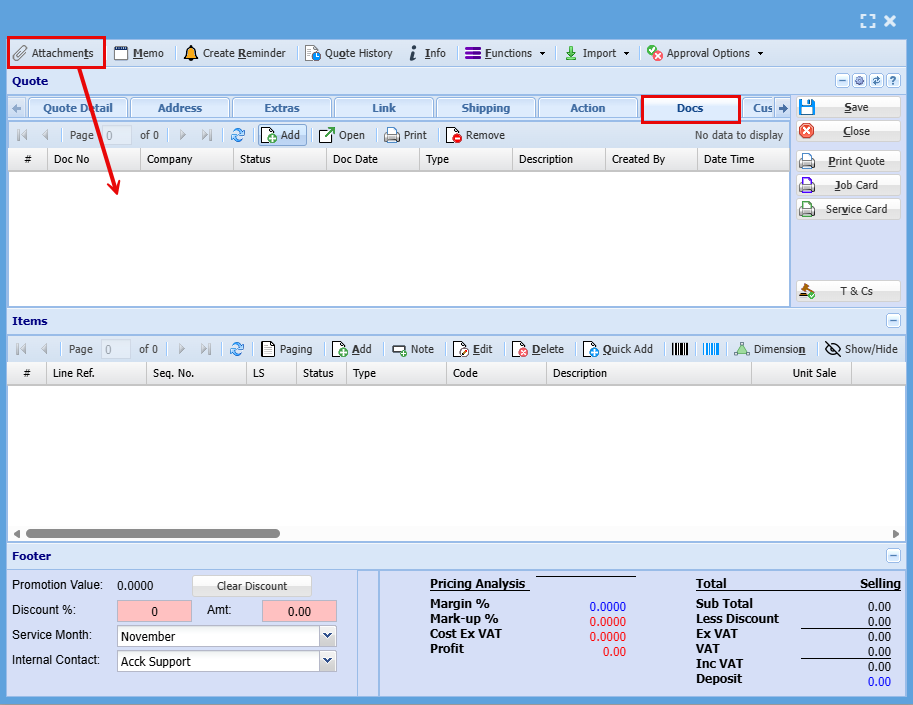
Adding an Item to a quote
- Additional options on a Quote Item
This screen also allows you to capture key information for each job or task line.
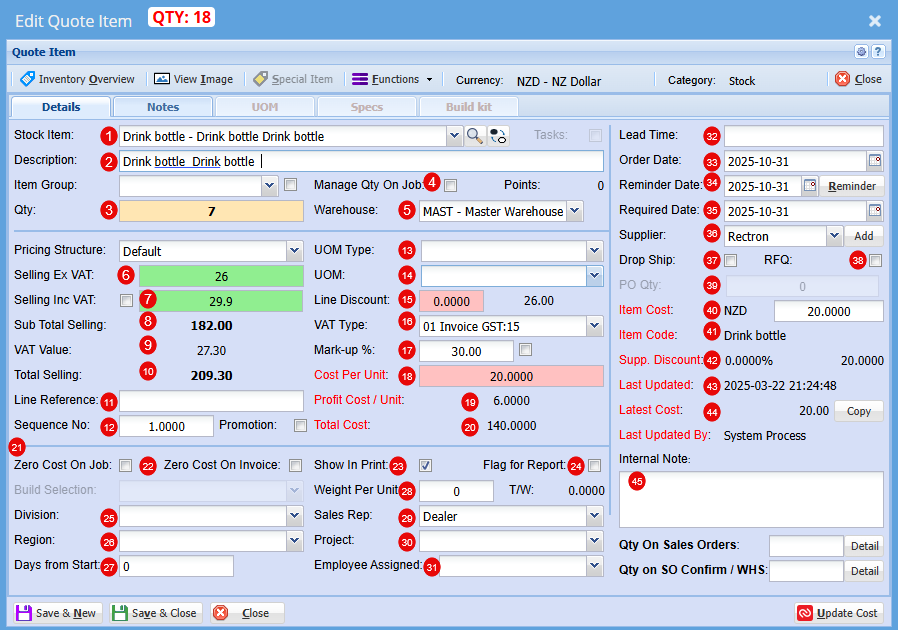
| 1 | Stock Item |
Select your stock item from the drop-down menu |
| 2 | Description |
At this stage you can change the Description if needed |
| 3 | Qty |
Add the Quantity you require of this item |
| 4 | Manage Qty on Job |
|
| 5 | Warehouse |
Select the Warehouse you wish to sell this item form |
| 6 | Selling Ex GST |
Price per item does not include the 15% Goods and Services Tax. You add GST on top of the listed amount. |
| 7 | Selling Inc GST |
Price per item includes the 15% Goods and Services Tax. The GST is already built into the total amount shown. |
| 8 | Sub Total Selling |
Total price of total quantity of item that does not include the 15% Goods and Services Tax. You add GST on top of the listed amount. |
| 9 | VAT (GST) Value |
Total GST only on total quantity of items |
| 10 | Selling Total |
Total price of total quantity of item includes the 15% Goods and Services Tax. The GST is already built into the total amount shown. |
| 11 | Line Reference |
|
| 12 | Sequence No. |
You can change the Sequence in the quote for this item |
| 13 | UOM Type |
These are custom configuration settings applied during setup, tailored specifically to your product formats (e.g., Per Roll, Per Unit, Pack). |
| 14 | UOM |
These are custom configuration settings applied during setup, tailored specifically to your product formats (e.g., 1000 per roll, 6 per pack). |
| 15 | Line Discount |
You can apply a discount to this item |
| 16 | VAT (GST)Type |
If this item is GST exempt or a Non-GST item it can be changed here |
| 17 | Mark up % |
At this stage you can increase your profit % |
| 18 | Cost Per Unit |
This is the total cost to produce or buy one item. It helps you set prices and track profitability. |
| 19 | Profit Cost/Unit | This is how much profit you make on each item sold after subtracting its cost. |
| 20 | Total Cost | This s the full amount spent to produce or purchase a set of items or complete a job. |
| 21 | Zero Cost on Job |
These ticks will be automatically on or off based on the setup if the item. When the item is promoted to a Job, its initial cost is cleared and recalculated progressively as the job is built—ensuring you have an accurate final cost at completion. |
| 22 | Zero Cost on Invoice |
As with the Cost on job, these ticks will be automatically on or off based on the setup if the item. When the item is promoted to a Job, its initial cost is cleared and recalculated progressively as the job is built—ensuring you have an accurate final cost at completion. |
| 23 | Show on Print |
|
| 24 | Flag for Report |
|
| 25 | Division |
Select a division within of a company that focuses on one area of work. |
| 26 | Region |
Select a region the job will fall under, it can include multiple cities or towns and often has its own local government or identity. |
| 27 | Days from Start | Use this field to schedule when this item should begin—set as a number of days from the job’s start date. |
| 28 | Weight Per Unit | This is determined at setup |
| 29 | Sales Rep | You are able to allocate someone who promotes and sells a company’s products or services to customers. They often handle quotes, follow-ups, and customer relationships, helping drive revenue and build trust. |
| 30 | Project | You can Link a quote to a specific project |
| 31 | Employee Assigned | Refers to the specific person responsible for completing a task or project. It helps track accountability, scheduling, and communication. |
| 32 | Lead Time | This is the amount of time between starting a process and completing it. It usually refers to how long it takes from placing an order to receiving the goods or service. |
| 33 | Order Date | This is the day a customer places an order for goods or services. |
| 34 | Reminder Date | This is the day you plan to check in after sending the quote. |
| 35 | Required Date | This is the day the customer wants the goods or service delivered |
| 36 | Supplier | This is the company that provides goods or services to another business |
| 37 | Drop Ship |
Ticking this box enables you to generate a Purchase Order on the fly—complete with all relevant details, so you don’t need to build one from scratch when drop-shipping an item. |
| 38 | RFQ (Request for Quote) |
Ticking this box allows you to generate a Request for Quote on the fly—pre-filled with all relevant details, so you don’t need to start from scratch when requesting updated pricing for an item. |
| 39 | PO Qty |
Enter the quantity here for which you want to generate a Purchase Order or Request for Quote. |
| 40 | Item Cost |
This shows the actual cost of the item |
| 41 | Item Code |
This is the suppliers item code |
| 42 | Supplier Discount |
Shows if you received a discount on this item when purchased form supplier |
| 43 | Last Updated |
This is the date the cost was last updated for this item |
| 44 | Latest Cost |
Similar to Item cost, this shows the actual cost of the item at that date |
| 45 | Internal Note | Here you can include private comment or detail added to a job, quote, or project that’s meant for your team, not the customer. |
Approve Quote to Job Screen
- Job Details Tab
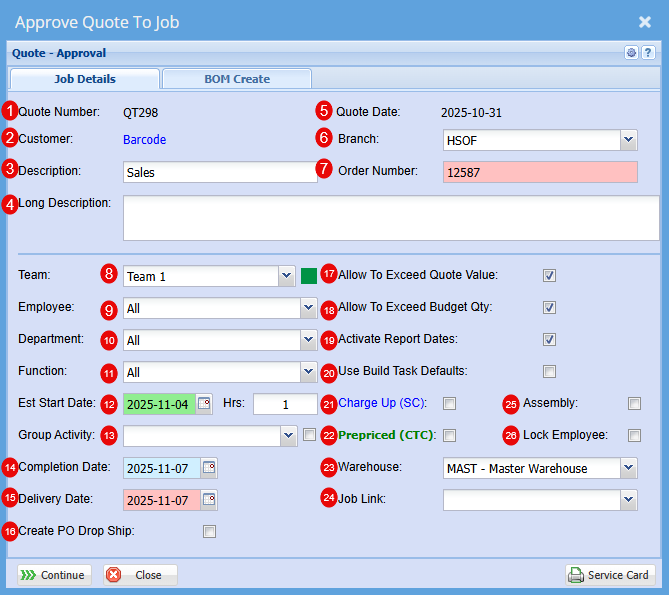
| 1 | Quote Number | This is the Quote number linked |
| 2 | Customer | Customers Name |
| 3 | Description | This will be specific to the Job as an easy identifier in a list |
| 4 | Long Description | Here you can be more specific to the job |
| 5 | Quote Date | This is the date of the Quote |
| 6 | Branch | You can select a specific branch that this is linked to if you had these set up at the start |
| 7 | Order Number | Customer Order Number |
| 8 | Team | You can select a team if these have been setup |
| 9 | Employee | Refers to the specific person responsible for completing a task or project. It helps track accountability, scheduling, and communication. |
| 10 | Department | Add a department if this has been setup for your company |
| 11 | Function | |
| 12 | Est Start Date | Date estimated for Job to start |
| 13 | Group Activity | |
| 14 | Completion Date | Date Estimated for Job to be completed |
| 15 | Delivery Date |
Date that the item is expected to be delivered to your customer |
| 16 | Create PO Drop Ship | This is to allow you to create a PO from the Job once its started. |
| 17 | Allow to Exceed Quote Value | Ticking this box allows actual job costs to exceed the quoted value. This is helpful when unexpected expenses arise during production or service delivery, and you want the system to continue tracking costs without treating the quote as a strict limit. If left unticked, a new quote must be created to include any additional costs. |
| 18 | Allow to Exceed Budget Qty | Ticking this box allows the actual quantity used in the job to exceed the budgeted amount. This is useful when additional units are required during production or service delivery. If left unticked, you’ll need to produce a new quote to add more units. |
| 19 | Activate Report Dates | This will allow you to be able to report on this job |
| 20 | Use Build Task Defaults |
When you create a build task default, you can specify alternative warehouses or item sources. Once a quote is converted into a job, the system will apply the defaults set in your build template. This ensures that materials are drawn from the designated warehouse rather than the main warehouse, allowing for more precise inventory control—especially when working with a master warehouse setup. |
| 21 | Charge Up (SC) | Charge Up (SC) means the customer is billed for actual time and materials used, including any extras beyond the initial scope. Charge Up allows you to invoice for additional costs incurred during the job. |
| 22 | Prepaid (CTC) |
Prepaid refers to the quoted amount for the job, the fixed charge agreed to by the customer. You can’t invoice beyond this amount, so any extra time, materials, or costs that exceed the quote become your internal expense, or ‘Cost to Company (CTC) |
| 23 | Warehouse | All stock will come from the Warehouse selected here |
| 24 | Job Link | You may find that you already have a job for this customer, and this is a sub job, to can select this job form the drop-down menu link to two or more jobs. |
| 25 | Assembly | “Assembly” refers to an internal process where components or materials are prepared, combined, or staged before installation or delivery. It’s not billed separately to the customer but contributes to your overall job cost. |
| 26 | Lock Employee | You can lock the employee assigned to this job so it cannot be changed without your knowledge. |