Job Costing Screens Defined
Manage Job - Buttons Explained
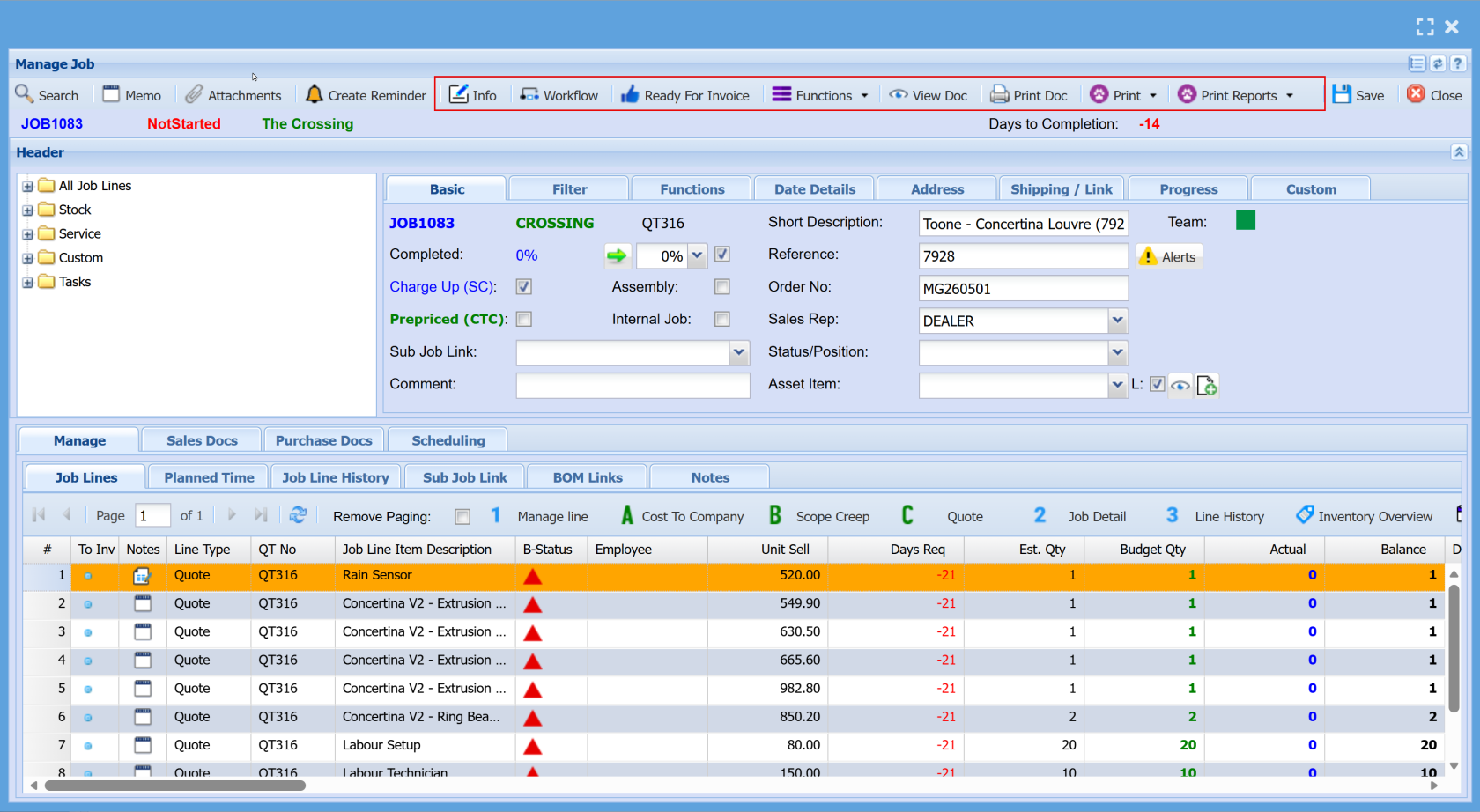
| Info |
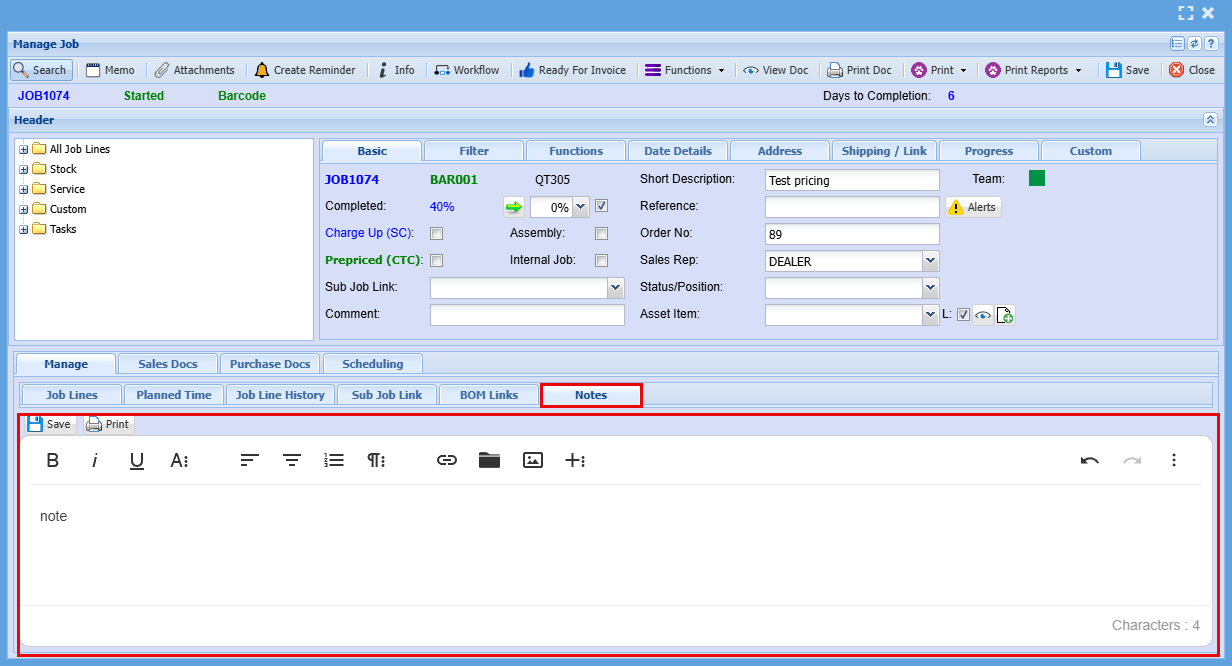
This screen is used to add and manage internal notes for a job.
|
| Workflow |
This screen allows you to control how the Job Workflow overview is displayed, helping you plan and track jobs over a selected time period. |
| Ready for Invoice |
When selected, it simply adds a thumbs-up icon to the job in the results grid, providing a clear visual indicator that the job is complete and ready for billing. |
| Functions |
The Functions tab provides access to a range of additional actions that can be performed on a selected job. These are typically used for maintenance, updates, or managing specific job settings. |
| View Doc |
When you select a document in the Sales Doc or Purchase Doc tab and click View Doc, the document will open in a new screen. |
| Print Doc |
When you select a document in the Sales Doc or Purchase Doc tab and click Print Doc, it will open a print selection screen. From there, click Continue to either print or email the document. |
| Print Reports |
The Print Reports button provides a dropdown list of available job reports. Select the required report (e.g. Job Card, Job Analysis, Cost Report), and it will open ready for printing or review. This allows quick access to different reports related to the selected job. |
Manage Job - Tab Explained
Basic Tab Overview
The Basic tab provides a high-level overview of the job and contains the key fields required to manage and update core job information.
The Basic tab is used to:
- View and update key job details
- Track job progress and status
- Assign responsibility and references
- Capture essential operational and administrative information
It acts as the central point for managing the most important aspects of a job before moving into more detailed tabs (such as Dates, Address, or Progress).
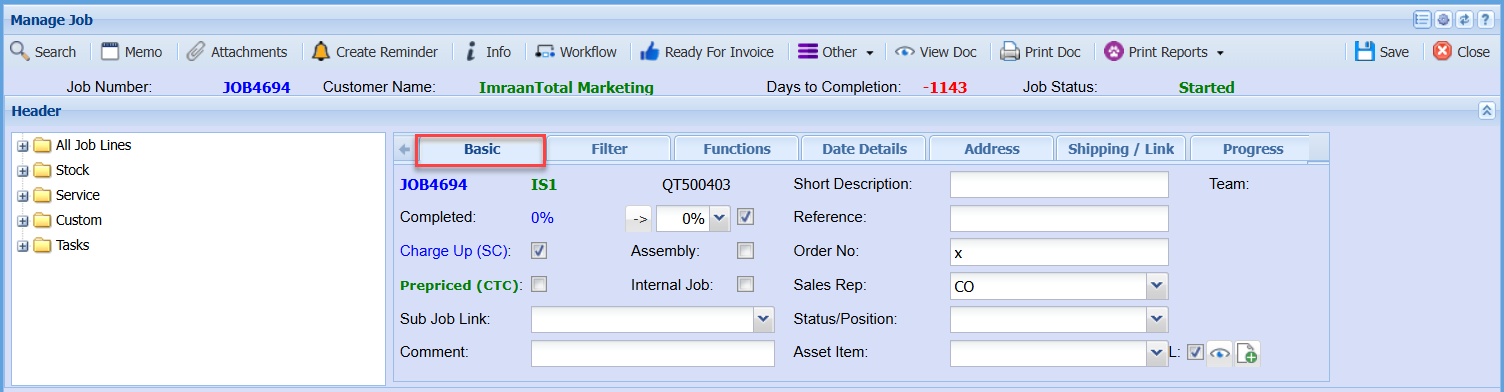
| Completed |
This controls the overall progress of the job
|
| Charge Up (SC) Tick |
When ticked, this indicates the job is chargeable to the customer
|
| Assembly Tick |
Used when the job involves building or assembling components
|
| Prepriced (CTC) Tick |
Indicates the job has fixed or predefined pricing, meaning costs are not calculated dynamically
|
| Internal Job Tick |
Marks the job as internal use only, meaning it is not billed to a customer
|
| Sub Job Link |
Allows you to connect this job to another related job, useful for larger projects split into parts
|
| Comment |
Used to add important notes, instructions, or context
|
| Short Description |
A brief summary of the job for quick identification
|
| Reference |
Any additional identifier or note provided by the customer or internally
|
| Order No |
Links the job to a customer order or purchase order
|
| Sales Rep |
The person responsible for the sale or account
|
| Status/Position |
Shows where the job sits within the workflow or process stage
|
|
Team
|
The group or department responsible for completing the job
|
| Asset Item |
Links the job to a specific asset or item, if required
|
Job Percentage Complete
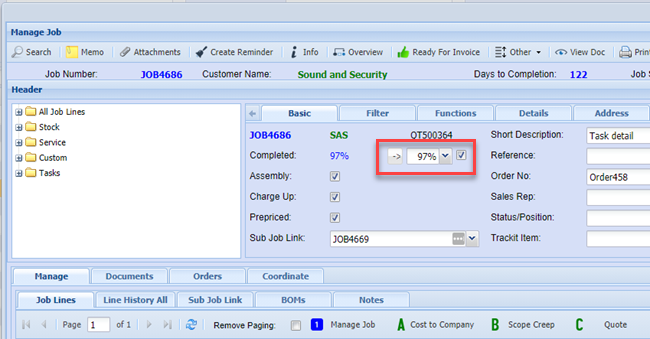
The job completion percentage is calculated by comparing the total budgeted quantity to the total actual quantity completed.
This value is displayed in blue; however, it may not always accurately reflect the true completion status. In such cases, the user may need to adjust it manually.
The percentage can be updated by clicking the arrow button or selecting a value from the dropdown menu.
If the tick box is enabled, the percentage will automatically update each time the job is saved. If the tick box is disabled, the percentage will remain unchanged and must be updated manually by the user.
.png)
This function will only apply to jobs where the tick box is enabled. Jobs with the tick box disabled will not be updated automatically and must be adjusted manually by the user.
Manage Job - Filter Tab Overview
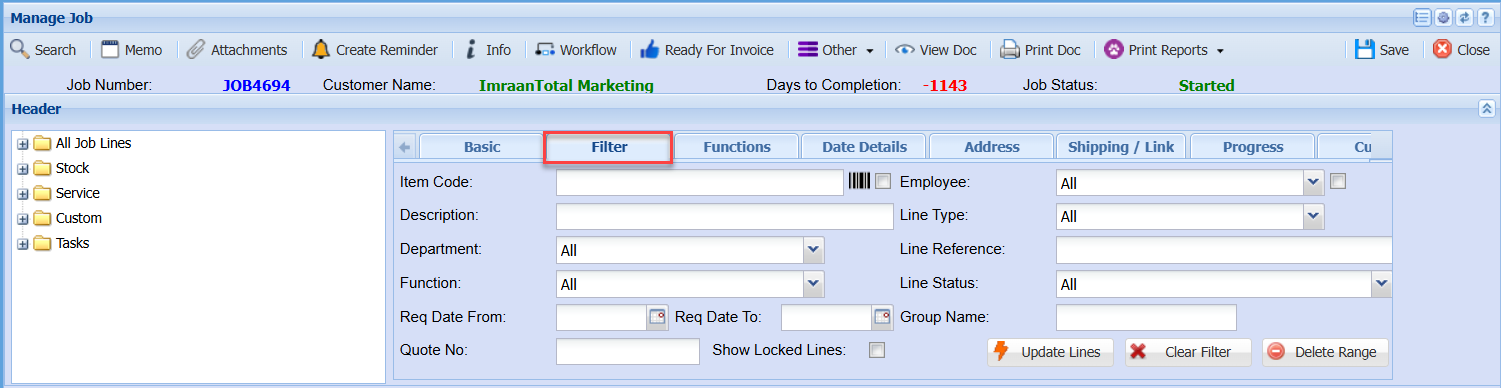
| Item Code | |
| Description | |
| Department | |
| Function | |
| Req Date From and To | |
| Quote No | |
| Show Locked Lines Tick | |
| Employee | |
| Line Type | |
| Line Reference | |
| Line Status | |
| Group Name | |
| Update Lines | |
| Clear Filter | |
| Delete Range |
Progress Tab Overview
The Progress tab provides a summary of job performance, with totals calculated based on values entered in the Scheduling tab (task activity groups).
.png)
|
Total Sell Budget |
|
|
Total Cost Budget |
|
|
Activity Job Progress % |
|
|
Activity Sell Budget Sum |
|
|
Invoiced to Date |
|
|
Potential to Invoice |
|
|
Invoiced % to Date Sum |
|
|
Value to Invoice |
|
|
Total Hours |
|
Manage Job - Notes Tab
The Notes for Manage Job has been upgraded to the new text format