
Job Costing Screens Defined
Tabs and Screens Further Explained
Quote Screen
-
Extras Tab
Below is an overview of the fields available under the Extras tab on the quote screen:
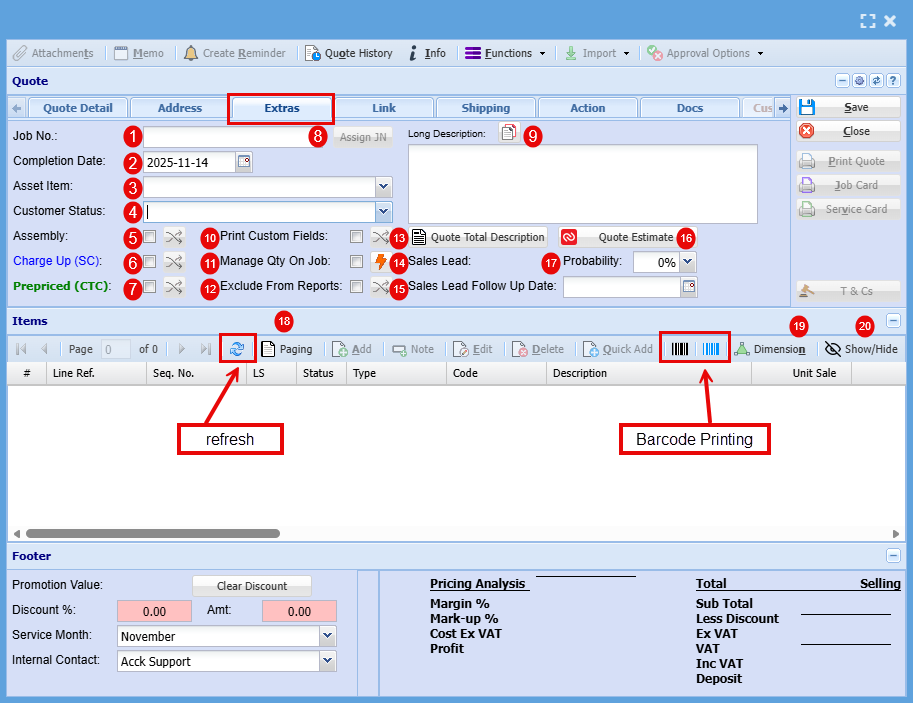
| 1 | Job Number | Clicking 'Assign JN' at this stage will generate a Job Number for the quote, which will automatically carry over once the quote is approved and converted into a actual job. |
| 2 | Completion Date | This is the date that you are expected to be able to complete this Job |
| 3 | Asset Item | The Asset Item field links a company-owned asset (e.g., printer, scanner, laptop) to a specific job or quote. This ensures equipment used is tracked, recorded, and associated with the job for better visibility and management. |
| 4 | Customer Status | Options "On Hold" |
| 5 | Assembly | “Assembly” refers to an internal process where components or materials are prepared, combined, or staged before installation or delivery. It’s not billed separately to the customer but contributes to your overall job cost. |
| 6 | Charge Up (SC) | Charge Up (SC)” means the customer is billed for actual time and materials used, including any extras beyond the initial scope. Charge Up allows you to invoice for additional costs incurred during the job. |
| 7 | Prepaid (Cost to Company) | "Prepaid” refers to the quoted amount for the job, the fixed charge agreed to by the customer. You can’t invoice beyond this amount, so any extra time, materials, or costs that exceed the quote become your internal expense, or ‘Cost to Company (CTC) |
| 8 | Assign JN | Clicking 'Assign JN' at this stage will generate a Job Number for the quote, which will automatically carry over once the quote is approved and converted into a actual job. |
| 9 | Long Description | Here you can write a description of the job being done. |
| 10 | Print Custom Fields | Includes custom fields in the printed quote (see Custom Fields tab). |
| 11 | Manage Qty on Job | The “Manage Qty on Job” tick box automatically transfers and manages item quantities when a quote is converted into a job, ensuring quantities remain accurate without manual adjustment. |
| 12 | Exclude from Reports | This flag will assist when running reports on quote values, allowing us to exclude certain quotes (effectively treating them as zero). |
| 13 | Quote Total Description | |
| 14 | Sales Lead | If this quote originated from a tracked Sales Lead, the associated Sales Lead number will be displayed here. Updating the Probability percentage will automatically sync the change with the corresponding Sales Lead. |
| 15 | Sales Lead Follow up Date | Updating the Follow up the system will automatically sync the change with the corresponding Sales Lead follow up date. |
| 16 | Quote Estimate | |
| 17 | Probability | If this quote originated from a tracked Sales Lead, the associated Sales Lead number will be displayed here. Updating the Probability percentage will automatically sync the change with the corresponding Sales Lead. |
| 18 | Paging | If your line items span multiple pages and require navigation using the page up/down arrows, clicking the Paging Box will disable paging, allowing you to scroll through all items in a continuous view. |
| 19 | Dimension | |
| 20 | Show/Hide |
Allows you to control which sections or fields are visible on the screen. This can help simplify the interface by hiding fields that are not relevant to your workflow. |
-
Link Tab
Below is an overview of the fields available under the Link Tab on the quote screen:
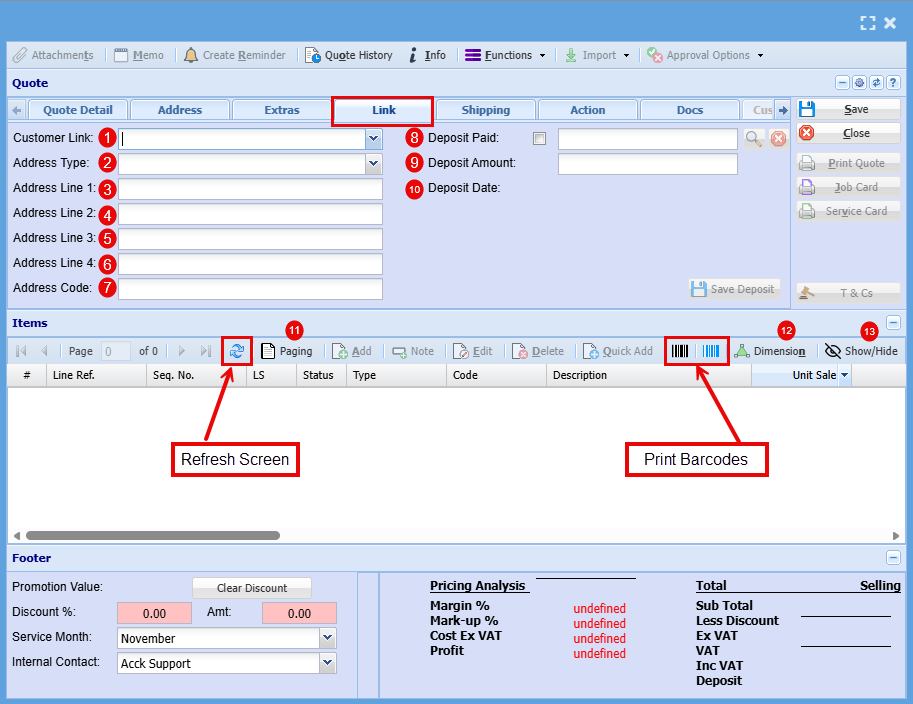
| 1 | Customer Link |
|
| 2 | Address Type |
This defines the type of address being used (for example, billing, delivery, or site address). Selecting the correct type ensures the quote is applied to the right location.
|
| 3-6 | Address line 1-4 |
These fields capture the full address details associated with the quote. You can enter street, suburb, city, and any additional location information required.
|
| 7 | Address code |
A reference code used to identify saved or standard addresses.
|
| 8 | Deposit Paid |
Enter the value of the deposit paid. This amount will be automatically deducted from the total quote value, giving a more accurate balance owing. |
| 9 | Deposit Amount |
Tick this box if the customer has already made a deposit payment. This flags the quote so the system knows part payment has been received. |
| 10 | Deposit Date |
Record the exact date the deposit was received. This is useful for tracking payments and keeping financial records accurate. |
| 11 | Paging |
When a quote contains a large number of line items, they may be split across multiple pages.
|
| 12 | Dimension | |
| 13 | Show/Hide |
Allows you to control which sections or fields are visible on the screen. This can help simplify the interface by hiding fields that are not relevant to your workflow. |
-
Shipping Tab
Below is a detailed overview of the fields available under the Shipping tab on the quote screen:

| 1 | Shipping Method |
Select the method of delivery for the order (e.g. courier, pickup, freight). This helps define how the goods will be sent to the customer. |
| 2 | Shipping Date |
Enter the date (and time) the order is scheduled to be shipped. This is useful for planning dispatch and providing accurate delivery expectations. |
| 3 | Send Email |
Tick this option if you want the system to send a notification email related to the shipment (e.g. confirmation or dispatch details). |
| 4 | Shipping Location |
Specifies the destination location the goods are being shipped to. This may differ from the billing address if the customer has multiple delivery sites. |
| 5 | Internal Delivery |
Used when the delivery is being handled internally by your own team or vehicles, rather than an external courier. |
| 6 | Delivery Company |
Select or enter the external courier or freight company responsible for delivering the shipment (e.g. NZ Post, Mainfreight). |
| 7 | Tracking Number |
Enter the tracking number provided by the courier. This allows both your team and the customer to track the shipment progress. |
| 8 | Frozen |
Enter the tracking number provided by the courier. This allows both your team and the customer to track the shipment progress. |
| 9 | Paging |
When there are many line items:
|
| 10 | Dimension | |
| 11 | Show/Hide |
Allows you to customise the screen view by showing or hiding certain fields or sections, helping keep the interface clean and relevant. |
-
Action Tab
Below is a detailed overview of the fields and functions available under the Action tab on the quote screen:
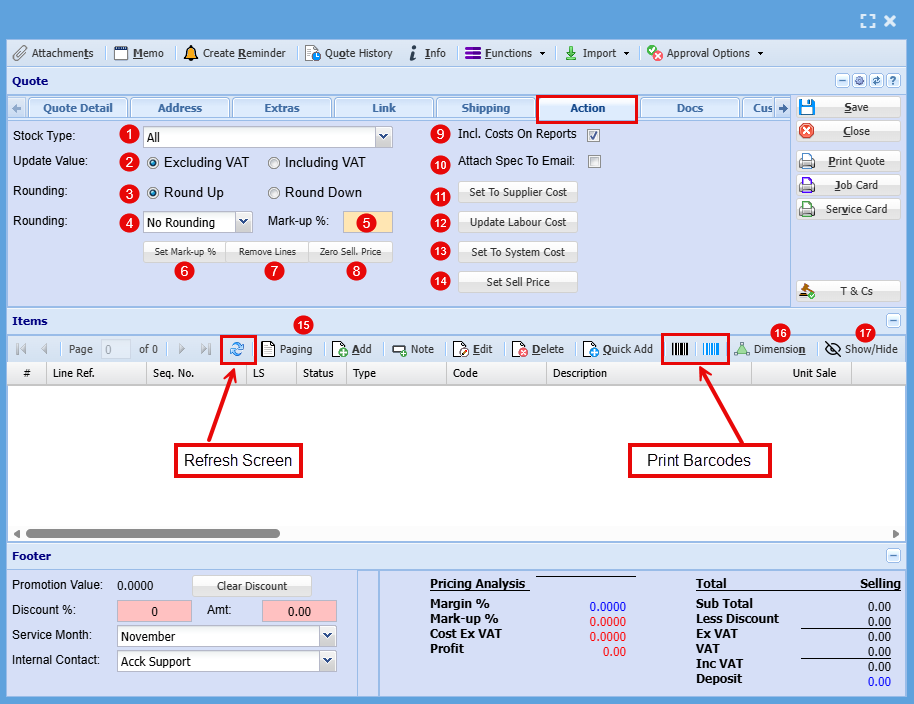
| 1 | Stock Type |
Allows you to filter or apply actions to a specific type of stock (e.g. all items, stock items only, or non-stock items). This ensures changes are applied only where needed. |
| 2 | Update Value |
Determines whether pricing updates are applied including or excluding VAT. This is important for maintaining accurate pricing calculations depending on how your system is set up. |
| 3 | Rounding Up |
Controls how pricing values are rounded:
|
| 4 | Rounding Down |
Controls how pricing values are rounded:
|
| 5 | Mark-Up % |
Enter the desired markup percentage to apply to selected line items. This is used to calculate selling prices based on cost. |
| 6 | Set Mark-Up % |
Applies the entered markup percentage across selected items. This is a quick way to update pricing in bulk. |
| 7 | Remove Lines |
Removes selected line items from the quote. Useful for cleaning up or adjusting the quote quickly. |
| 8 | Zero Sell, Price |
Sets the selling price to zero for selected items. This may be used for complimentary items, warranty replacements, or no-charge components. |
| 9 | Incl. Cost on Reports |
When enabled, this includes cost values in reports, allowing for visibility of margins and profitability. |
| 10 | Attach Specs to Email |
Tick this option to include product specifications when emailing the quote to the customer. |
| 11 | Set to Supplier Costs |
Updates selected items so their pricing reflects the supplier cost directly. Useful when recalculating pricing based on updated supplier pricing. |
| 12 | Update Labour Cost |
Refreshes or updates the labour cost values associated with the quote. |
| 13 | Set to System cost |
Resets pricing to the system’s default cost values, ensuring consistency with your pricing database. |
| 14 | Set Sell Price |
Allows you to manually set or update the selling price for selected items. |
| 15 | Paging |
When dealing with many line items:
|
| 16 | Dimension | |
| 17 | Show/Hide |
Allows you to customise the screen view by showing or hiding certain fields or sections, helping keep the interface clean and relevant. |
-
Docs Tab
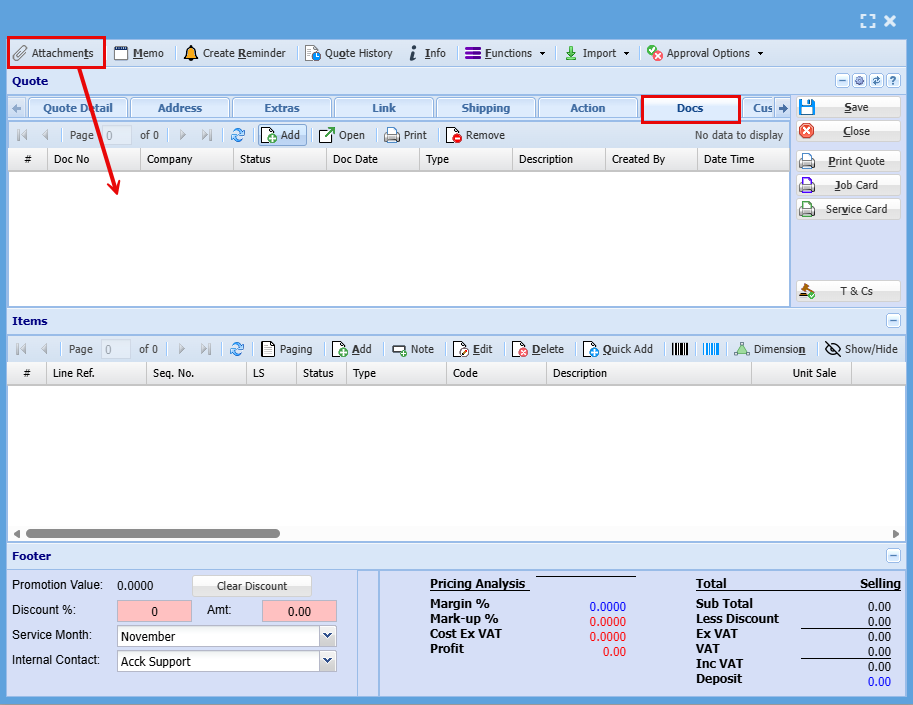
This tab displays a list of all documents that have been attached to the quote. These could include files such as specifications, images, PDFs, or any supporting documentation relevant to the job.
This tab provides instant access to upload documents in any format (PDF, Word, Excel, etc.) or retrieve relevant files previously attached to this quote.
Each document listed will typically show details such as:
- Document name or number
- Type of document
- Description
- Date created
- User who uploaded it
Key Functions
-
Attachments (top left button)
Allows you to add new documents to the quote. This is where you upload files that need to be linked or sent with the job or quote. -
Add / Open / Print / Remove
These options allow you to:- Add new documents
- Open existing attachments
- Print attached files
- Remove documents if they are no longer required
Adding an Item to a quote
Additional options on a Quote Item
This screen also allows you to capture key information for each job or task line.
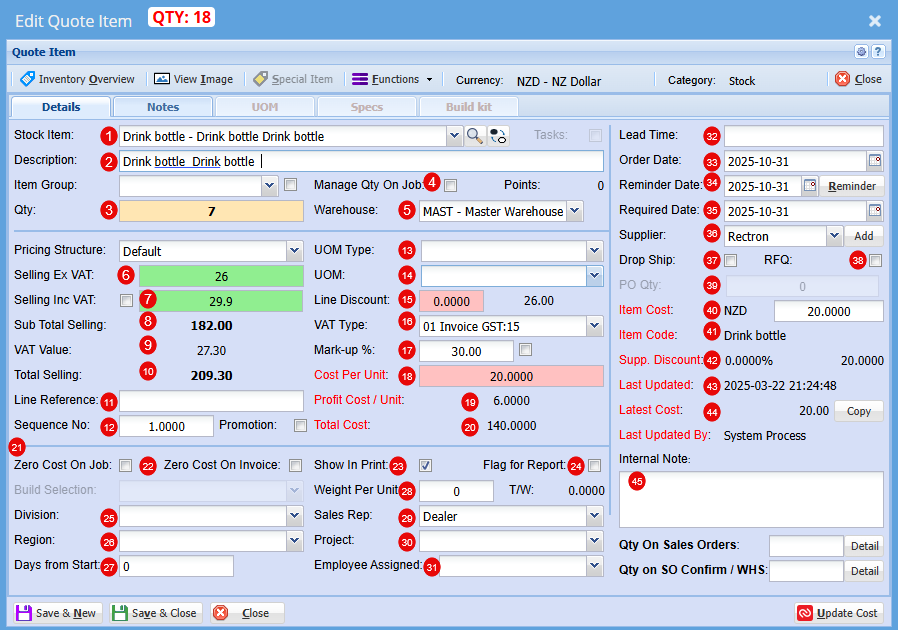
Item & Quantity Details
| Stock Item |
Select your stock item from the drop-down menu |
| Description |
At this stage you can change the Description if needed |
| Qty |
Add the Quantity you require of this item |
| Manage Qty on Job |
Controls whether the quantity is actively tracked and managed when the quote is converted to a job.
|
| Warehouse |
Select the Warehouse you wish to sell this item form |
| Selling Ex GST |
Price per item does not include the 15% Goods and Services Tax. You add GST on top of the listed amount. |
| Selling Inc GST |
Price per item includes the 15% Goods and Services Tax. The GST is already built into the total amount shown. |
| Sub Total Selling |
Total price of total quantity of item that does not include the 15% Goods and Services Tax. You add GST on top of the listed amount. |
| VAT (GST) Value |
Total GST only on total quantity of items |
| Selling Total |
Total price of total quantity of item includes the 15% Goods and Services Tax. The GST is already built into the total amount shown. |
Line Details
| Line Reference |
|
| Sequence No. |
You can change the Sequence in the quote for this item |
Units & Discounts
| UOM Type |
These are custom configuration settings applied during setup, tailored specifically to your product formats (e.g., Per Roll, Per Unit, Pack). |
| UOM |
These are custom configuration settings applied during setup, tailored specifically to your product formats (e.g., 1000 per roll, 6 per pack). |
| Line Discount |
You can apply a discount to this item |
| VAT (GST)Type |
If this item is GST exempt or a Non-GST item it can be changed here |
Margin & Costing
| Mark up % |
At this stage you can increase your profit % |
| Cost Per Unit |
This is the total cost to produce or buy one item. It helps you set prices and track profitability. |
| Profit Cost/Unit | This is how much profit you make on each item sold after subtracting its cost. |
| Total Cost | This s the full amount spent to produce or purchase a set of items or complete a job. |
Cost Behaviour
| Zero Cost on Job |
These ticks will be automatically on or off based on the setup if the item. When the item is promoted to a Job, its initial cost is cleared and recalculated progressively as the job is built—ensuring you have an accurate final cost at completion. |
| Zero Cost on Invoice |
As with the Cost on job, these ticks will be automatically on or off based on the setup if the item. When the item is promoted to a Job, its initial cost is cleared and recalculated progressively as the job is built—ensuring you have an accurate final cost at completion. |
Visibility & Reporting
| Show on Print |
|
| Flag for Report |
|
Organisation & Scheduling
| Division |
Select a division within of a company that focuses on one area of work. |
| Region |
Select a region the job will fall under, it can include multiple cities or towns and often has its own local government or identity. |
| Days from Start | Use this field to schedule when this item should begin—set as a number of days from the job’s start date. |
| Weight Per Unit | This is determined at setup |
| Sales Rep | You are able to allocate someone who promotes and sells a company’s products or services to customers. They often handle quotes, follow-ups, and customer relationships, helping drive revenue and build trust. |
| Project | You can Link a quote to a specific project |
| Employee Assigned | Refers to the specific person responsible for completing a task or project. It helps track accountability, scheduling, and communication. |
| Lead Time | This is the amount of time between starting a process and completing it. It usually refers to how long it takes from placing an order to receiving the goods or service. |
| Order Date | This is the day a customer places an order for goods or services. |
| Reminder Date | This is the day you plan to check in after sending the quote. |
| Required Date | This is the day the customer wants the goods or service delivered |
| Supplier | This is the company that provides goods or services to another business |
| Drop Ship |
Ticking this box enables you to generate a Purchase Order on the fly—complete with all relevant details, so you don’t need to build one from scratch when drop-shipping an item. |
| RFQ (Request for Quote) |
Ticking this box allows you to generate a Request for Quote on the fly—pre-filled with all relevant details, so you don’t need to start from scratch when requesting updated pricing for an item. |
| PO Qty |
Enter the quantity here for which you want to generate a Purchase Order or Request for Quote. |
| Item Cost |
This shows the actual cost of the item |
| Item Code |
This is the suppliers item code |
| Supplier Discount |
Shows if you received a discount on this item when purchased form supplier |
| Last Updated |
This is the date the cost was last updated for this item |
| Latest Cost |
Similar to Item cost, this shows the actual cost of the item at that date |
| Internal Note | Here you can include private comment or detail added to a job, quote, or project that’s meant for your team, not the customer. |
Approve Quote to Job Screen
Job Details Tab
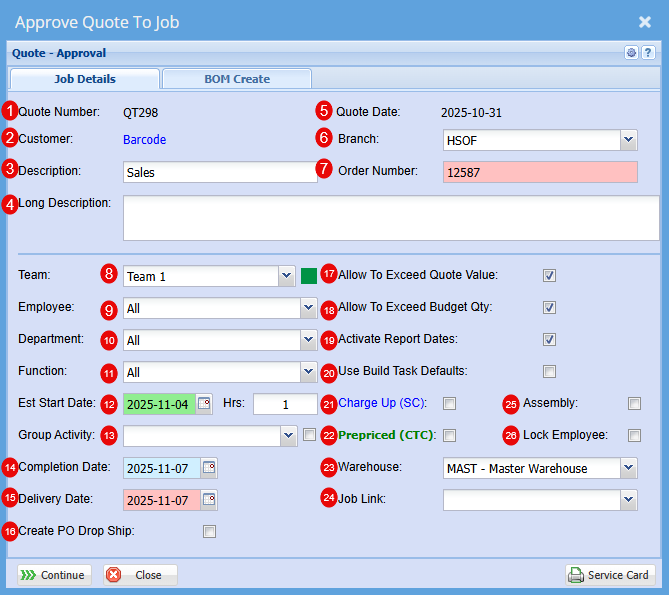
| 1 | Quote Number | This is the Quote number linked |
| 2 | Customer | Customers Name |
| 3 | Description | This will be specific to the Job as an easy identifier in a list |
| 4 | Long Description | Here you can be more specific to the job |
| 5 | Quote Date | This is the date of the Quote |
| 6 | Branch | You can select a specific branch that this is linked to if you had these set up at the start |
| 7 | Order Number | Customer Order Number |
| 8 | Team | You can select a team if these have been setup |
| 9 | Employee | Refers to the specific person responsible for completing a task or project. It helps track accountability, scheduling, and communication. |
| 10 | Department | Add a department if this has been setup for your company |
| 11 | Function | |
| 12 | Est Start Date | Date estimated for Job to start |
| 13 | Group Activity | |
| 14 | Completion Date | Date Estimated for Job to be completed |
| 15 | Delivery Date |
Date that the item is expected to be delivered to your customer |
| 16 | Create PO Drop Ship | This is to allow you to create a PO from the Job once its started. |
| 17 | Allow to Exceed Quote Value | Ticking this box allows actual job costs to exceed the quoted value. This is helpful when unexpected expenses arise during production or service delivery, and you want the system to continue tracking costs without treating the quote as a strict limit. If left unticked, a new quote must be created to include any additional costs. |
| 18 | Allow to Exceed Budget Qty | Ticking this box allows the actual quantity used in the job to exceed the budgeted amount. This is useful when additional units are required during production or service delivery. If left unticked, you’ll need to produce a new quote to add more units. |
| 19 | Activate Report Dates | This will allow you to be able to report on this job |
| 20 | Use Build Task Defaults |
When you create a build task default, you can specify alternative warehouses or item sources. Once a quote is converted into a job, the system will apply the defaults set in your build template. This ensures that materials are drawn from the designated warehouse rather than the main warehouse, allowing for more precise inventory control—especially when working with a master warehouse setup. |
| 21 | Charge Up (SC) | Charge Up (SC) means the customer is billed for actual time and materials used, including any extras beyond the initial scope. Charge Up allows you to invoice for additional costs incurred during the job. |
| 22 | Prepaid (CTC) |
Prepaid refers to the quoted amount for the job, the fixed charge agreed to by the customer. You can’t invoice beyond this amount, so any extra time, materials, or costs that exceed the quote become your internal expense, or ‘Cost to Company (CTC) |
| 23 | Warehouse | All stock will come from the Warehouse selected here |
| 24 | Job Link | You may find that you already have a job for this customer, and this is a sub job, to can select this job form the drop-down menu link to two or more jobs. |
| 25 | Assembly | “Assembly” refers to an internal process where components or materials are prepared, combined, or staged before installation or delivery. It’s not billed separately to the customer but contributes to your overall job cost. |
| 26 | Lock Employee | You can lock the employee assigned to this job so it cannot be changed without your knowledge. |
Manage Job Screen
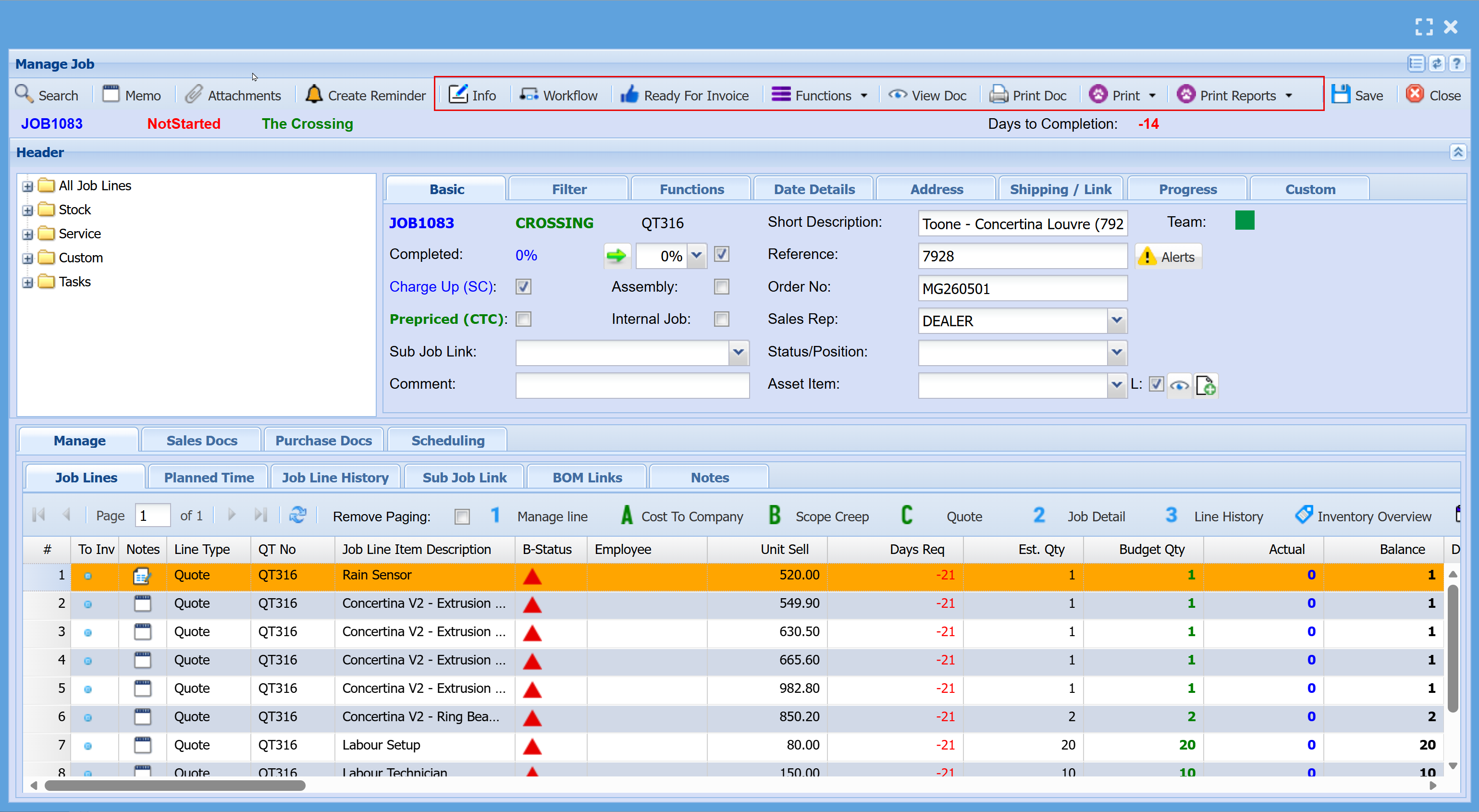
| Info |
Used for internal notes only
|
| Workflow | |
| Ready for Invoice | |
| Functions | |
| View Doc | |
| Print Doc | |
| Print Reports |
- Basic Tab
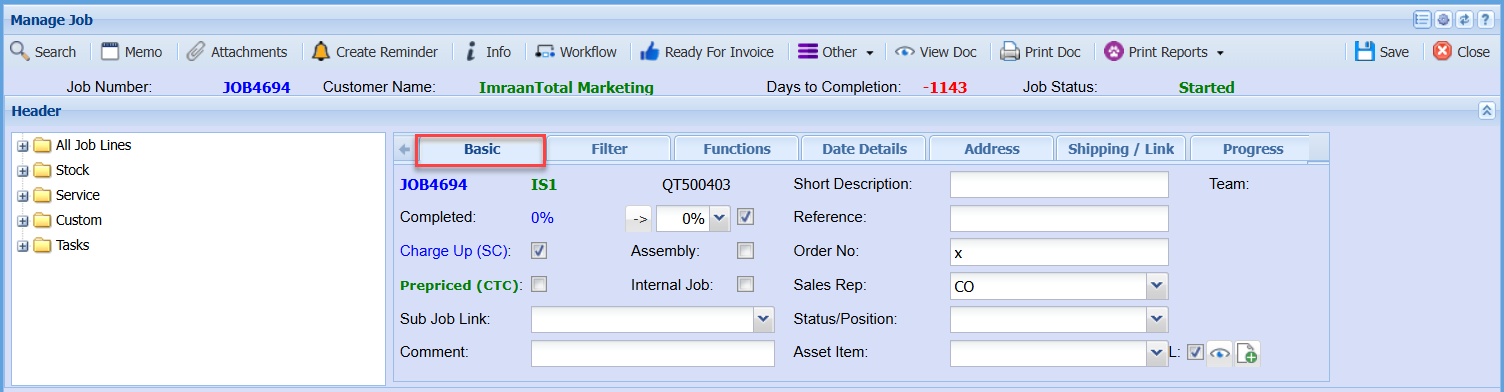
| Completed | |
| Charge Up (SC) Tick | |
| Assembly Tick | |
| Prepriced (CTC) Tick | |
| Internal Job Tick | |
| Sub Job Link | |
| Comment | |
| Short Description | |
| Reference | |
| Order No | |
| Sales Rep | |
| Status/Position | |
| Asset Item |
- Job Percentage Complete
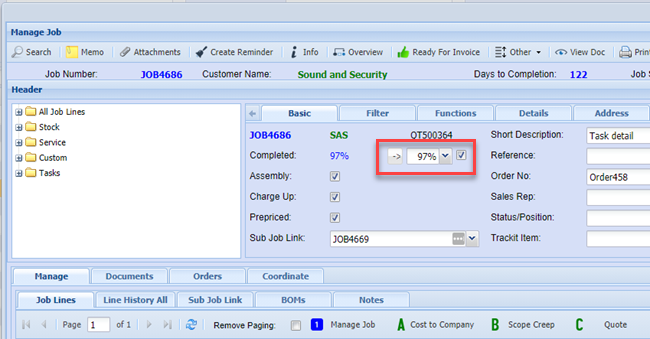
The job completion percentage is calculated by comparing the total budgeted quantity to the total actual quantity completed.
This value is displayed in blue; however, it may not always accurately reflect the true completion status. In such cases, the user may need to adjust it manually.
The percentage can be updated by clicking the arrow button or selecting a value from the dropdown menu.
If the tick box is enabled, the percentage will automatically update each time the job is saved. If the tick box is disabled, the percentage will remain unchanged and must be updated manually by the user.
.png)
This function will only apply to jobs where the tick box is enabled. Jobs with the tick box disabled will not be updated automatically and must be adjusted manually by the user.
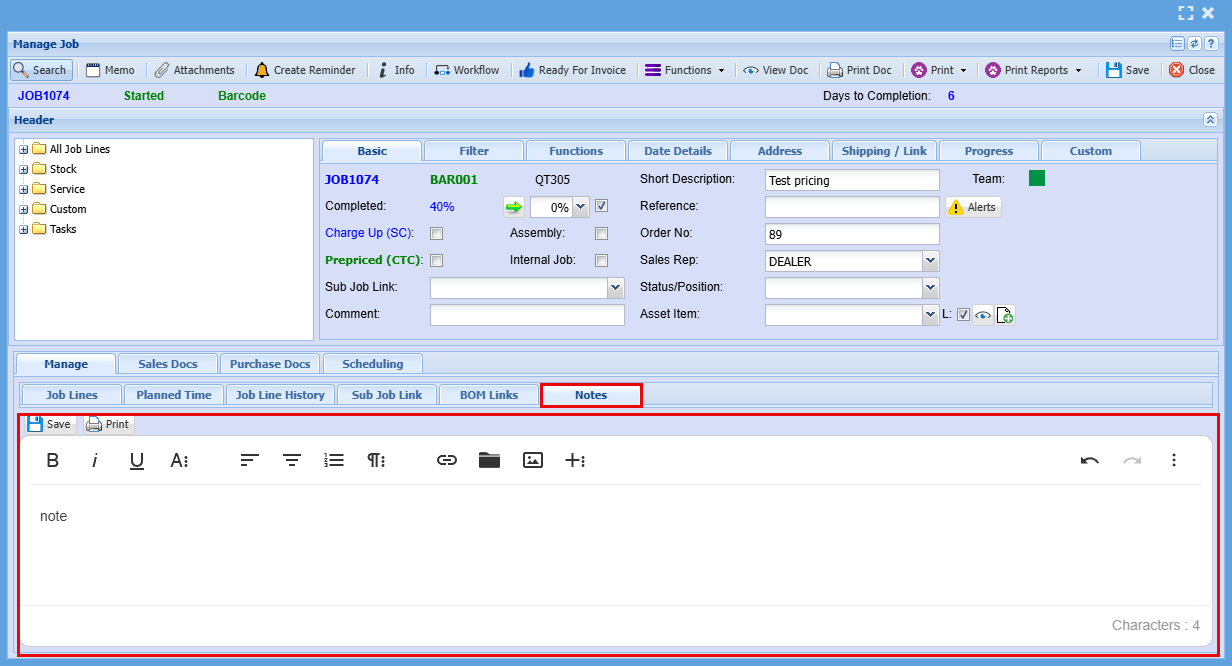
- Manage Job Notes
The Notes for Manage Job has been upgraded to the new text format
- Filter Tab
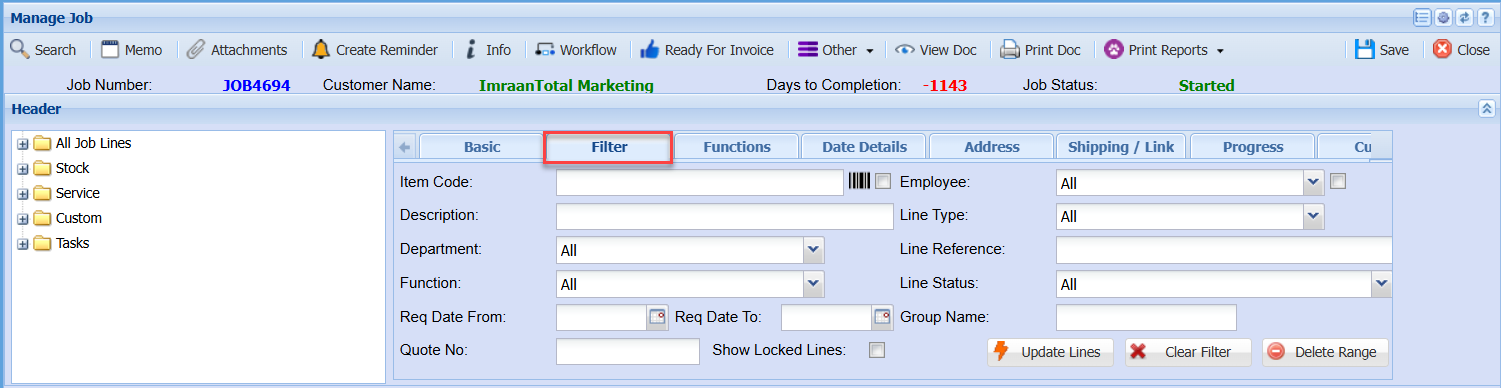
| Item Code | |
| Description | |
| Department | |
| Function | |
| Req Date From and To | |
| Quote No | |
| Show Locked Lines Tick | |
| Employee | |
| Line Type | |
| Line Reference | |
| Line Status | |
| Group Name | |
| Update Lines | |
| Clear Filter | |
| Delete Range |
- Functions Tab

| Manage All | |
| Import | |
| New Stock Request | |
| Create PO | |
| Create BOM | |
| Verify task stock | |
| Task Stock Request | |
| Delete Task | |
| Add to Picking Slip | |
| Planned Timelog | |
| Copy to Job | |
| Clear Line History | |
| Delete Job Line | |
| Change Line Type | |
| CTC to SC | |
| Support Log | |
| Time Log | |
| Quick Time Log | |
| Checklist | |
| Complete |
Import Button
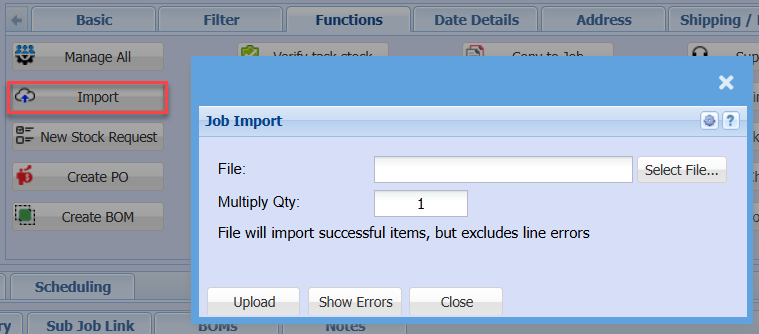
| File | |
| Multiply Qty | |
| Upload | |
| Show Errors |
New Stock Request
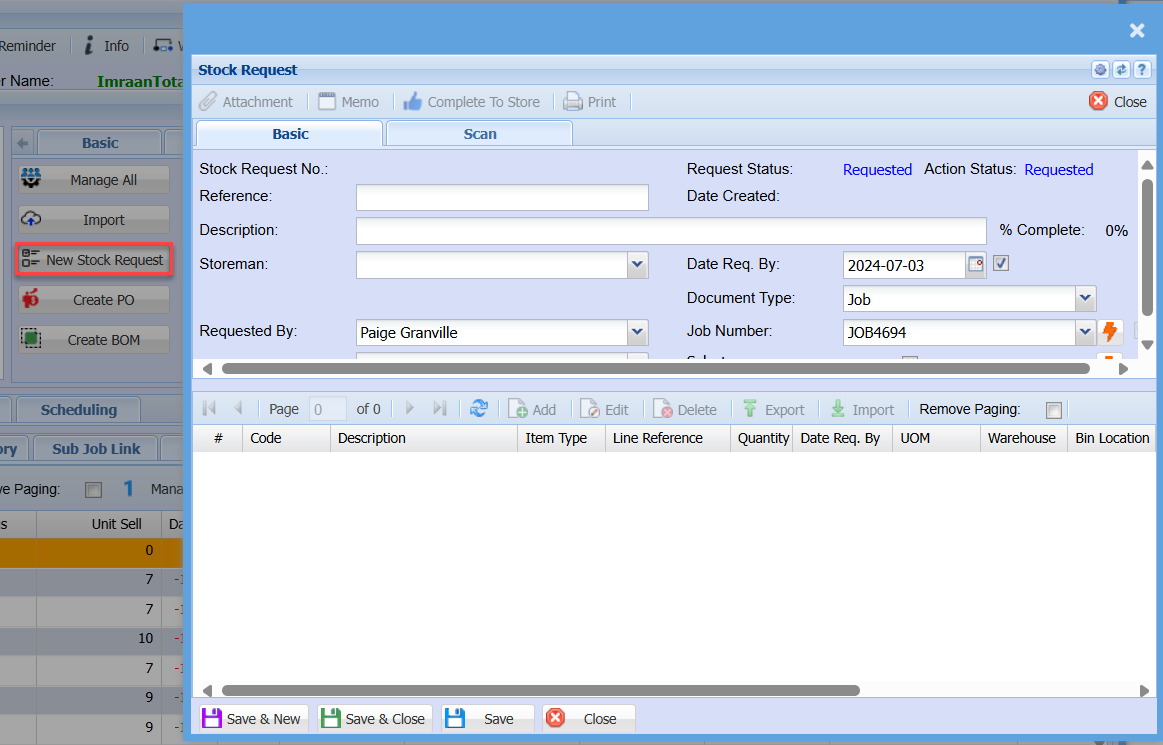
-
Basic Tab
| Complete To Store | |
| Stock Request No | |
| Reference | |
| Description | |
| Storeman | |
| Requested By | |
| Sort By | |
| Date Req. By | |
| Document Type | |
| Job Number | |
| Select |
-
Scan Tab
| Scan Barcode | |
| Last Item | |
| Last Result | |
| Scan Log |
Create PO
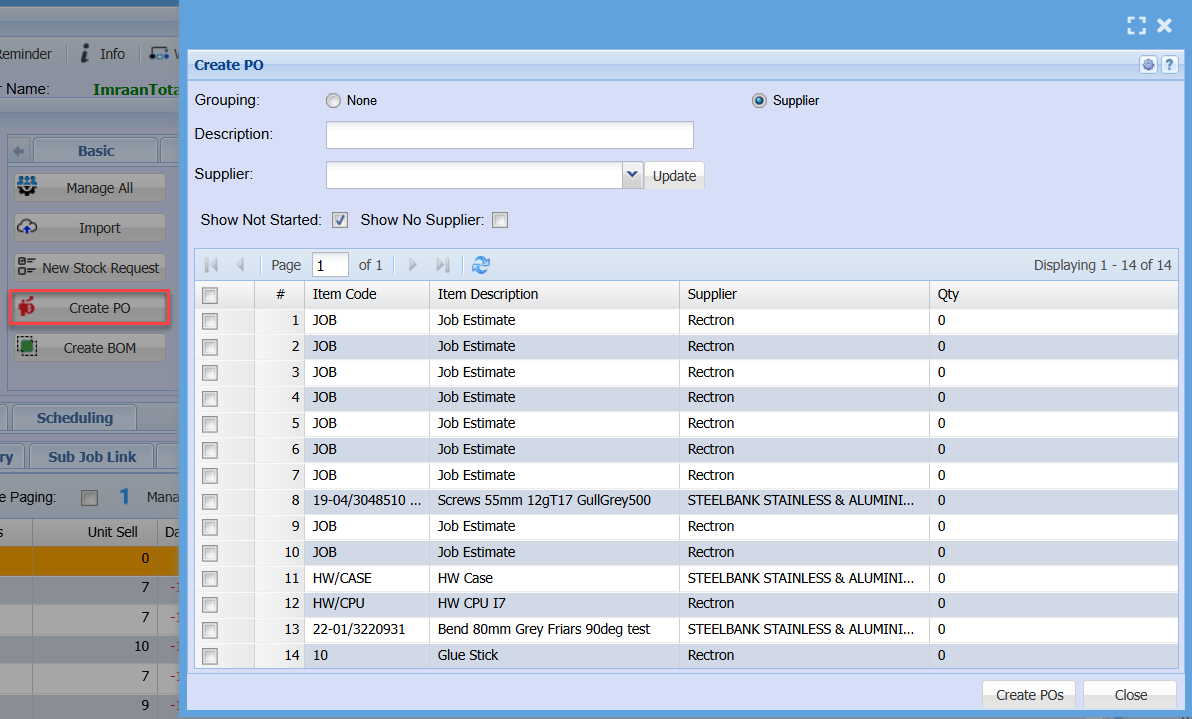
| Grouping | Select None or Supplier |
| Description | |
| Supplier | |
| Show Not Started | |
| Show No Supplier | |
| Create POs |