Invoice Value Summary
Summary invoice values areallow items to be grouped and displayed as totals, rather than showing each individual line on the invoice.
- These values
thatappear at the bottom of the invoice - Individual line items are hidden, while totals are grouped by item type
Item Types
- Service = Labour
- Custom = Consumables
- Stock = Materials
Setup
To include items in the invoice summary:
- Tick the relevant items
- These will be hidden from the main invoice lines
- Their values will be grouped and displayed as totals in the summary section
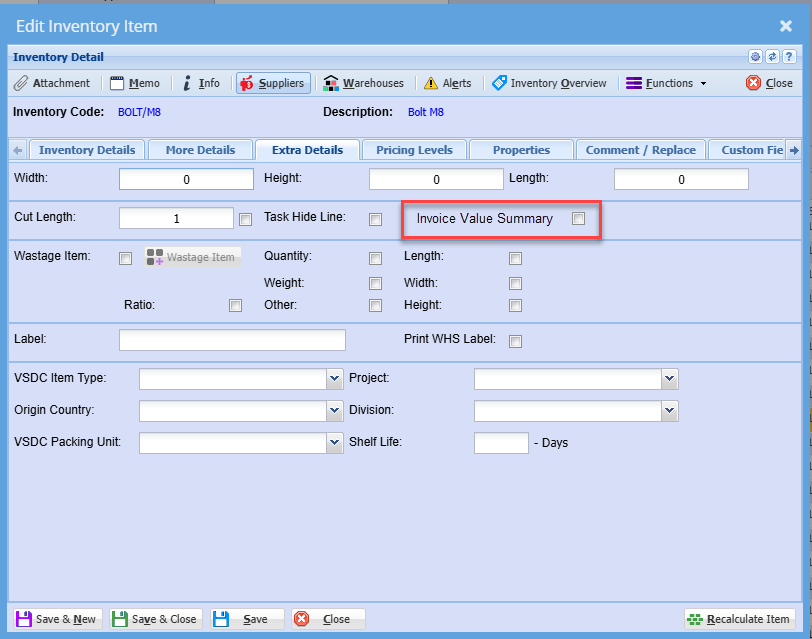
Value Summary Setup - Inventory Item
This screen shows how the Invoice Value Summary is configured at an item level within Inventory Setup.
By ticking the “Invoice Value Summary” checkbox (highlighted on the screen), the selected inventory item will not displayeddisplay as a separate line on the invoice. butInstead, showits value will be:
ToThis setupsetting theis applied per item, allowing you to control which items to be part of the Invoice value summary, tick items that will automatically be hidden lines on the invoice, but are groupedsummarised byversus valueshown on the invoice.individually.
Tick the item on setup
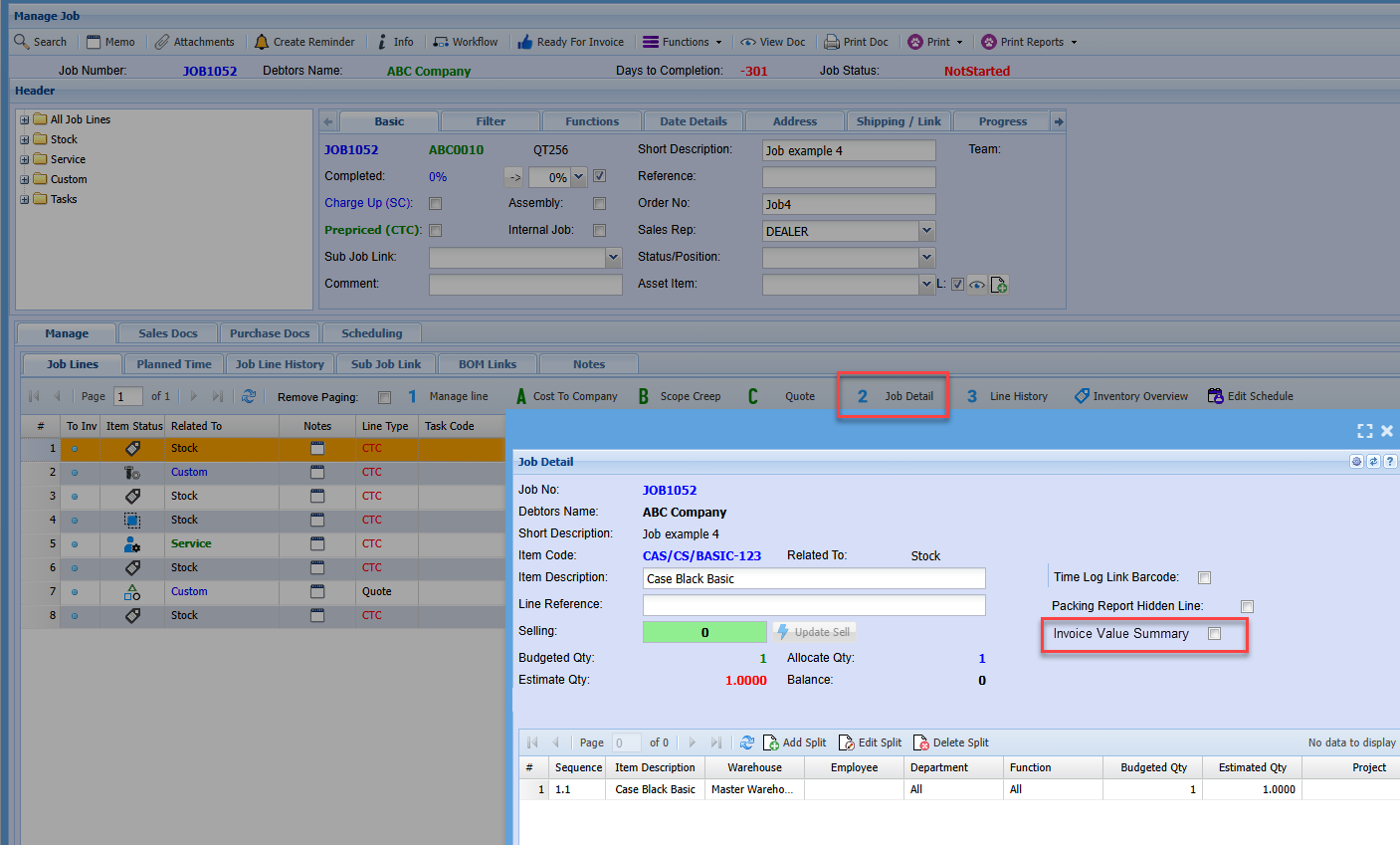
Update a job line to be summed
This screen shows how to control whether a job line is displayed individually on the invoice or included in the Invoice Value Summary.
To update a job line:
- Open the job and select the relevant line
- Go to the Job Detail tab (highlighted in the screen)
- Tick the “Invoice Value Summary” checkbox
When the Invoice Value Summary option is selected on the job line:
- The line will be hidden from the detailed invoice view
- The value will instead be grouped into the summary totals at the bottom of the invoice (e.g. Labour, Consumables, Materials)
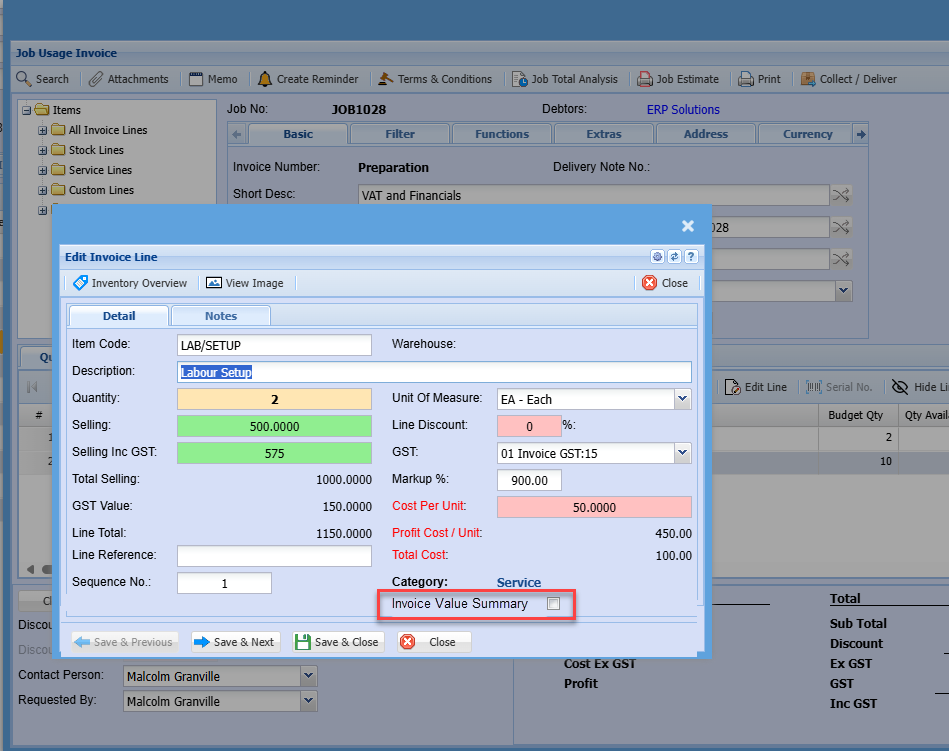
Job Invoice line
Line Tick the– Invoice Value Summary
This screen shows how to makecontrol whether an item is displayed individually on the iteminvoice showor included in the Invoice Value Summary.
To update this on a job invoice line:
- Open the Invoice Line
- Tick the “Invoice Value Summary” checkbox (highlighted on the screen)
When Invoice Value Summary is selected:
- The line will be hidden from the detailed invoice view
- The sell value
onis still included, but grouped into the summary totals (e.g. Labour, Consumables, Materials) at the bottom of the invoice