
Create Reminder

The “Create Reminder” button (highlighted with the bell icon in the top toolbar) is used to set up reminders for a job.
When you click this button, it allows you to:
- Schedule a follow-up action
- Set a date and time for the reminder
- Add notes about what needs to be done
- Ensure important tasks or jobs are not missed
This is especially useful for:
- Following up with customers
- Checking on job progress
- Reminding yourself to complete outstanding tasks
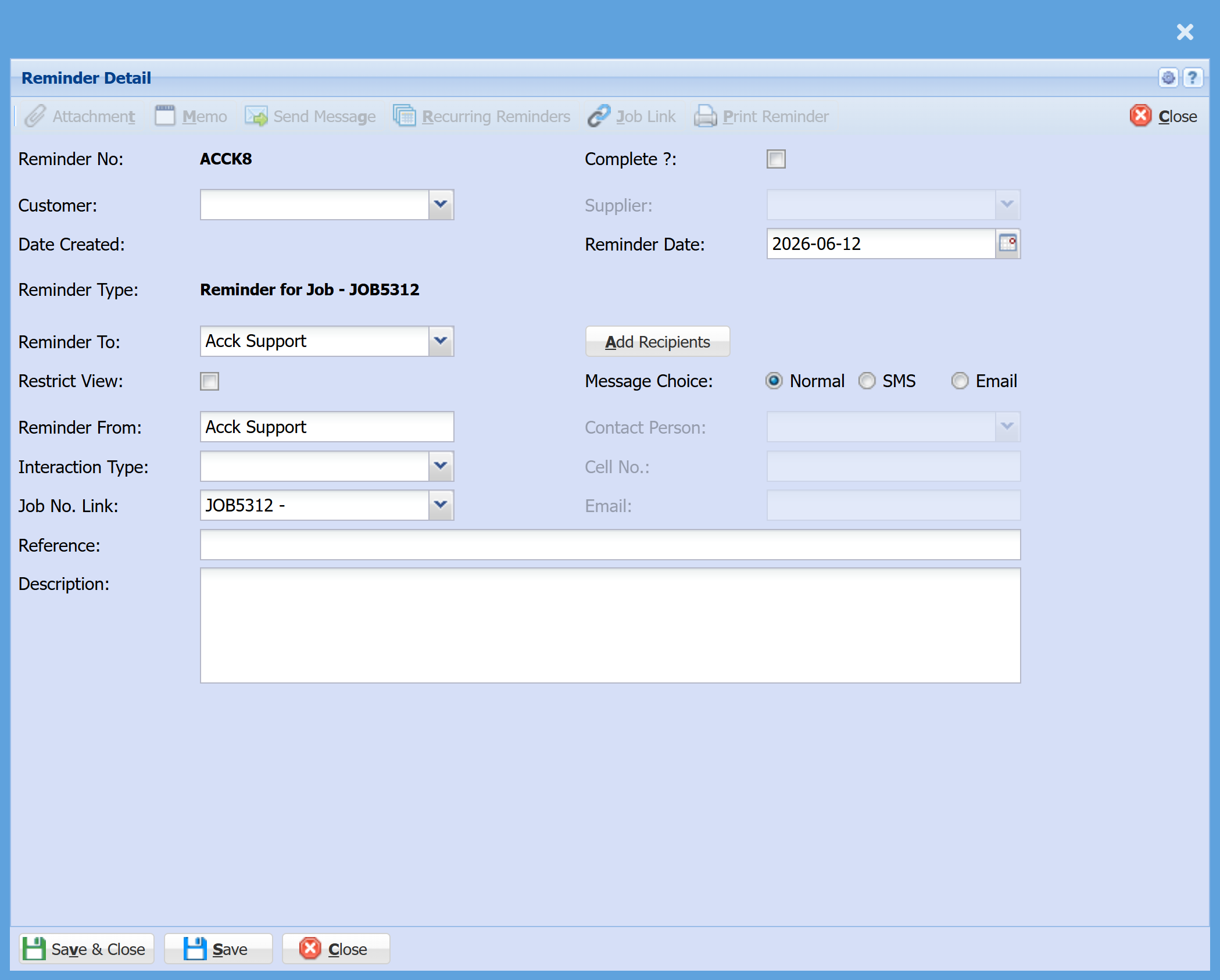
This screen is where you set up and manage a reminder for a job.
|
Reminder No
|
A unique reference number generated by the system.
|
|
Complete?
|
Tick once the reminder has been actioned. |
| Reminder Date | Select the date you would like the reminder to trigger. |
|
Customer / Supplier
|
Link the reminder if required.
|
|
Created Date
|
This will be the date the reminder is created
|
|
Reminder Date
|
Select the date you would like the reminder to trigger.
|
|
Reminder Type
|
Automatically links the reminder to the job (e.g. Reminder for Job – JOB5312).
|
| Reminder To | Choose who the reminder will be assigned to (e.g. a user, team, or department). |
| Add Recipients |
Optional – add additional people who should also receive the reminder.
Once you click “Add Recipients” and select a recipient:
|
| Message Choice |
|
| Restrict View | |
|
Reminder From
|
The user or team creating the reminder.
|
| Interactive Type |
This field is used to categorise the type of reminder or follow-up so it can be tracked and filtered more easily. You can select from the following options:
|
| Job No. Link | This automatically links the reminder to the job you created it from. |
| Reference | Enter a short title or subject for the reminder. |
| Description | Add detailed notes about what needs to be done or followed up. |