
Closing or Cancel Job
Closing a Job
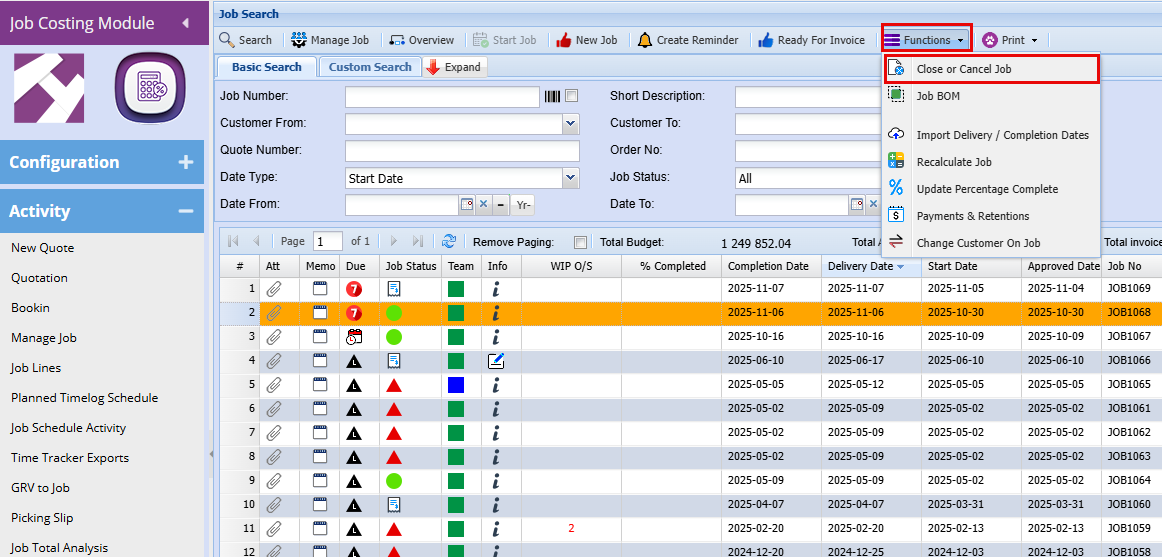
Job Costing > Activity > Manage Job
This screen is used to finalise and close off a job once all work has been completed or the job is no longer required.
- Close all the open documents (Quotes, PO, Delivery Notes)
- Highlight the job line you want to close
- Click
on"Functions" dropdown at the top left of the screen - Click "Close or Cancel Job"
This screen is used to close a job. You select how it’s being closed, confirm it, and then click OK. The job and customer details are already filled in automatically.
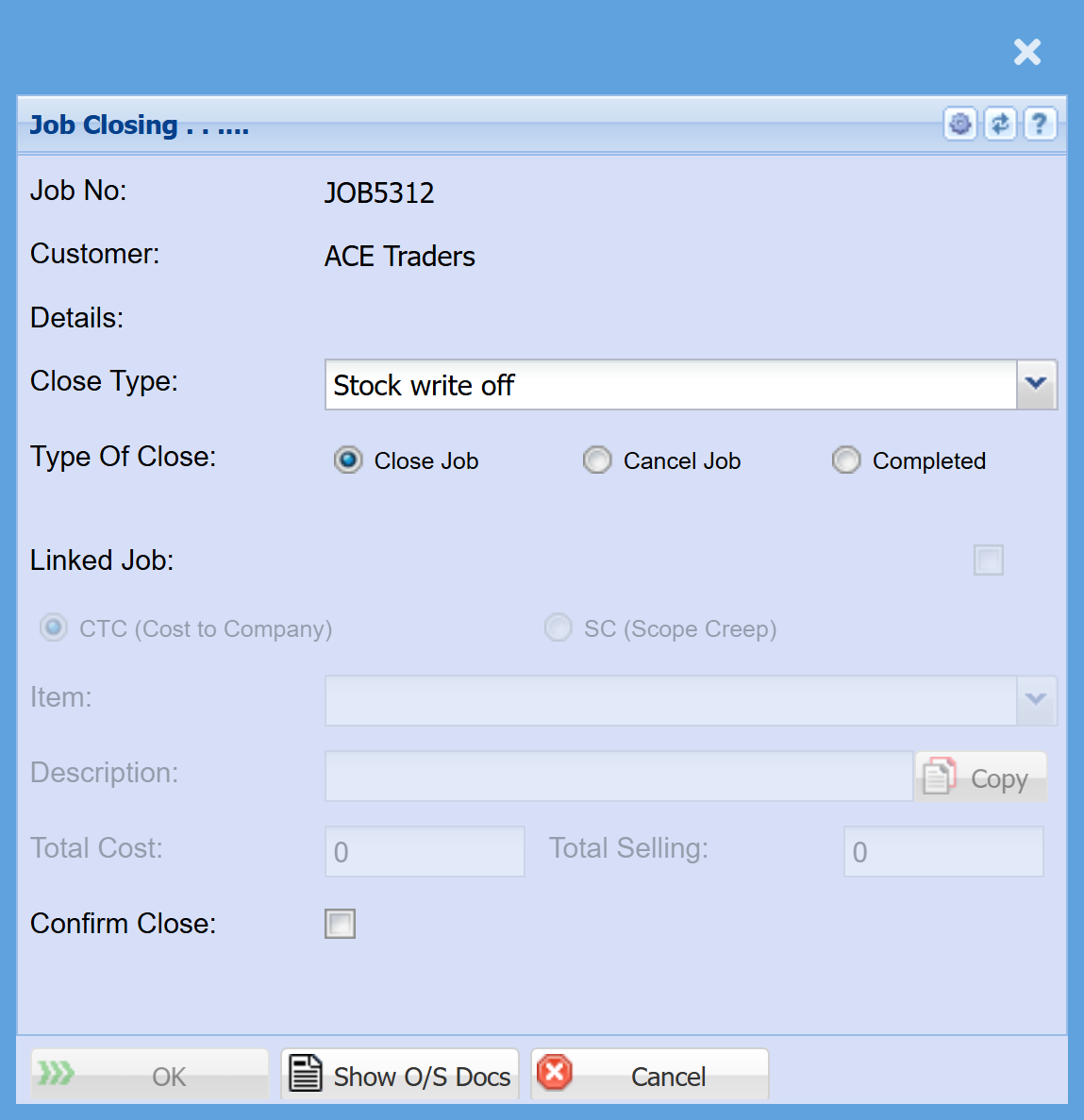
Auto-populated information
These details are pulled through from the job:
- Job No – Displays the job being closed (e.g. JOB5312)
- Customer – Shows the customer linked to the job
- Details – Additional job information (if applicable)
Close Type
- Used to select how the job is being closed financially or operationally
- Example shown: Stock write off
Choose one of the following options:
- Close Job → Standard closing of the job
- Cancel Job → Use if the job is no longer going ahead
- Completed → Confirms the job has been fully finished
- Allows you to link this job to another if required
- Options like:
- CTC (Cost to Company)
- SC (Scope Creep)
- Additional fields (Item, Description, Cost, Selling) will activate if used
- Confirm Close (checkbox)
👉 Must be ticked to finalise the job closure
- OK → Completes the job closing process
- Show O/S Docs → Displays any outstanding documents (must usually be resolved before closing)
- Cancel → Exits without closing the job