
Warehouse Transfers
Warehouse Transfers
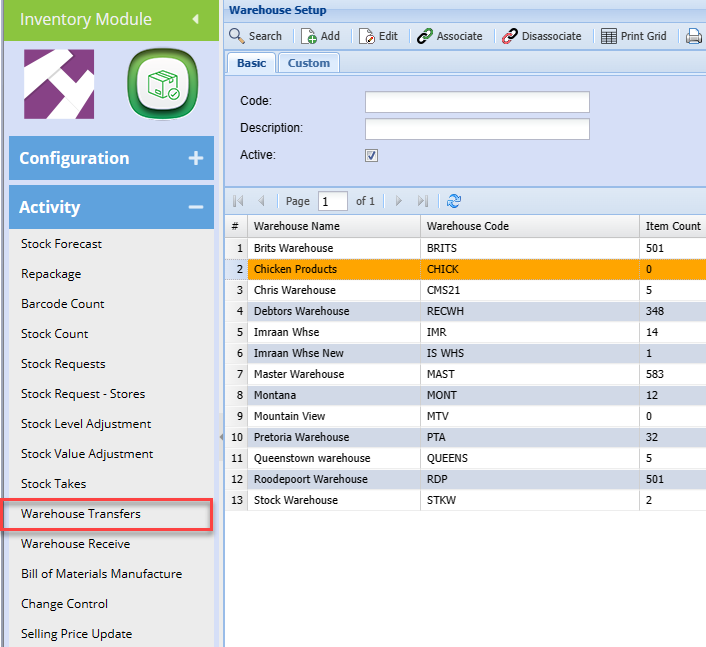
Inventory Module>Activity>Warehouse Transfers
Warehouse transfer is used to transfer items from one warehouse to another.
You have to have taken multi- warehouse add on module in WebaccountingHuge ERP and working in more than one warehouse.
To access warehouse transfers
Open Inventory Module>Activity>Warehouse >warehouse Transfers.Transfers
.png)
Basic .png)
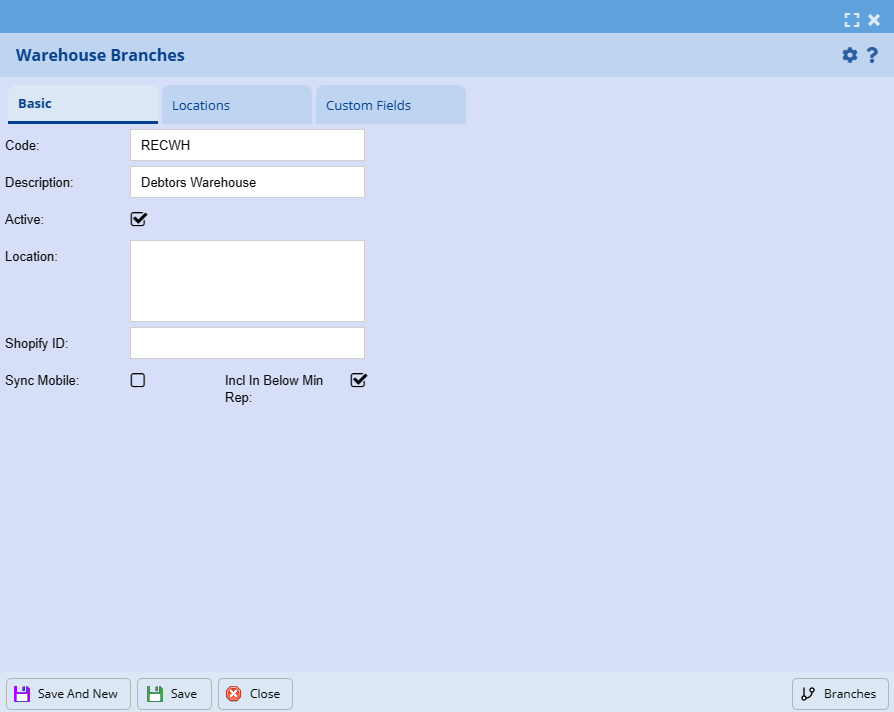
| Code | |
| Description | |
| Active | |
| Location | |
| Shopify ID | |
| Sync Mobile | |
| Incl In Below Min Rep |
Locations
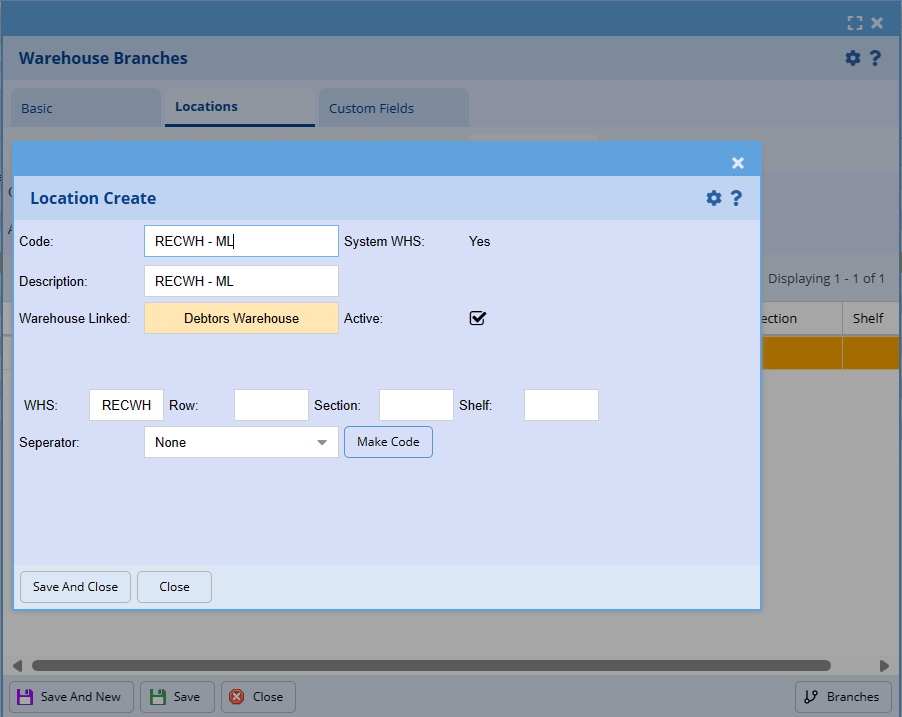
| Code | |
| Description | |
| Warehouse Linked | |
| WHS | |
| Row | |
| Section | |
| Shelf | |
| Separator | |
| Active |
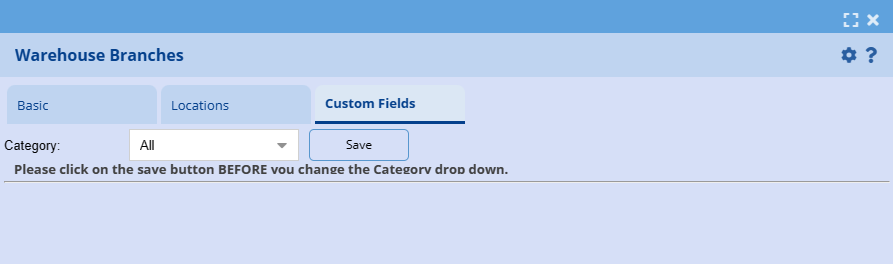
Custom Fields.png)
Sending Warehouse - Is the company warehouse that you are transferring stock from
Receiving Warehouse - is the warehouse receiving the stock.
Date Sending is the date the stock is sent out
Date Receiving is the date stock was received
Short Description – The Short description regarding stock
Click On Insert to create a list of items to be transferred
When selecting the inventory in Webaccounting the user is able to tell how much stock is on hand is available by the quantity displayed at the end of the item description.
This is useful because you need to have items available on hand to effect the warehouse transfer.
NB Adding items onto a transfer does not allocate it or prevent it from being sold to a client
.png)
.png)
.png)
Search for the created list of inventory to be transferred and select it.
Click Process tab at the bottom of the window and Select Transfer button to start the process of transferring the stock.
When you click transfer the items are allocated to the in transit status and removed from on hand inventory, this means that they are no longer available for selling.
The Following window will pop up.
.png)
From here on the stock can now be received into the warehouse. A printout report of the stock being transferred can be generated and emailed to the receiving clerk of the other warehouse.
.png)
.png)
Warehouse transfer was successfully completed.
Let’s look at warehouse transfers with serial numbers
.png)
.png)
.png)
.png)
When you click on search or refresh it will bring out the serial numbers linked to this item, these are added when you GRV the stock item into the system.
.png)
Save moves the serial numbers from required box to Selected, refresh box if necessary the selected number should correspond with the required serials number.
Save and close.
.png)
Once done proceed as shown on page 4- 7
Common errors that may prevent the transfer not to be processed is “the availability of stock from the sending warehouse.”
And the warehouse not being linked to stock items being transferred.