Stock request stores process
Once the Stock Request has been promoted to the Stores, the Storman will search the respective stock request:
Remember, the Picking slip has already been printed by the requester.
Thus, the Storman would have collected the Picking slip from the designated tray, clipboard.
He will then proceed to:
Inventory Module>Activity>Stock request – Stores
Enter the Request number or Job Number
Click Search
Double Click the Stock Request line to open the Request
Should the Storeman need to edit the stock lines, he can do so by double clicking on the respective line item and making the necessary changes.
If the stock item lines are edited, example quantities changed, then a new picking slip will need to be printed.
Once the storeman has reviewed all the item lines and now wishes to proceed to draw the stock, he will click the Start Picking Button.
.png)
The requester can view the progress of his/her request by looking at the Action Status on the Stock Request.
You will note as you proceed through the various stages of the Stock Request the Action Status will change accordingly.
The “Start Picking” button simply changes the Action Status, indicating that the request is in the process of being picked.
.png)
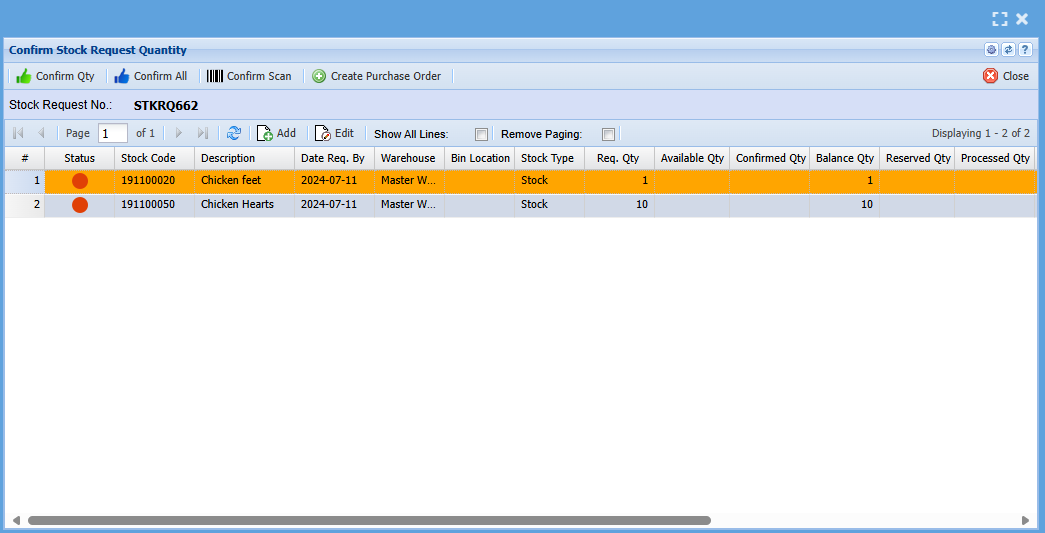
The Storeman will now click the Confirm Quantity Button.
.png)
| 1 | Here the storeman will click Confirm All button, if he has Physically Picked the respective quantities of all the items. |
| 2 | Alternatively, he can click the Confirm Quantity Button and then enter the specific quantity he has picked of the highlighted item. Click save and Close |
.png)
You will notice that the different Quantities displayed on the grid will change accordingly as you confirm the quantities picked.
.png)
.png)
The Storeman will then click the Collection Ready Button
Take note of the pop up Message
.png)
You can double click the line items to ensure that all lines have the Job number linked.
Once you satisfied that all is correct, Click Yes
The below reservation screen will then be displayed
.png)
Click the Reserve Items Button
This will then move the stock on the system from On Shelf to WIP.
The item will also be removed from this grid.
Should you wish to view the items reserved you can select “Show all Lines” and all item lines will be displayed including those items reserved.
.png)
If you mistakenly reserved the incorrect item, you can highlight the item by clicking once on the item line and then click the “Unreserve Items” button
Click Close
Click the “Process To…” button to complete the Stock Request
.png)
The following Screen will be displayed
.png)
If you have picked all the stock and no items or quantities are outstanding, then tick the “Close Stock Request” box and click continue.
This will automatically close the stock request.
If however, you still have items outstanding to be picked, but wish the item picked so far to be collected and taken to the Job, then you will not tick the Close Stock Request Box.
Once you click continue, then an email is sent to the Requester to come and collect the stock and the items picked, confirmed, and Reserved will then be Managed on the Job.
.png)
Click Ok
The stock Request will then be closed (if the box was ticked).
Click Close
Note: if a stock request or any other document linked to a job has been closed, the the Job will not be able to be closed
Therefore, if you have picked ALL the stock on a particular stock request and completed the picking process, it is advisable to tick the “Close Stock Request” box when completing the stock request. Alternatively, this would result in you first having to search for the stock request and closing it in a separate step before the job can be closed upon completion.
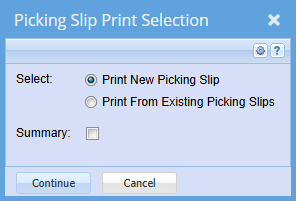
Print Picking Slip
Confirm Quantity