Cashbook Search
Process bank transactions
General Ledger>Activity>Cash Book
.png)
Buttons
| Search | This Button will allow the user to find information relating to the cashbook |
| Add | Is used to add a new Cash book |
| Edit | Allows The user to edit the Cashbook lines. |
| Cancel | This button will allow the user to cancel a cashbook |
| Verify Cash Book | when a user needs to eliminate errors, she or he can first verify the cashbook by using this button, and the report generated will show if there are any existing errors that requires rectifying before processing. |
| Authorise | Cashbook needs to be Authorised before processing. |
| Process Cash Book | when this button is selected the cashbook will be Processed and a GL number will be generated. |
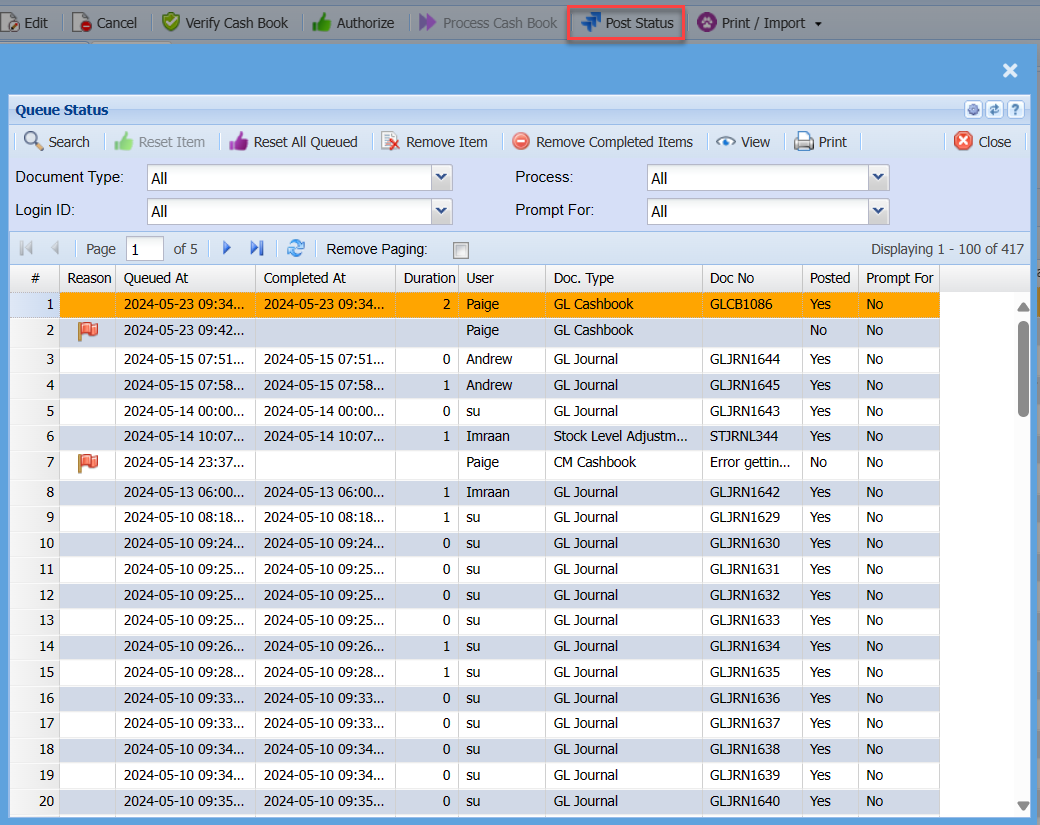
| Post Status | The Post status will let the user know if the Cashbook was successfully processed |
| Print/Import | The Drop down has three functions |
The User Can Print the general ledger cash book report or upload a cashbook saved in A CSV format and then import the uploaded file into the system.
Basic Search tab:
| Cash Book Name | Search using Cash Book name |
| Date | Search using date Criteria |
| GL Bank Accounts | Search using GL Bank Account |
| Cash Book Status | Search Using Cash Book status |
| Cash Book Type | Search using Cash Book type |
| Custom Search | This will be a customised search according to how the company has set up their custom fields. |
| Expand | Allows the user to see more available search criteria’s. |
Cashbook status
There are a couple of statuses a General Ledger Cashbook goes through.
| 1 | Preparation |
| 2 | Authorized |
| 3 | Post Status – Processing section |
| 4 | Posted or completed |
Preparation
Cashbooks that are in Preparation and Authorized exist under the General Ledger Module> Activity> Cashbooks
A cashbook that is in Preparation Status is in this state when you have created a new cashbook and saved it.
To change a cashbook to Authorized Status click on the Process Tab and then click on the Authorize button. This will change the status to Authorized.
.png)
Authorized
Cashbooks that are Authorized exist under the General Ledger Module> Activity> Cashbooks
A cashbook that is in Authorized Status is in this state just before processing into the books.
To change a cashbook to Processing Status click on the Process Tab and then click on the Process button. This will change the status to Processing Status.
Processing Status
To check whether a Cashbook has been successful posted to the books one will click on the Post Status button under the
General Ledger Module> Activity> Cashbooks> Process Tab.
This will open a new window to check whether the Cashbook has been successfully posted. Check the column that says “Posted”, if there is a Yes then the Cashbook was successfully posted into the books. However, if there is a No, check the button with the three dots “…” as to why it was not posted.
You can then “Reset the Item” under the tab called Queued and a button called Reset Item. This will remove the Cashbook book from this status and put it back into authorized status. You can then correct the problem and try and repost.
.png)
Posted or Completed Status
To check whether a Cashbook has been successful posted to the books one will click on the Post Status button under the
General Ledger Module> Analysis> Cashbooks History.
.png)
Post Status