
BankIT Process
The Bankit bank feed intelligence assist users to allocate general ledger accounts automatically before creating a cashbook.
General Ledger>Activity>BankIt
BankIT Flow chart
Below is a chart of the process to complete bank transactions to cash book processing
.png)
BankIT Search
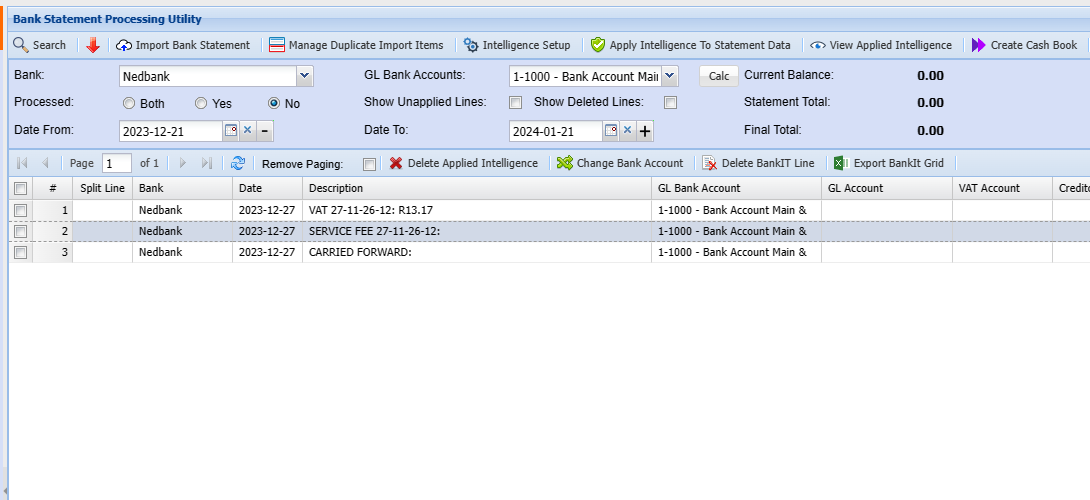
Buttons explained
| Search | Search to see bank transactions (this is based on date and whether processed or not - default is No) |
| Delete Bankit line | This does not actually delete the line. The line is marked as deleted and records date and time the line was deleted and by whom. (use this to remove a duplicate imported bank line) |
| Show Deleted Lines | When ticked, the result of the search will only display the deleted lines for the selected bank, bank account and date range |
| Import bank statement | Import the bank statement from your bank |
| Intelligence setup | view all the bank intelligence rules setup including system and manual |
| Apply intelligence to statement data | run this utility to assign intelligence to the imported data |
| Delete intelligence on this line | if intelligence was incorrectly applied, delete the intelligence and re-apply |
| Change bank account | if you have imported the bank lines into the wrong bank account, select records and change to another bank account |
.png)
| View Applied intelligence | view the what intelligence was applied to the line. Change applied intelligence |
| Export Bankit grid | export all the data view on the grid to Excel |
| Create cash book | once the intelligence is applied, run the final step of creating a cash book |
| Calc | View the balances of bank imported data and cash book balance to give final total - match with actual bank statement balance |
BankIt Import
After you have downloaded your bank statement into a CSV file, the data needs to be imported into the system
The positive feature of Bankit is that the system remembers the original bank file format. This means that you can view past bank statement information.
| Bank | Select your bank |
| General Ledger bank accounts | select your bank account that you are importing |
| File | Find your file you downloaded. |
Process will be to Upload file and then Import file.
NOTE: it is important to import into the correct GL bank account
.png)
After import, data will be displayed
Next step is to Apply Intelligence to statement data
.png)
Apply Intelligence to the Bank Statement Data
This is the screen where all the Rules that have been created are applied to the bank statement data.
Click on Start to get the process going.
Once the process had finished and the message appears "Completed Automatic Intelligence Allocation."
.png)
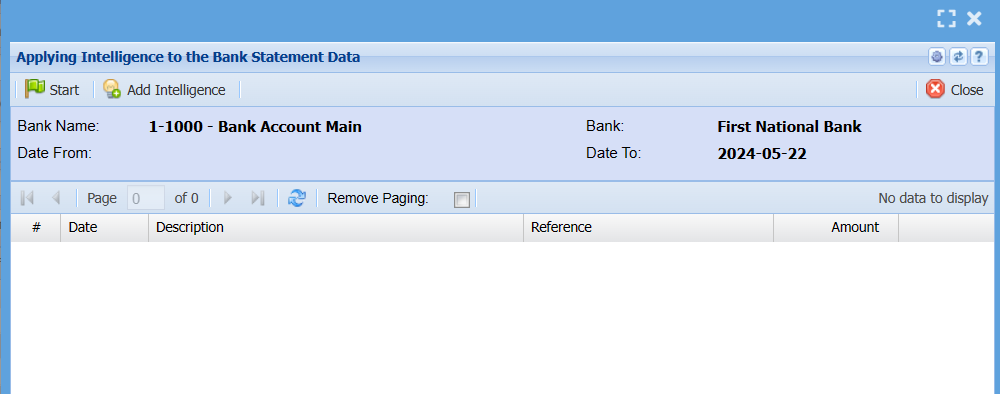
Click on Ok and the grid will be populated with all the records that were not processed by the automatic intelligence allocation. Either double click on a selected line or click on the line and click on the Add Intelligence button. The Bank Rules Maintenance screen will appear.
You can now apply a specific rule for this line using one of the four options and the appropriate parameter to ensure that in future this line will be satisfied by the rule that is being created.
Select the applicable GL Account, and if the GL Account happens to be either the Debtors Control or Creditors Control then either a Debtor or Creditor must be selected in the appropriate dropdown.
Enter the transaction description that will be used when these lines are promoted to a cash book.
Once satisfied that the rule will handle this line click on Save / Save and Close. This rule will immediately be applied to the line on the grid and that line will disappear from the grid.
If there are addition lines still on the grid that this new rule will apply to, Do Not Create another rule for the same condition. Simply click on Start button again and the process will run through the Apply Intelligence Process again and apply this rule to any lines to which it applies.
This process should be repeated until all the lines have been satisfied with a rule and next time when new bank statement lines have been imported all these rules will be applied to the new lines.
.png)
If there are lines on the grid that are a once off transaction and creating a rule for them would be a waste then these lines can be handled in one of two ways.
| 1 | Either use the default GL Account that is offered when the Create Cash Book button is clicked and there is a debit or credit GL Account to be selected there. These lines can then be edited again in the cash book to apply a different GL Account to it. |
| 2 | Exit this screen to the Main BankIt screen click in the tick box Show Unapplied Lines and click on Search. This will display only those lines that were not satisfied by the Apply Intelligence Process |
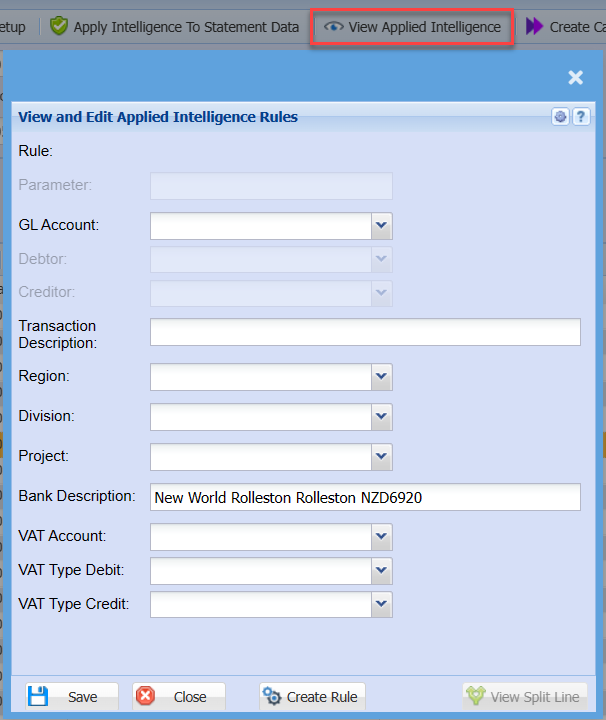
Either double click on a selected line or select a line and click on the View Applied Intelligence button. A screen will appear where a specific rule can be entered for this line i.e. GL Account, Debtor / Creditor (if applicable), Transaction, Region, Division and Project. This rule is not saved in the Rules Setup and is only ever applicable to this line.
Manual Intelligence
Check the intelligence applied, double click online to check intelligence and correct.
or double click to add a manual intelligence WITHOUT adding to the intelligence rules.
This could be a once off transaction which does not require a rule to be setup.
Blank lines intelligence
One does not have to allocate every line for Bankit, you can leave it blank.
The system will automatically allocate to the default general account when processing to the cash book.
This can be fixed at cash book level or will need to be fixed with a journal later on as it is allocated to a suspense account.
.png)
Bank Payment information
Once Intelligence has been applied to the bank statement data.
One can update the payment information that was setup against the creditor and payment ledger accounts.
Payment information can be applied to both processed bank data and not processed data as long as intelligence has been applied.
This information added, helps for reporting for BankIT Payments out.
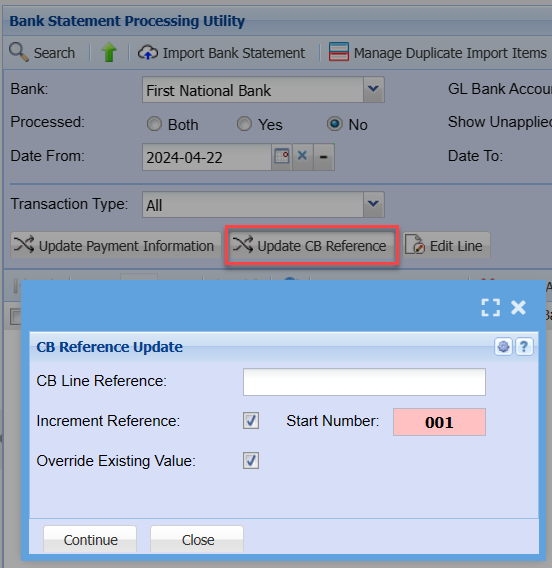
There are three functions that can be done on the lines
| 1 | Update Payment information - This will check the bank statement line and if intelligence has been applied to the Creditor or GL account, it will update the default information that was setup in Creditors setup and GL accounts setup. |
| 2 | Update CB Reference - Update Cashbook Reference on lines, Bulk update bank lines with the Cashbook reference. Future work will be to use this Cashbook reference to update actual cashbook |
| 3 | Edit line after Intelligence and update payment information actions have run. |
.png)
Cashbook process from BankIt
When all intelligence has being applied, process the data to the cash book
There are a couple of defaults that will populate the cash book screen so that you don't have to fill this in all the time.
These defaults are found under the System Configuration Module > Administration > Defaults
The Cash book Name, description and reference will pick up from the last created cash book from the BankIt.
Remember to change these when creating a new cash book
.png)
Defaults from System Configuration
.png)
Cancelling a Cashbook will revert all BankIt information as unprocessed and will appear in your next process to cashbook function