
Add GL Cashbook
Go to General Ledger Module > Activity > Cashbooks
Click on the Search button to check for any open cashbooks
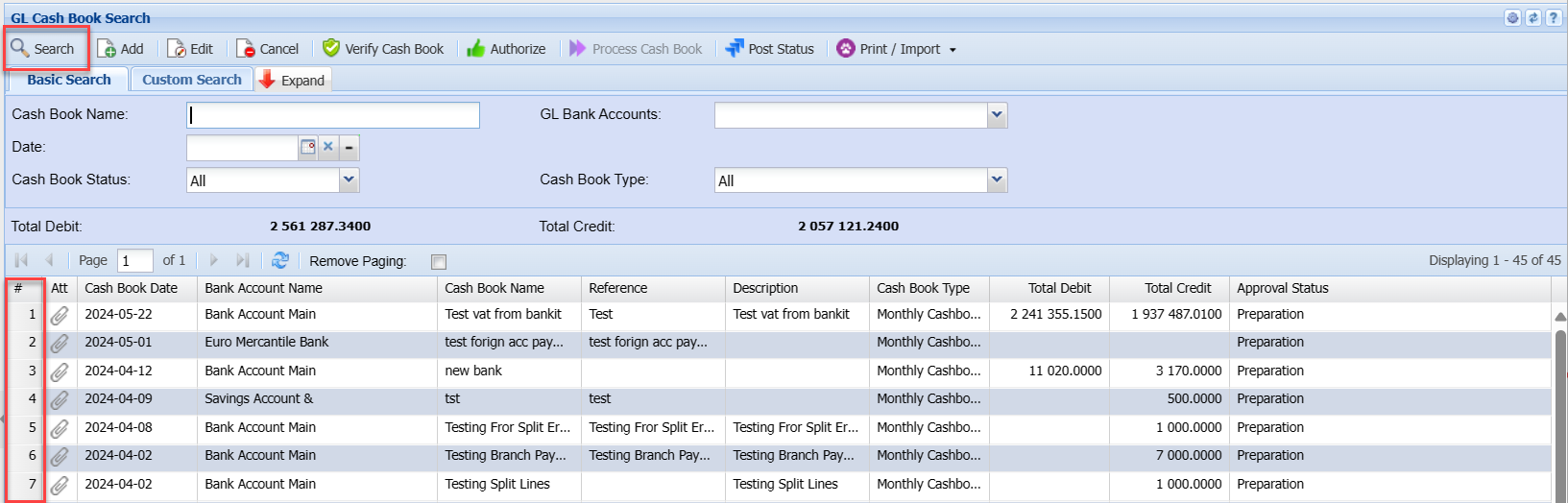
Creating a new cashbook, click on the Add button.
Select the bank account which is going to affect this batch.
| Enter a Cashbook Name | As per your company preference |
| Enter Reference field | As per your company preference |
Click on Save-to-save changes to your header batch details. These details filled in are only relevant to search and find the actual cashbook.
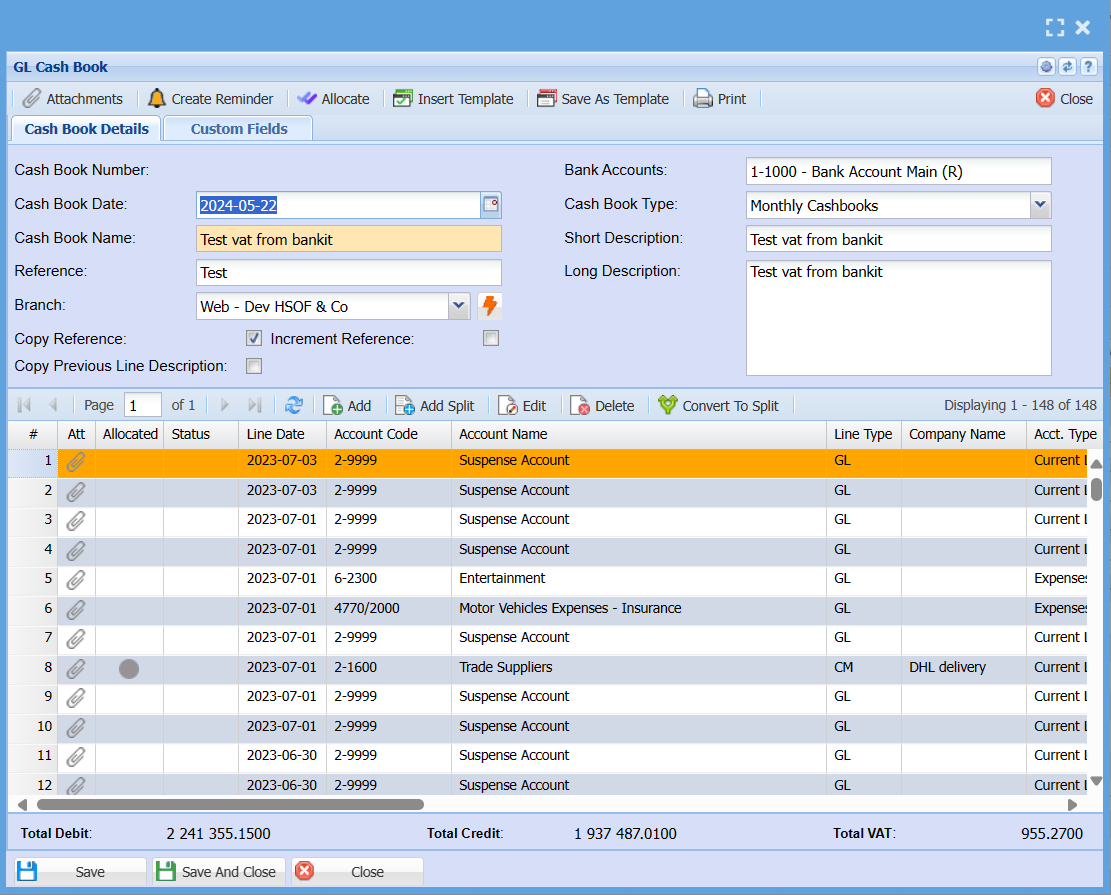
Your cashbook lines contain the actual data seen on documents.
After saving one will notice the Insert, Amend and Delete buttons become available.
Click on the Add button to, Add cashbook transaction line.
There are three ways to enter a line – General Ledger is the default.
| General Ledger | This searches ledger accounts and affects the bank and ledger account selected. |
| Debtors | This searches customer accounts and affects the bank and the customer account selected. |
| Creditors | This searches supplier accounts and affects the bank and the supplier account selected. |
Cashbook Type: General Ledger type selected
Select the date of the transaction that is per the bank statement date.
One will notice the reference is copied from your batch header, you can change it if you want.
(to increment reference put a tick on Increment Reference on the Batch header).
Select the account.
There are three ways to search for an account:
| a. | Short Search | just type in part of the code or name and hit enter on the keyboard and select the account. |
| b. | Tree Search | Clicking on the square with three dots allows you to find the account via the Tree view. |
| c. | Long Search | Clicking on the Arrow button opens a new window where you can search on the code or name. |
Select the entry type:
a. Payment / Credit
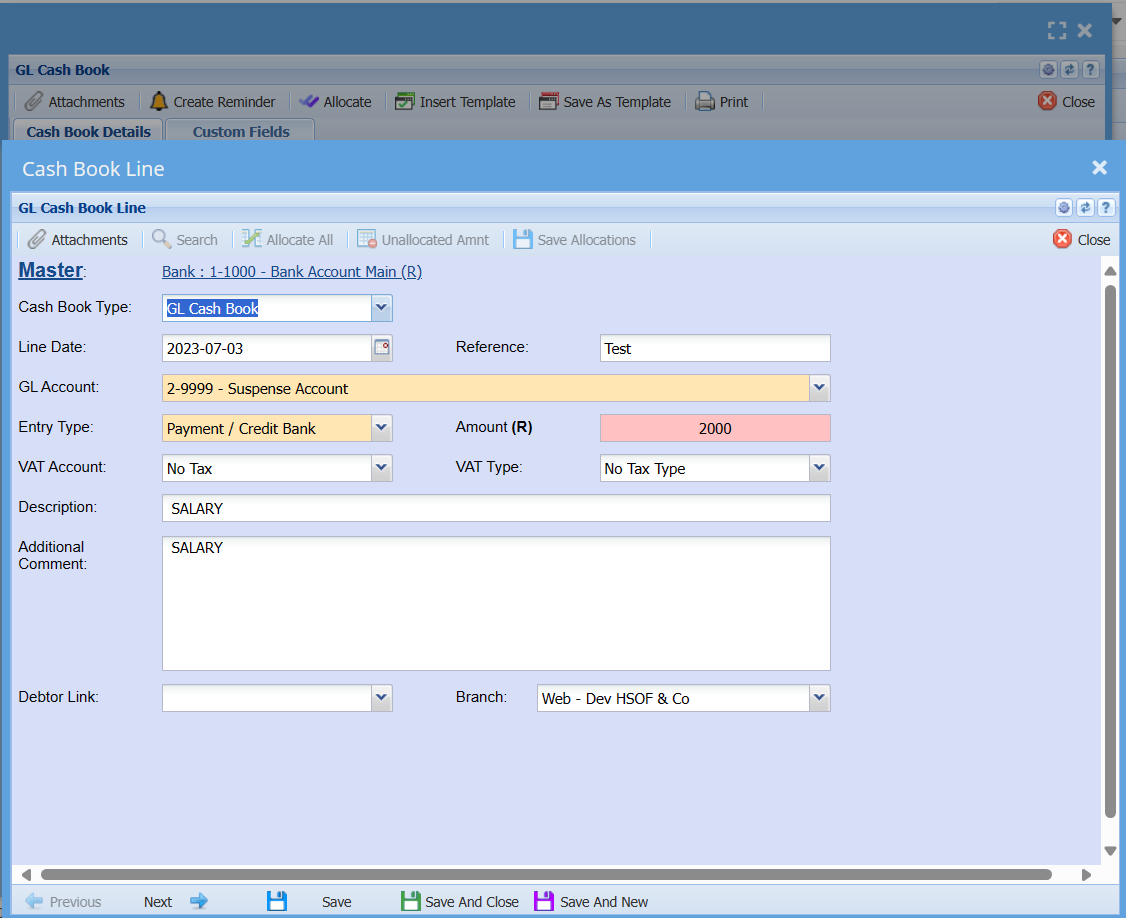
This is when one is paying money out of the bank account
Debit – Bank and Credit – Ledger account
b. Deposit / Debit
This is when one is depositing money into the bank account
Credit – Bank and Debit – Ledger account
| Entry Amount | enter the amount including VAT that affects the bank. |
| Tax Account | you will notice that if one selects the Payment entry type the VAT control ledger account comes up with the Tax Type being 4 Cashbook VAT. If one selects the Deposit entry type the VAT control ledger comes up with No Tax, therefore not allocating to the VAT control account. |
| Description | Enter the name of the company you are paying or deposited from. |
| Additional Comments | Enter comments for later information needed. |
| Job | assign this cost to a Job |
| Projects | assign this cost to a Project |
Click on Save and Close
OR Click on Save and New to enter another entry.
Allocate
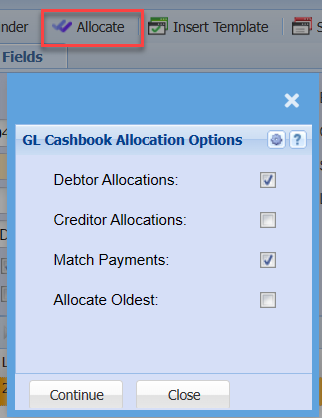
| Debtor Allocations | |
| Creditor Allocations | |
| Match Payments | |
| Allocate Oldest |
Template tab
Templates are good to use when one has the same transactions every month eg. Monthly debit orders or monthly salary payments.
There are two options
| a. | Insert Template |
| b. | Save as Template |
Insert Template
Once you have saved a template from a previously captured cashbook, you can insert this into the cashbook.
Save as Template
Allows you to save this cashbook lines as a template for further use.
Insert Template
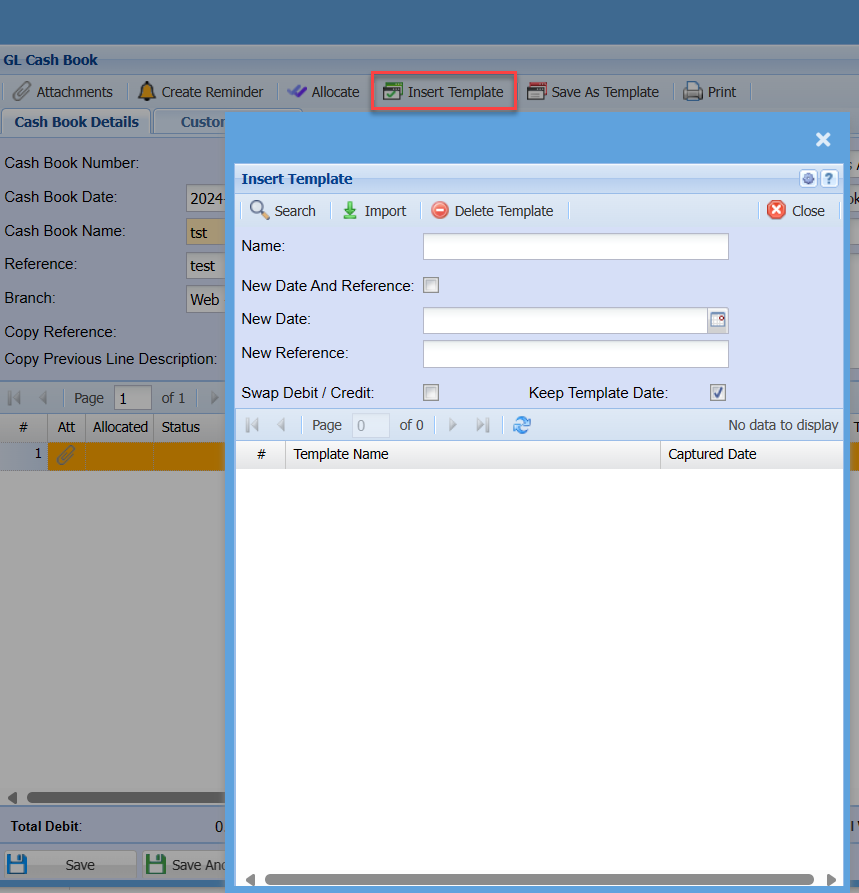
| Search | |
| Import | |
| Delete Template | |
| Name | |
| New Date and Reference Tick | |
| New Date | |
| New Reference | |
| Swap Debit / Credit Tick | |
| Keep Template Date Tick |
Save As Template
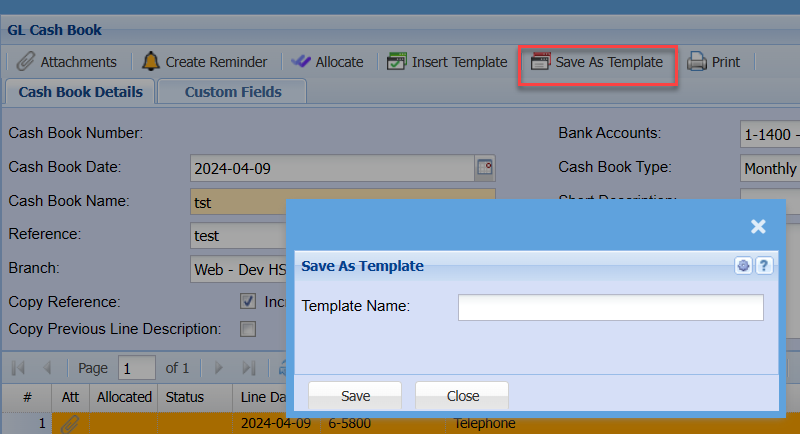
| Template Name |