Shopify
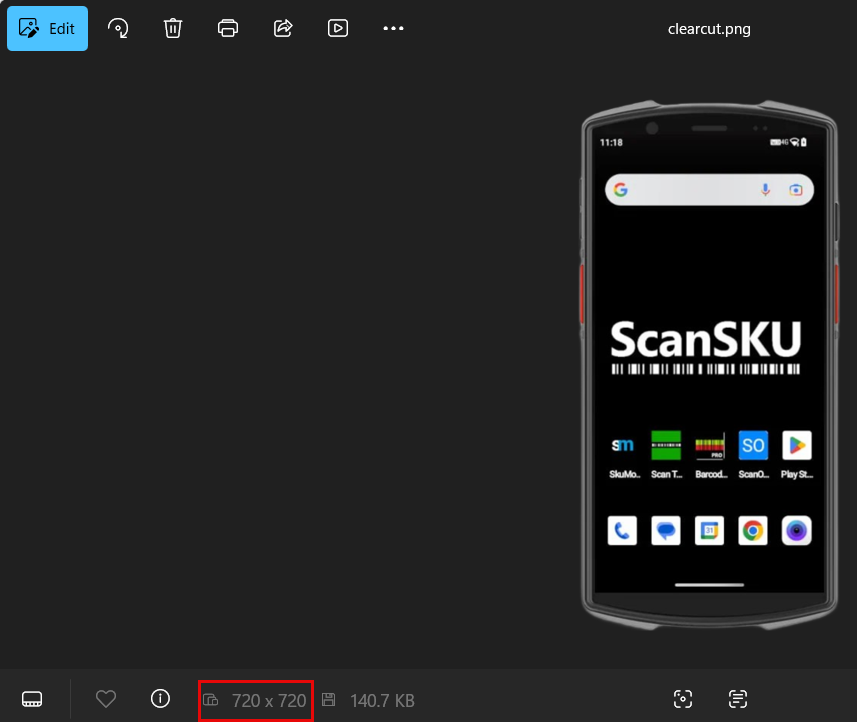
Resize your Primary image in Huge ERP to 720 x 720
This will have the image appear a normal
Selecting Your Theme
First you need to choose the theme for your page.
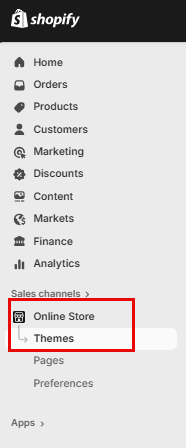
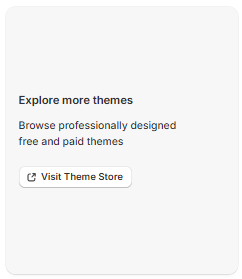
Click on "Online Store" and then "Themes" The Dawn Theme will automatically be installed by default, however if you want to change the Theme, scroll down and click on "Visit Theme Store"
Customize your Store
To customize your store, click on "Customize" this will take you into the store editor.

Announcement Bar
Here you can add a welcome message to your Shopify store page
Click on "Announcement" and on the right you add the text.
Here you can add, discount codes or let your customers know at what amount they qualify for free shipping and so forth.

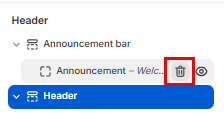
You can delete this bar as well by hovering over "Announcement" and clicking on the Bin icon
Header Bar
You can change this bar to look however you want.

Hero Image
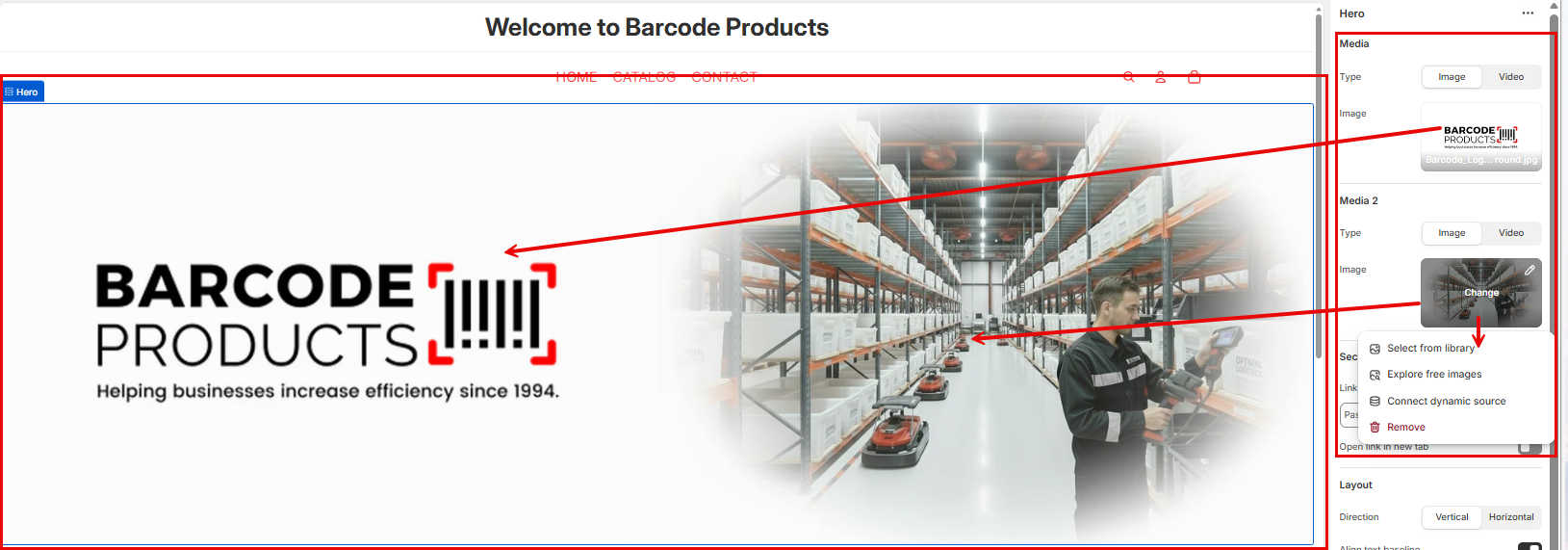
Add your Hero Image by clicking on "Hero" on the left side on the screen.
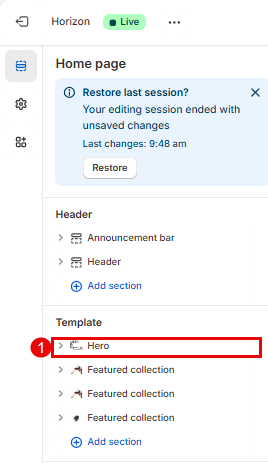
Click on the image icon on the right of the screen for "Media" and "Media 2", Here you can also add a will see it have teh word "Change" in the middle which will give you the option to add an image from Library or you can search for a free image.