
Quotation Search
Video training manual 2016 - Click Here
Debtors Module> Activity> Quotation
Basic Search
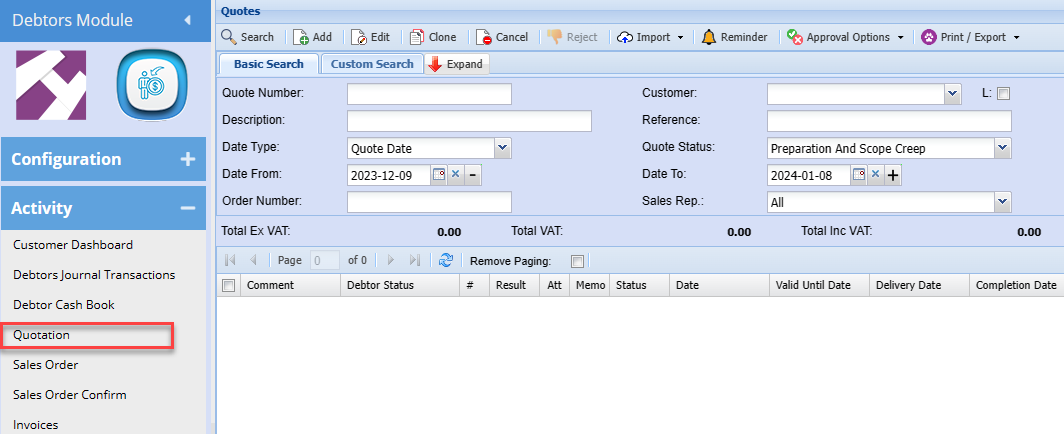
On the Basic Search Tab, the user can search the quotes by entering information on the following fields
| Quote Number | Search by entering the quote number |
| Description | Search by entering the description of the quote |
| Date Type | Select the quotes based on date type being Quote date, Quote valid to date, Quote completing date or Quote Delivery date |
| Date From | Select the from date for your search date range |
| Order Number | Search for quote based on client order number |
| Customer | Search by selecting the customer |
| Reference | Search quote by reference entered |
| Quote Status | Select status quote you want to search by on the drop down |
| Date To | Select the to date for your search date range |
| Sales Rep | Search the quotes by selecting the sales rep from the drop down arrow |
Custom Search
Custom Search Tab allows the user to search by selecting from the category
Standard Tab has the following buttons
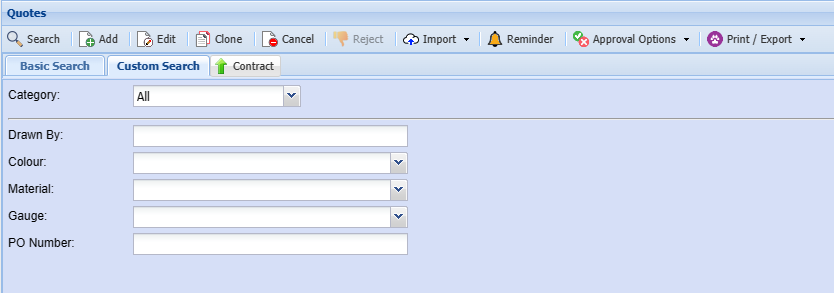
The custom search allows ones to search by custom fields setup
if you have custom fields created and linked to quotes, you can search quotes using any of the custom fields linked on the quote
Approvals Options
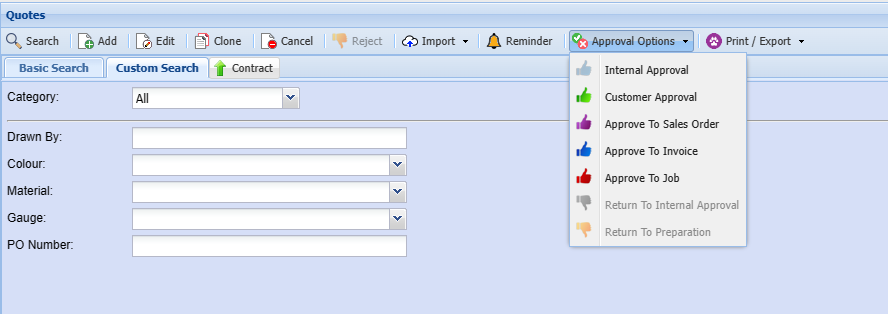
Approve Tab has the following buttons
For the Employer/Employees to approve the quote |
|
This is what a customer will use to approve a quote |
|
Promotes the quote to a sales order |
|
Promotes the quote to an invoice |
|
| Approves the currently selected Quote item to be used in various other forms. | |
| Return to Internal Approval | Reverts the quote status from Customer approval to Internat approval |
| Return to Preparation | Reverts the quote status from Internat approval to Preparation |
Print Tab has the following buttons
| Print button | Prints the currently selected Quote Item. |
| Print Job Card button | Prints the job card for the currently selected Quote Item. |
Import Quote from CSV
.png)
The file to be imported must be in a CSV format.
Click on the Select Files…Files… button to open the navigate window allowing the user to navigate to the file to be imported.
Once the desired file has been located either double click in the file or click the Open button.
Now click on the Upload button. If the upload was successful a window will appear confirming that the upload was successful. Click Ok.
An Import Report will open displaying any errors in the import or displaying the successful quotes that were imported.
Note: Please request the Quote Import –– Template file from Huge ERP Support.
Print Options
Print Quote
Debtors> Activity> Quotation> Print /Export
Print quote from here and email to your clients
.png)
.png)
Print Job Card
Debtors> Activity> Quotation> Print /Export
Select A quote that has a job number and select print job Card form the drop-down arrow.
.png)
.png)
Print Service Card
Debtors> Activity> Quotation> Print /Export
| Print a service card | select a quote with a job number and print a service card from the drop down list |
.png)
Print Grid
Debtors> Activity> Quotation> Print /Export
.png)
| Opens Up the email function. | |
| Copy | copies to clipboard to enable exporting to excel |
| print a hard copy for use. |
Print Job Header
Select Job Header Print Help
Debtors> Activity> Quotation> Print /Export
| Generate | Generates a print layout according to the information contained in that specific Job History Item |
.png)
.png)
Bulk Print
Quote Print Selection Popup Help
Debtors> Activity> Quotation> Print /Export
.png)
This popup window allows the user to select the layout of the quote to be printed.
Debtor Quote is typically used for Debtor Quotes and Standard Job Quotes.
Job High Level is typically used for Job Costing Quotes where Task items have been selected as a line item in the quote. This layout option will print all standard items e.g. Stock, Service and Custom as normal and only the Task Code and Description with the total value of the Task.
Job Detail Contex is typically used to Job Costing Quotes where Task items have been selected as a line item in the quote. This layout option will print all standard items e.g. Stock, Service and Custom as normal and in the case of the Task items, the actual Stock, Service or Custom code will be printed, and the actual item’item’s description will be preceded by the Task’Task’s description e.g. Task Description…Description…Standard Item’Item’s Description with the actual quantity and value of the Stock, Service or Custom item.
Job Inventory Items is typically used for Job Costing Quotes where Task items have been selected as a line item in the quote. This layout option will print only the standard Stock, Service or Custom items on the quote.
Bulk Email
Quote Print Selection Popup Help
Debtors> Activity> Quotation> Print /Export
.png)
This popup window allows the user to select the layout of the quote to be emailed.
Debtor Quote is typically used for Debtor Quotes and Standard Job Quotes.
Job High Level is typically used for Job Costing Quotes where Task items have been selected as a line item in the quote. This layout option will print all standard items e.g. Stock, Service and Custom as normal and only the Task Code and Description with the total value of the Task.
Job Detail Contex is typically used to Job Costing Quotes where Task items have been selected as a line item in the quote. This layout option will print all standard items e.g. Stock, Service and Custom as normal and in the case of the Task items, the actual Stock, Service or Custom code will be printed, and the actual item’item’s description will be preceded by the Task’Task’s description e.g. Task Description…Description…Standard Item’Item’s Description with the actual quantity and value of the Stock, Service or Custom item.
Job Inventory Items is typically used for Job Costing Quotes where Task items have been selected as a line item in the quote. This layout option will print only the standard Stock, Service or Custom items on the quote.
Export Grid
Debtors> Activity> Quotation> Print /Export
Exports the document search grid to excel
.png)