Debtor Cash Book Search
Video training manual 2016 - Click Here
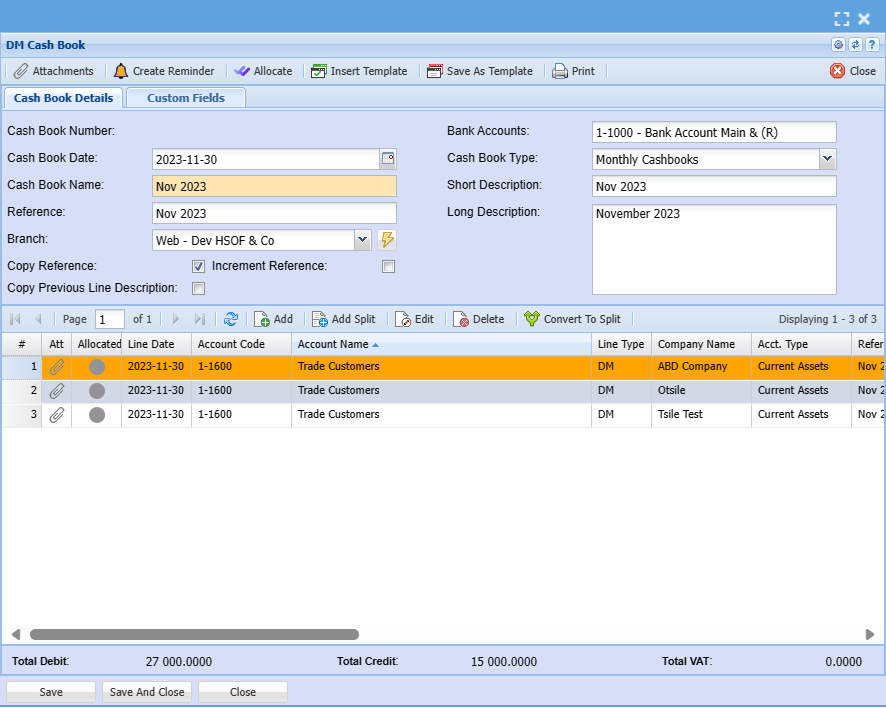
This allows a user to prepare debtor’s financial records.
Debtor/Customer Module> Activity> Cashbook
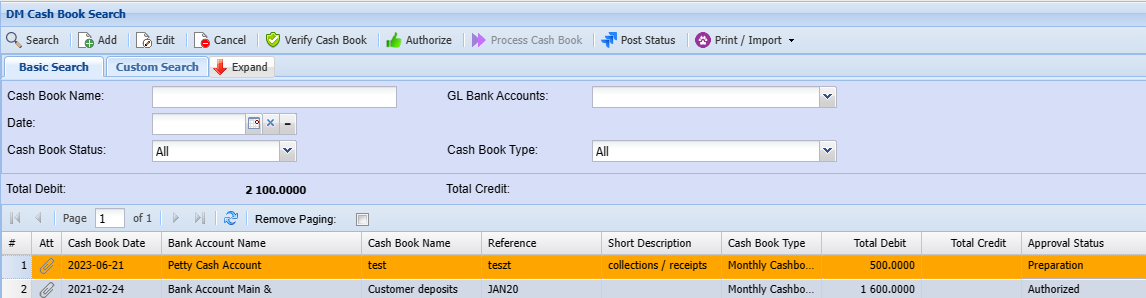
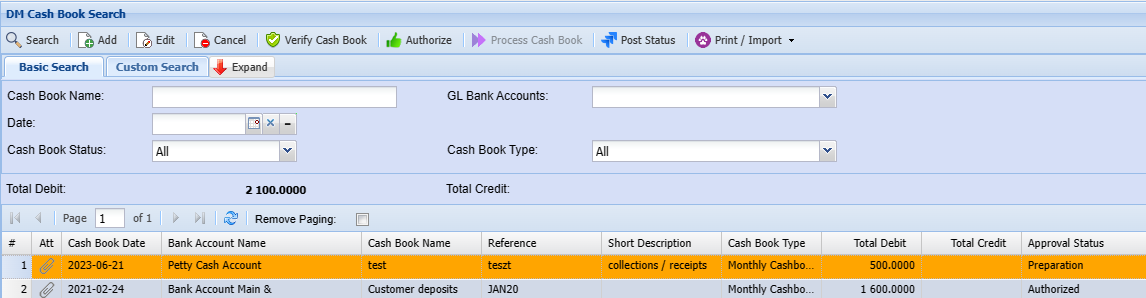
Debtor/Customer Cash Book Basic Search
You can search by the following:
- Cash Book Name
- Cash book Date
- GL Bank Accounts
- Cash Bool Status
- Cash Book Type
Adding
a
Debtors Cashbook Search New
Debtors Cashbook is where we capture Debtors payment entries
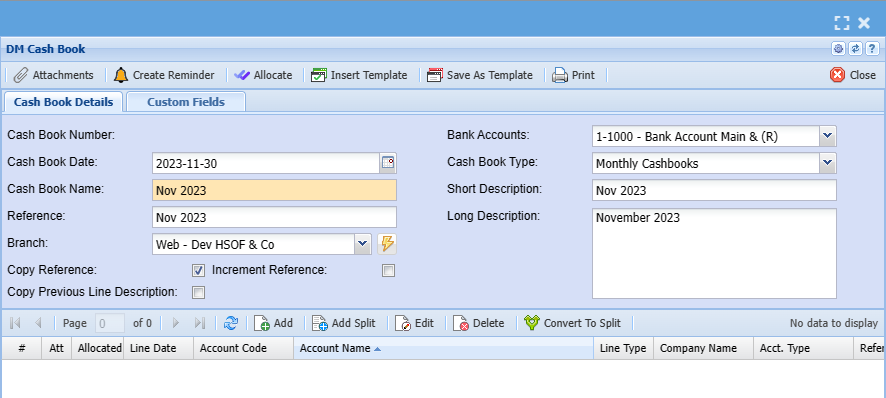
Debtors Module> Activity> Debtors Cash Book ToSearch create a cash book you first need to capture details below regarding a cash book
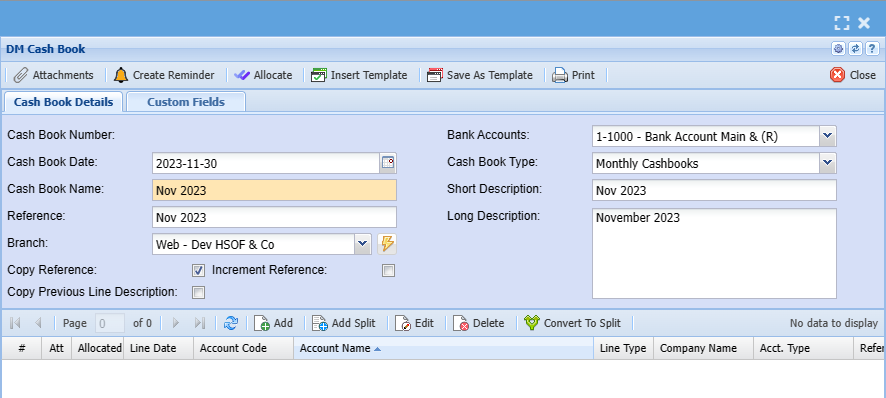
Cashbook NumberSearch |
ThisSearch isfor thean Numberalready thatcreated is Generated in the system when a Cashbook is saved.cashbook |
Cash book DateAdd |
TheAdd Systema defaultsnew to today’s date the user can adjust the date of the cashbook.cashbook |
Bank AccountsEdit |
Thisedit isexisting aLines list of company bank accounts for transactions.function |
Cash Book NameCancel |
Thiscancel willa be the way the Cashbook is identified in the company bookscashbook |
Verify Cashbook Type |
Thisverify willthe becashbook eitherlines Dailybefore Cashbook or Weekly or Monthly.posting |
ReferenceAuthorize |
ThisAuthorize willcashbook bebefore processing this activates the referenceprocess for this cashbook.button |
ShortProcess DescriptionCashbook |
Thepost Given Short Description forto the Cashbook.ledger account |
LongPost DescriptionStatus |
The Long Description forCheck the Cashbook.posted status |
Increment ReferencePrint/Import |
It Increasesprint the numbercashbook bygrid oneor exampleimport ifdata thefrom user Reference is CB 1 and the tick is added on the ‘increment reference’, when you add a new line, it will add one to the number. |
Copy Reference |
It Copies the reference.excel |
in the cashbook details header and Save.
.png)
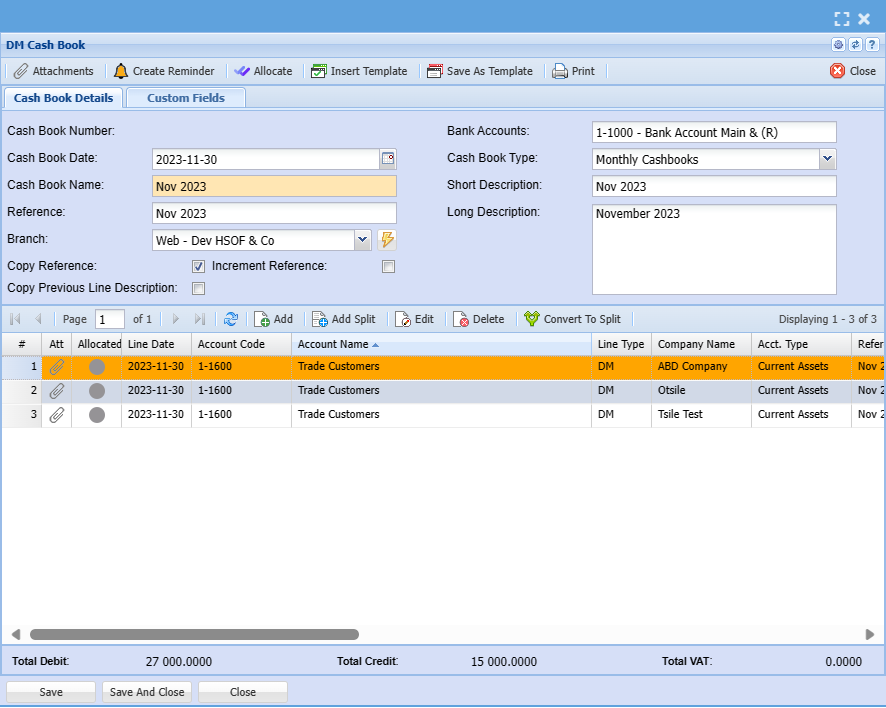
Add Cashbook Items
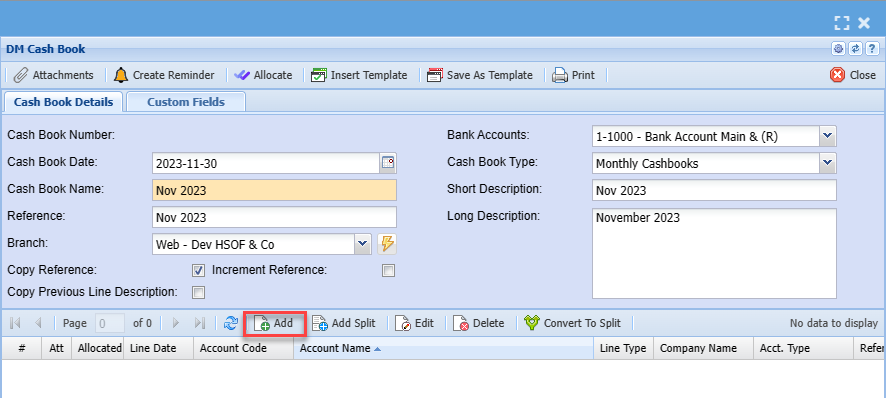
To add cash book items you need to click on the middle Add below
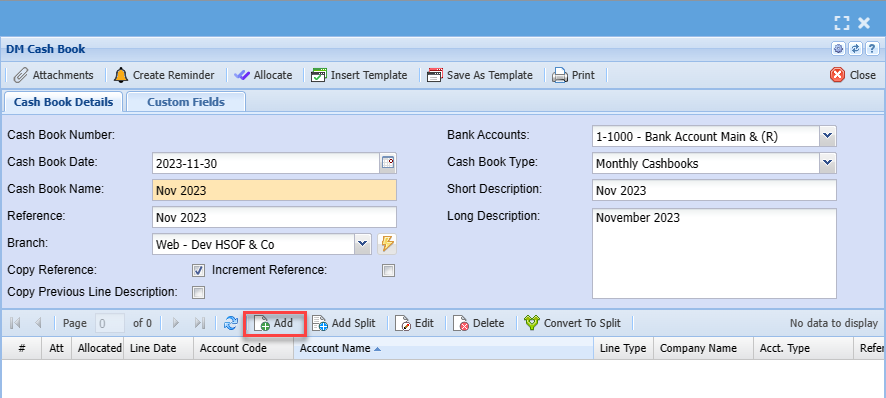
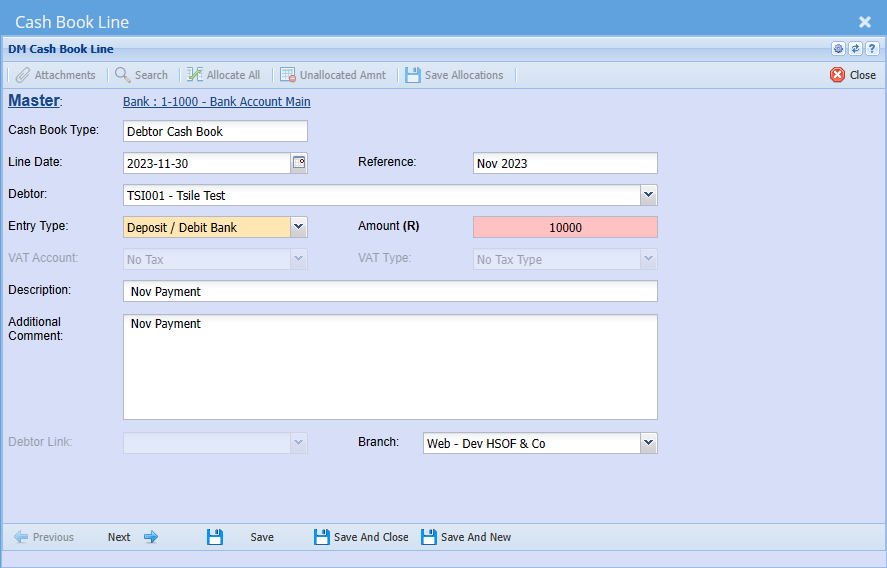
After clicking on the middle add you will see the screen below:
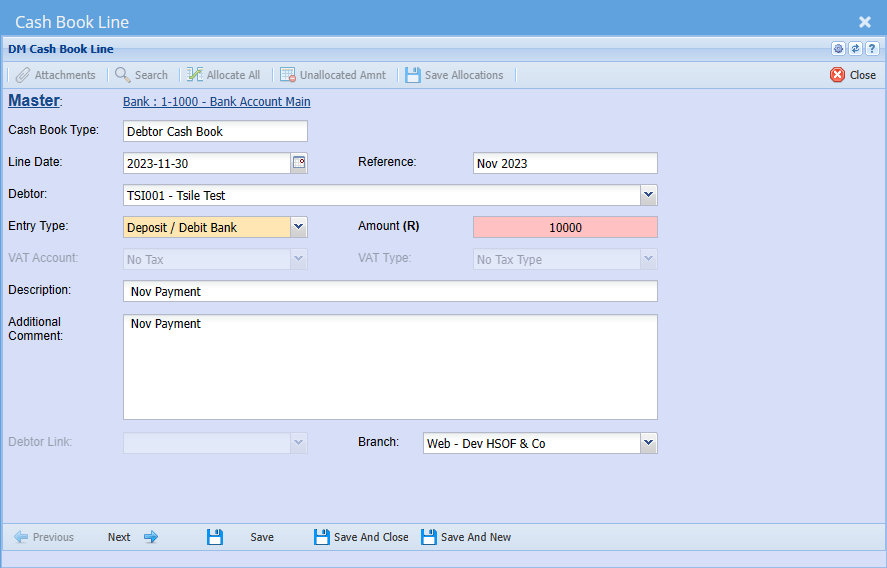
Cash Book Type |
Cash book type should be debtor/ customer cash book |
Line Date |
Add a date the payment was received |
Reference |
Add appropriate reference |
Debtor/ Customer |
Enter debtor name |
Entry Type |
Select entry type on the dropdown |
Amount |
Enter the amount reflecting on the payment |
VAT/ GST Account |
Select VAT/GST Account on the drop down |
VAT/ GST Type |
Select VAT/GST type on the drop down selection |
Description |
Add description for cash book |
Additional Comment |
Add additional comment if any |
Debtor Link |
|
Branch |
The default branch will show, they you want to change the branch then select the right on on the drop down selection |