Debtor Cash Book Help
Video training manual 2016 - Click Here
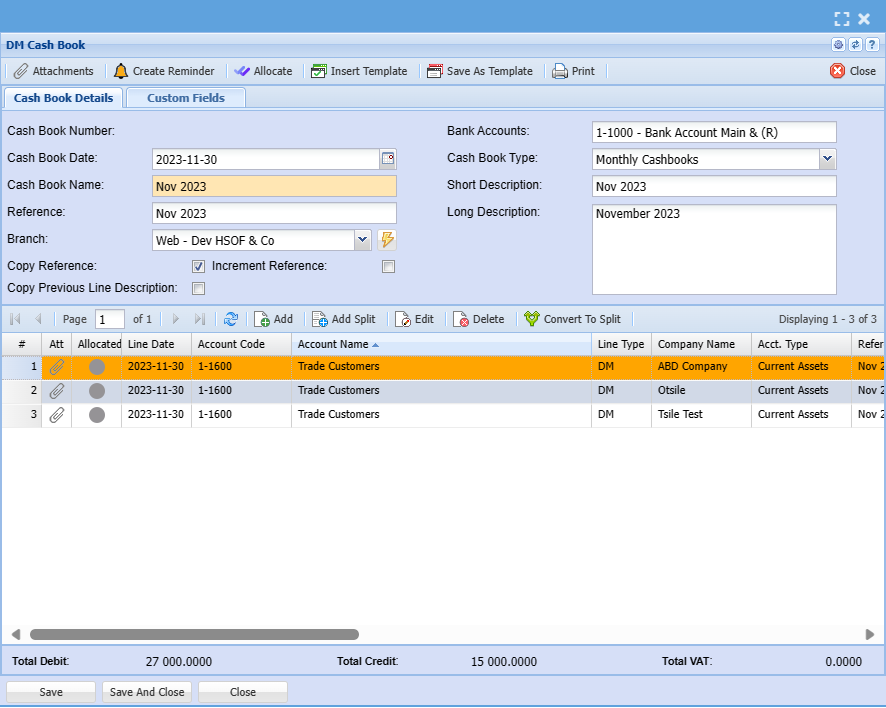
This allows a user to prepare debtor’s financial records.
Debtor/Customer Module> Activity> Cashbook
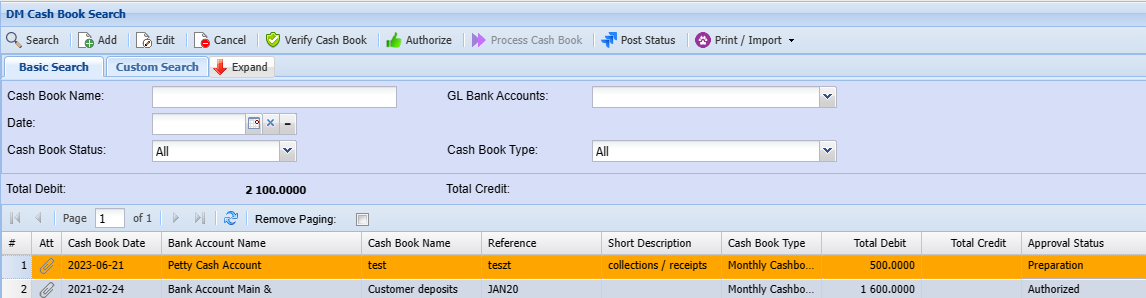
Debtor/Customer Cash Book Basic Search
You can search by the following:
- Cash Book Name
- Cash book Date
- GL Bank Accounts
- Cash Bool Status
- Cash Book Type
Adding a Cash Book
To create a cash book you first need to capture details below regarding a cash book
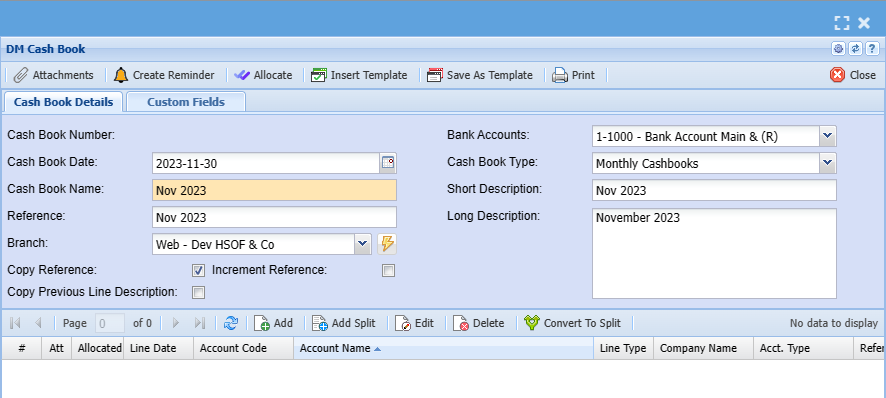
| Cashbook Number | This is the Number that is Generated in the system when a Cashbook is saved. |
| Cash book Date | The System defaults to today’s date the user can adjust the date of the cashbook. |
| Bank Accounts | This is a list of company bank accounts for transactions. |
| Cash Book Name | This will be the way the Cashbook is identified in the company books |
| Cashbook Type | This will be either Daily Cashbook or Weekly or Monthly. |
| Reference | This will be the reference for this cashbook. |
| Short Description | The Given Short Description for the Cashbook. |
| Long Description | The Long Description for the Cashbook. |
| Increment Reference | It Increases the number by one example if the user Reference is CB 1 and the tick is added on the ‘increment reference’, when you add a new line, it will add one to the number. |
| Copy Reference | It Copies the reference. |
Add Cashbook Items
To add cash book items you need to click on the middle Add below
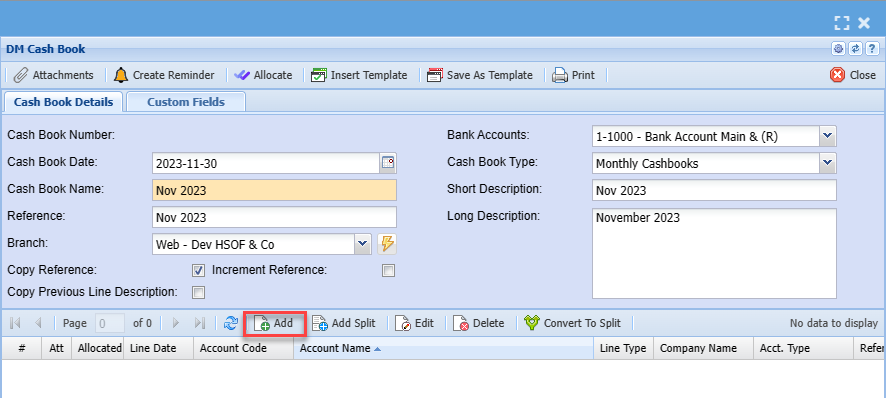
After clicking on the middle add you will see the screen below:
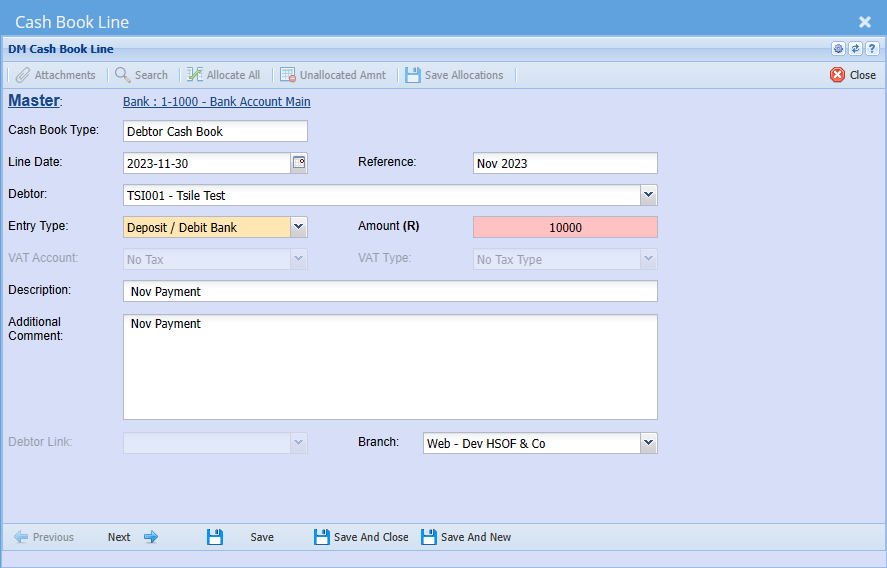
| Cash Book Type | Cash book type should be debtor/ customer cash book |
| Line Date | Add a date the payment was received |
| Reference | Add appropriate reference |
| Debtor/ Customer | Enter debtor name |
| Entry Type | Select entry type on the dropdown |
| Amount | Enter the amount reflecting on the payment |
| VAT/ GST Account | Select VAT/GST Account on the drop down |
| VAT/ GST Type | Select VAT/GST type on the drop down selection |
| Description | Add description for cash book |
| Additional Comment | Add additional comment if any |
| Debtor Link | |
| Branch | The default branch will show, they you want to change the branch then select the right on on the drop down selection |